Standard and upIncluded in the Standard, Pro and Elite packages.
Combine a drawing's runs on a proposal
When a drawing has several runs of the same fence, combine them into one section on the proposal with one total length and one set of parts.
A proposal made from a drawing gets one section for each run of fence you drew, each with its own length and its own parts. When several runs are the same fence, Consolidate combines them into one section, so your customer sees one length and one set of parts instead of a list per run.
Who can do this: Sales, Office and Admin.
-
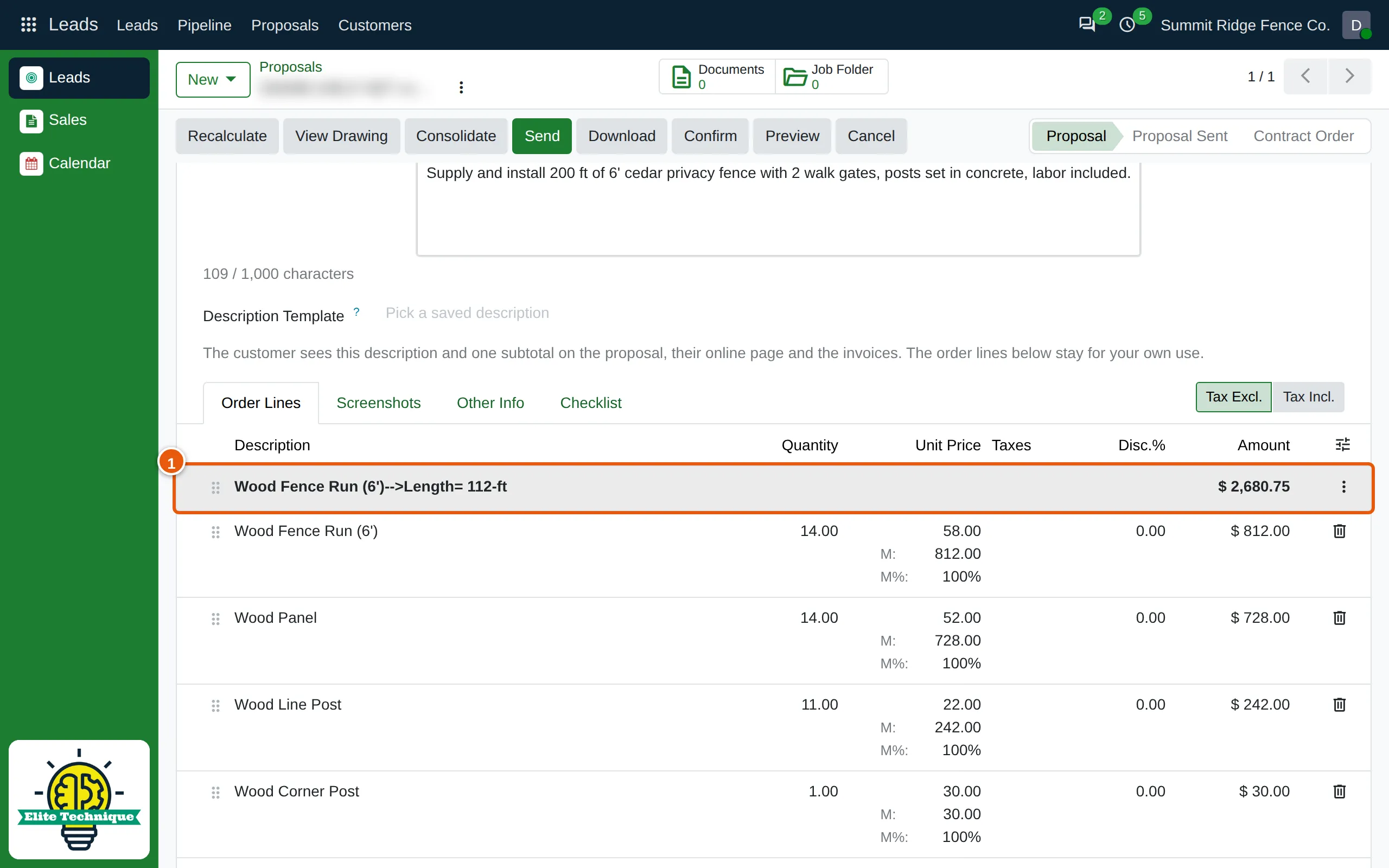
Open the proposal. Each run of the same fence has its own section on the Order Lines tab. Here the first run is Wood Fence Run (6’)–>Length= 112-ft (1) …
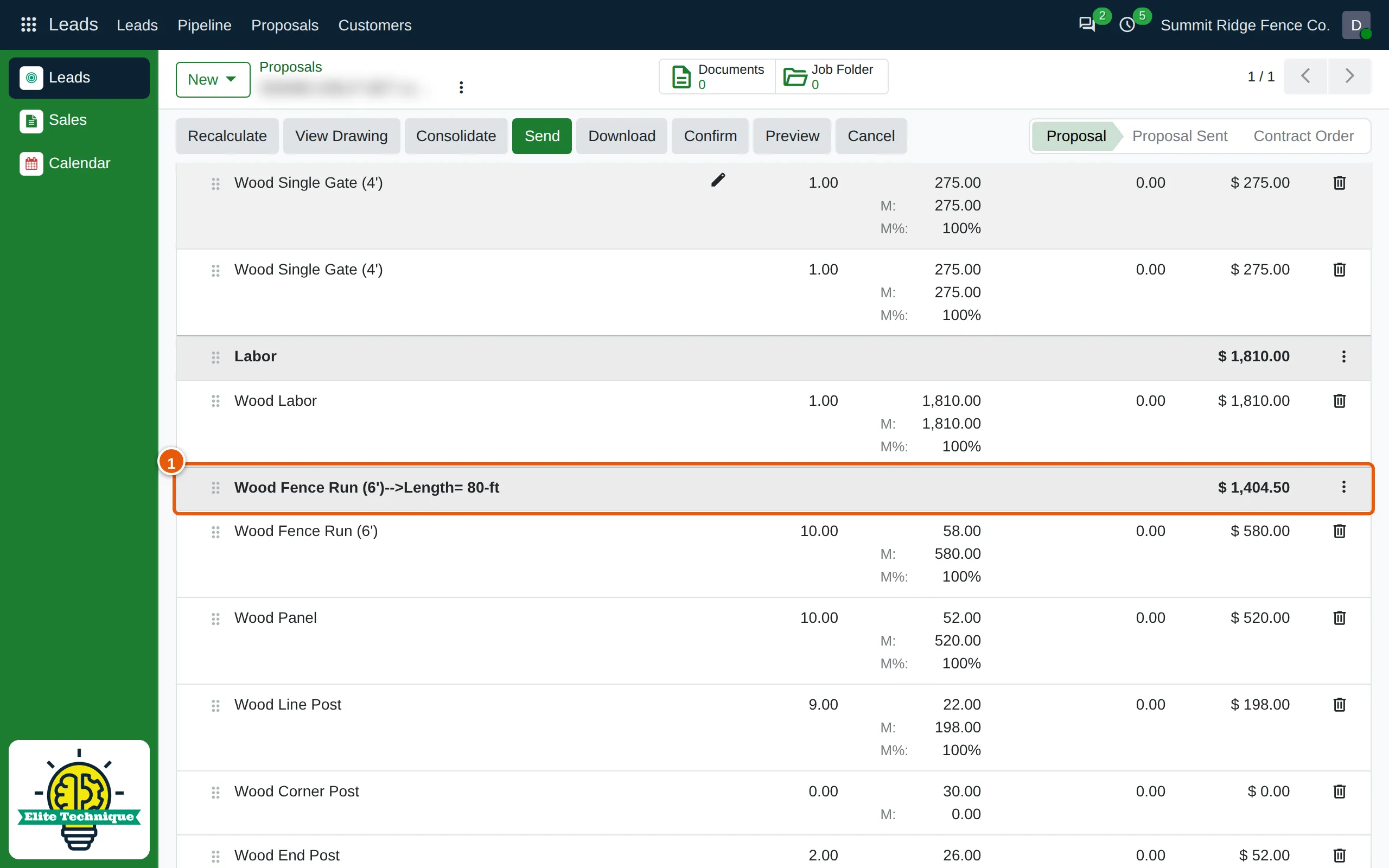
… and further down, the second run is Wood Fence Run (6’)–>Length= 80-ft (1), with its own panels, posts and caps.
-
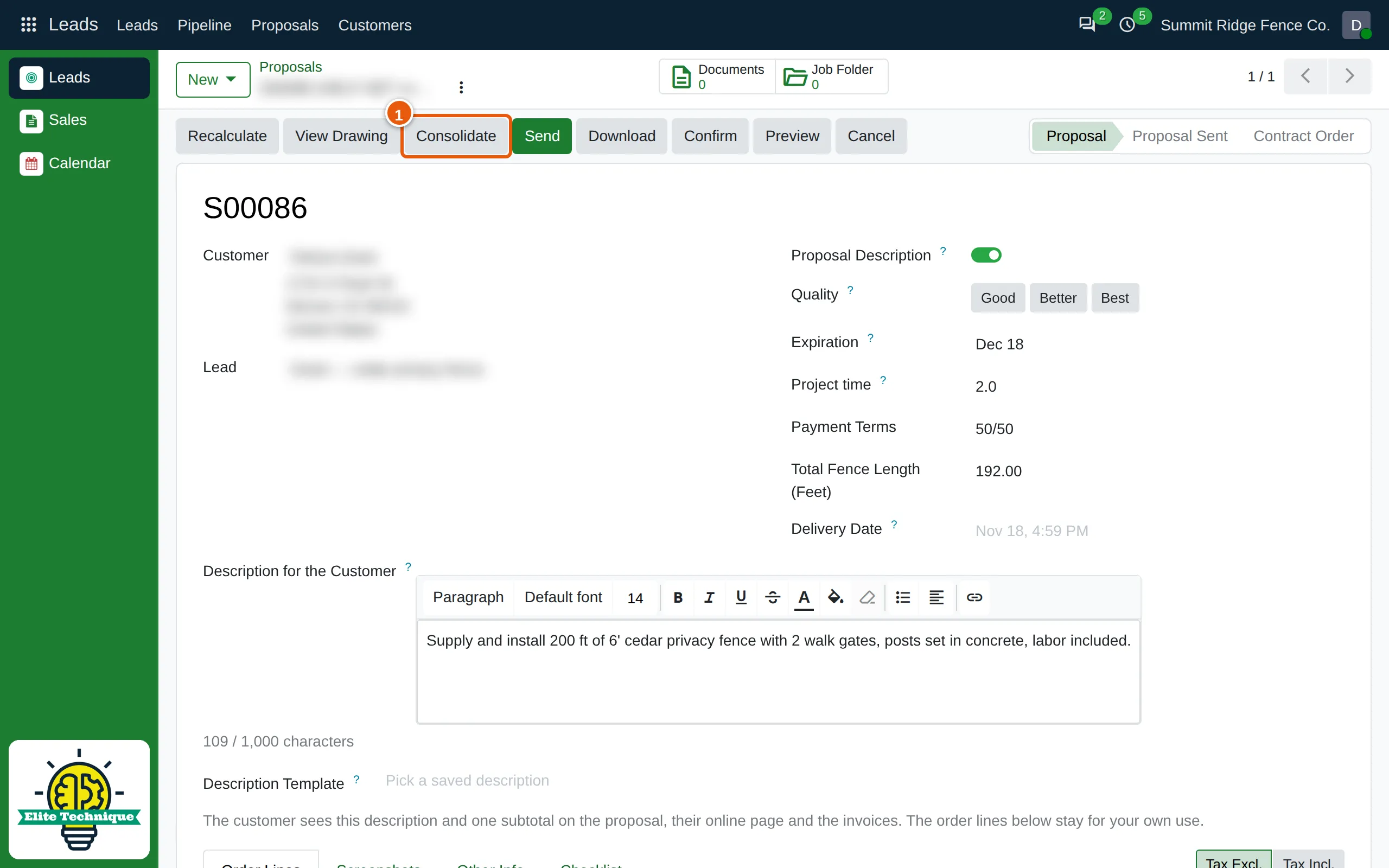
Click Consolidate (1) at the top of the proposal.
-
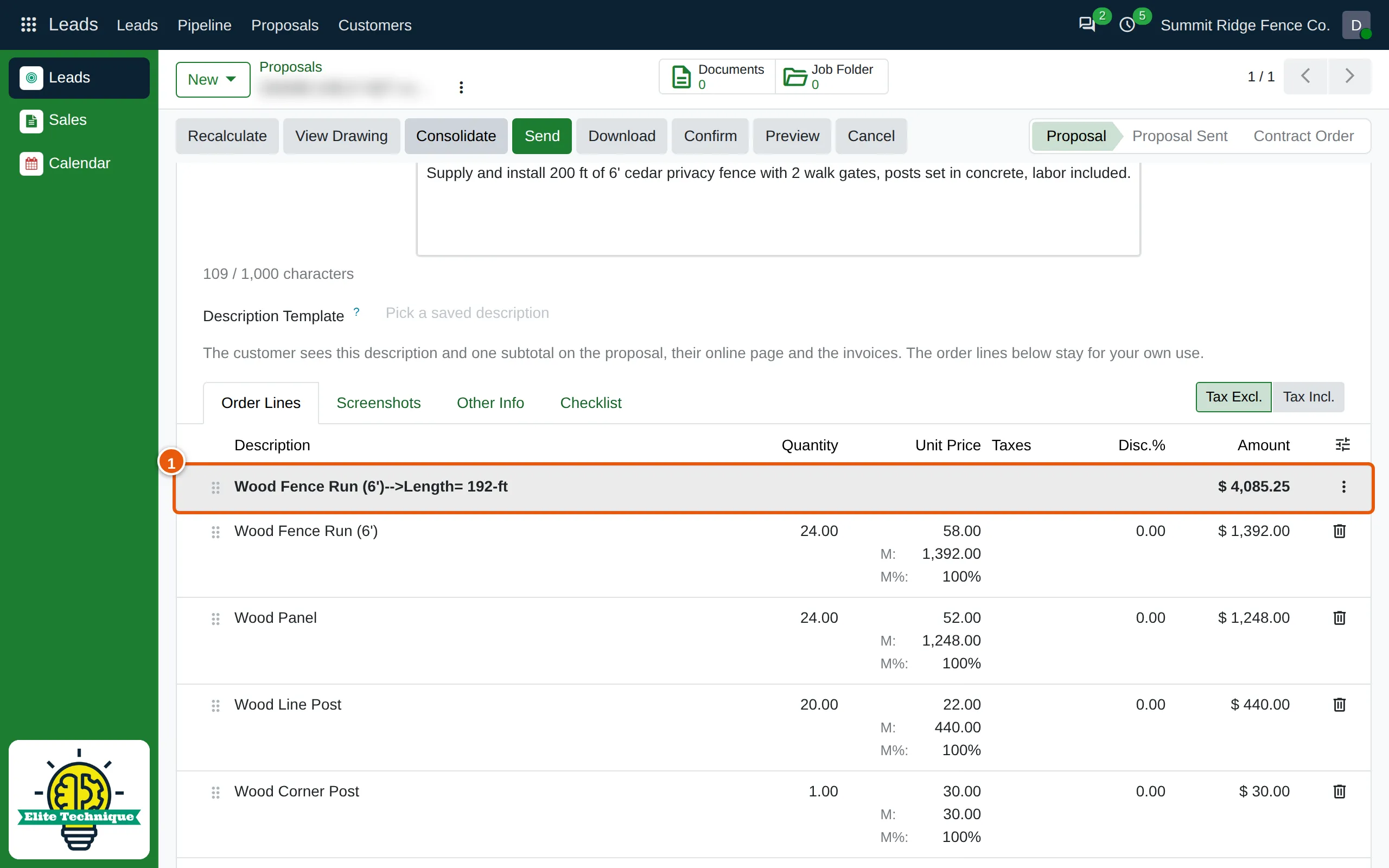
The two runs are now one section, Wood Fence Run (6’)–>Length= 192-ft (1). Each part is on it once, with the two runs’ quantities added together — here 24 panels, 20 line posts and 28 post caps — and the section’s total is the two totals added together.