
Pro and upIncluded in the Pro and Elite packages.
See what a job really cost
Compare what a job was estimated to cost with what it actually cost — materials and labor — and add costs bought outside a purchase order.
Every job has a Costs tab. It puts what the job was estimated to cost — from its confirmed proposal — beside what it actually cost: the materials bought for it and the hours logged on it.
Who can do this: Office and Admin.
Read the Costs tab
Section titled “Read the Costs tab”-
Open the job from Jobs and click the Costs tab (1). The summary at the top (2) shows Materials, Labor and Total, each with its Estimated and Actual cost, the Variance between them and the Variance %.
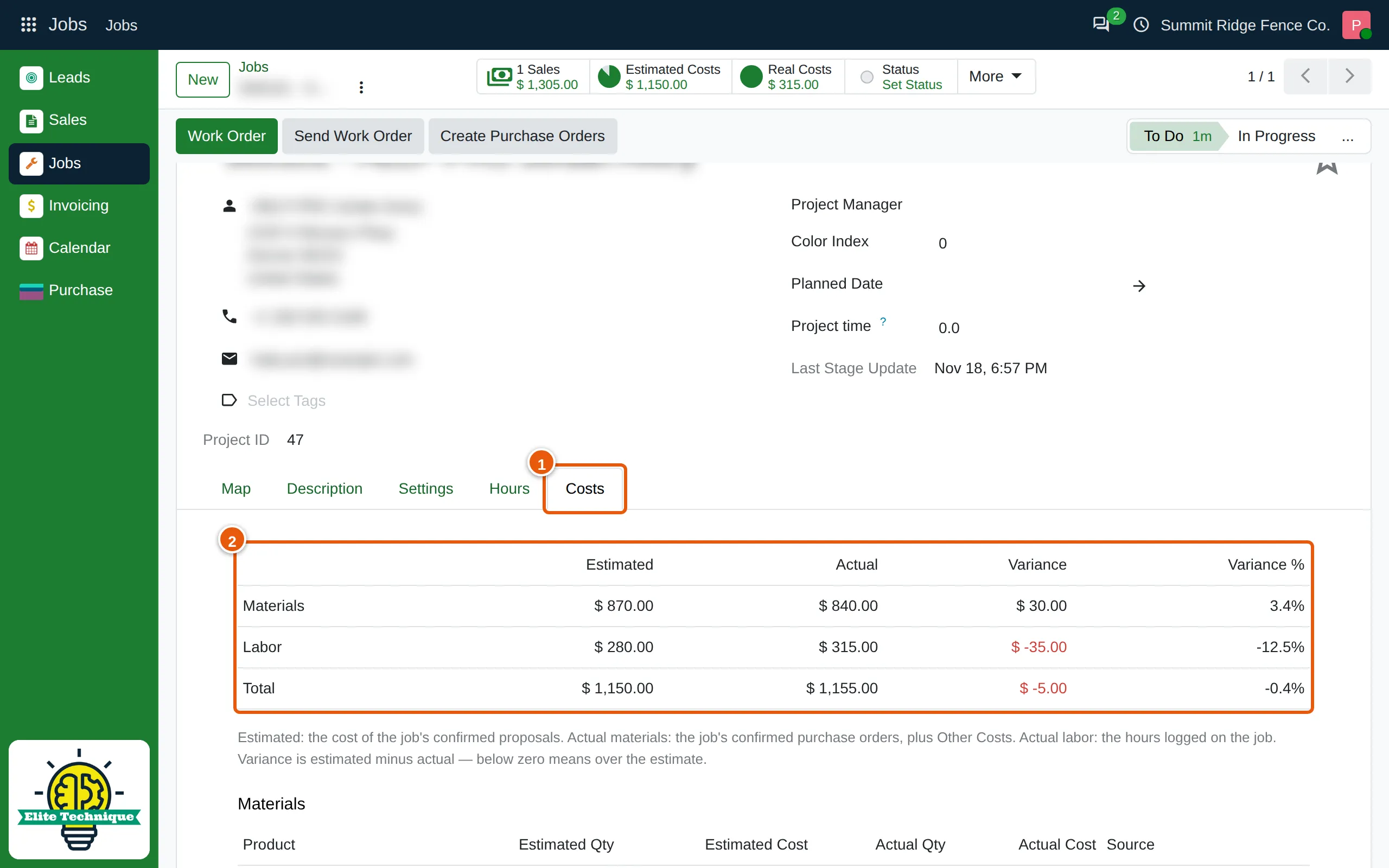
- Estimated is the cost of the job’s confirmed proposals.
- Actual materials are the job’s confirmed purchase orders, plus any other costs added on the job.
- Actual labor is the hours logged on the job, at each person’s hourly cost.
- Variance is estimated minus actual. Below zero, shown in red, means the job went over its estimate.
-
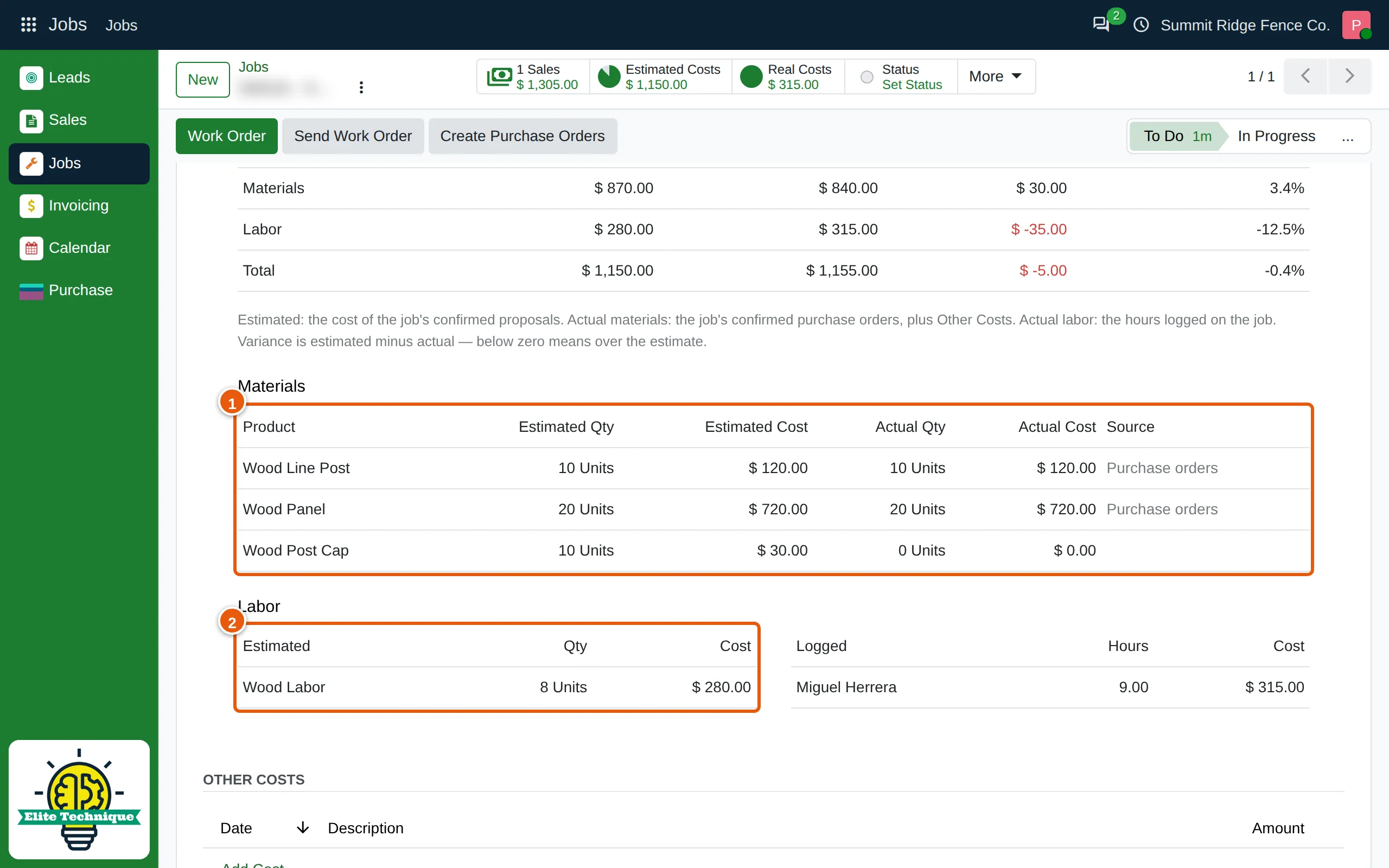
Under the summary, Materials (1) lists each product: its estimated quantity and cost, its actual quantity and cost, and where the actual came from. Labor shows the estimate from the proposal (2) beside the hours each person logged and what they cost.
Add a cost bought outside a purchase order
Section titled “Add a cost bought outside a purchase order”When materials are bought another way — a run to the hardware store on a card — add the cost to the job so its actual cost is complete.
-
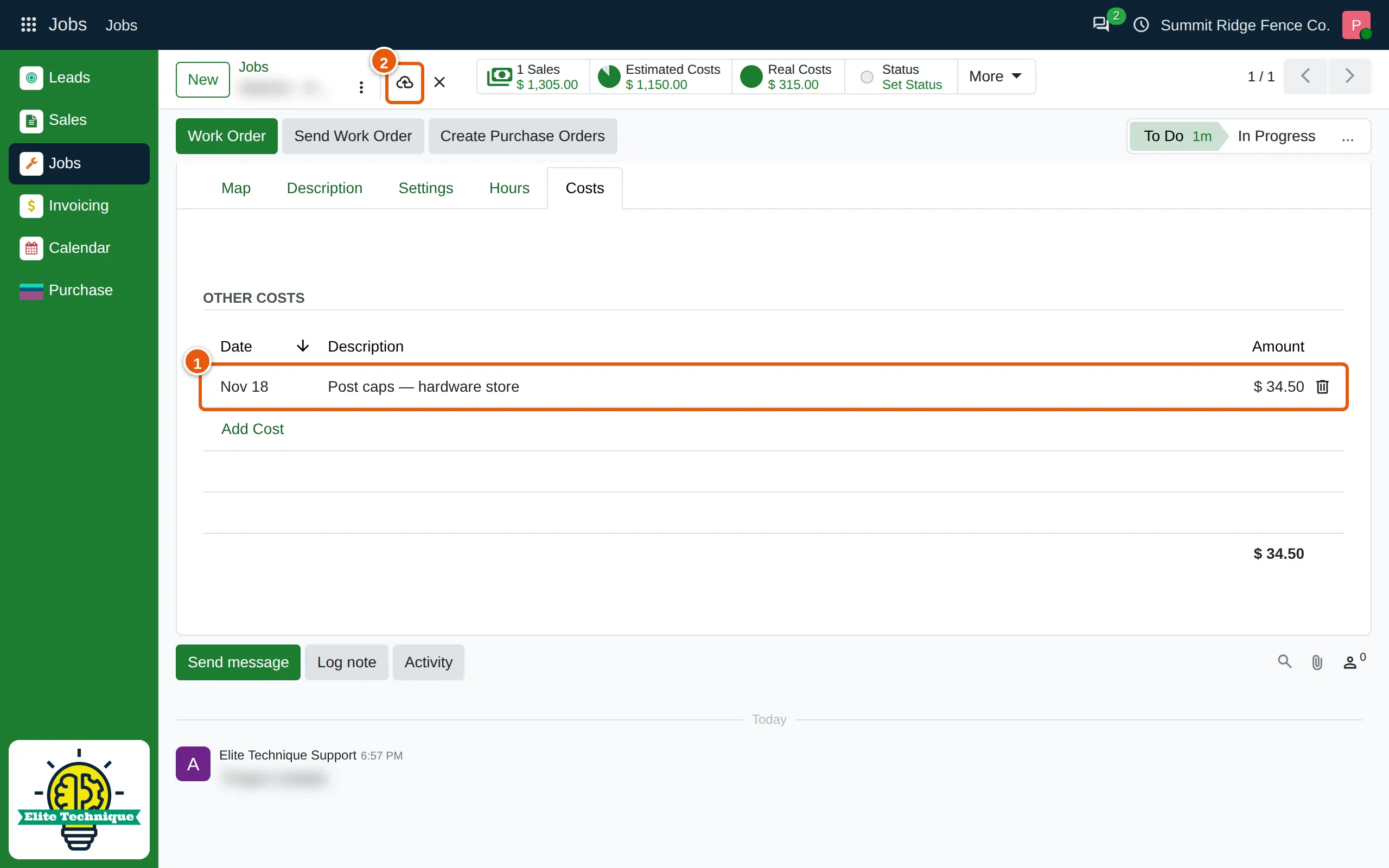
At the bottom of the Costs tab, under Other Costs, click Add Cost. Date starts at today. Type a Description and the Amount (1). Click the cloud icon at the top to save (2).
-
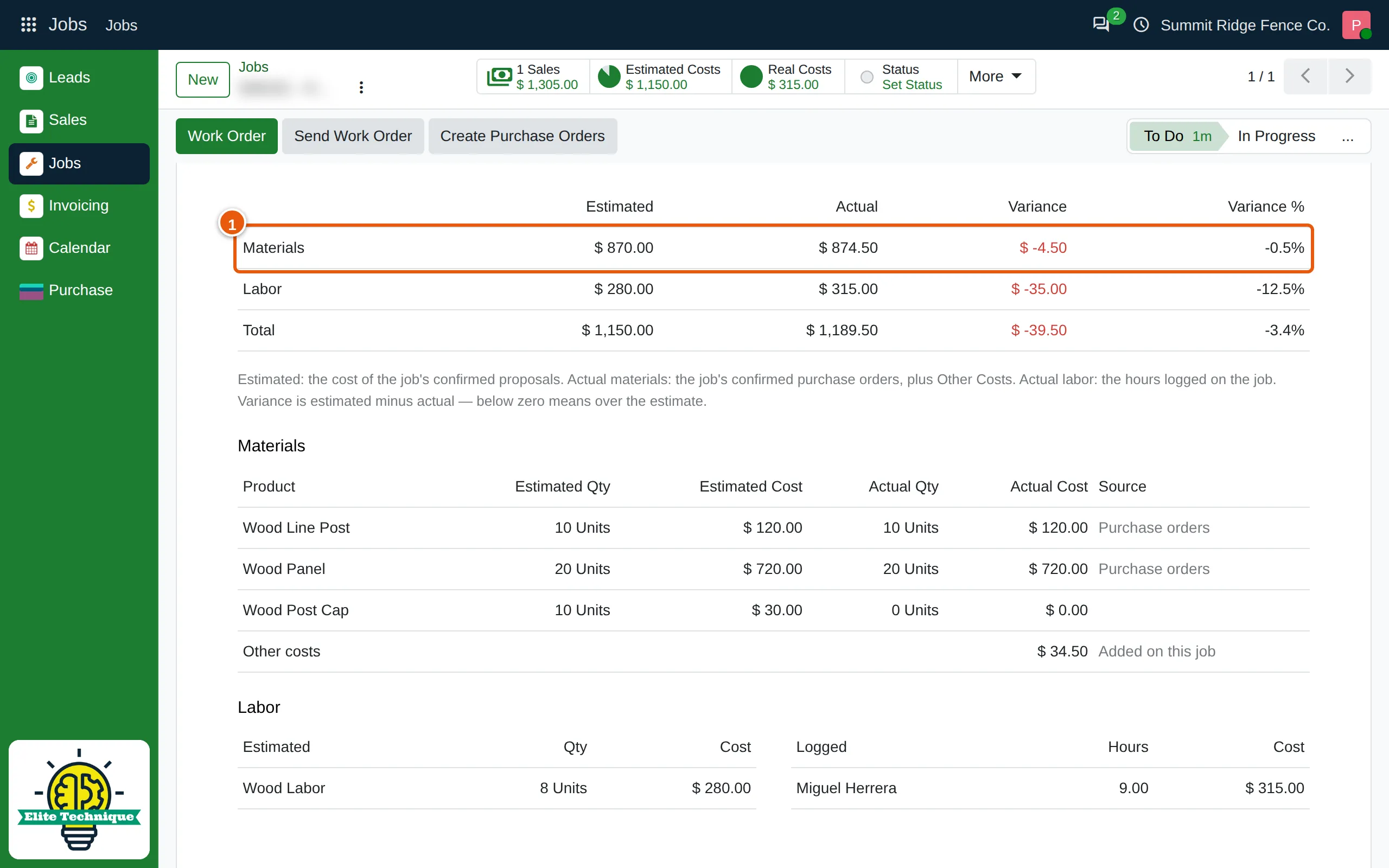
The cost is counted in Actual materials (1) at once, and listed under Materials as Other costs — Added on this job.
See profit across jobs
Section titled “See profit across jobs”The Job Profit dashboard puts every job’s costs beside what it sold for, so you can see which jobs made money. Only the Admin can open it.
-
Open the Dashboards app and click Job Profit (1), under Jobs. The cards (2) show Sold, Invoiced, Actual Cost, Actual Profit and Margin % — actual profit as a share of what was sold.
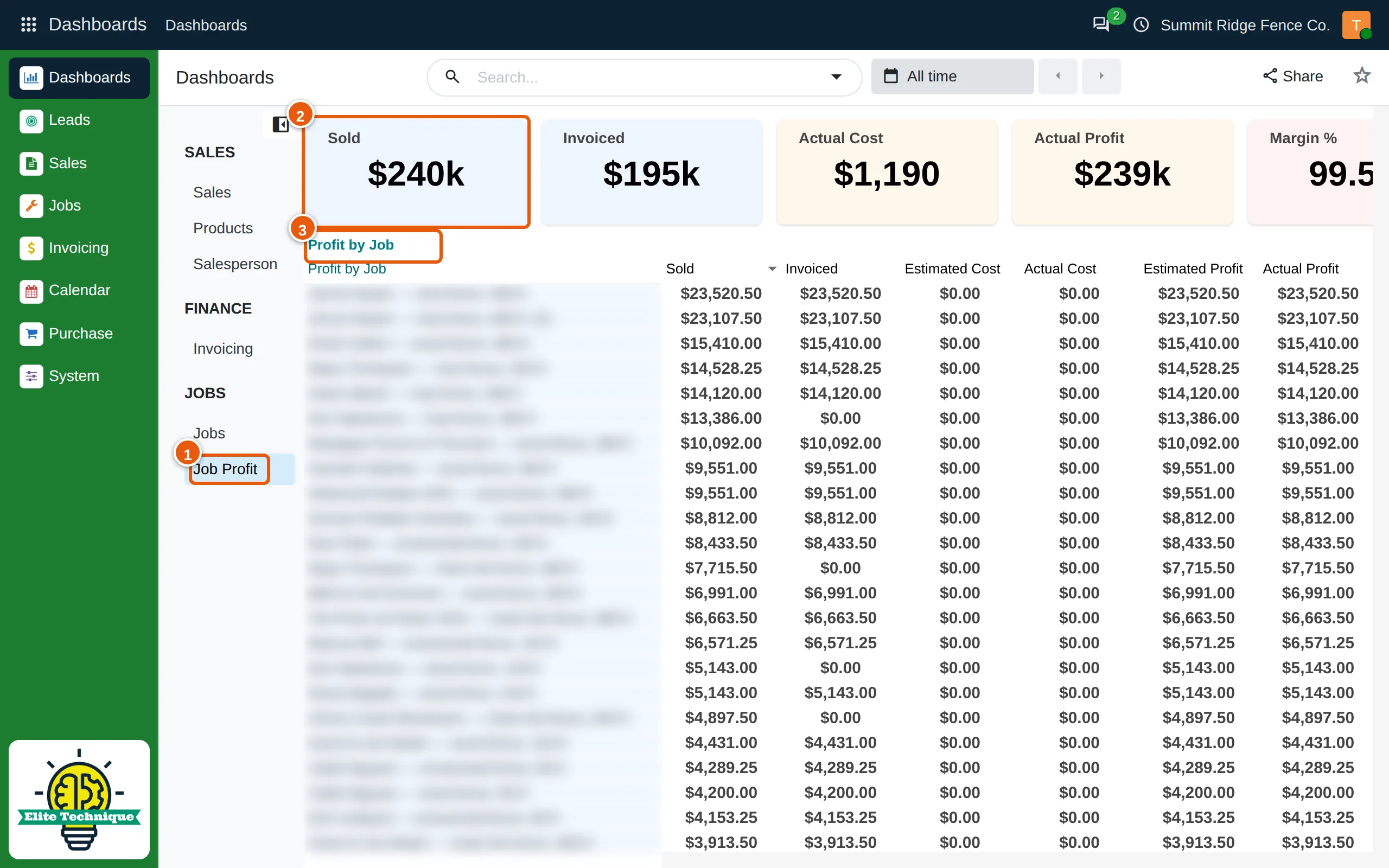
Profit by Job (3) lists the 25 jobs that sold the most, with their Sold, Invoiced, Estimated Cost, Actual Cost, Estimated Profit, Actual Profit and Margin %. The costs are the totals on each job’s Costs tab. A job counts once its proposal is confirmed; canceled jobs are left out.
-
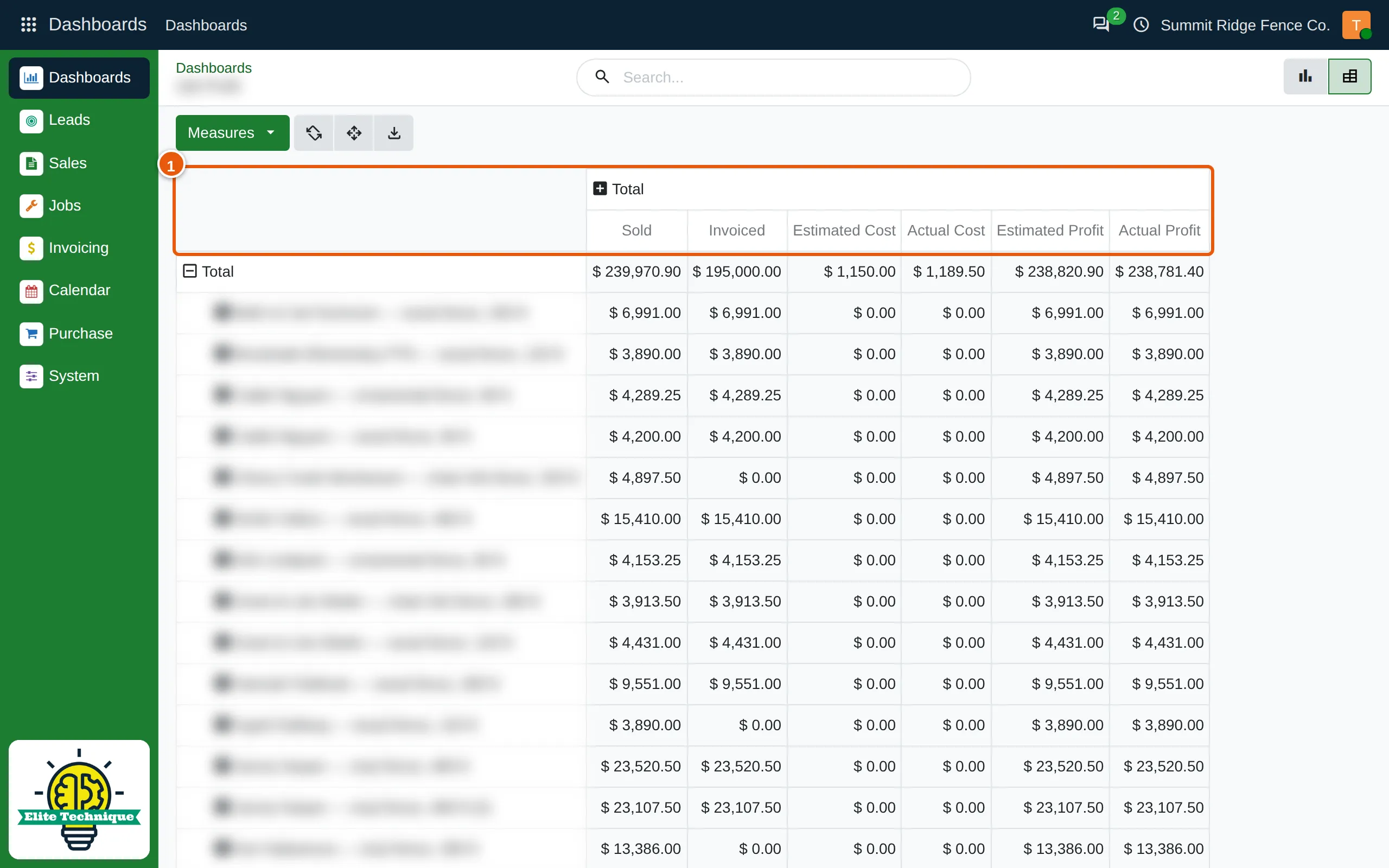
Click the Profit by Job title to see every job, not just the top 25, with the same figures from Sold to Actual Profit (1).
The dashboard opens on All time. Use the date button to choose a period of Completed On — the day a job moved to Done; a job moved out of Done loses that date. Click the arrow in the search bar to narrow the dashboard by Stage, Salesperson or Customer.