
Set up your proposal checklist
Write the questions every proposal asks, choose which ones must be answered, and see them on a proposal's Checklist tab.
The proposal checklist is your list of questions for every job: which way the gate swings, the color, whether a permit is needed. Every active question appears on the Checklist tab of new proposals and prints on the proposal PDF. A required question has to be answered before the proposal can become a Contract Order.
Who can do this: Admin.
Add a question
Section titled “Add a question”-
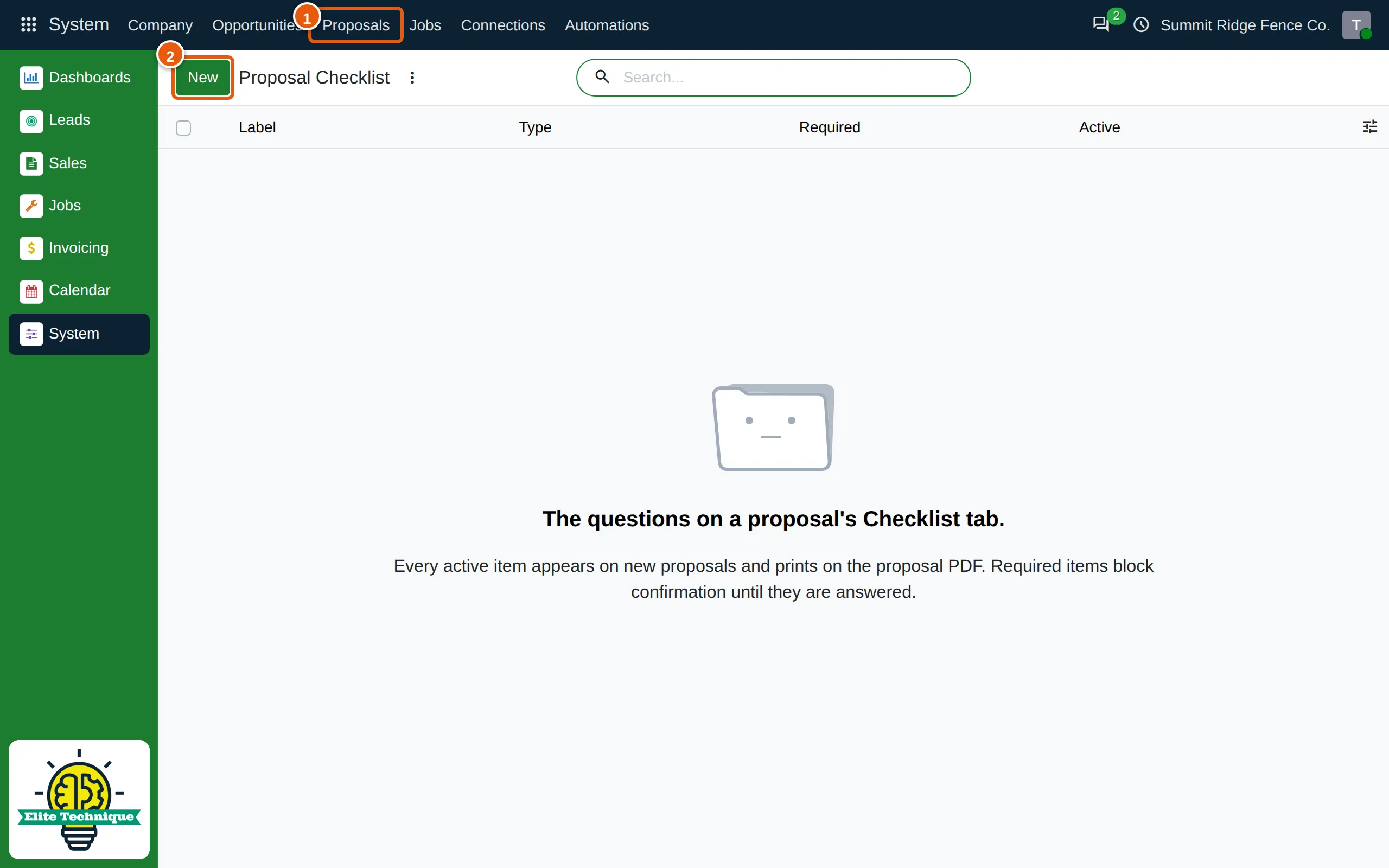
In System, open Proposals (1) › Checklist Items and click New (2).
-
Fill in the question:
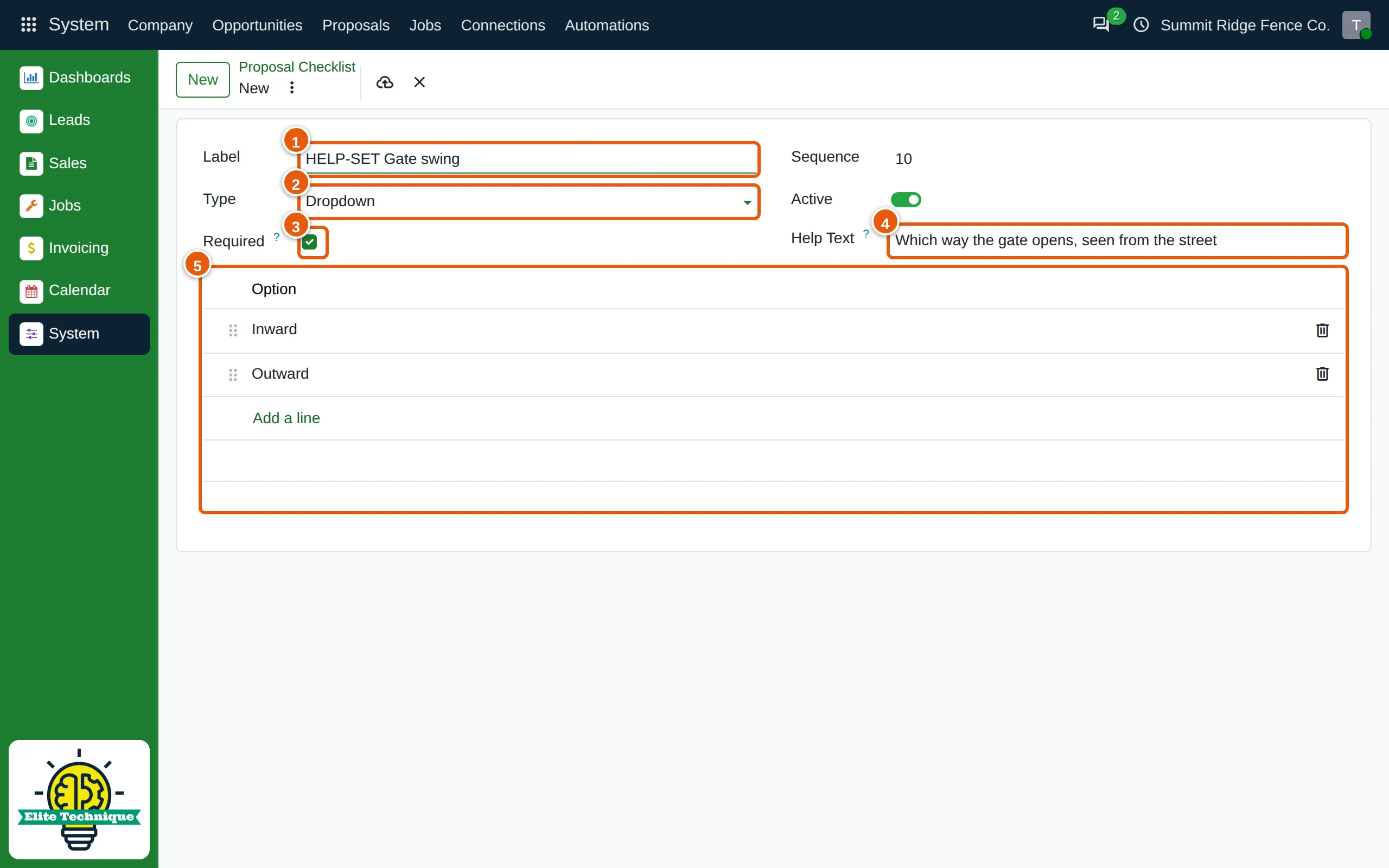
- Label (1): the question, as your team will read it.
- Type (2): Checkbox, Text or Dropdown.
- Required (3): the proposal cannot become a Contract Order until this is answered.
- Help Text (4): a hint shown beside the question on the proposal.
- For a Dropdown, click Add a line under Option (5) once for each choice and type it.
-
Click the cloud icon at the top to save.
Where your team answers it
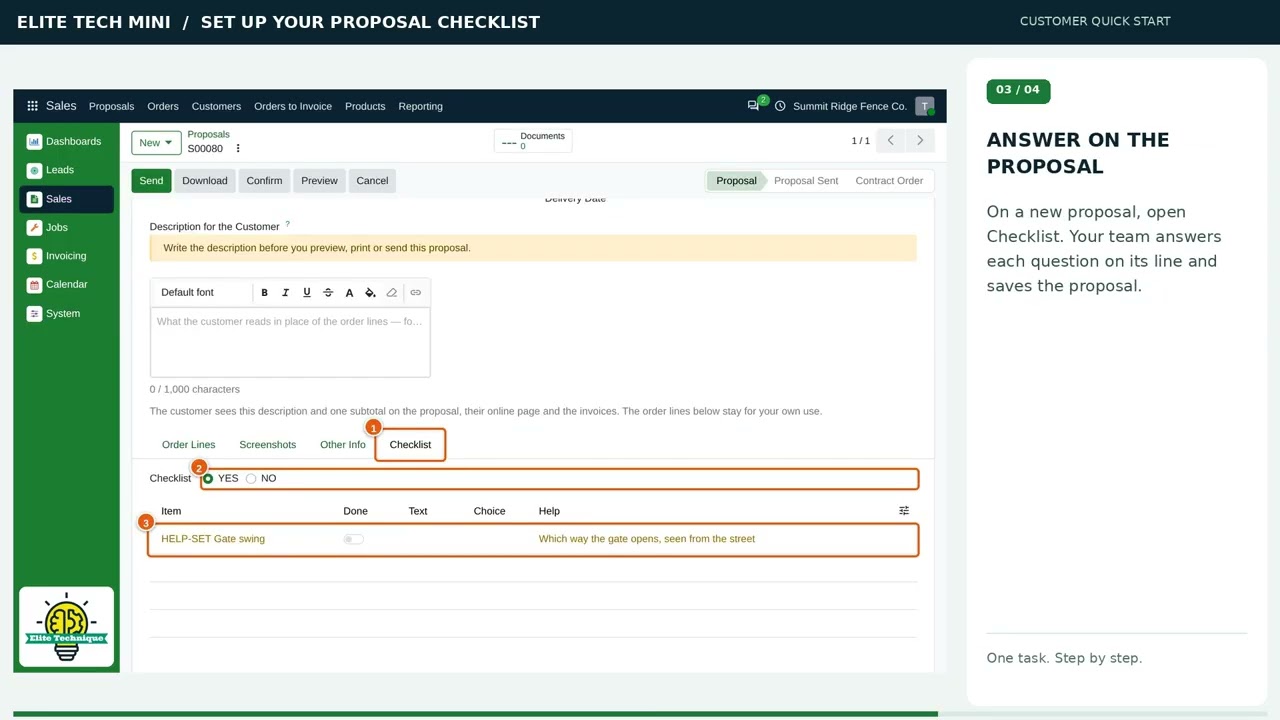
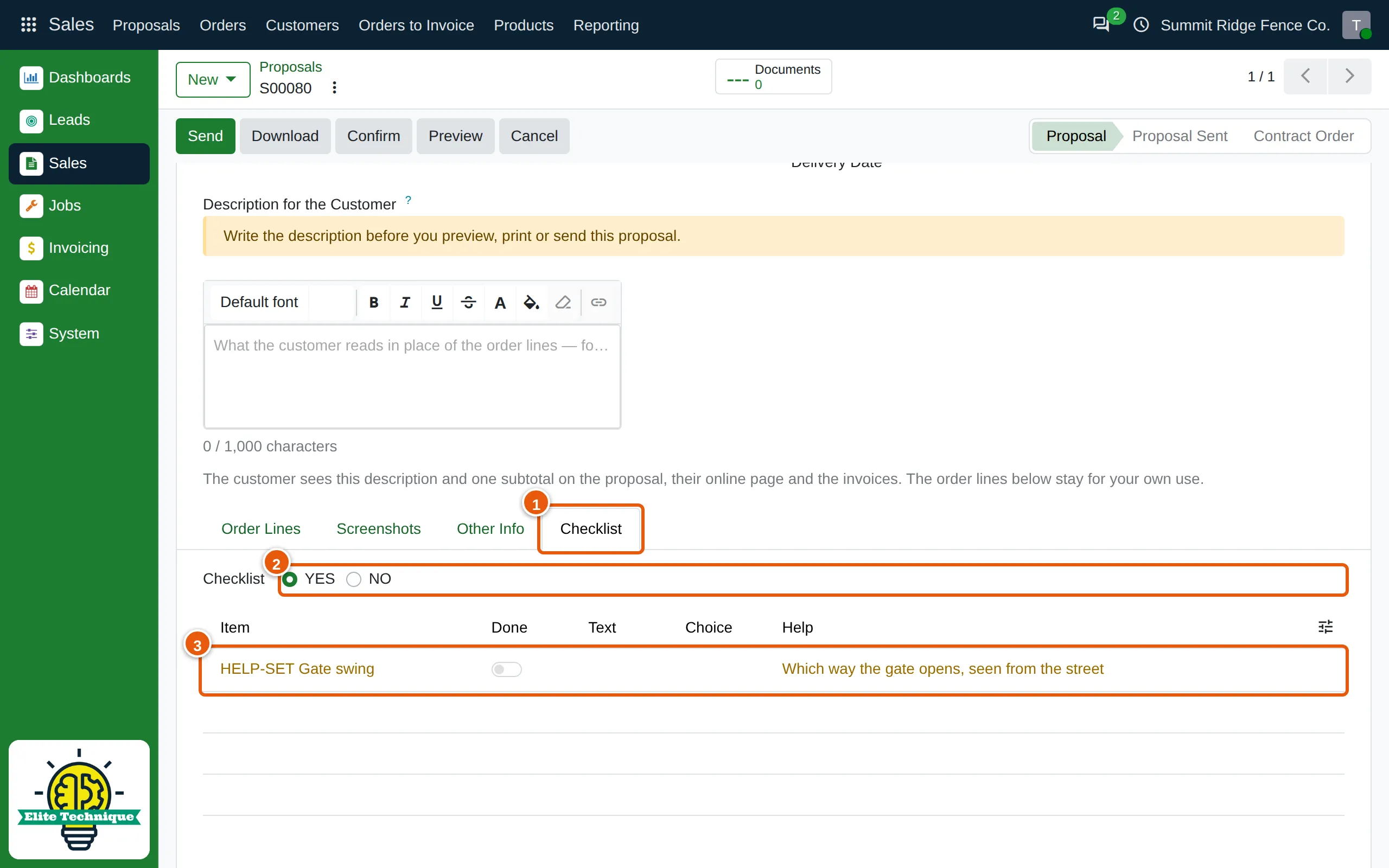
Section titled “Where your team answers it”On a new proposal, open the Checklist tab (1). Checklist is set to YES (2), and every question is listed with its help text (3). Your team answers each one on its line: the Done switch for a checkbox, Text for a text question, Choice for a dropdown. Then they save the proposal.
If someone clicks Confirm while a required question is unanswered, the proposal stays a proposal and a message lists the questions still to answer:
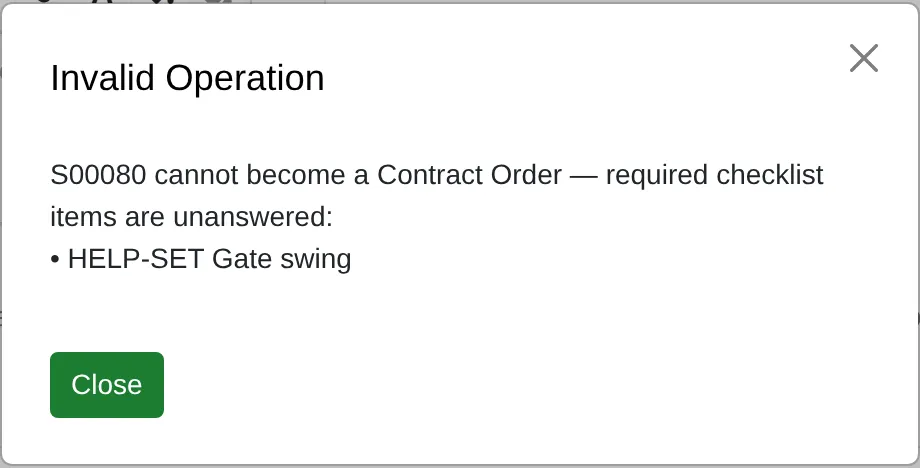
Answer it on its line and save the proposal.