Create a proposal template
Set up a template your team can draw with — its name, the fence it draws, its color on the map and the lines every proposal starts with.
A proposal template is a starting point for a proposal. The templates you show to the drawing tool are the fences your team picks from when they draw, under Select a Fence Product.
Who can do this: Admin.

Create the template
Section titled “Create the template”-
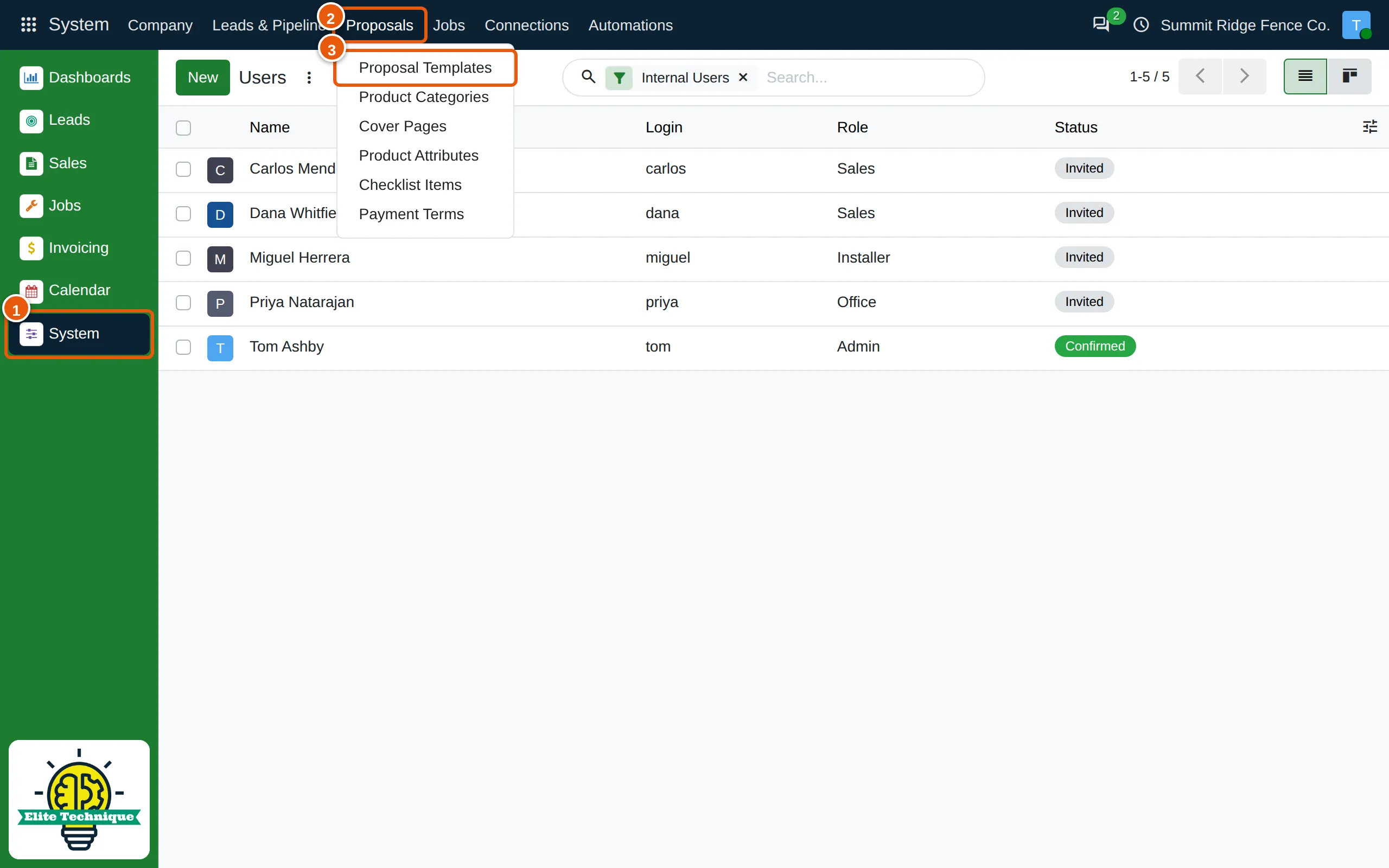
Click System (1) in the app bar on the left, then Proposals (2) at the top, then Proposal Templates (3). The list shows the templates you already have. Click New.
-
Fill in the template:
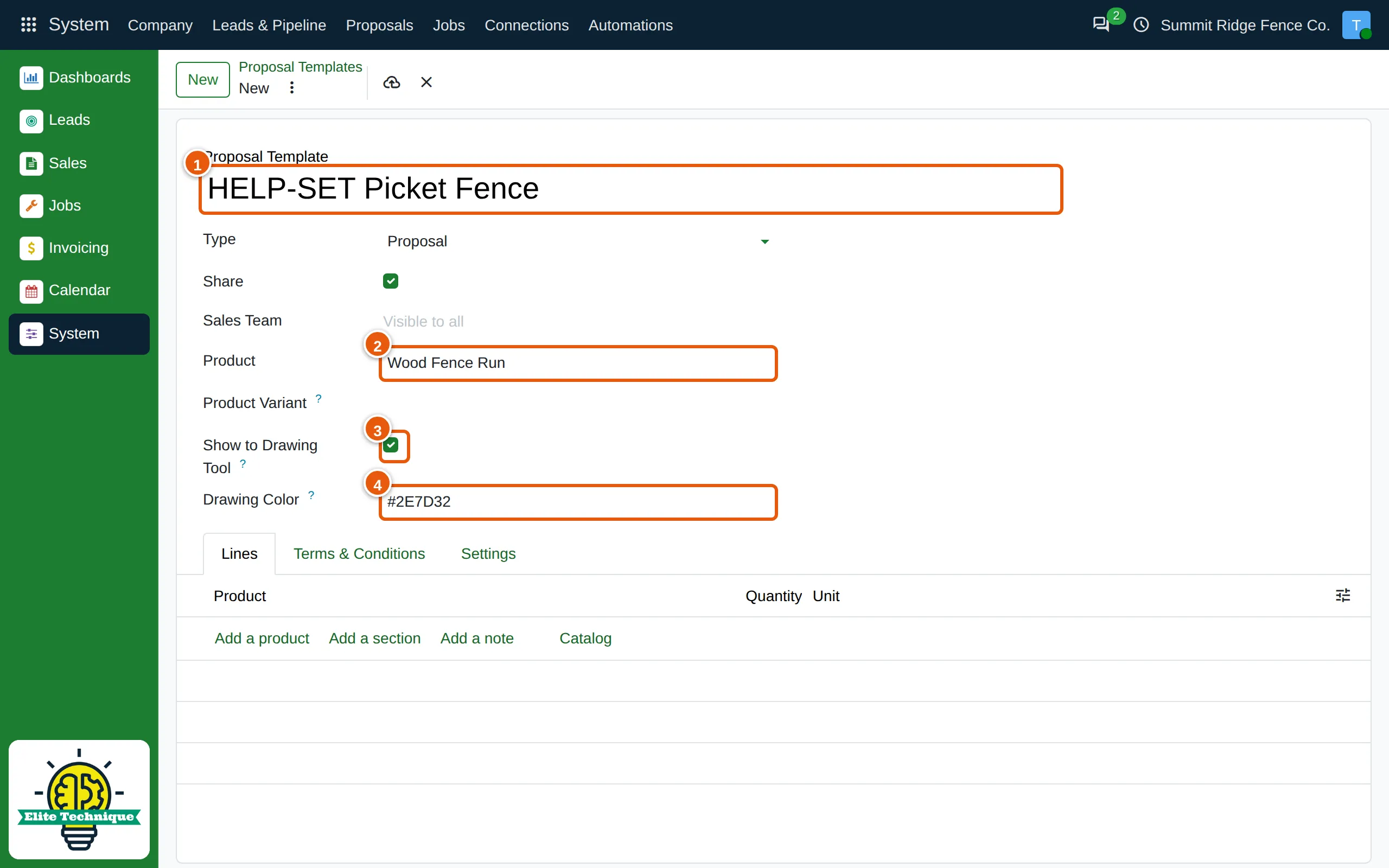
- Proposal Template (1) — the name your team sees in the drawing tool, for example Picket Fence.
- Product (2) — the fence this template draws. Pick it from your catalog. The template sits under this product’s category in the drawing tool. See Group your fences and gates into categories.
- Show to Drawing Tool (3) — check it to offer the template in the drawing tool. Drawing Color appears once it is checked.
- Drawing Color (4) — the color of the lines drawn with this template on the map, as a
color code such as
#2E7D32. Leave it empty and the drawing tool uses its neutral color.
-
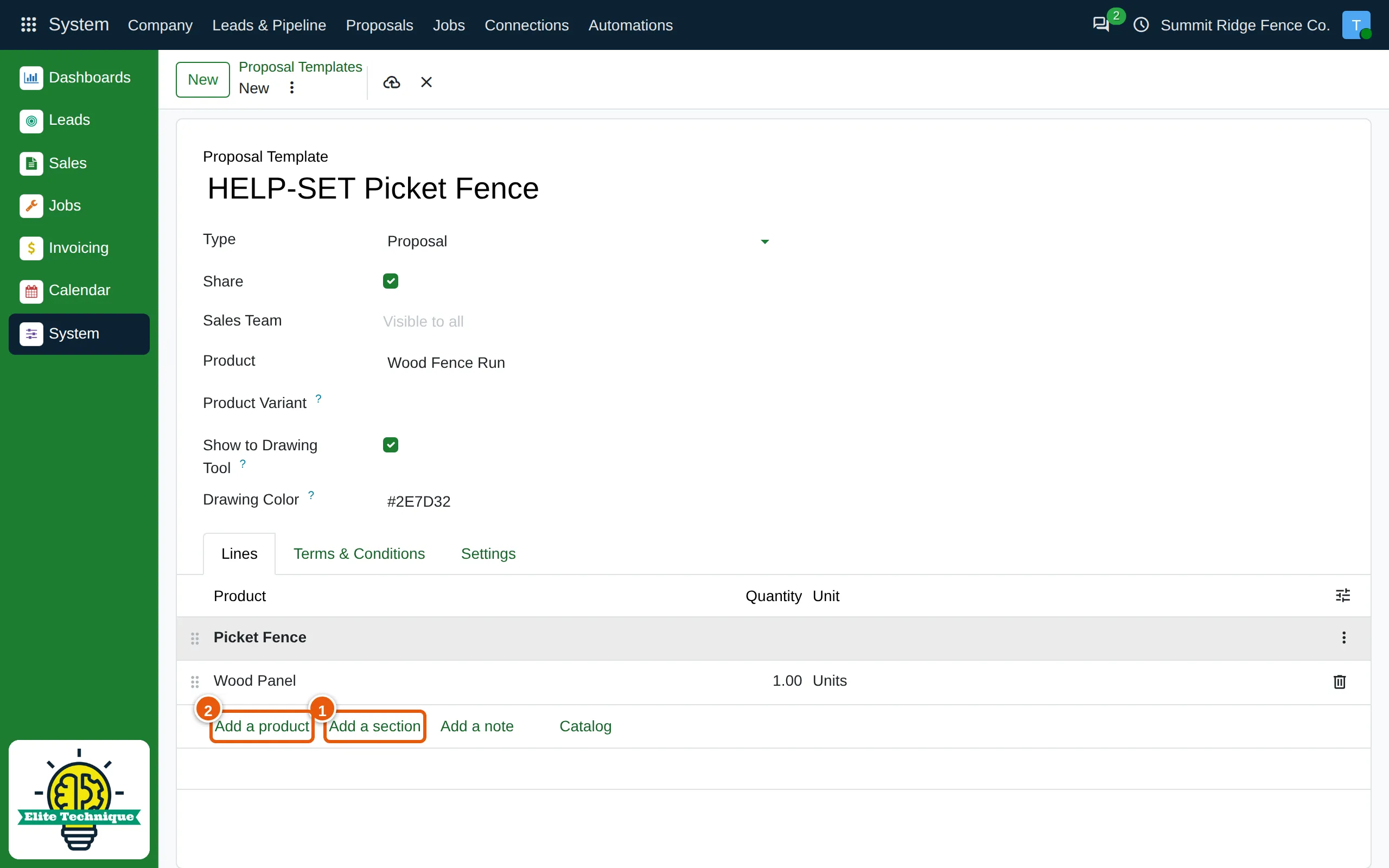
On the Lines tab, click Add a section (1) and type a heading, for example Picket Fence. Then click Add a product (2) and pick a product the proposal starts with. Add as many as you need; Add a note adds a line of text.
-
Click the cloud icon at the top to save.
Find it in the drawing tool
Section titled “Find it in the drawing tool”-
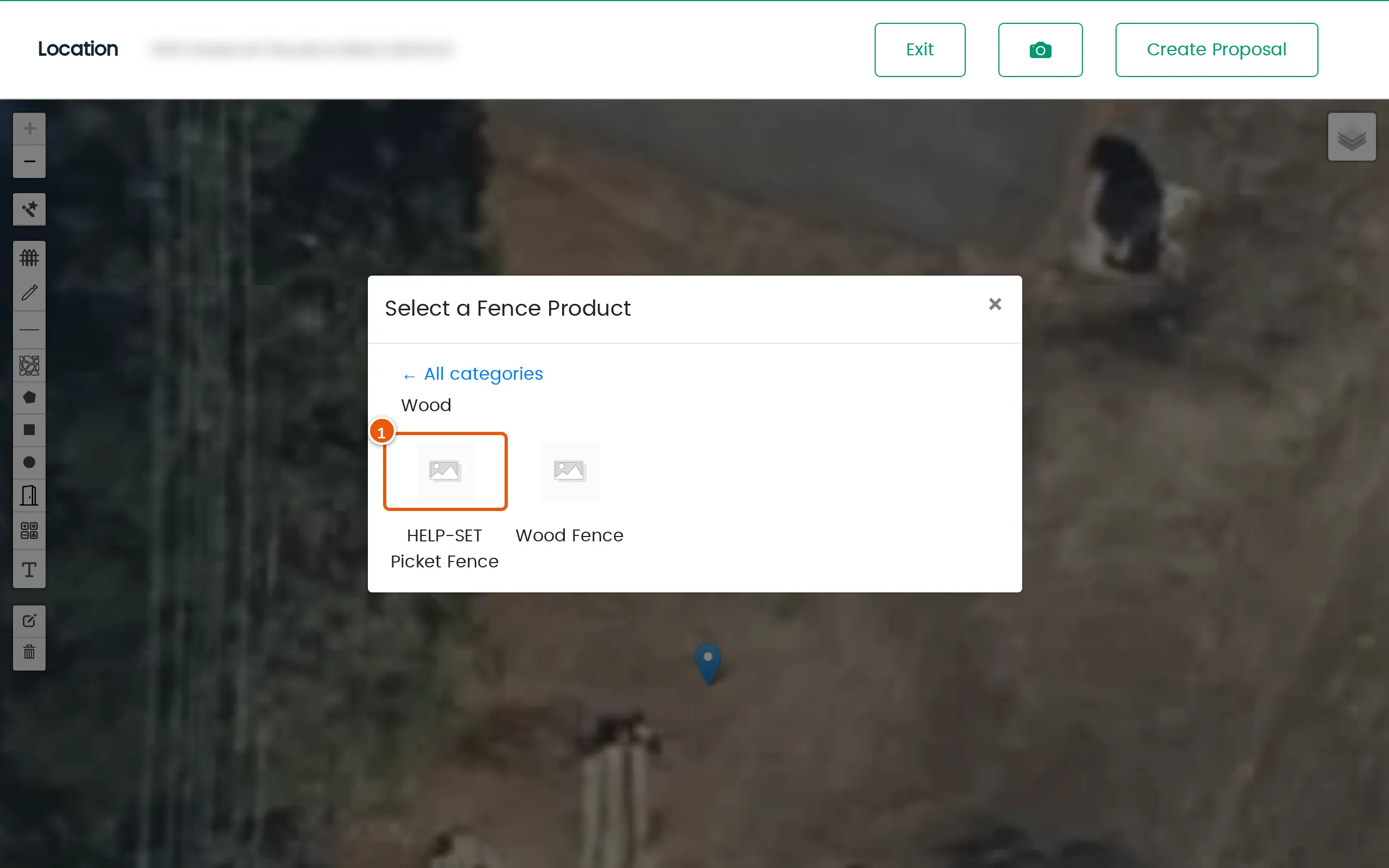
Open an opportunity and click Create Drawing. Select a Fence Product opens on your product categories.
-
Click the category of the template’s product. Your new template (1) is there, ready to draw with.