
Invoice a contract order
Turn a confirmed contract order into an invoice, check it, and confirm it so it gets its number.
When your customer accepts a proposal and you confirm it, it becomes a contract order. This guide turns that contract order into the invoice you send your customer. The invoice takes its customer, lines and payment terms from the contract order, so there is nothing to type again.
Who can do this: Office and Admin.
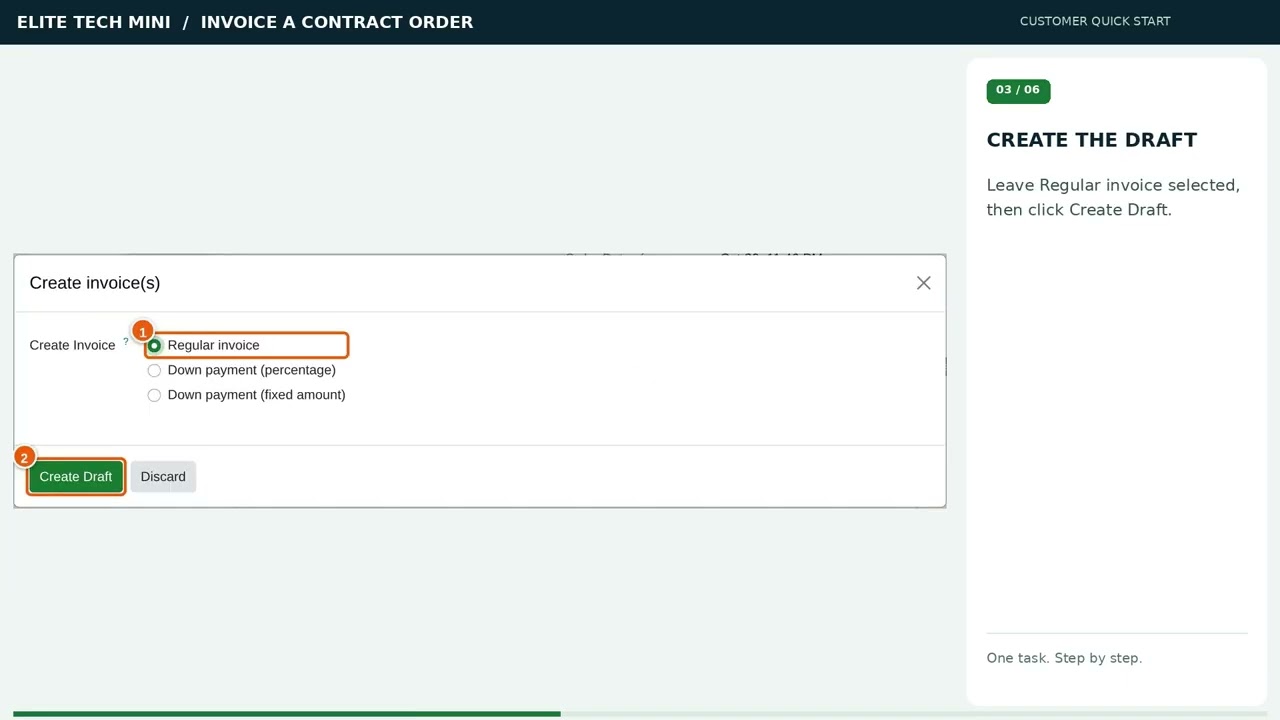
Create the invoice
Section titled “Create the invoice”-
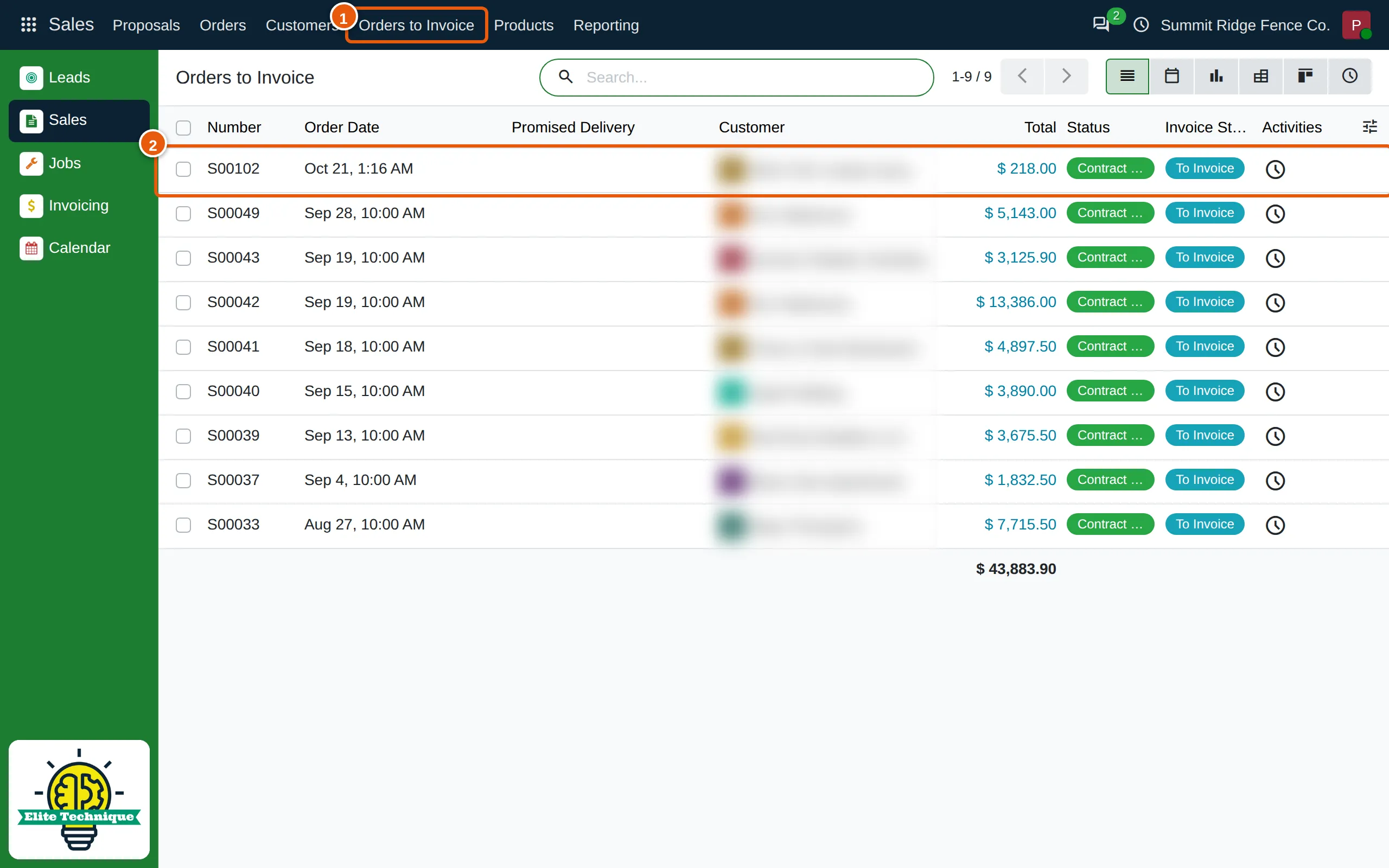
In Sales, click Orders to Invoice (1) in the top bar. It lists every contract order that has not been invoiced yet. Click the one you want to invoice (2).
-
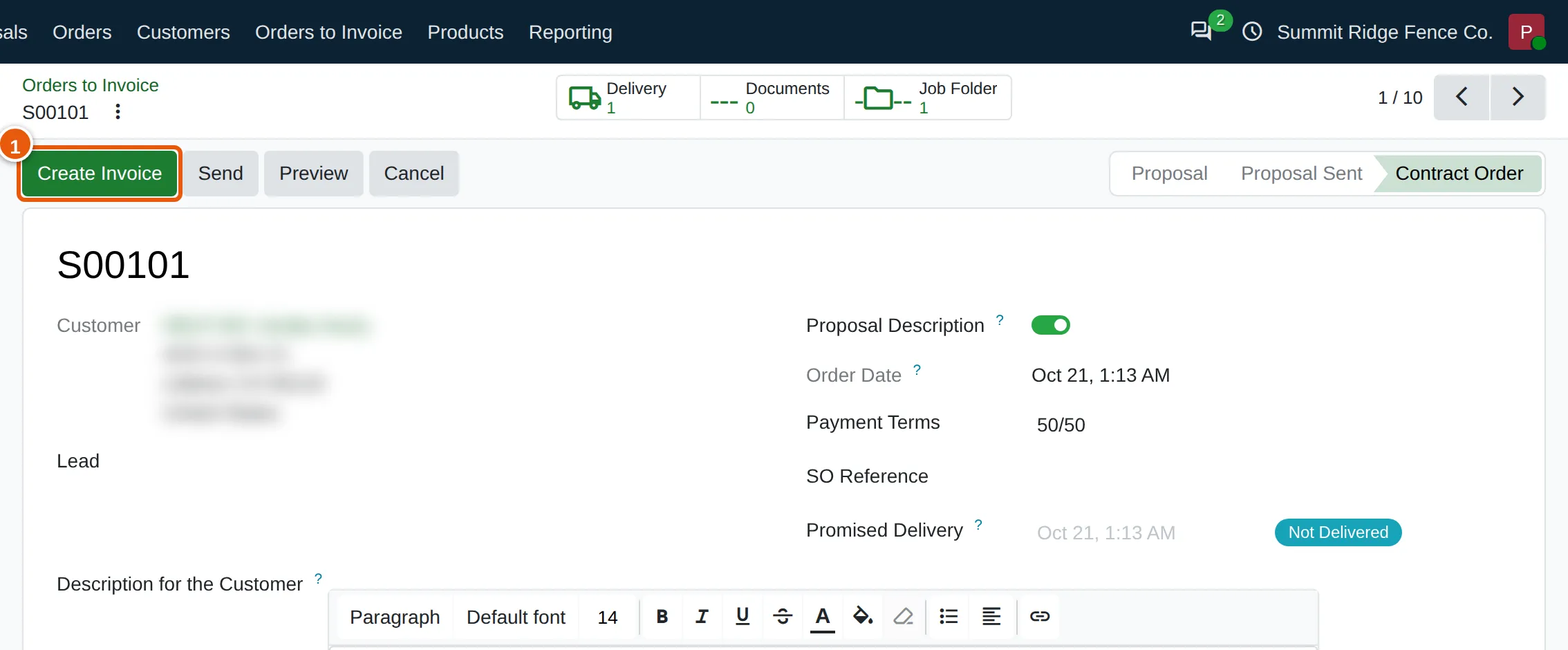
Click Create Invoice (1). The draft invoice opens straight away.
Check and confirm it
Section titled “Check and confirm it”-
The draft invoice opens. Check the details:
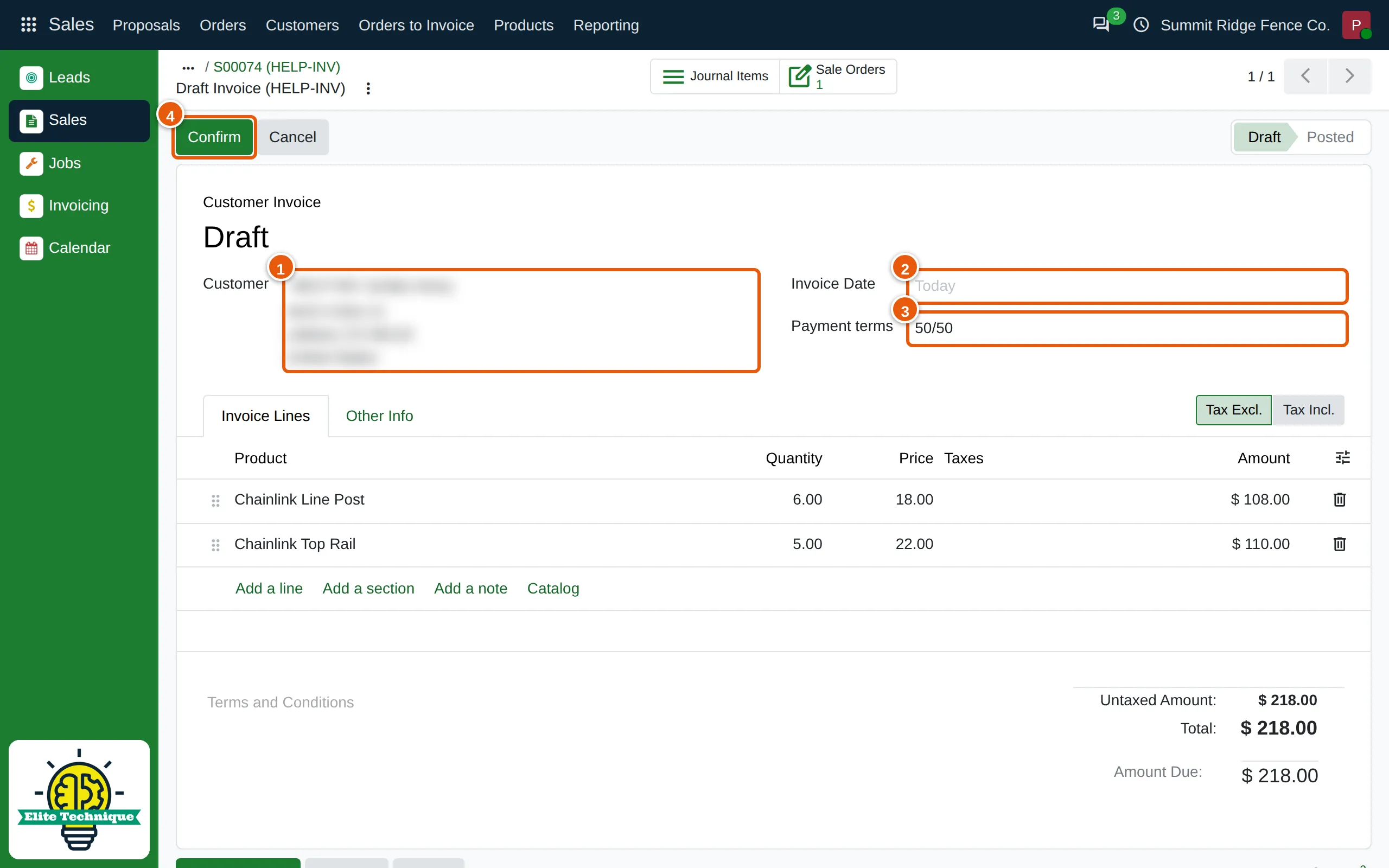
- Customer (1) — who the invoice is for, from the contract order.
- Invoice Date (2) — leave it empty to date the invoice the day you confirm it.
- Payment terms (3) — when your customer pays, from the contract order. With 50/50, the invoice is due in two installments.
- The Invoice Lines below list what you are invoicing, from the contract order.
-
Click Confirm (4).
-
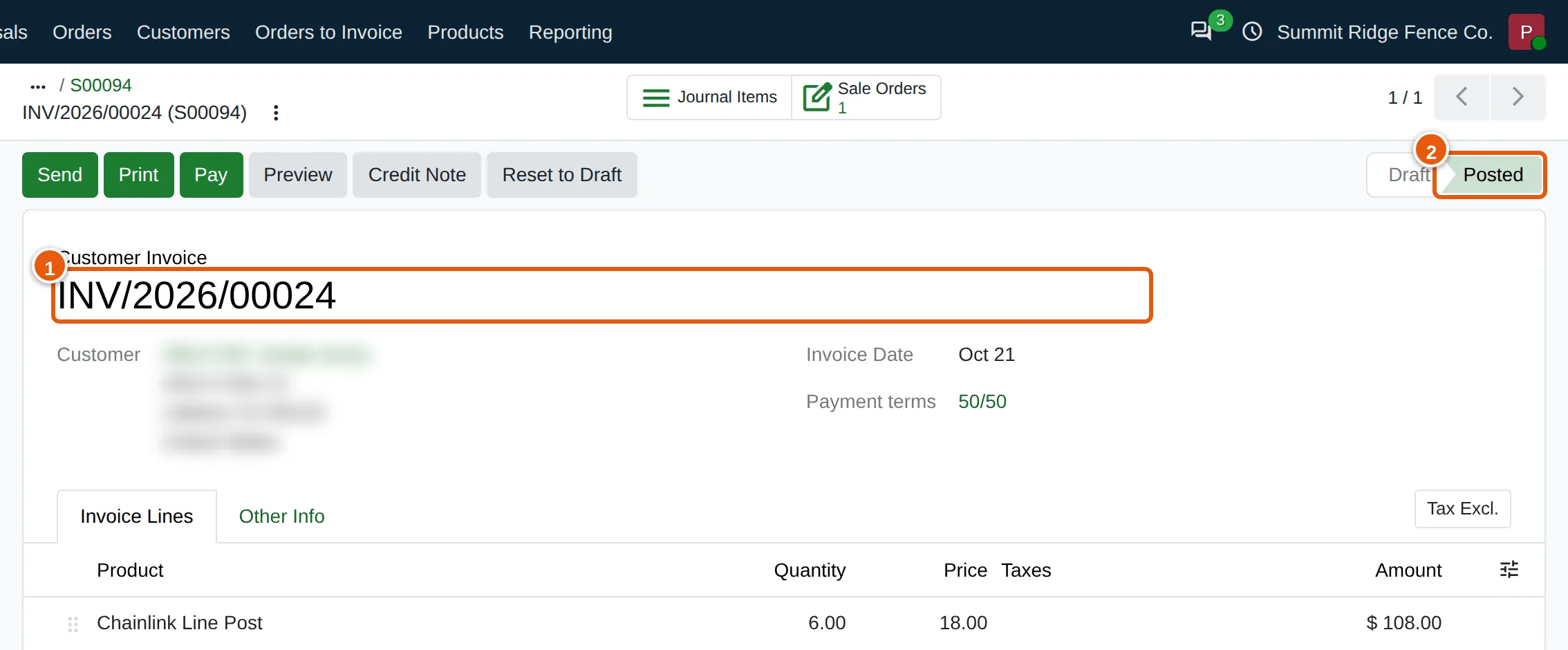
The invoice gets its number (1), such as INV/2026/00024, and moves to Posted (2).
Next, send the invoice to your customer.