
Change a role or remove access
Give a team member a different role, take away their access when they leave, and bring them back if they return.
A team member’s role decides what they see. Change it when their job changes. When someone leaves, archive them so they can no longer sign in.
Who can do this: Admin.
Change someone’s role
Section titled “Change someone’s role”-
In System, on Users, click the person’s name.
-
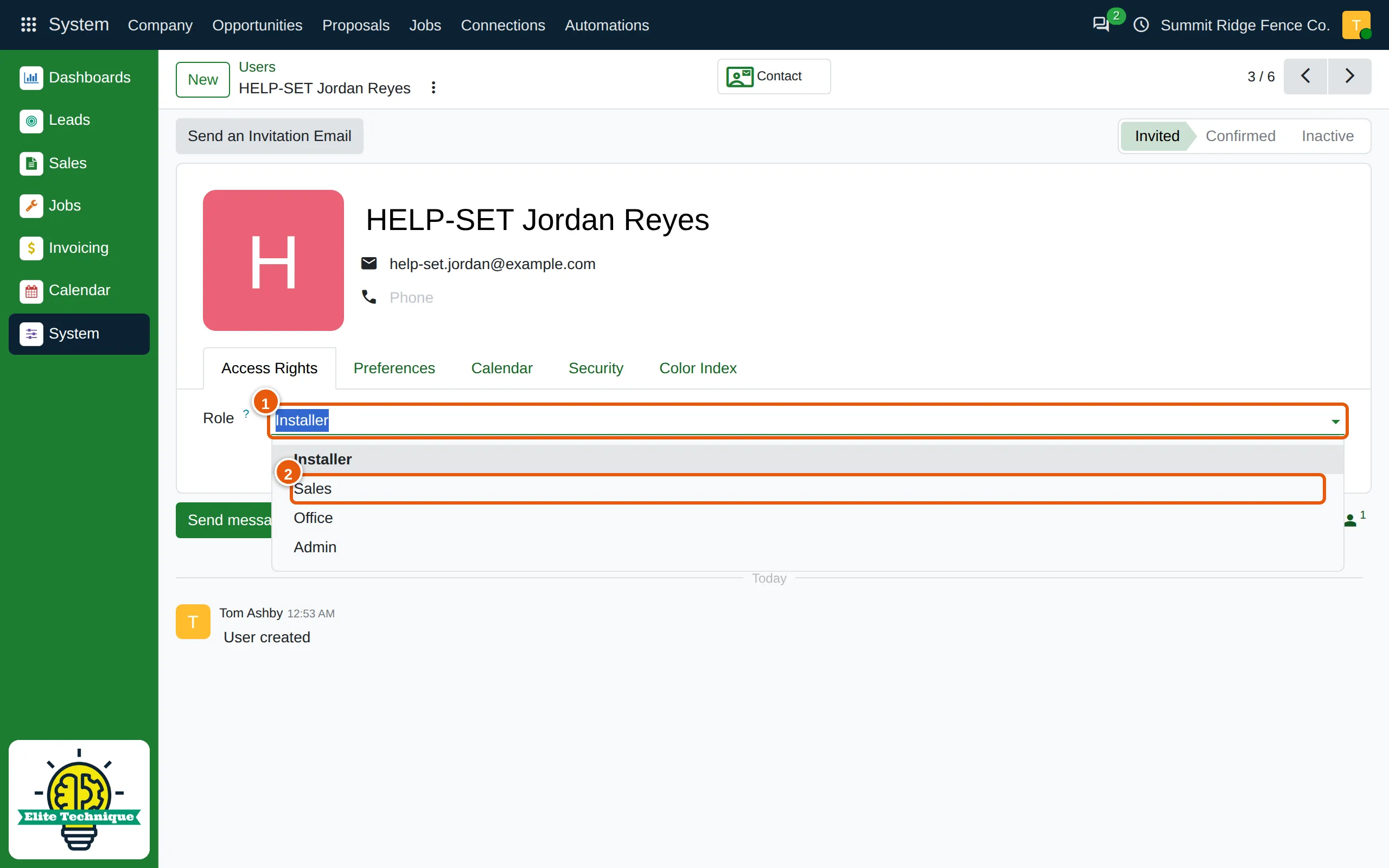
On the Access Rights tab, click Role (1) and pick the new role (2). The Sales and Installer roles are included in the Standard, Pro and Elite packages.
-
Click the cloud icon at the top to save.
The change is recorded at the bottom of their page, with who made it and when.
Remove someone’s access
Section titled “Remove someone’s access”-
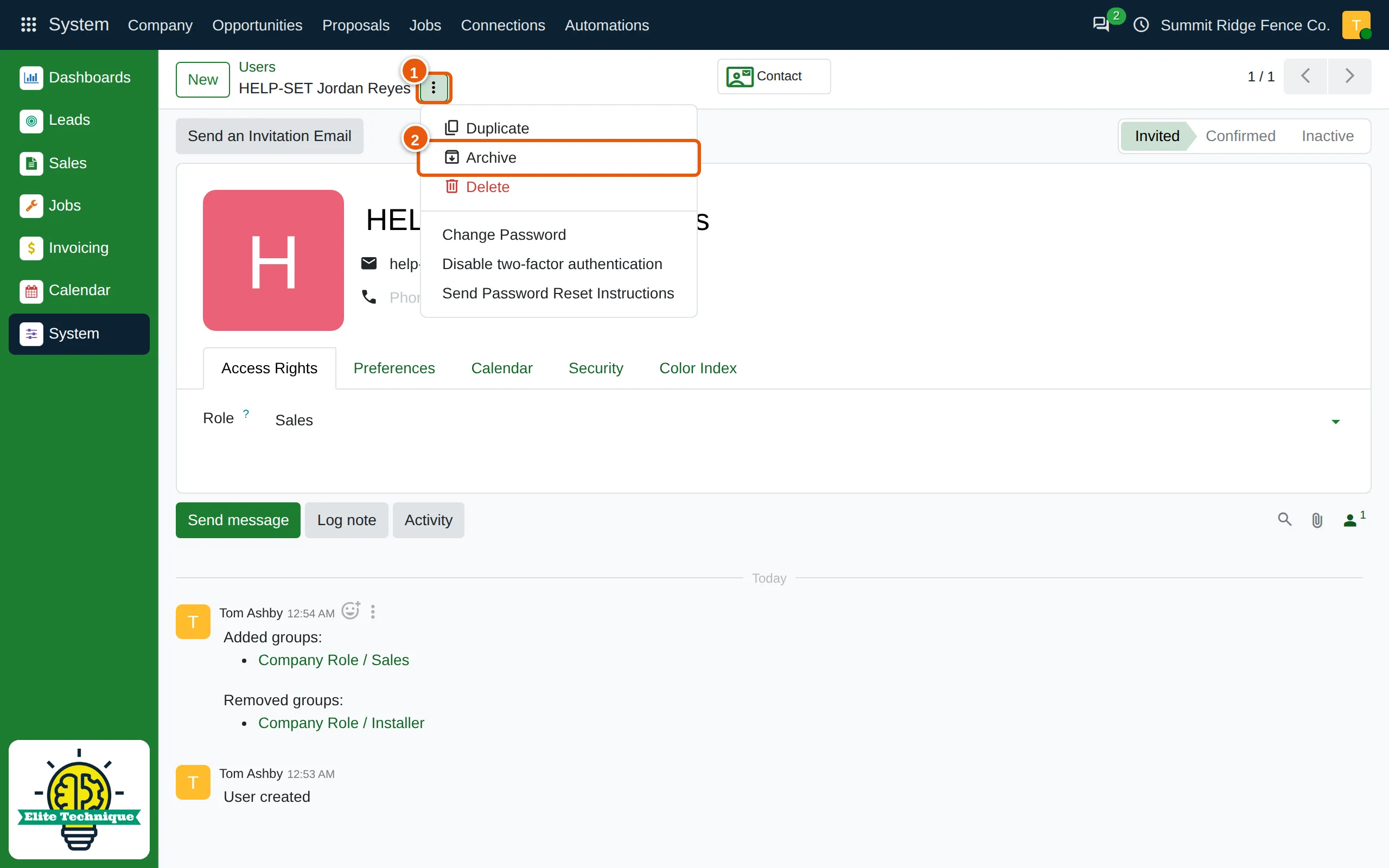
Open the person from Users, click the Actions menu (1) — the three dots beside their name at the top — and click Archive (2).
-
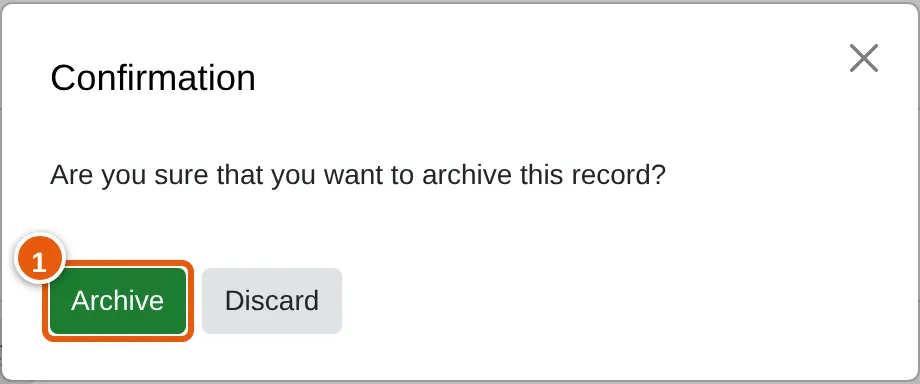
Click Archive (1) to confirm.
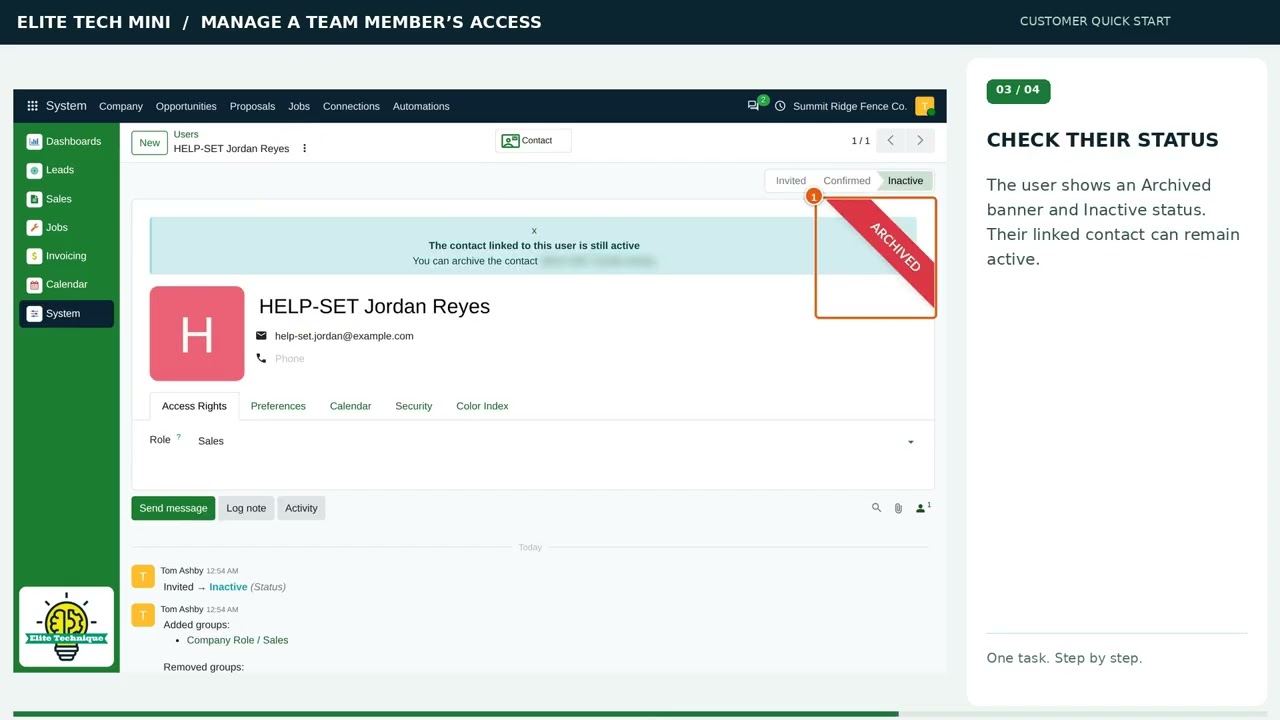
Their page shows an Archived banner (1) and their status changes to Inactive.
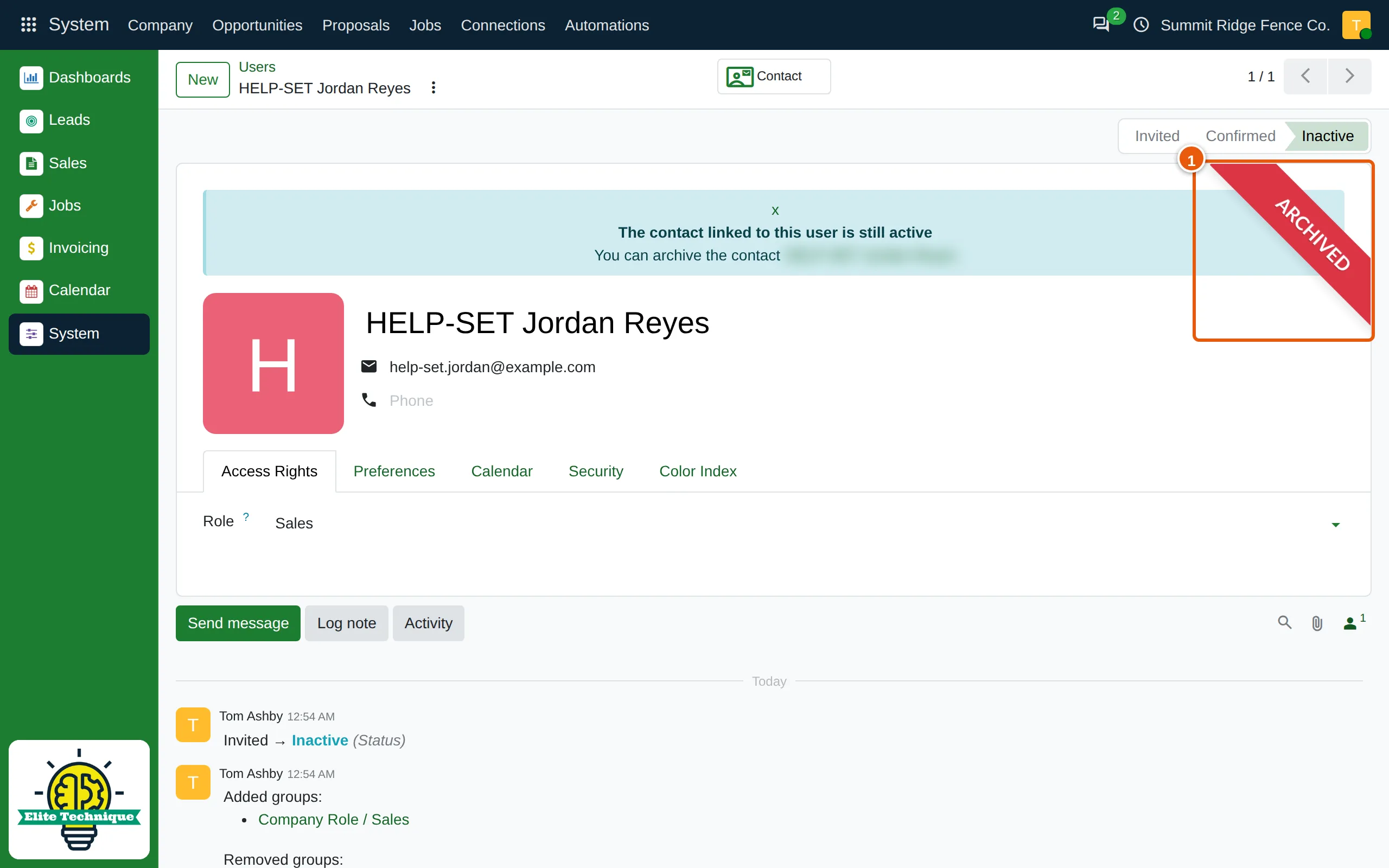
A note on their page says the contact linked to them is still active, and offers to archive the contact too.
Archived people no longer appear in the Users list.
Bring someone back
Section titled “Bring someone back”-
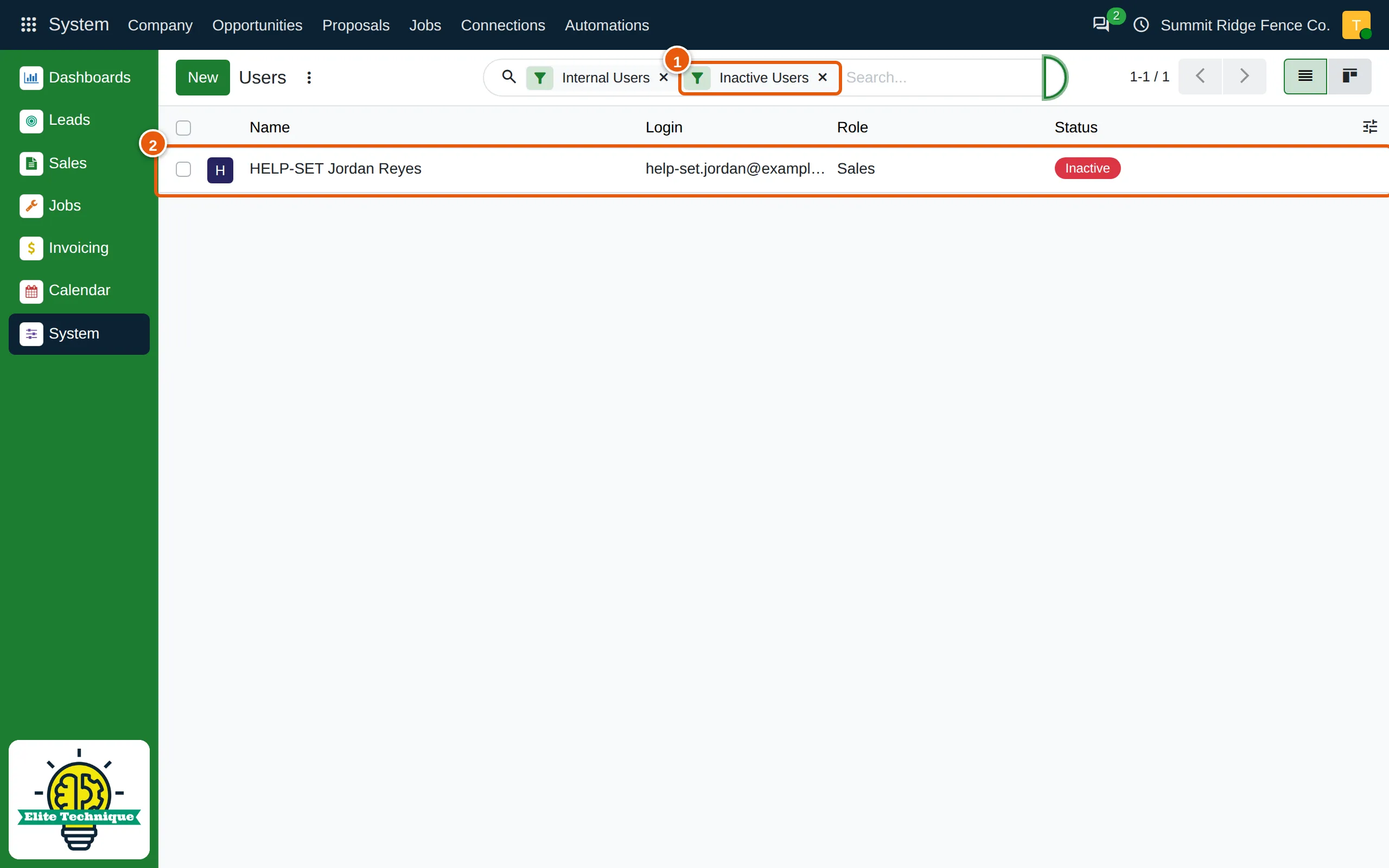
On Users, click the arrow at the right of the search box and click Inactive Users. The list shows only archived people (2), with the Inactive Users filter in the search box (1).
-
Click their name, open the Actions menu and click Unarchive. They can sign in again, with the role they had before.