
Add a team member
Give someone on your team their own sign-in, choose the role that decides what they see, and send them their invitation.
Everyone who uses Elite Technique signs in as themselves. When someone joins your team, add them here and give them a role — one choice that decides which apps and records they see.
Who can do this: Admin.

Add the person
Section titled “Add the person”-
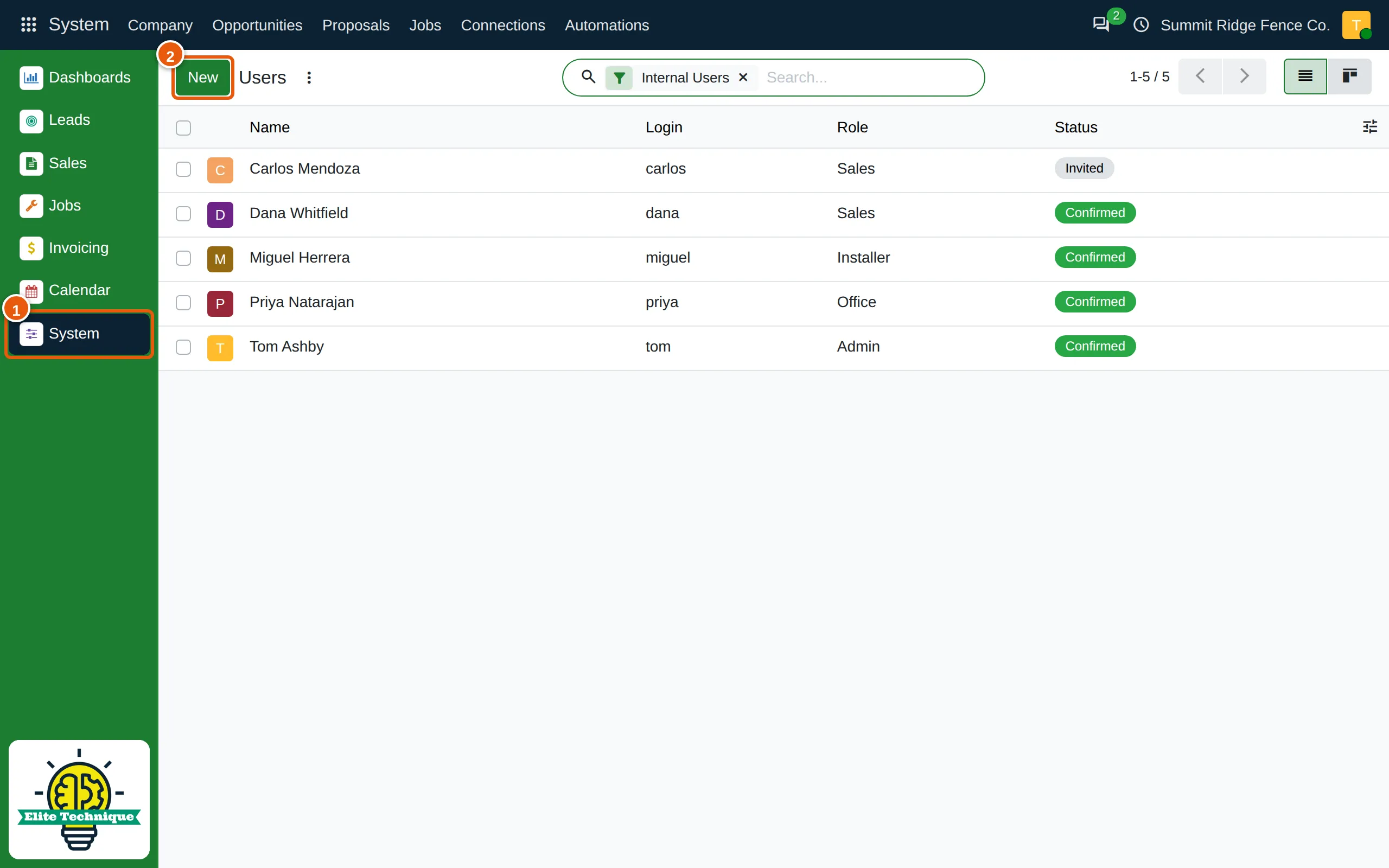
Click System (1) in the app bar on the left. It opens on Users, the list of everyone who can sign in. Click New (2).
-
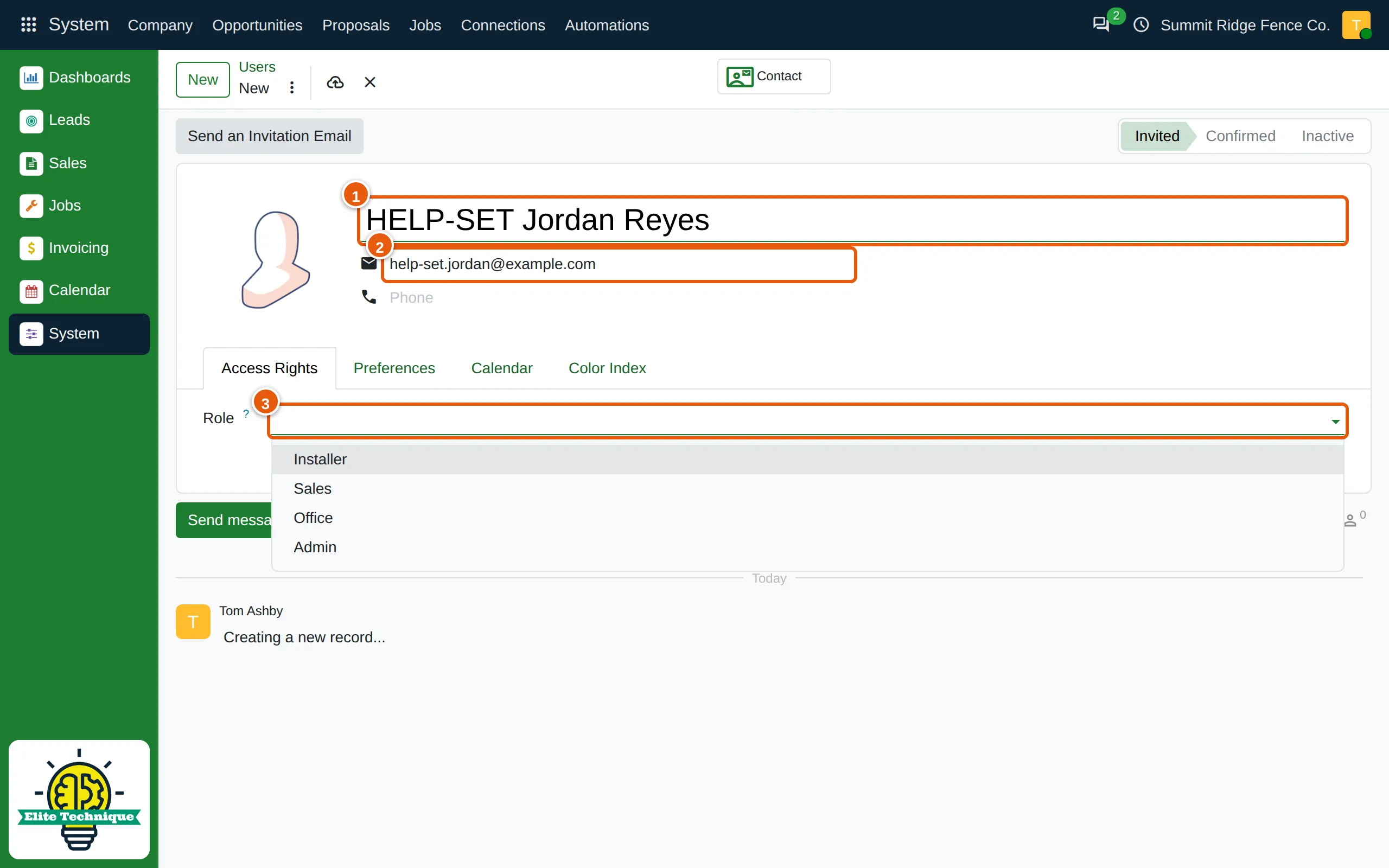
Type the person’s full name (1), then their email address (2). They sign in with this email address.
-
On the Access Rights tab, click Role (3) and pick one: Installer, Sales, Office or Admin. Installer and Sales are included in the Standard, Pro and Elite packages.
-
Click the cloud icon at the top to save.
Not sure which role to pick? See What you see depends on your role.
Send their invitation
Section titled “Send their invitation”-
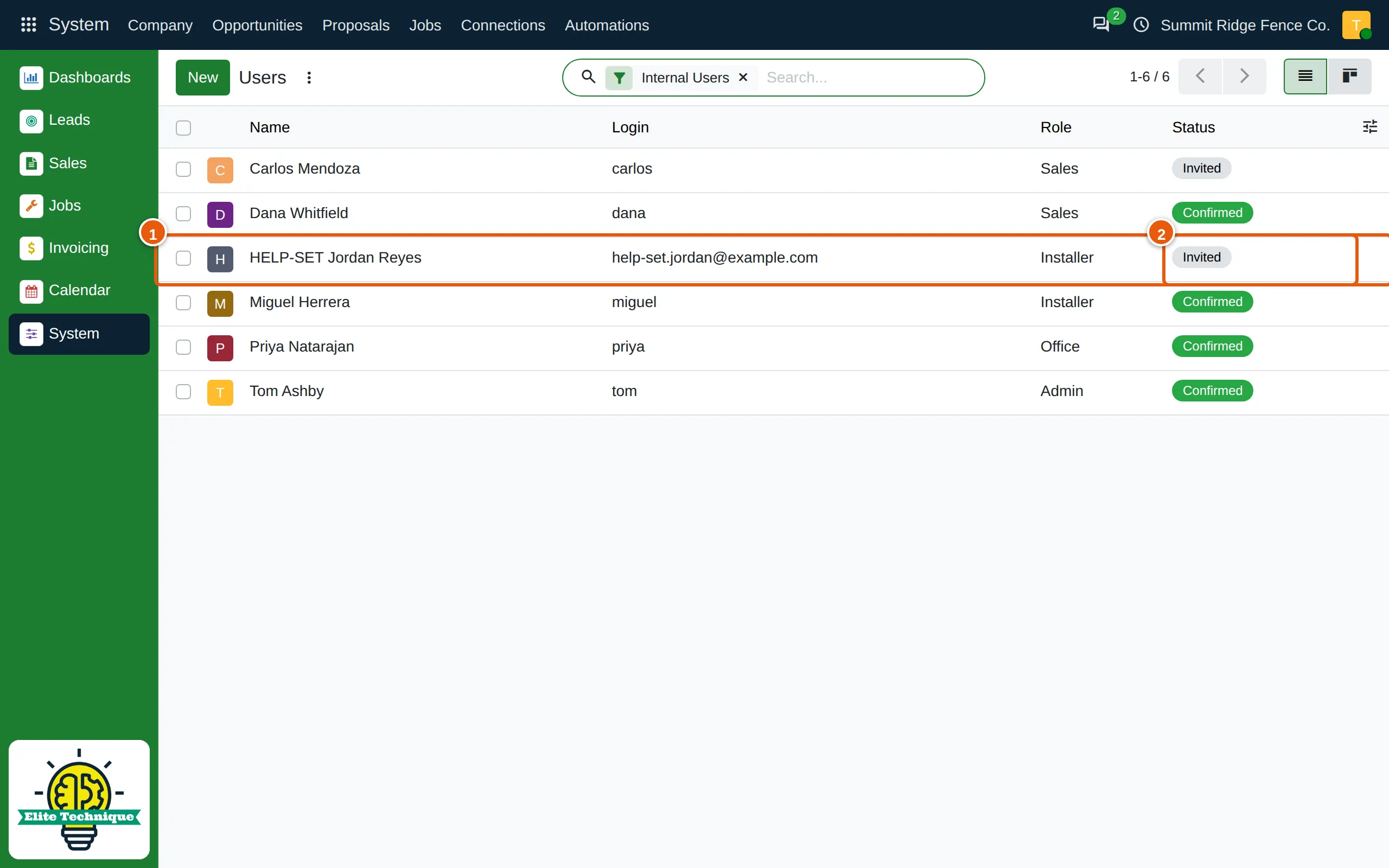
Click Users at the top left to go back to the list. The new person (1) is there, with their role and the status Invited (2).
-
Click their name to open them, then click Send an Invitation Email (1). They get an email with a link to set their password and sign in.
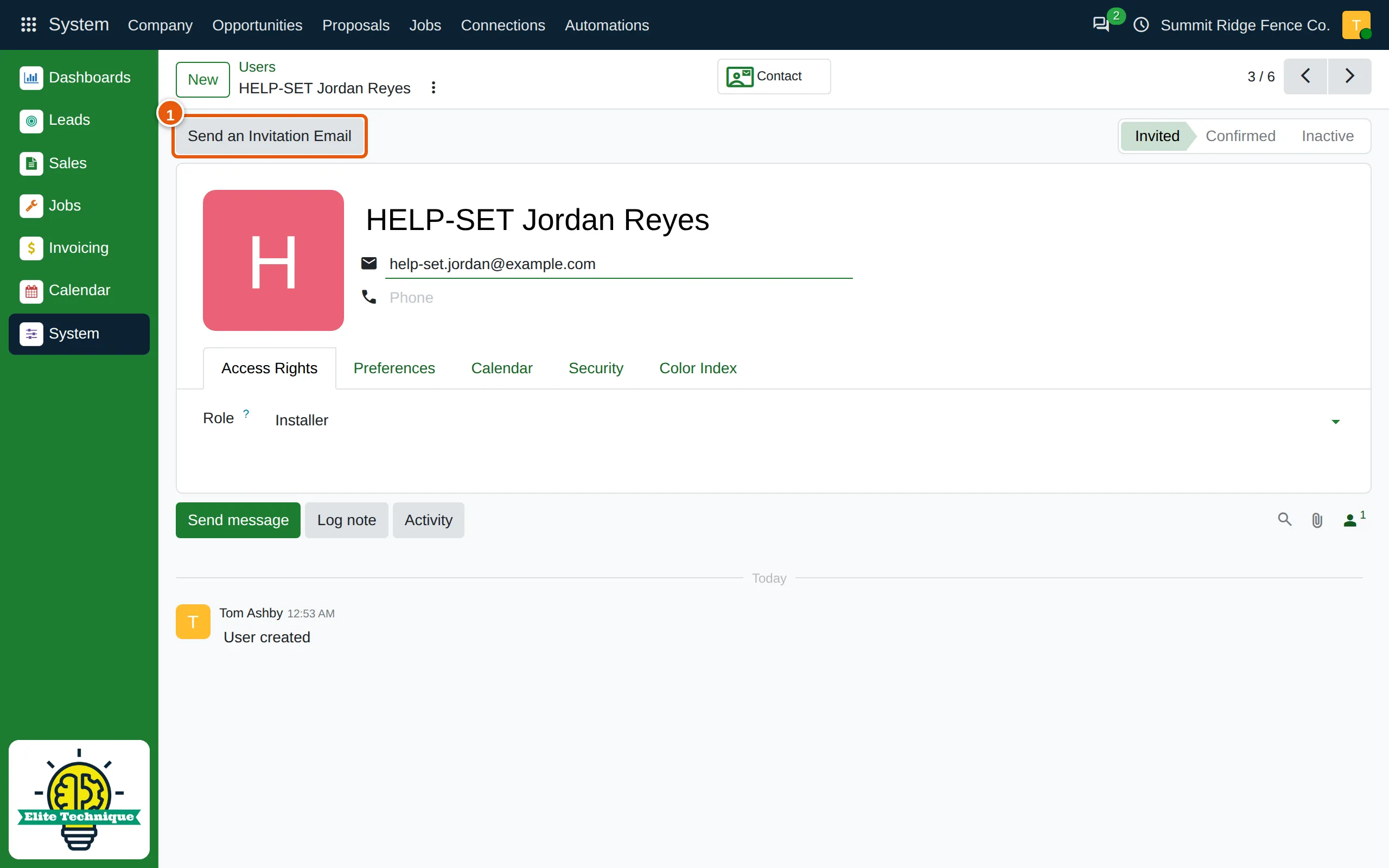
Their status reads Invited until they sign in for the first time, then Confirmed.