
Choose how your proposals and invoices look
Pick the layout, table style, font and colors of your proposals and invoices, and what their header and footer say.
Your proposals and invoices share one look: a layout, a table style, a font, your logo and your colors. Choose them once and every document you send follows.
Who can do this: Admin.
-
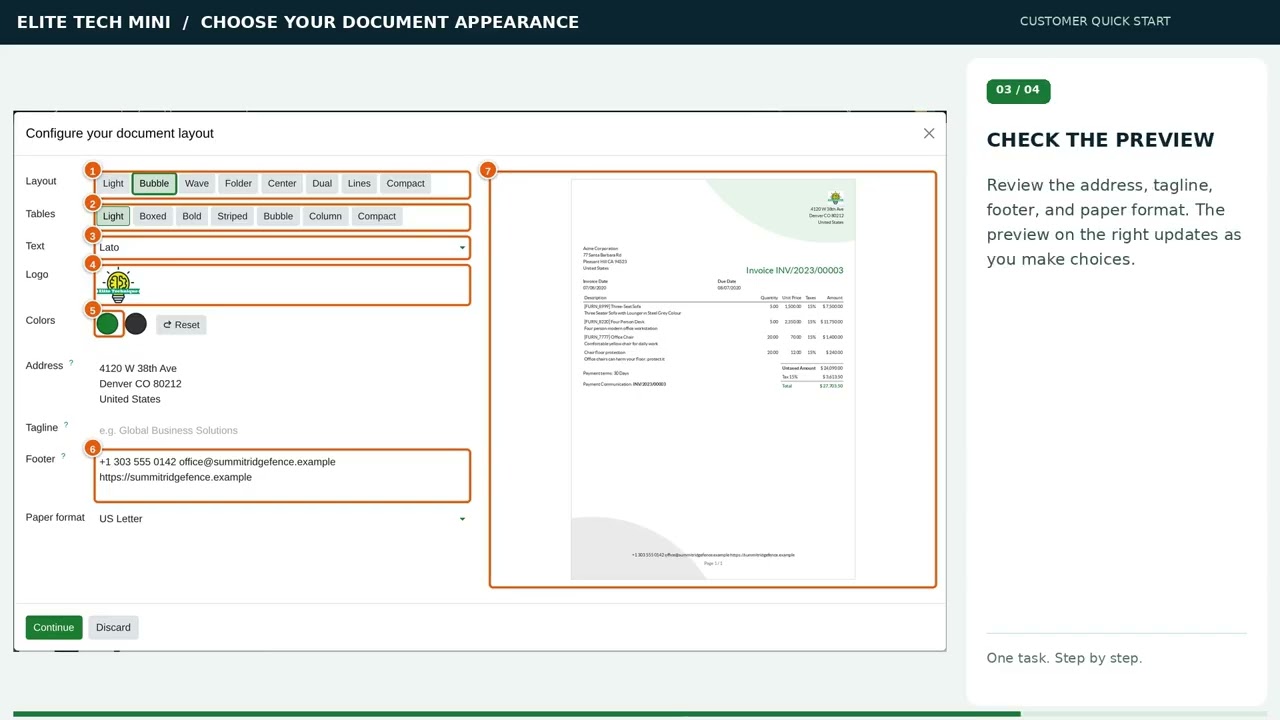
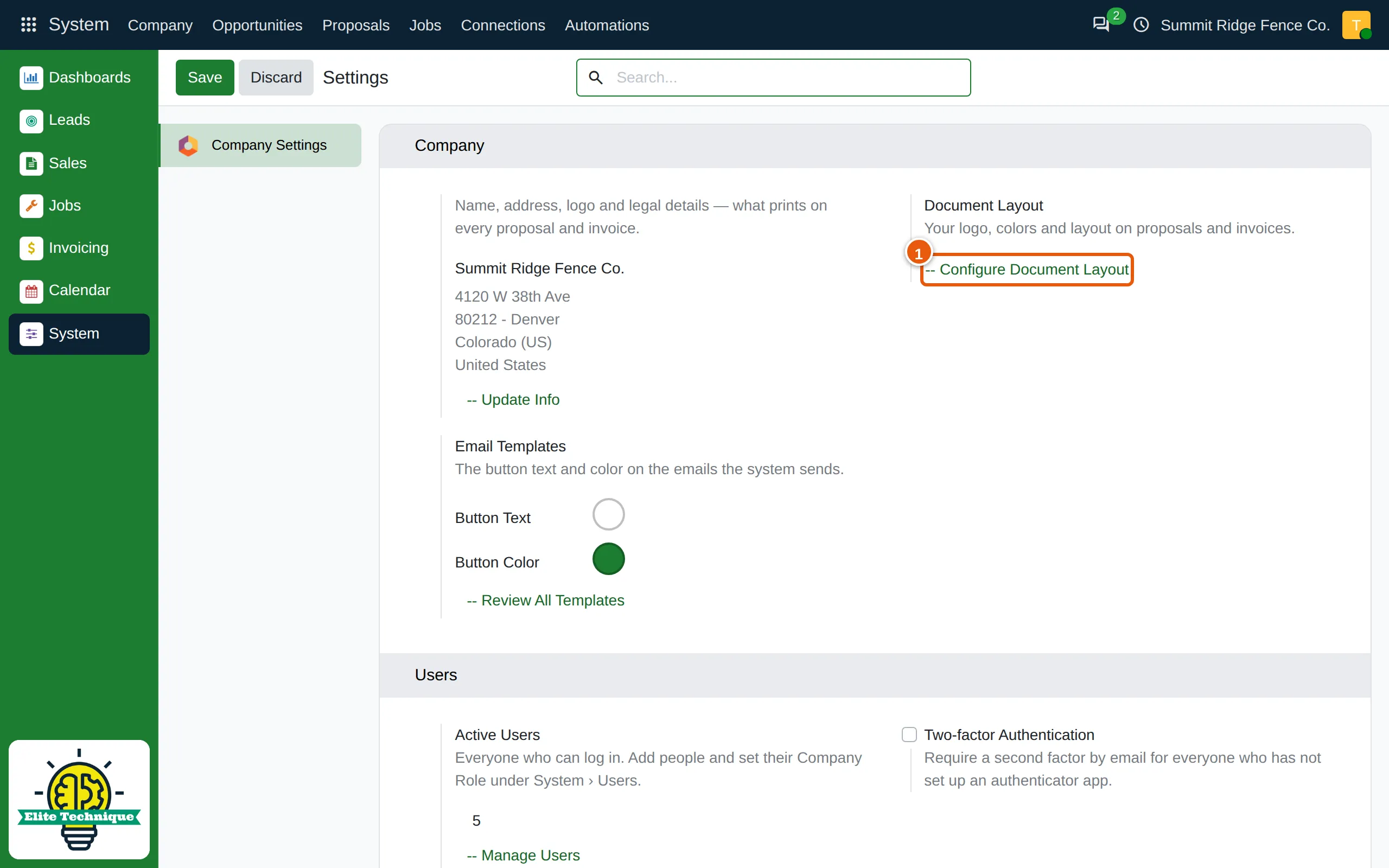
In System, open Company › Company Settings. Under Document Layout, click Configure Document Layout (1).
-
Make your choices. The preview on the right (7) shows a sample document as you go.
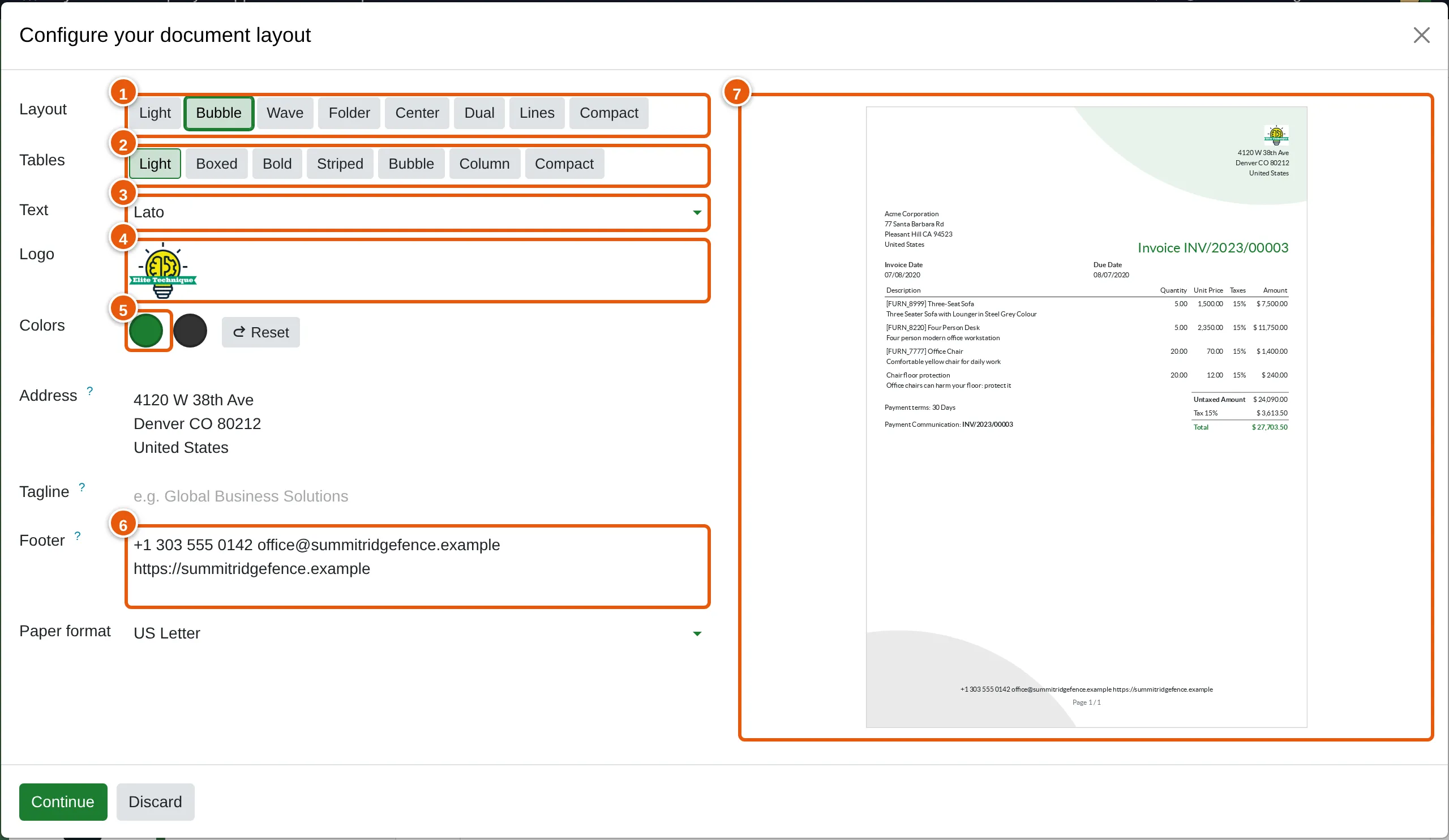
- Layout (1) — the overall design: Light, Bubble, Wave, Folder, Center, Dual, Lines or Compact.
- Tables (2) — how the lines of a proposal or invoice are drawn.
- Text (3) — the font.
- Logo (4) — your company logo.
- Colors (5) — your two document colors. Click a circle to pick a color.
- Address, Tagline and Footer (6) — the text at the top and bottom of each page.
- Paper format — US Letter or another size.
-
Click Continue to save. You are back on Company Settings.