Pro and upIncluded in the Pro and Elite packages.
Log hours on a job
Record the time spent on a job — installers their own hours, the office anyone's — so the job shows what its labor cost.
Hours are logged on the job itself, on its Hours tab. Installers log their own time; the office can log time for anyone on the team. Each line is costed at the person’s hourly cost.
Who can do this: Installers, for their own hours. Office and Admin, for anyone.
Log your own hours
Section titled “Log your own hours”-
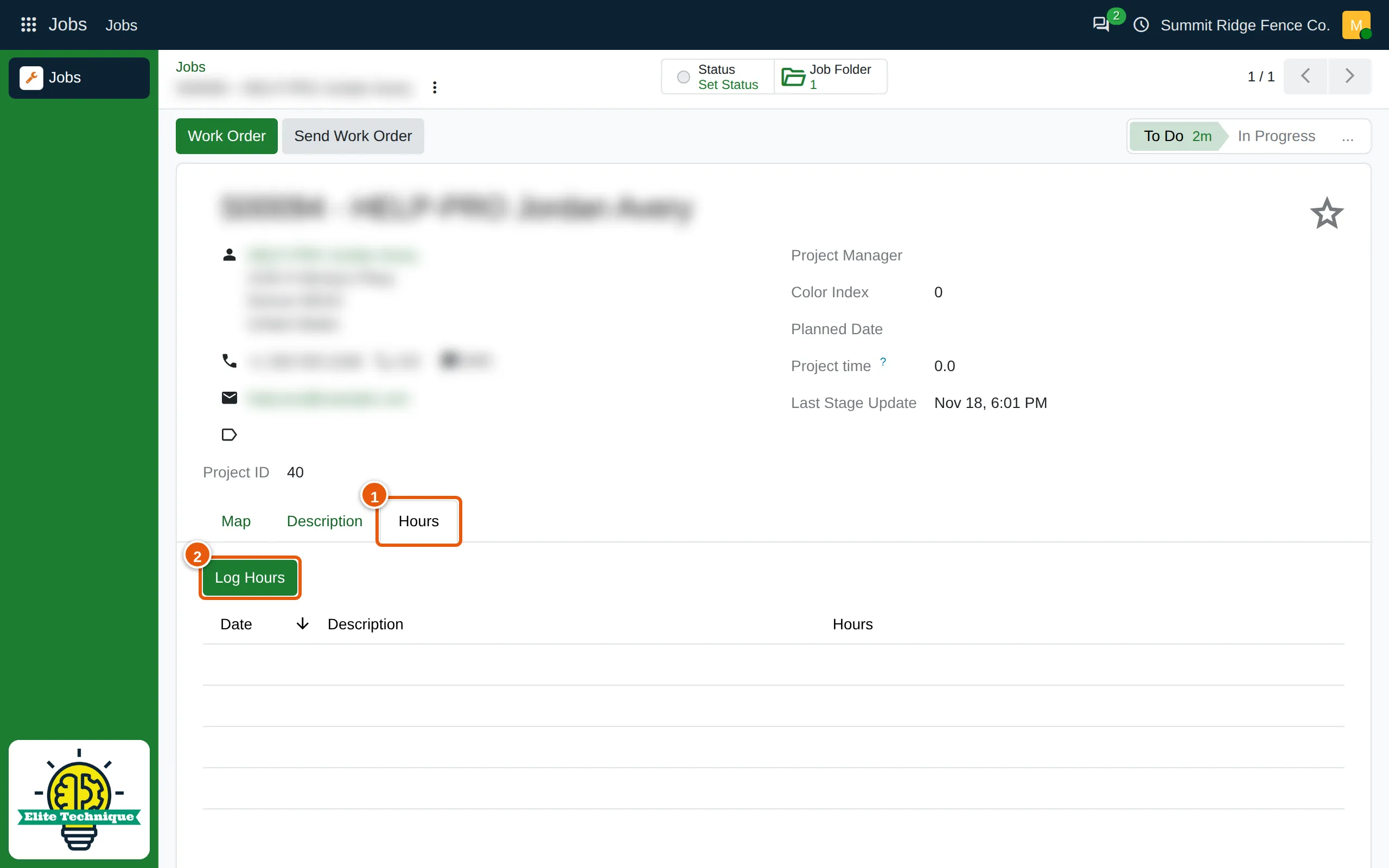
Open the job from Jobs. Click the Hours tab (1), then Log Hours (2).
-
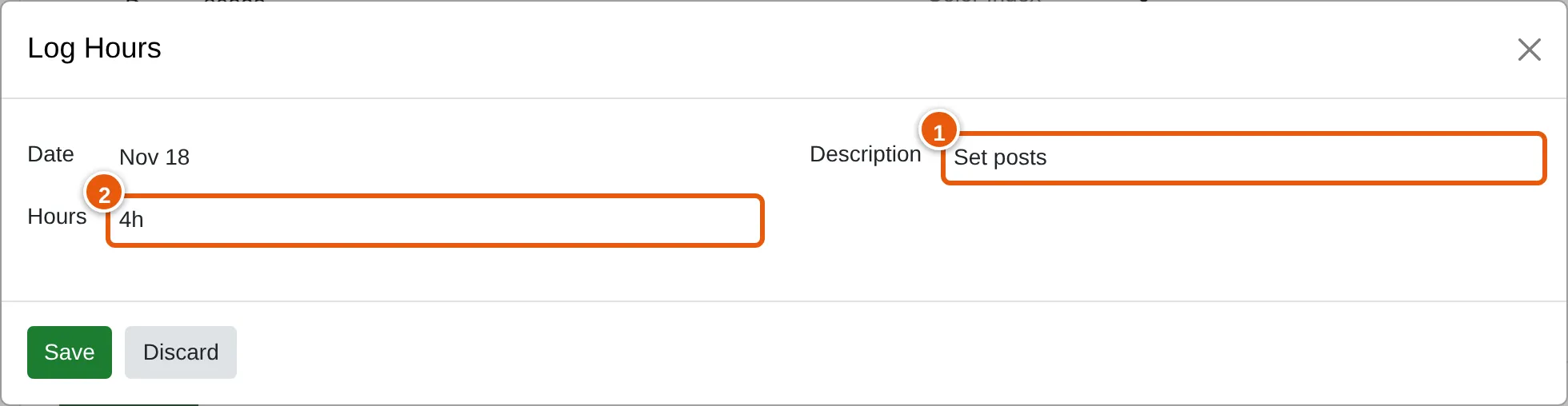
Date starts at today. Type what you did in Description (1) and the time in Hours (2) — 4:00 for four hours. Click Save.
The line appears on the Hours tab: the date, what you did and the hours.
Log hours for someone else
Section titled “Log hours for someone else”Office and Admin see one more field in the same window.
-
Open the job, click the Hours tab, then Log Hours.
-
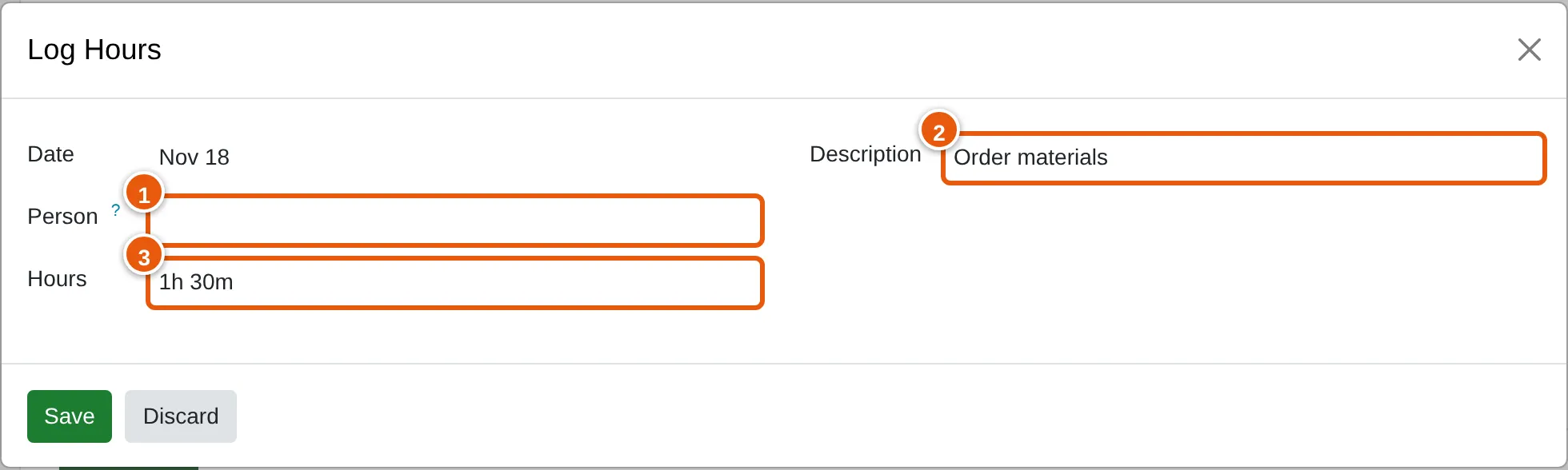
In Person (1), pick the team member the hours are for, or leave it empty to log your own. Type the Description (2) and the Hours (3). Click Save.
-
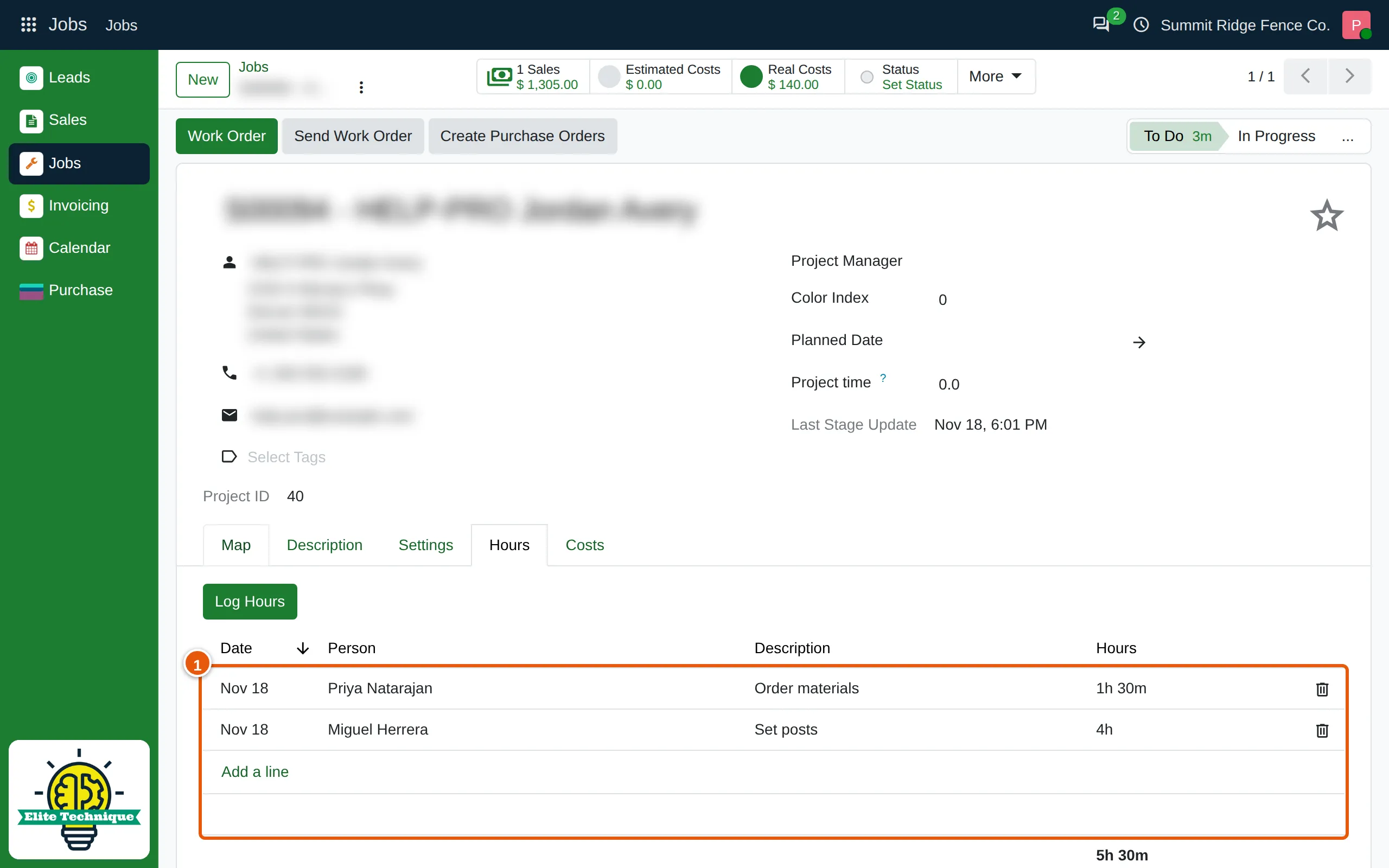
The Hours tab lists every line on the job — date, person, description and hours — with the total underneath (1).