
Standard and upIncluded in the Standard, Pro and Elite packages.
Your jobs as an installer
What an installer sees in Elite Technique — your jobs, where they are, when you are on site, and how to get directions.
As an installer, you see one app: Jobs. It lists the jobs your office has added you to, with the customer’s address, phone number and the days you are on site. You can read a job, but not change it. To add photos and files, see Add files and photos to a job.
Who this is for: the Installer role.

Find your job
Section titled “Find your job”-
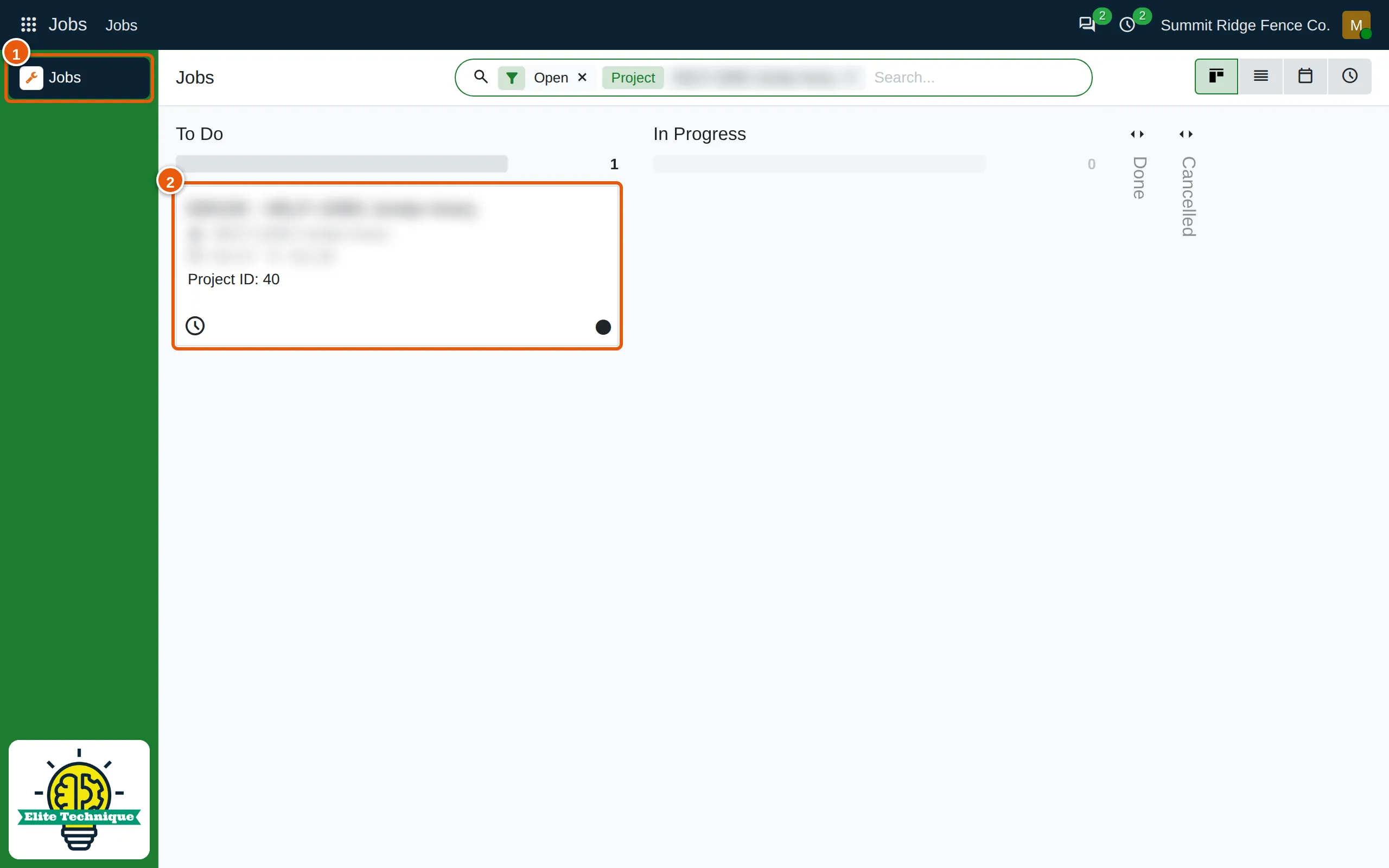
Sign in. Jobs (1) opens on its own, with a card for each job you are on.
-
To find one job, type the customer’s name in the search box and press Enter. Then click the job’s card (2).
Read the job
Section titled “Read the job”-
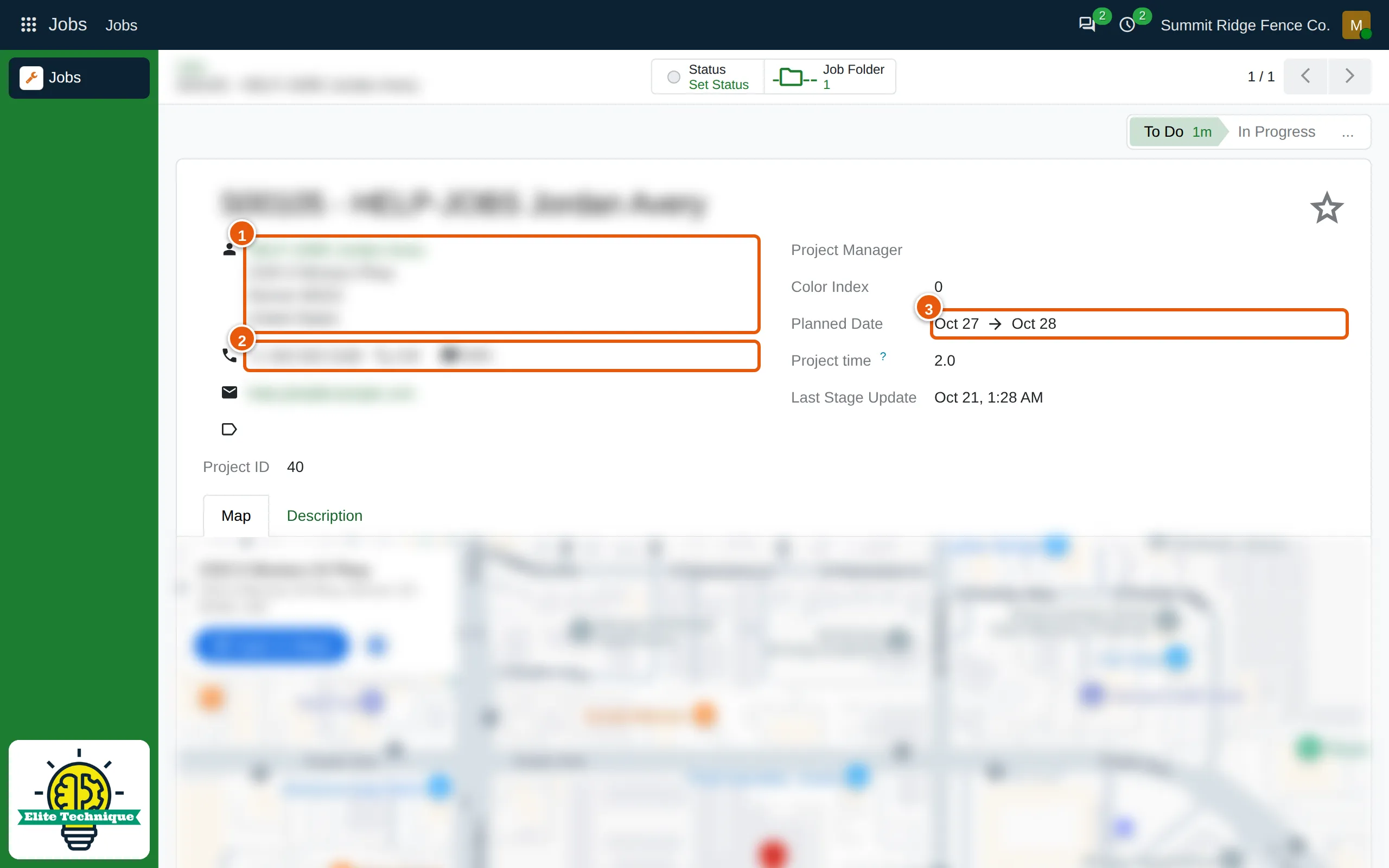
The job shows the customer and the job-site address (1), and their phone number (2), with Call and SMS next to it.
-
Planned Date (3) shows the first and last day you are on site.
Get directions
Section titled “Get directions”-
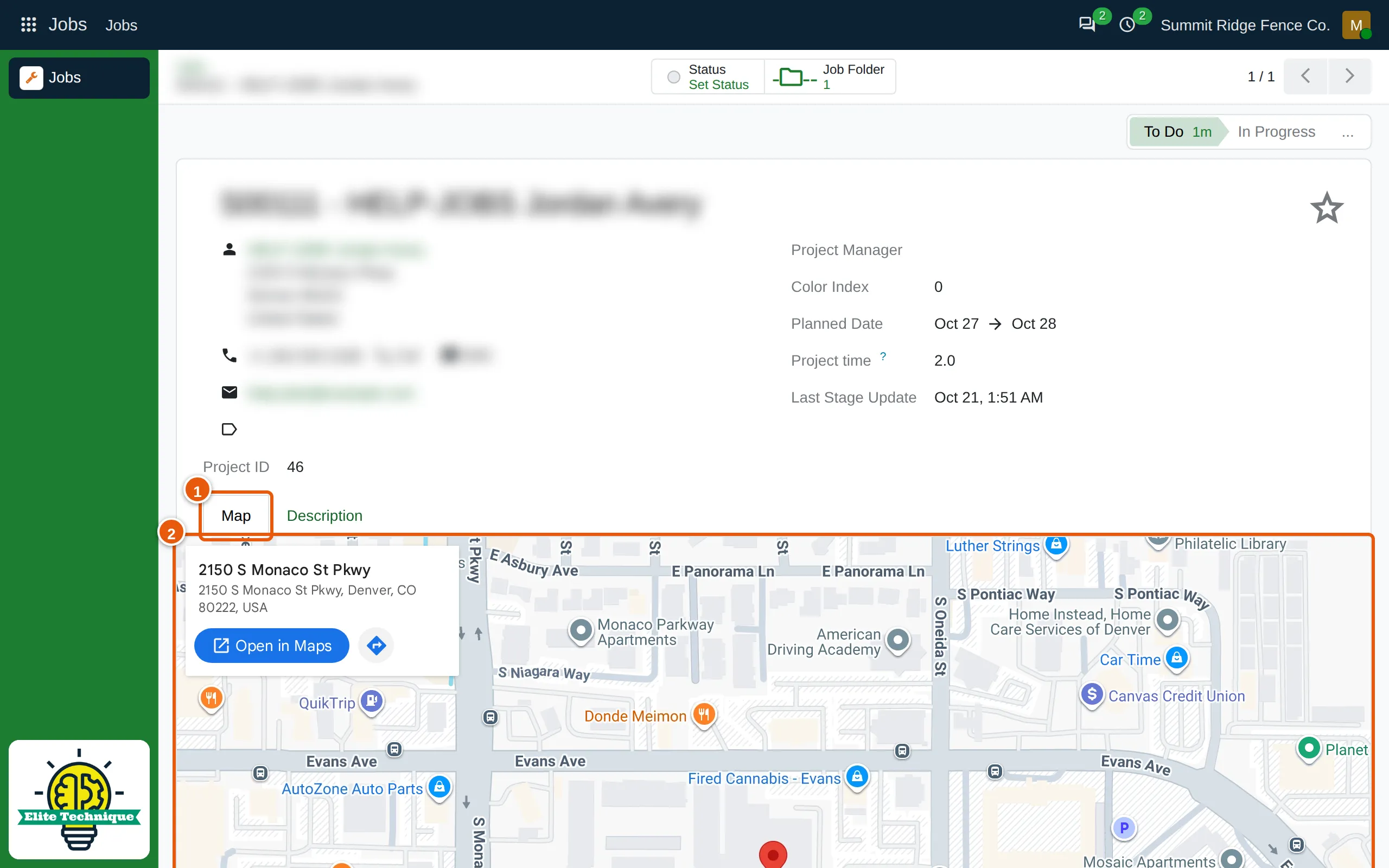
On the Map tab (1), the map (2) shows the job site.
-
Click Open in Maps on the map. The address opens in Google Maps, in a new tab.
See your days
Section titled “See your days”- Click Jobs in the top bar, then click the calendar icon at the top right. Each of your jobs appears as a bar across the days you are on site.