
Record a payment
Record a payment your customer made by check, cash or bank transfer against their invoice.
When your customer pays you by check, cash or bank transfer, record the payment on their invoice so it shows what is still due.
Who can do this: Office and Admin.
-
In Invoicing, click Invoices in the top bar, then click the invoice.
-
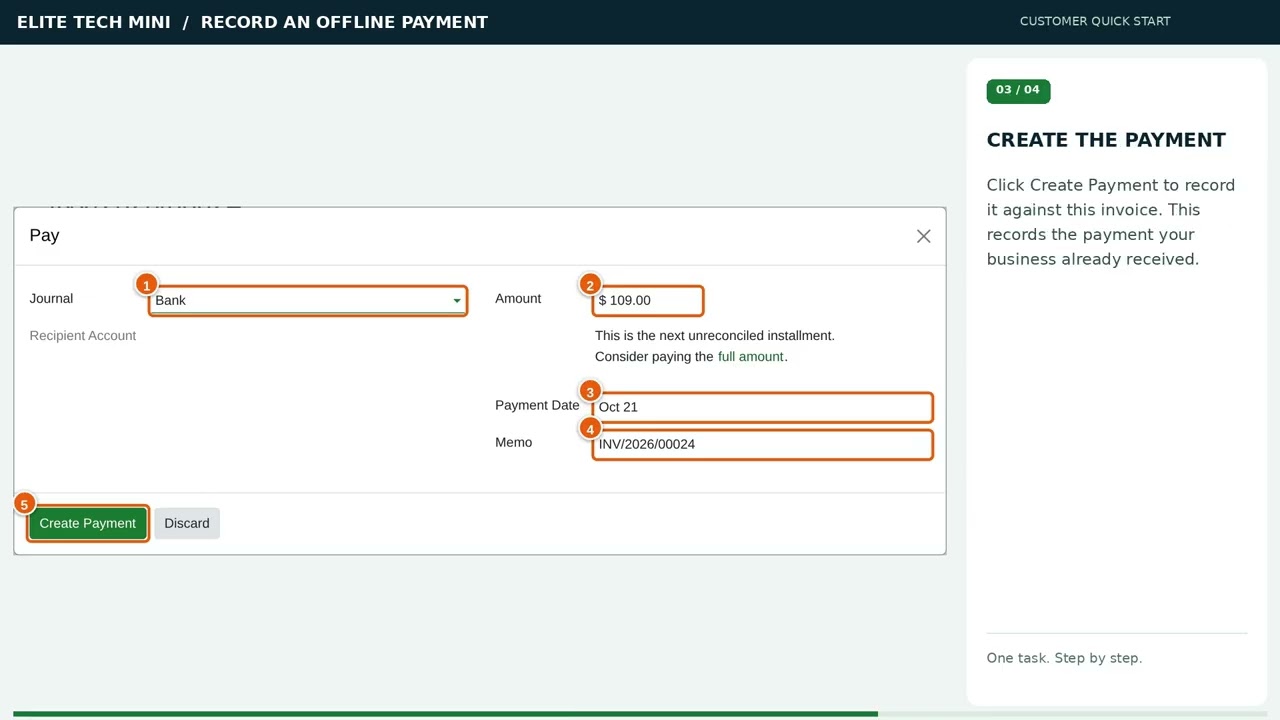
Click Pay. Check the details:
- Journal (1) — where the money went. Bank is filled in.
- Amount (2) — filled in with the next installment due. Change it to what your customer actually paid.
- Payment Date (3) — the day you were paid. It is filled in with today.
- Memo (4) — the invoice number, filled in for you.
-
Click Create Payment (5).
-
The payment shows below the invoice total as Paid on and the date (1), and the Amount Due (2) goes down by the amount paid.
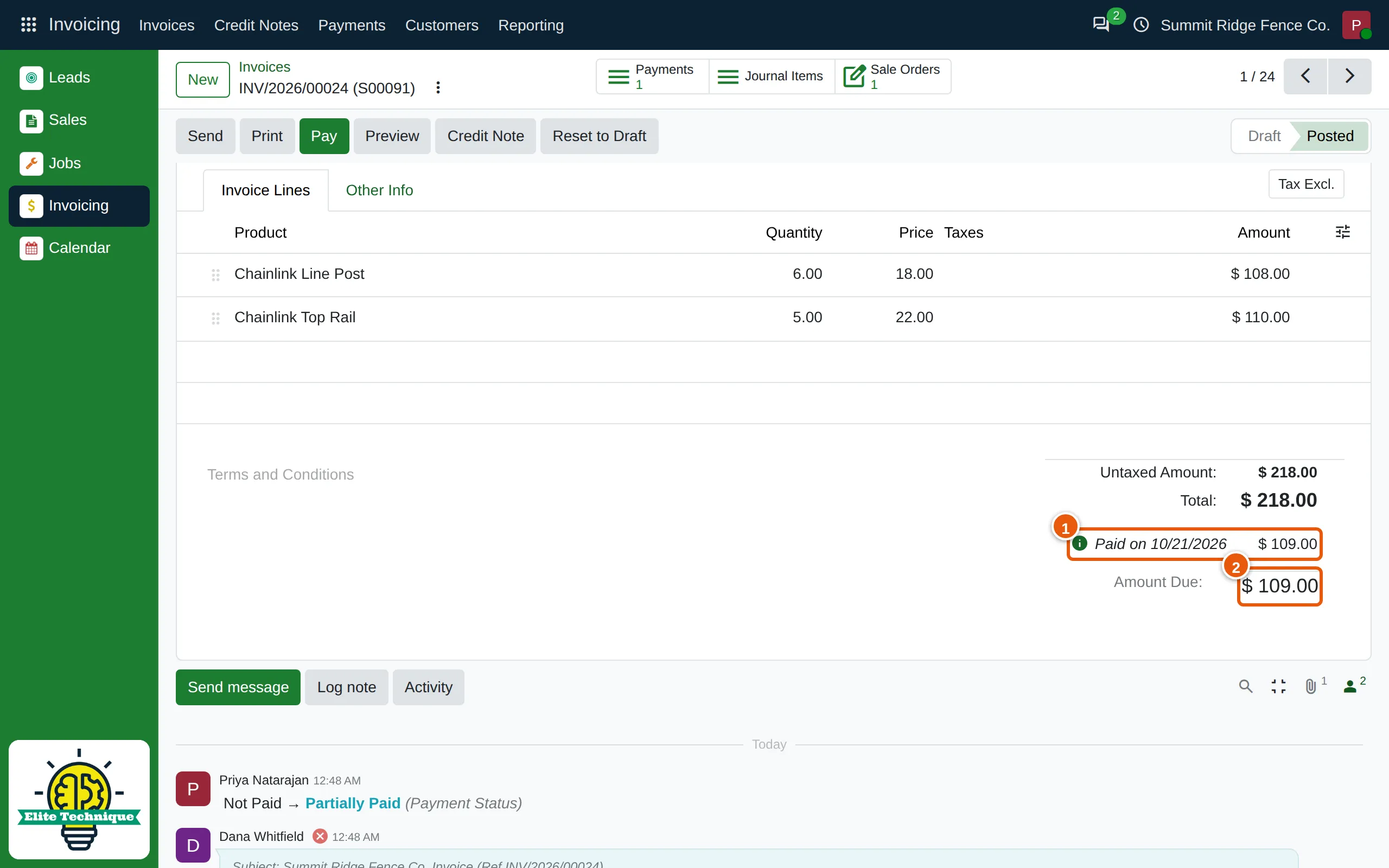
In the Invoices list, an invoice with an amount still due after a payment shows as Partially Paid.