
Customize your job stages
Add, order, fold and remove the stages your jobs move through on the Jobs board.
Job stages are the columns of your Jobs board: To Do, In Progress, Done and a stage for canceled jobs to start with. Add the steps your crews actually go through, in the order they happen. On the Elite package, each team can have job stages of its own: see Separate pipelines for each team.
Who can do this: Admin.
Add a stage
Section titled “Add a stage”-
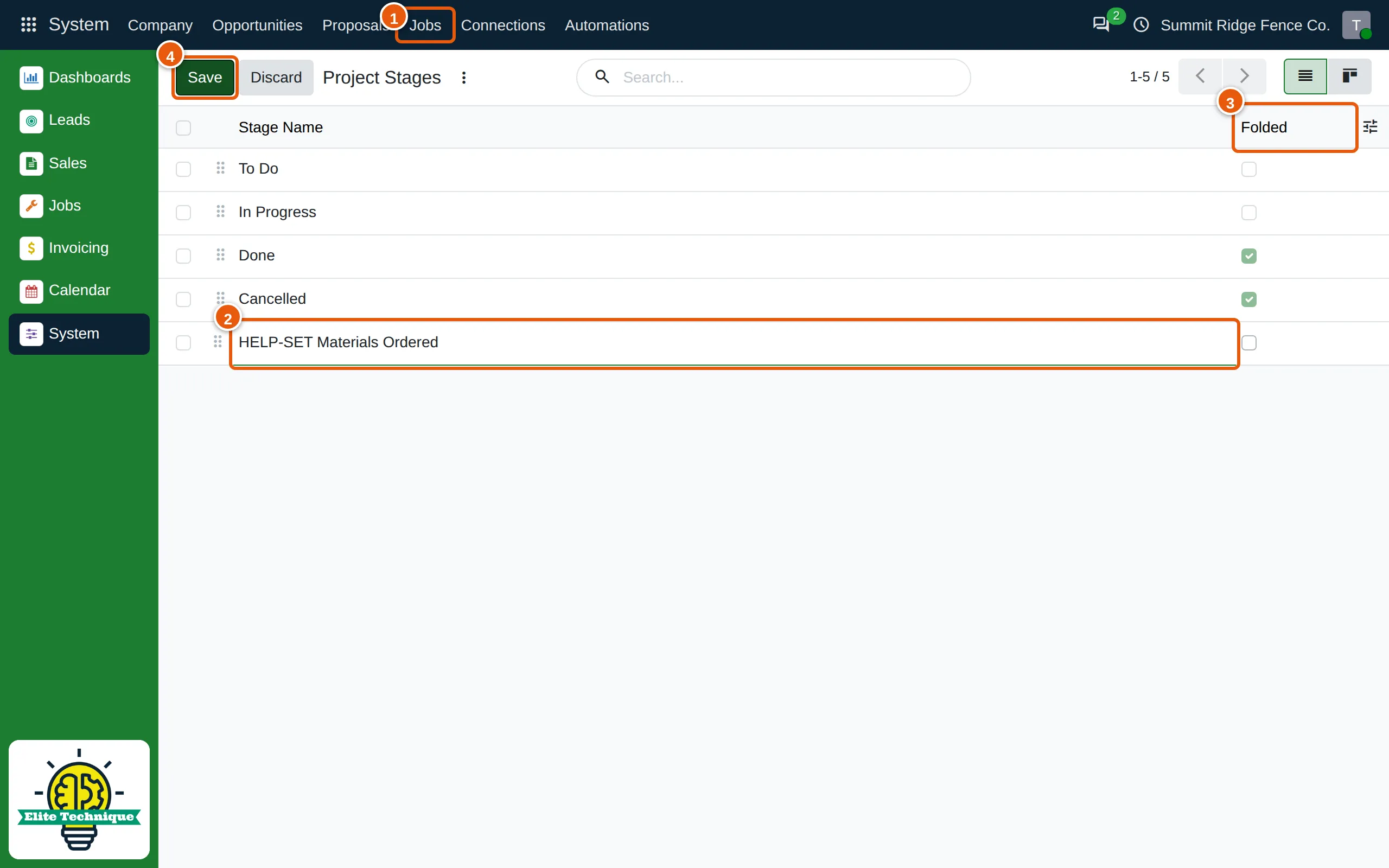
In System, open Jobs (1) › Job Stages and click New.
-
Type the Stage Name (2). Leave Folded (3) unchecked for a stage your team works in. Click Save (4).
-
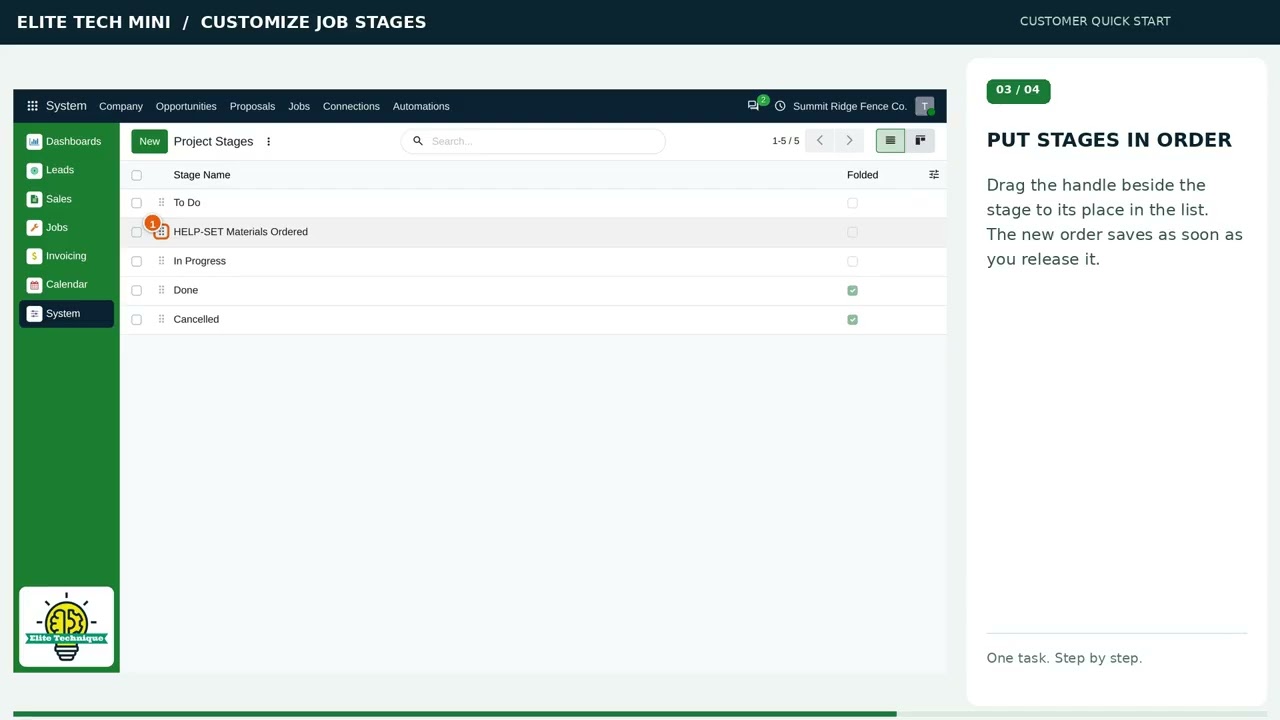
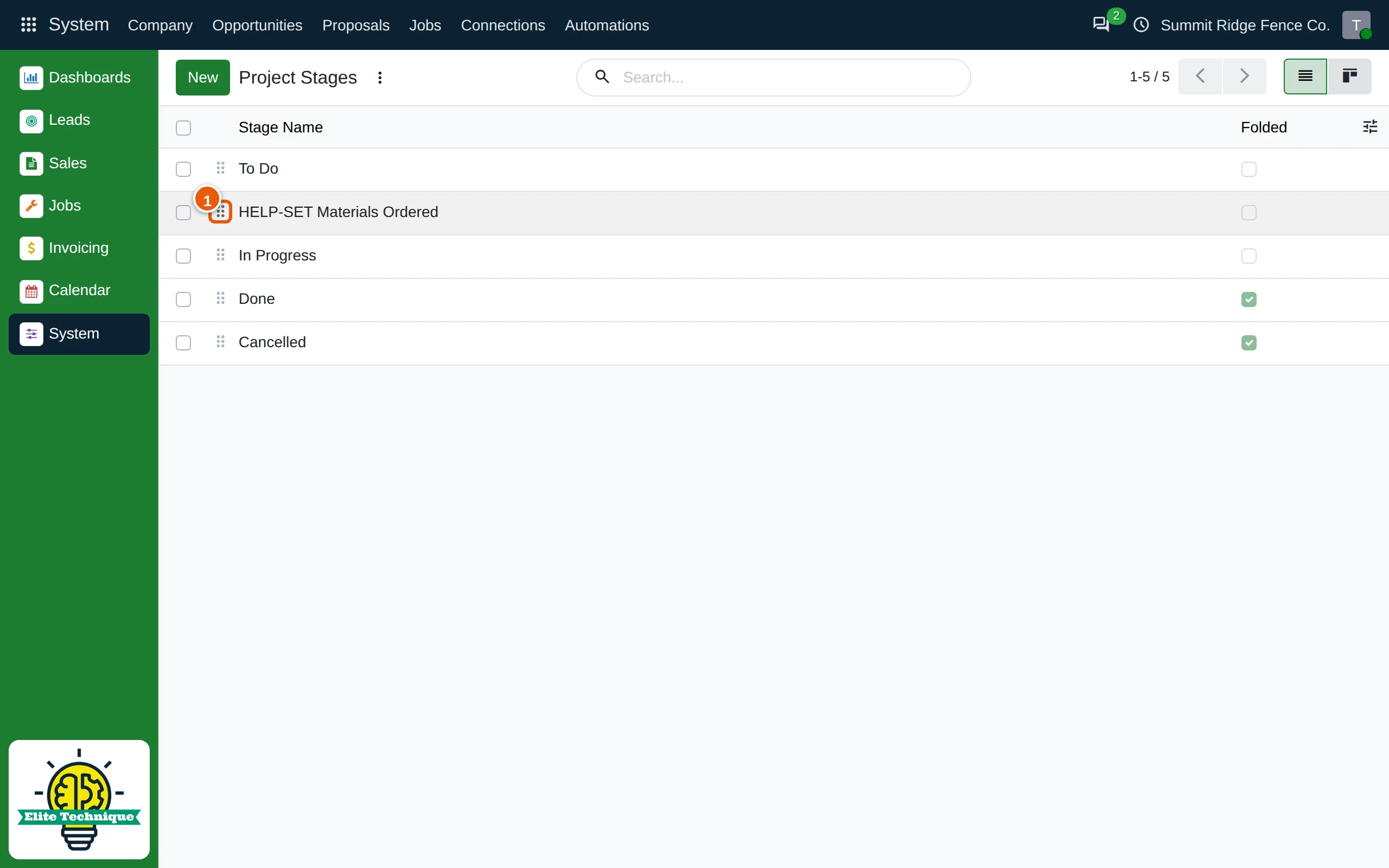
Drag the stage by its handle (1), the dots to the left of its name, to where it belongs. The new order is saved as soon as you let go.
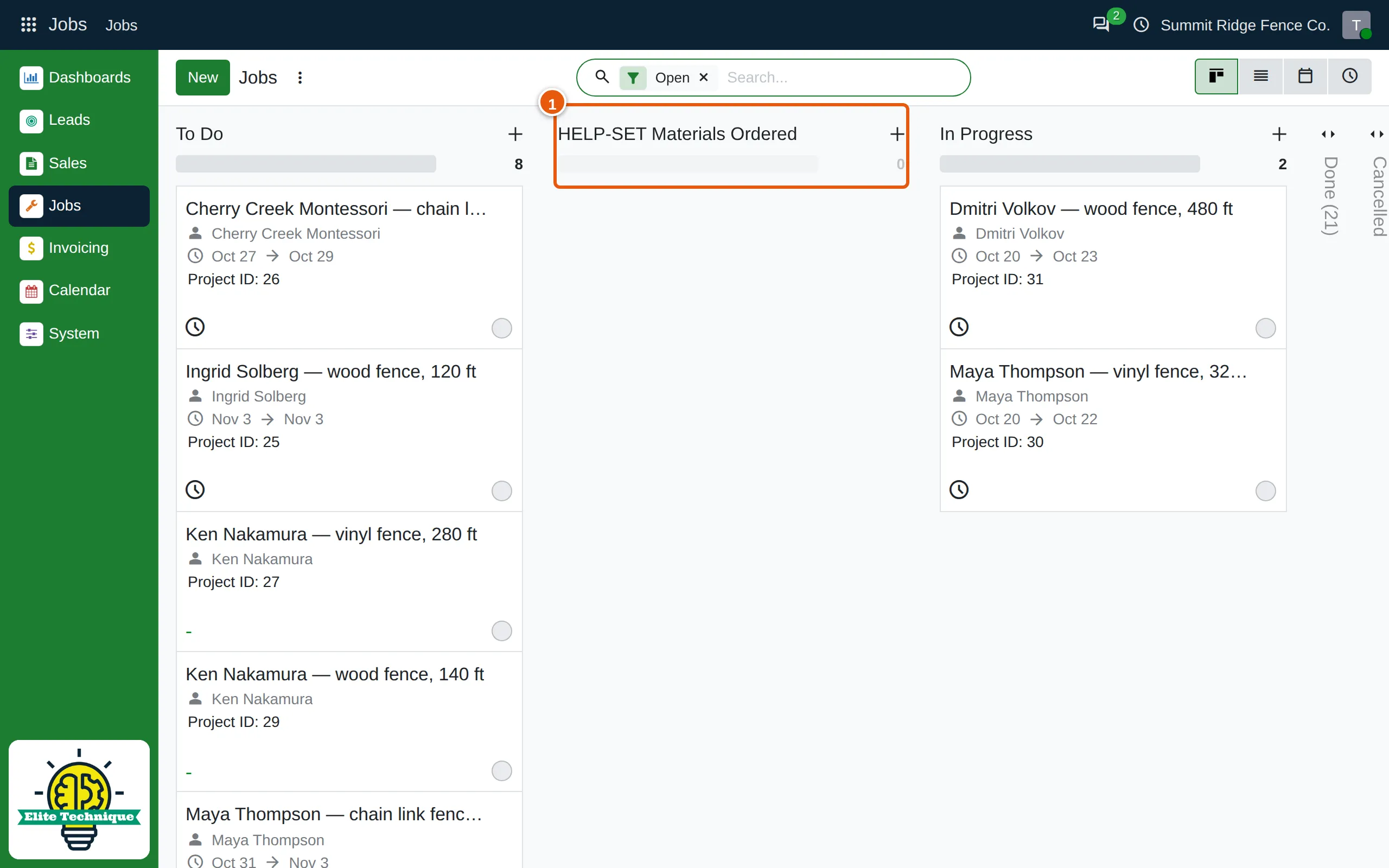
The Jobs board shows the stage as a column (1), in the same order:
Fold a stage
Section titled “Fold a stage”Check Folded beside a stage in Job Stages and click Save. Its column on the Jobs board is folded into a narrow strip, the way Done is.
Remove a stage
Section titled “Remove a stage”-
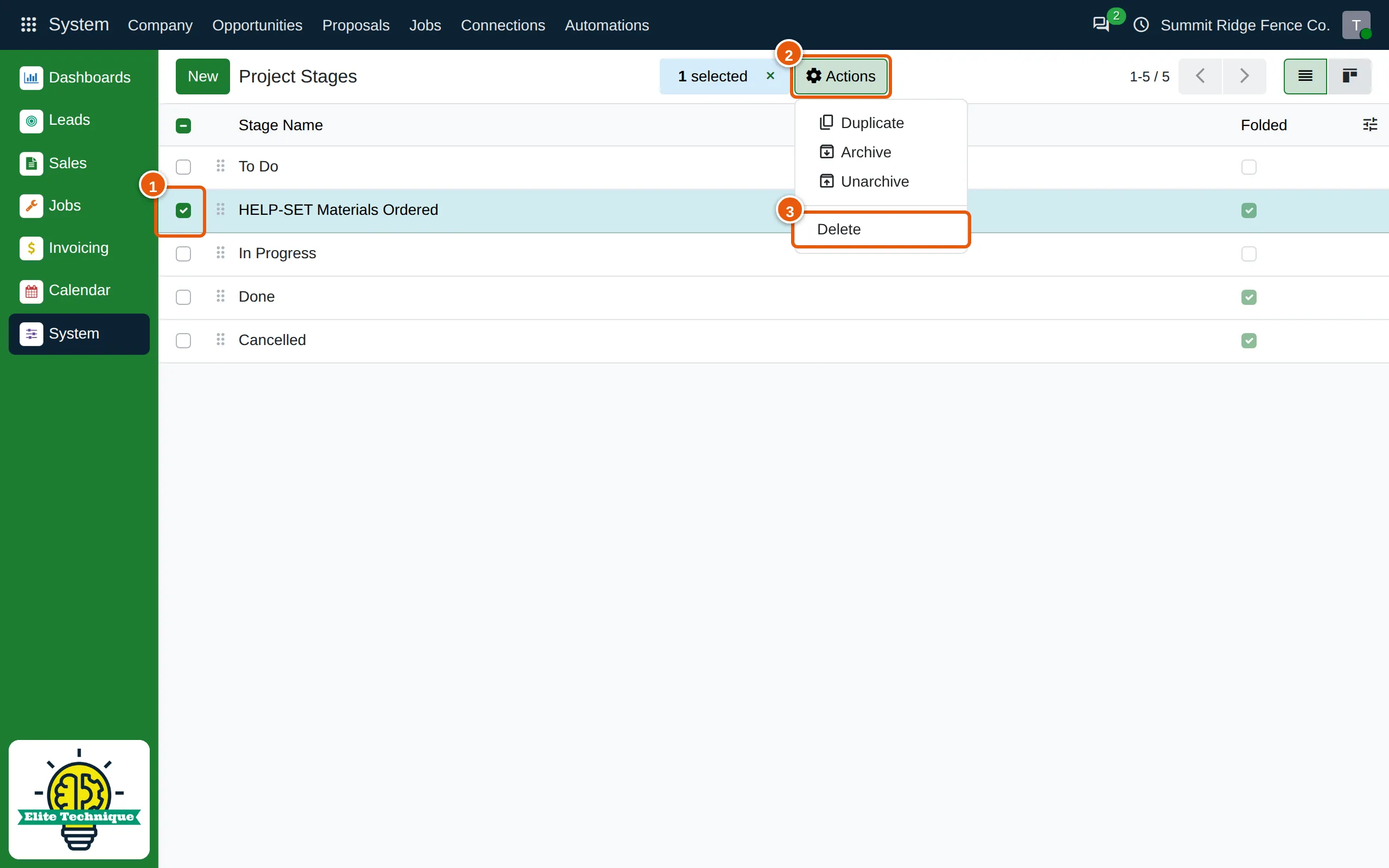
In Job Stages, check the box beside the stage (1), click the Actions menu (2) and click Delete (3).
-
Click Delete to confirm.