
EliteIncluded in the Elite package.
Work with branches
Rename your branches, choose which branches each salesperson and installer works in, and switch between branches.
Each Branch Add-on on your subscription gives you a branch. Your main company is your first branch, and every other branch is added for you as soon as the add-on is on your subscription. All your branches work from one shared setup, so you set things up once.
Who can do this: Admin renames branches and chooses each person’s branches. Admin and Office switch between every branch. Sales and Installers work in the branches they are given.
Rename a branch
Section titled “Rename a branch”A new branch is named after your company with a number. Give it a name your team will recognize.
-
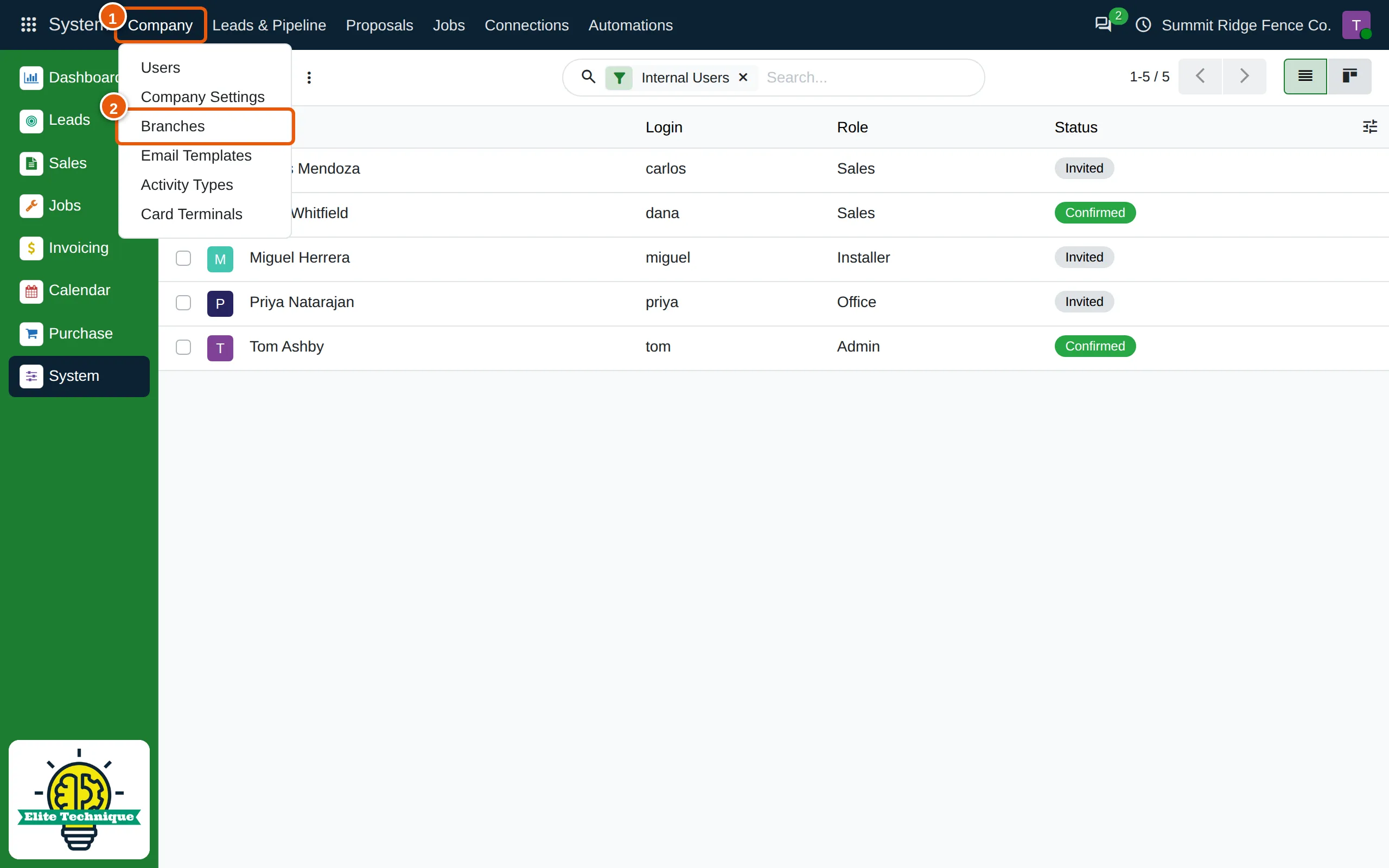
In System, open Company (1) › Branches (2).
-
Click the branch’s name (1), type the new name and click Save (2).
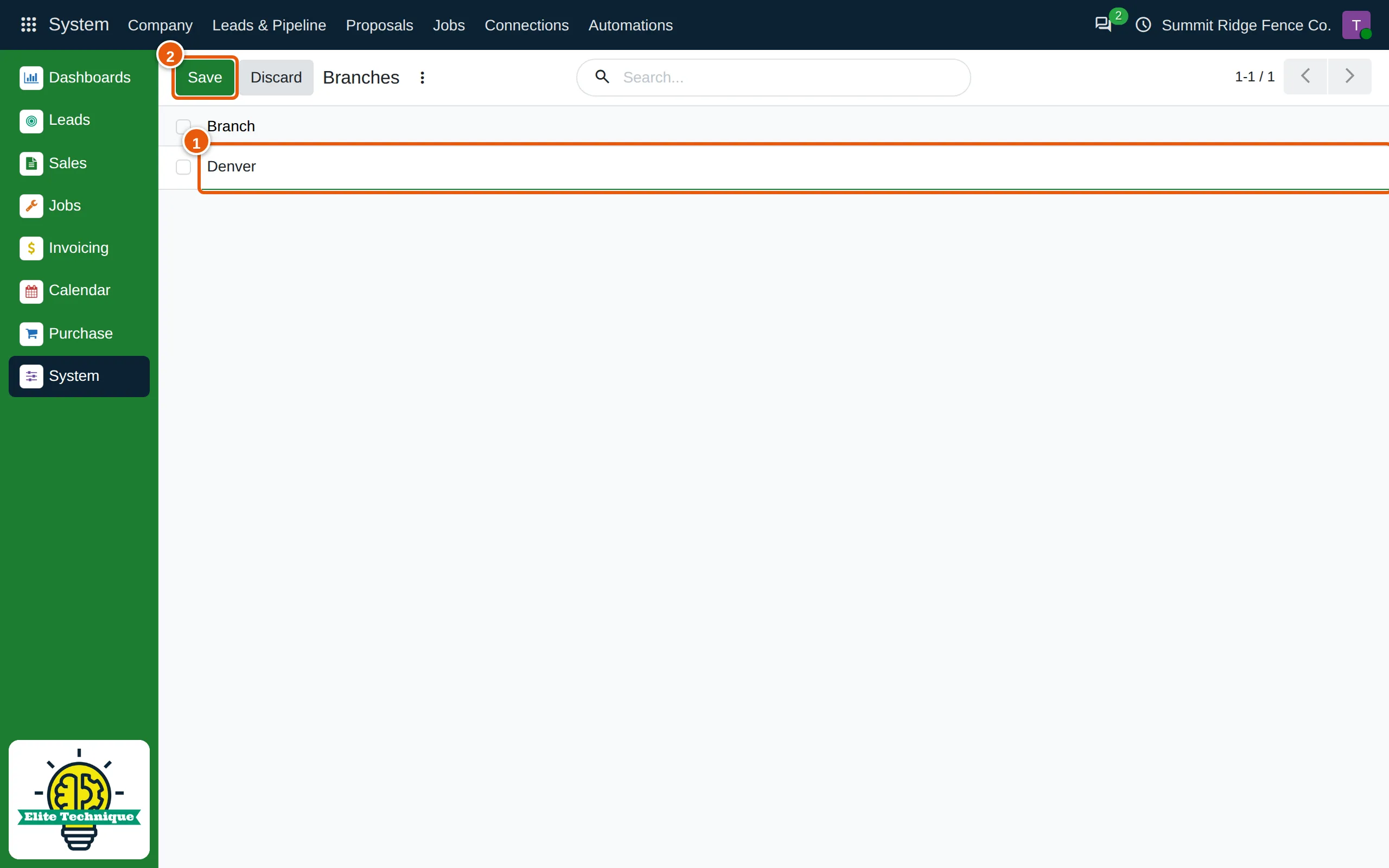
Elite Technique adds and closes branches, so Branches has no New button. Renaming is the only change you make here.
Choose a salesperson’s or installer’s branches
Section titled “Choose a salesperson’s or installer’s branches”-
In System, open Company › Users and click the person.
-
On the Access Rights tab, in Branches (1), remove the branches they don’t work in, then type and pick the ones they do. Click the cloud icon (2) to save.
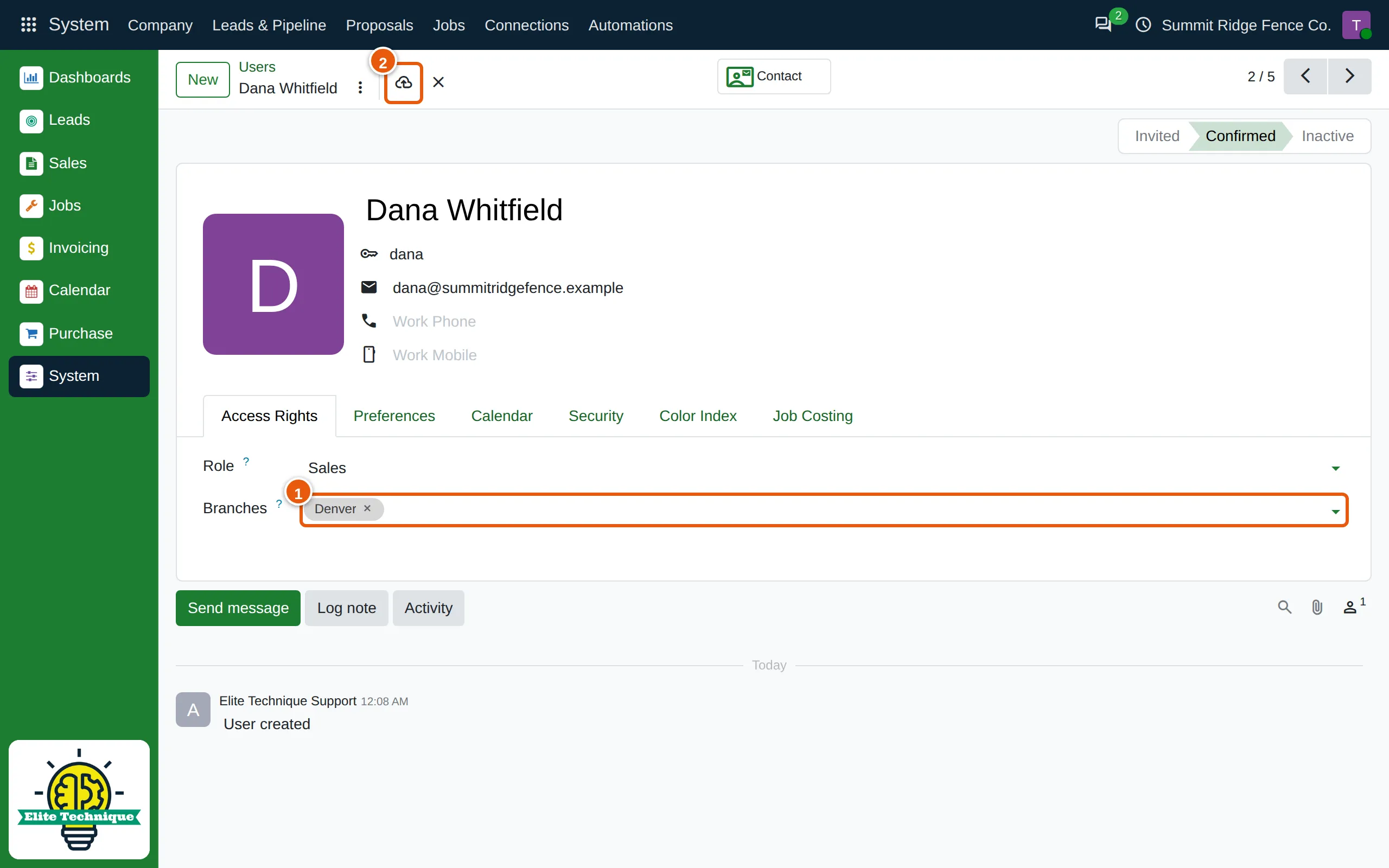
Admin and Office users have no Branches field: they always see every branch.
When you move a salesperson to a branch, the leads and proposals they made in the main company no longer show for them.
Switch between branches
Section titled “Switch between branches”-
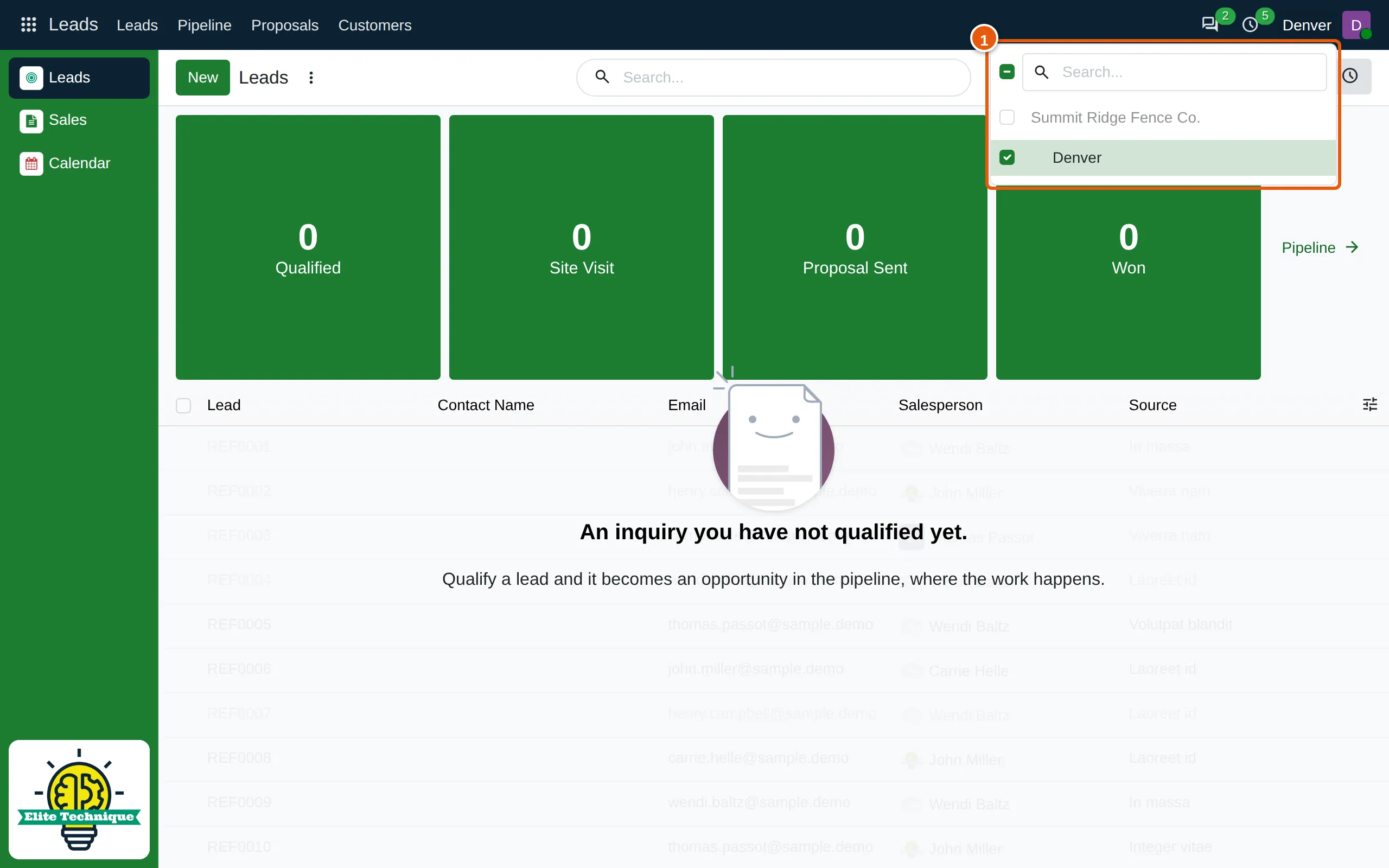
Click your company’s name at the top right (1). The list shows every branch you can work in.
-
Click a branch’s name (2). The top right now shows that branch, and you are working in it.
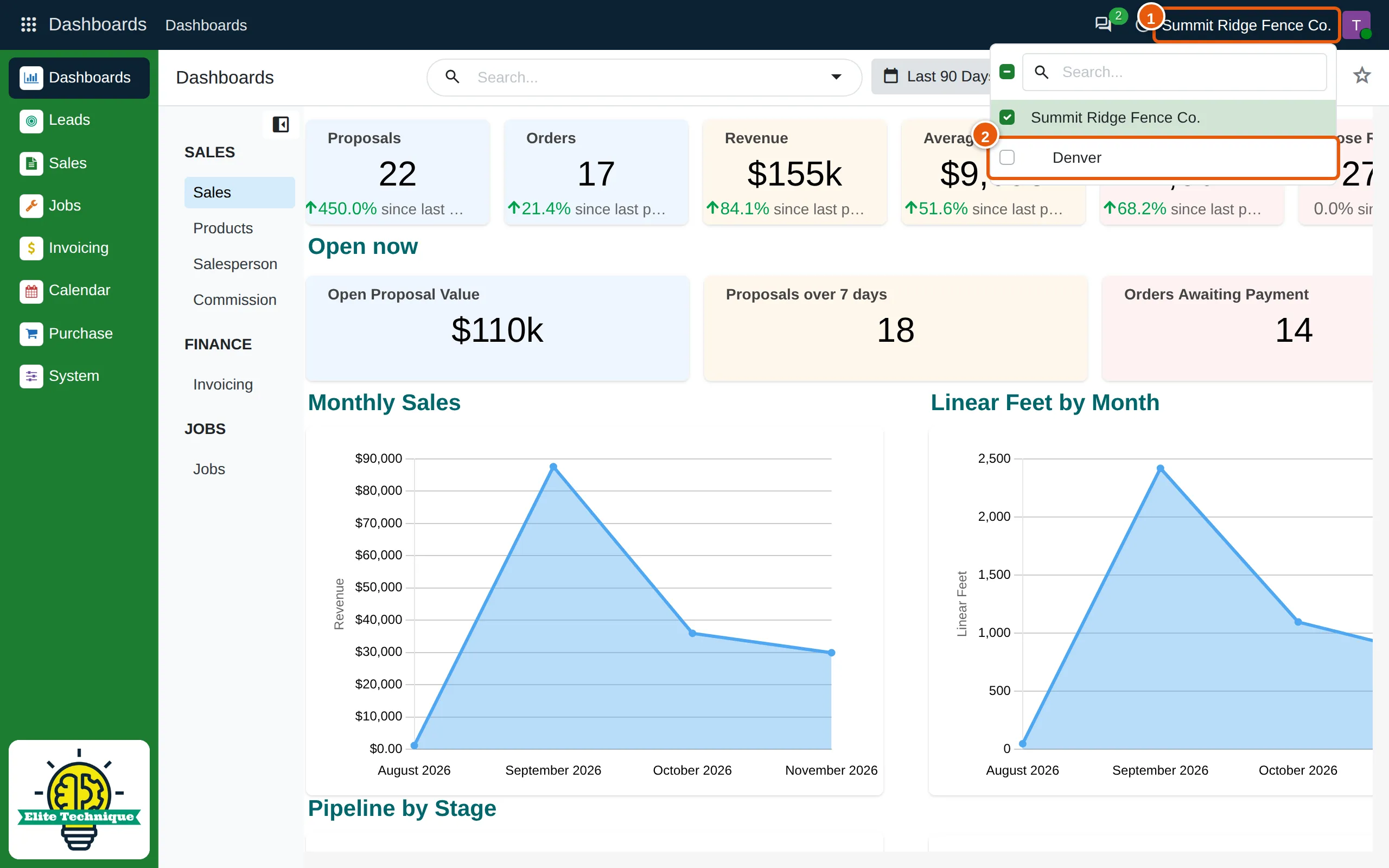
Admin and Office see every branch in the list. Sales and Installers see only their own branches (1). The main company may show grayed out, and they can’t pick it. A person with one branch can’t open the list.
What your branches share
Section titled “What your branches share”Your branches work from the main company’s setup:
- Proposal templates, products, costs and pricelists are the same in every branch. Change a cost once and every branch uses it.
- Company Settings are the main company’s. From any branch, Company Settings opens on the main company.
- QuickBooks, Elite SMS and payments all run through one connection.
- Each branch has its own warehouse from the day the branch is added. Its stock, receipts and deliveries are used once you turn on inventory.
Each branch adds 20 users to your total. You can add them in any branch.
Adding or closing a branch
Section titled “Adding or closing a branch”To add a branch, contact Elite Technique to add a Branch Add-on to your subscription. The new branch appears in Branches.
When you reduce your Branch Add-ons, the change takes effect on your renewal date. Elite Technique emails you to ask which branch is closing, then archives it for you. The branch’s open leads, proposals and jobs are archived with it, and its users move to the main company.