
Standard and upIncluded in the Standard, Pro and Elite packages.
Connect CompanyCam
Paste your CompanyCam access token so job files and photos move between your jobs and CompanyCam.
If your crews take site photos in CompanyCam, connect your own CompanyCam account here. With it connected, every Job Folder file is pushed to its CompanyCam job, and the job’s photos, videos and documents come back into the Job Folder.
Who can do this: Admin.

Before you start: create an access token in your CompanyCam account, at app.companycam.com/access_tokens. Keep it to hand to paste in.
-
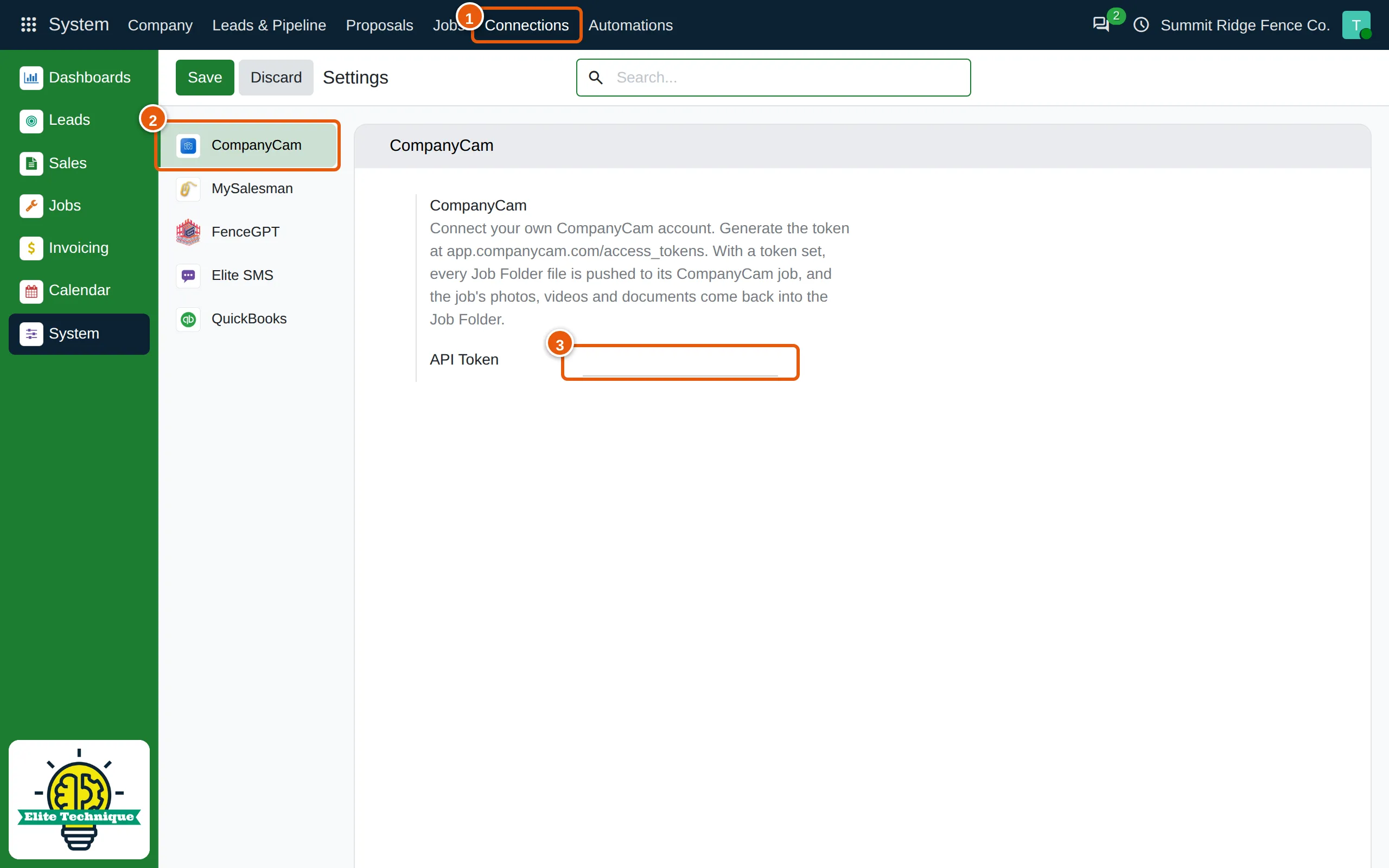
In System, click Connections (1) at the top. The page lists your connections on the left and opens on CompanyCam (2).
-
Paste your token into API Token (3).
-
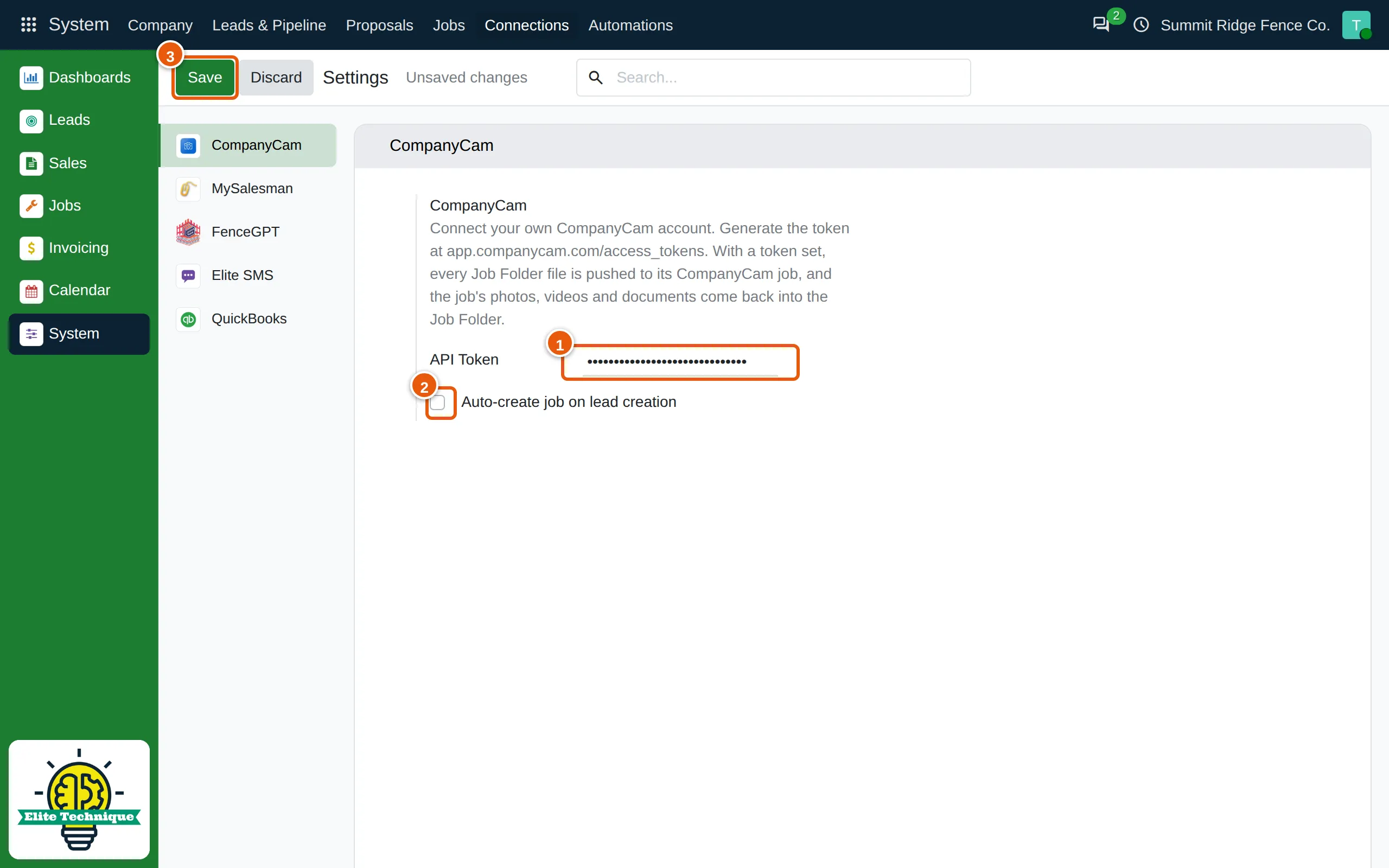
Your token (1) now shows as dots, and Auto-create job on lead creation (2) appears under it. Check it if you want a CompanyCam job made for each new lead; leave it clear if not.
-
Click Save (3) at the top.
Disconnect CompanyCam
Section titled “Disconnect CompanyCam”-
In System › Connections › CompanyCam, clear the API Token box.
-
Click Save. The box stays empty and Auto-create job on lead creation is no longer shown.