
Save description templates
Save your standard descriptions — a scope of work per fence type — pick one on any proposal, and choose the one every new proposal starts with.
A description template is a saved Description for the Customer: the text your customer reads on the proposal in place of its lines. Save one for each kind of job — a scope of work per fence type, say — and pick it on a proposal instead of typing it every time. Mark one as the Default and every new proposal starts with it, including proposals created from a drawing.
Picking a template only changes the description. The lines, quantities and prices on the proposal are never touched.
Who can do this: Admin saves the templates. Sales, Office and Admin pick them on a proposal.
Save a template
Section titled “Save a template”-
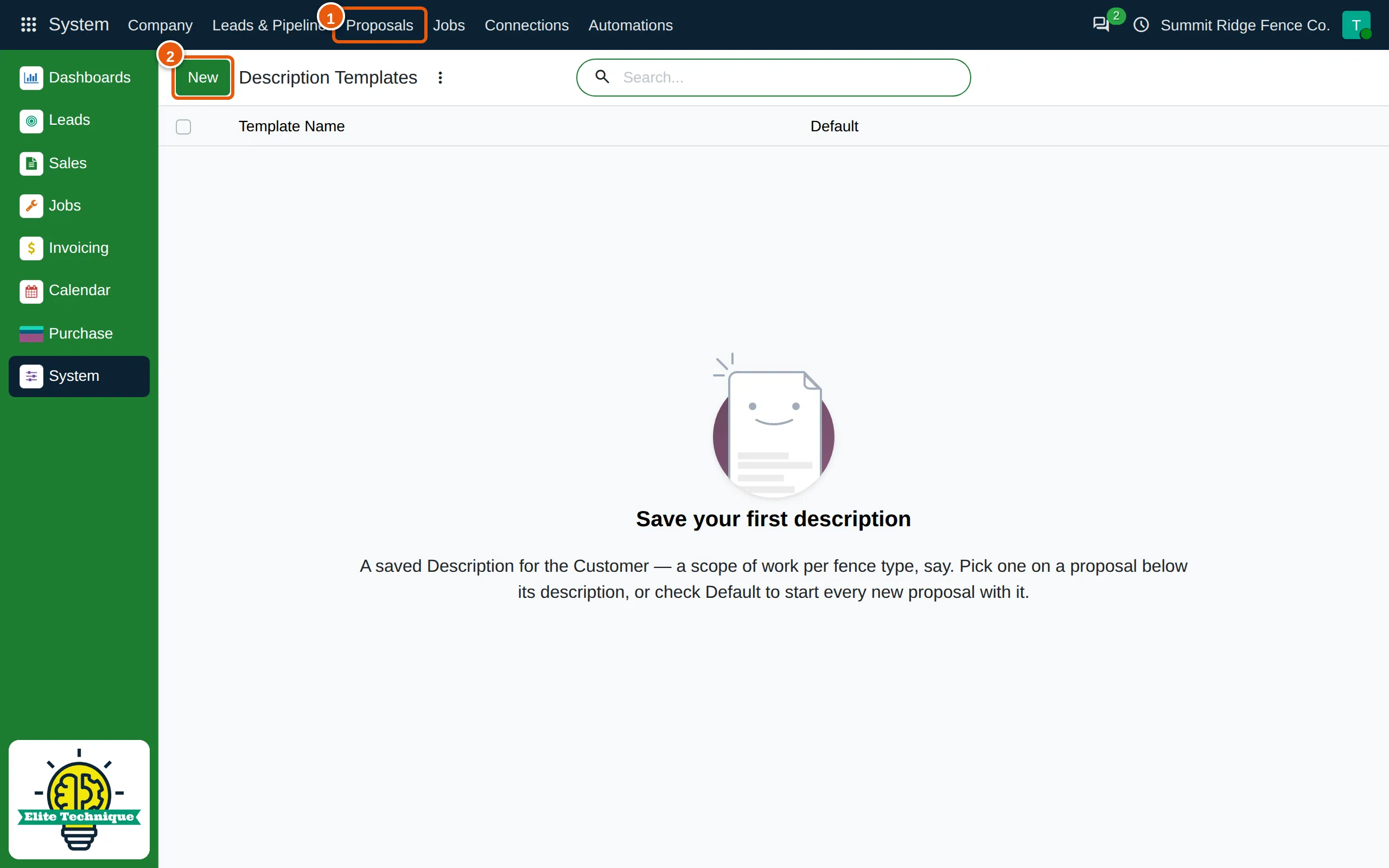
In System, open Proposals (1) › Description Templates and click New (2).
-
Fill in the template:
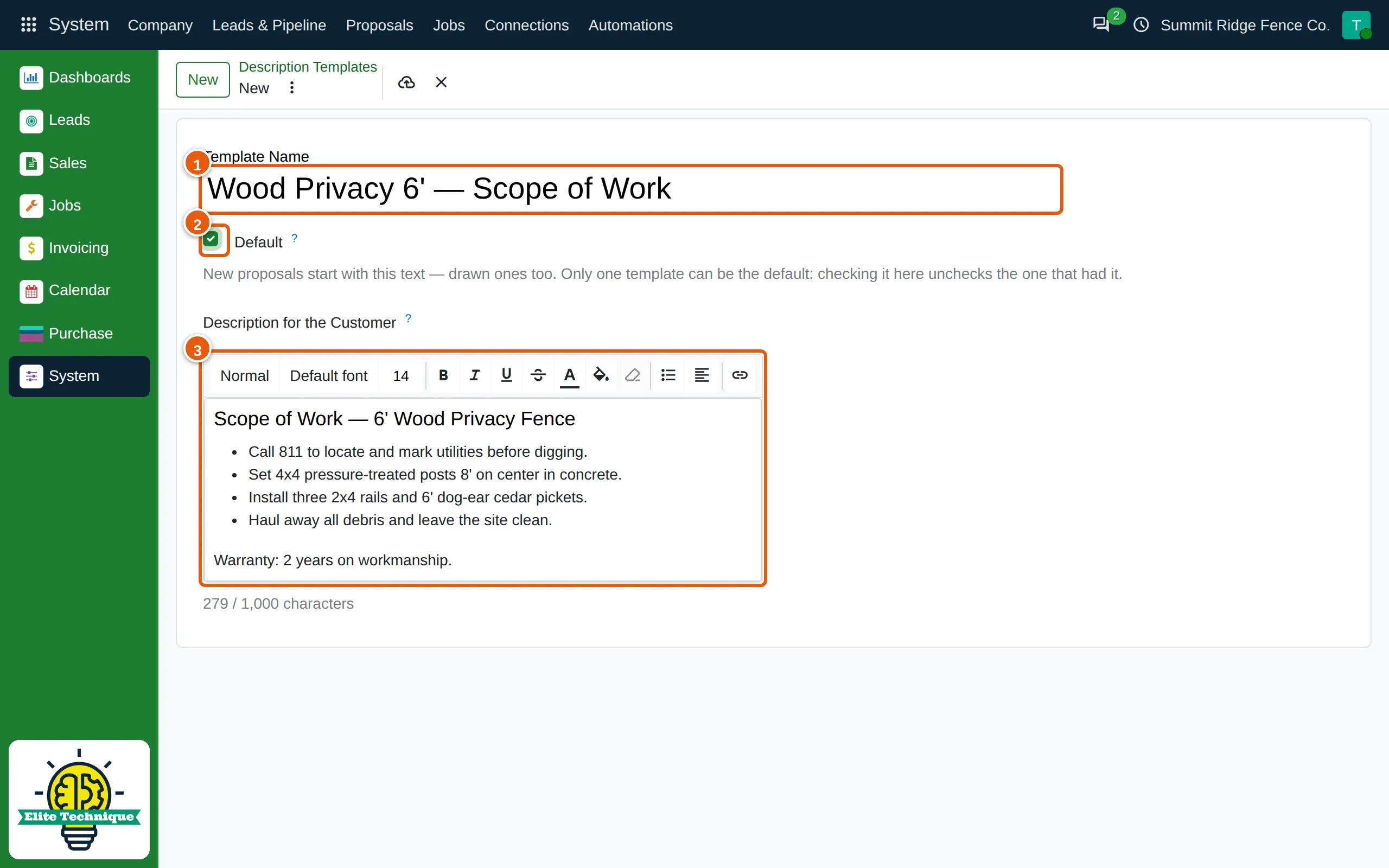
- Template Name (1): what your team picks from the list, for example Wood Privacy 6’ — Scope of Work.
- Default (2): check it to start every new proposal with this text. Only one template can be the default — checking it here unchecks the one that had it.
- Description for the Customer (3): the text, written exactly as on a proposal — the same toolbar for headings, bold and bulleted lists, and the same 1,000-character limit, with the count below the box.
-
Click the cloud icon at the top to save.
-
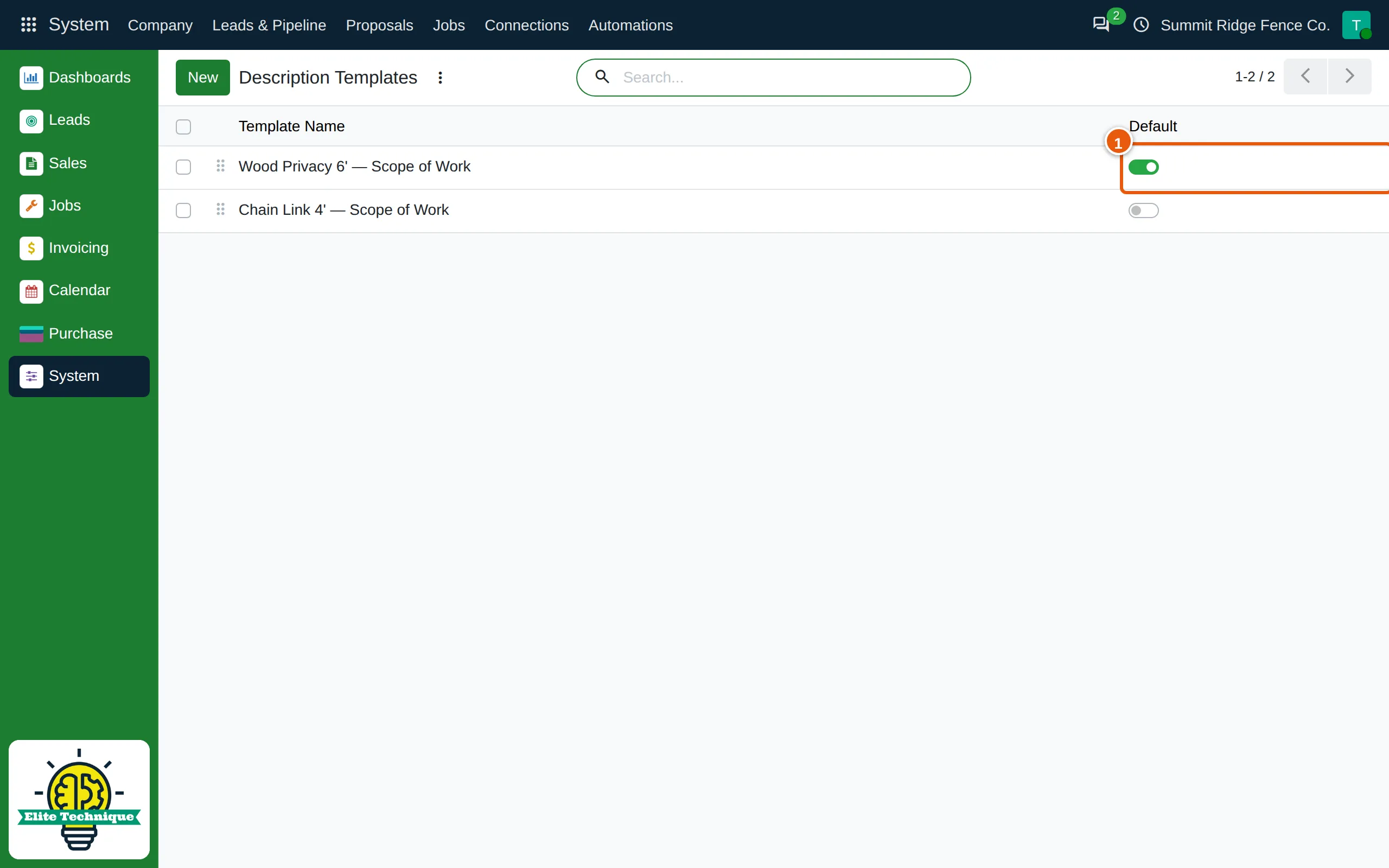
Repeat for each fence type or kind of job. The list shows which one is the Default (1).
Use a template on a proposal
Section titled “Use a template on a proposal”-
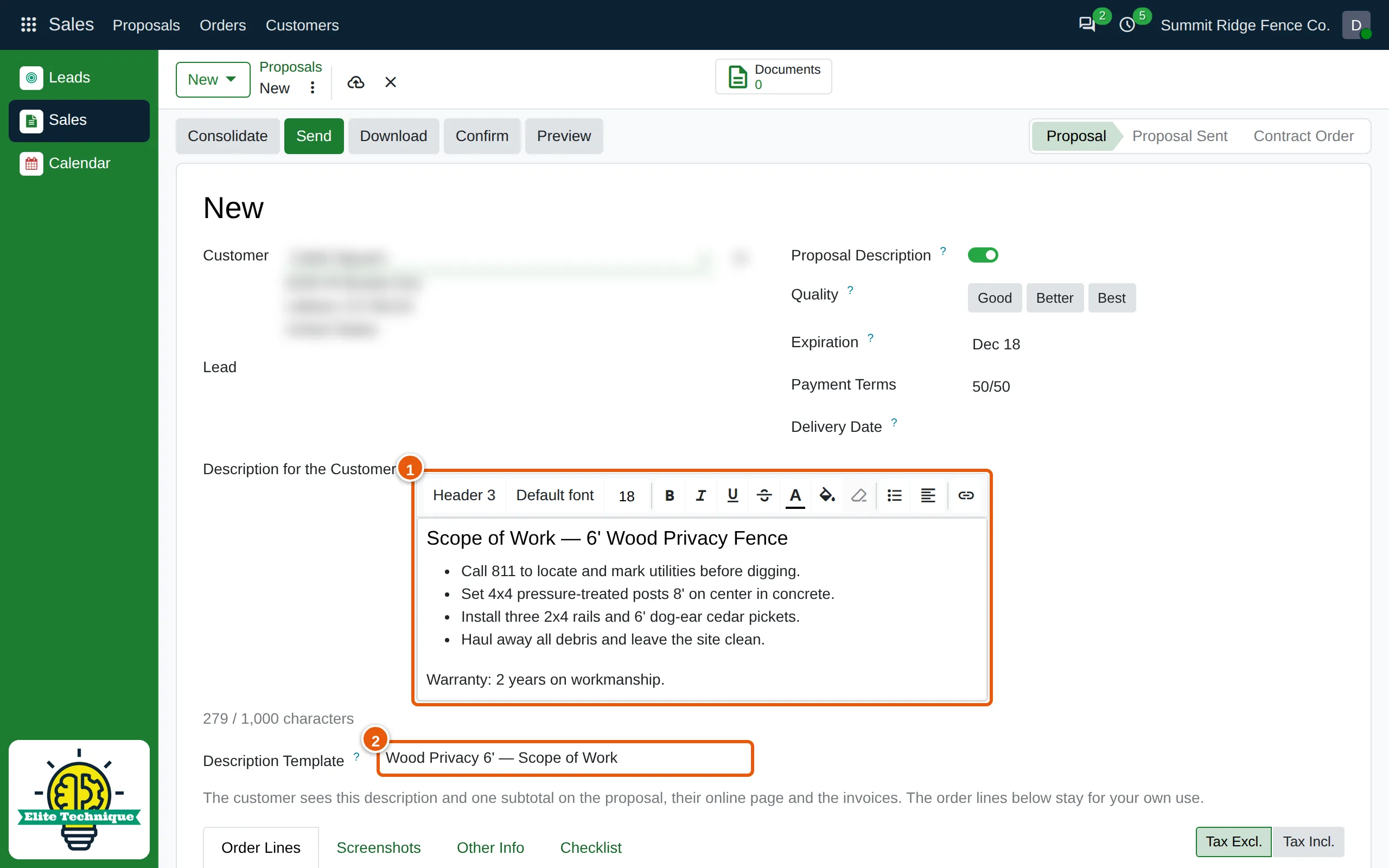
Start a proposal — from a drawing or by hand. With a default template set, Description for the Customer (1) already holds its text, and Description Template (2) below the box shows its name.
-
To use a different template, click Description Template (1), start typing its name and pick it from the list.
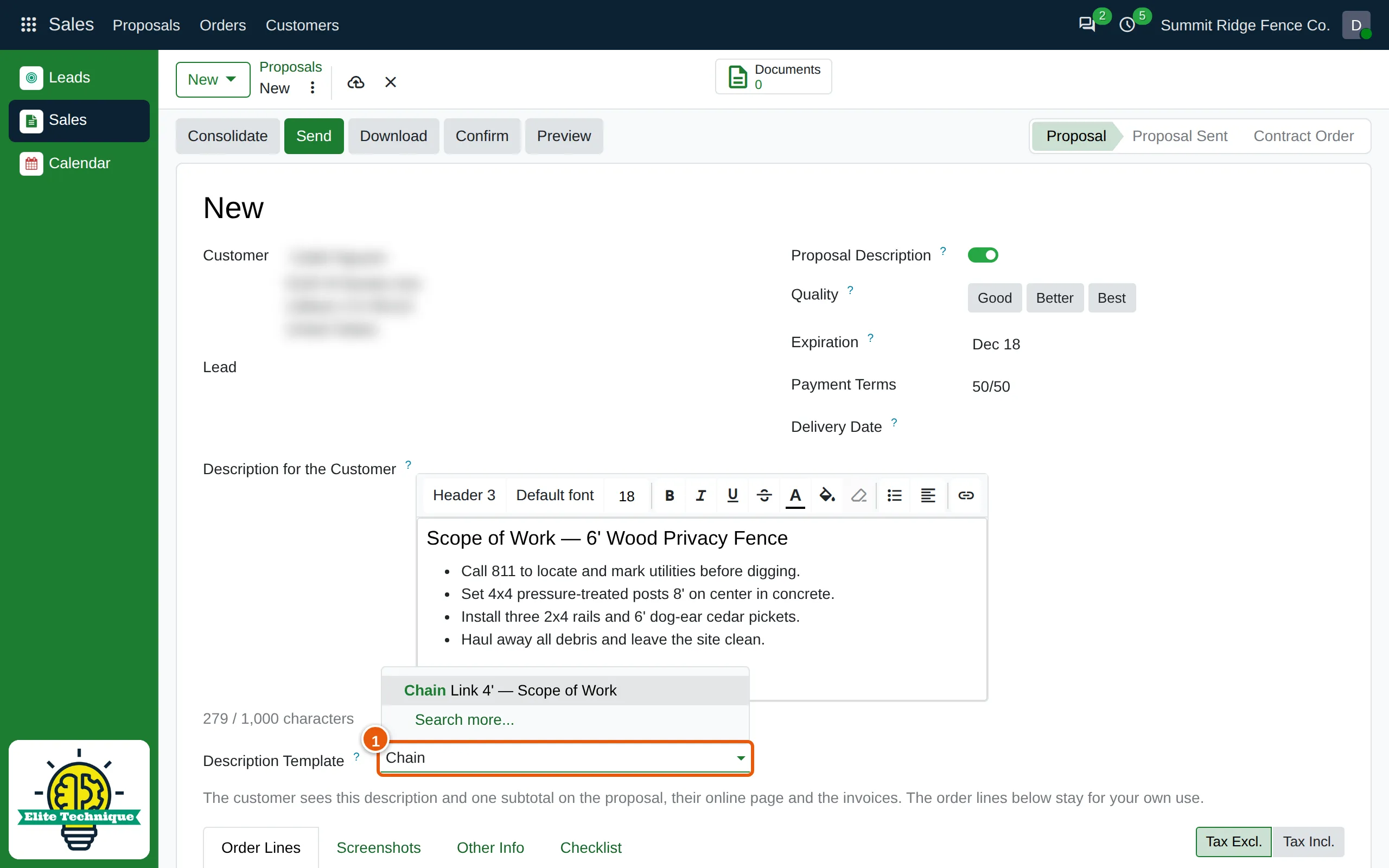
-
If the description already has text, Elite Technique asks before replacing it. Click Replace to use the template’s text, or Keep my text to leave the description as it is.
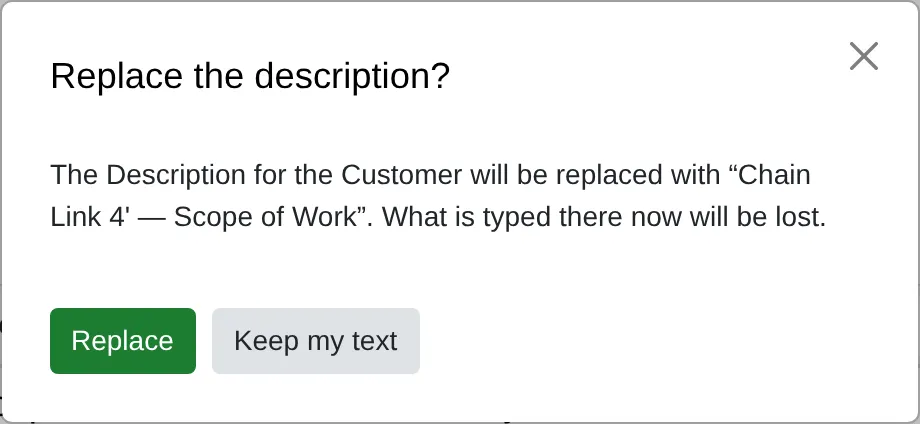
-
Edit the text for this job if you need to, then save the proposal.
The text is filled in, so the proposal can be previewed, printed and sent straight away. Clearing Description Template leaves the text where it is.