Pro and upIncluded in the Pro and Elite packages.
Order materials for a job
Turn a job's materials into purchase orders, one for each vendor, then check and confirm each one.
You never retype a parts list. From the job, Elite Technique reads the materials on its confirmed proposal and drafts a purchase order for each vendor. You check each order, fix anything that needs it, and confirm it.
Who can do this: Office and Admin.
Give each product its vendor
Section titled “Give each product its vendor”A product’s vendor decides which purchase order its materials go on. Set it once, on the product.
-
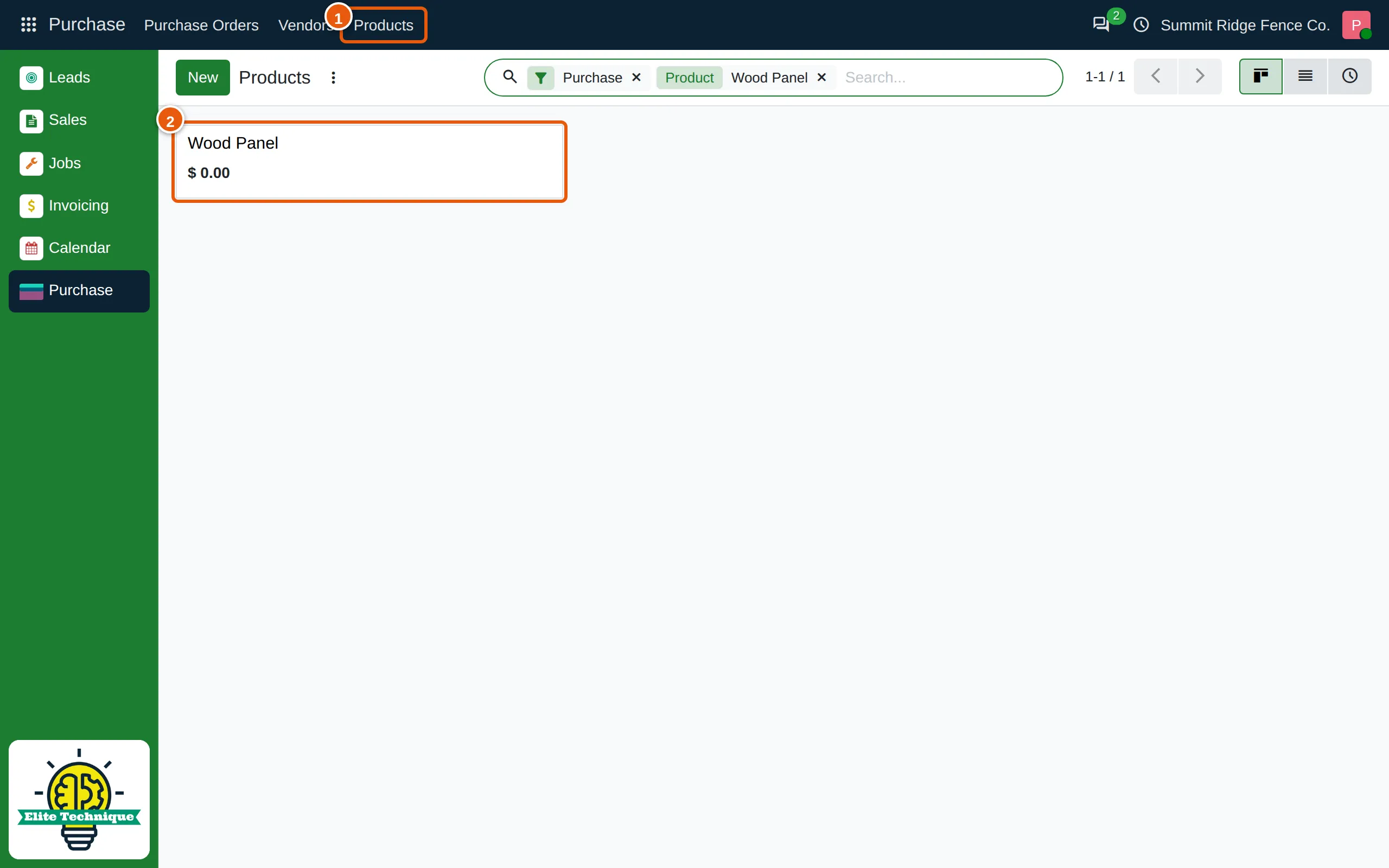
In Purchase, click Products (1) at the top. Search for the product and click it (2).
-
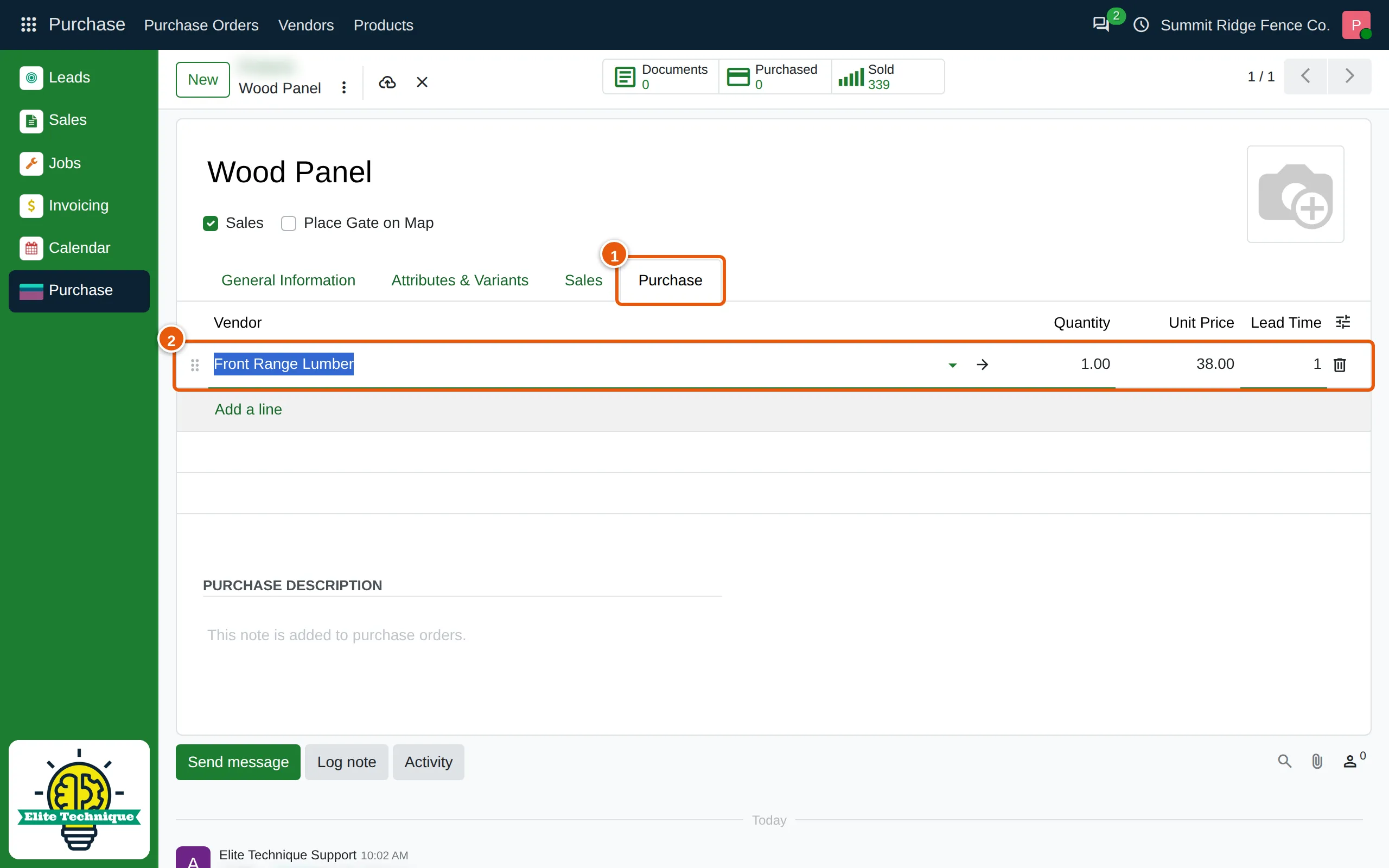
Open the Purchase tab (1). Click Add a line, pick the vendor, and type the Unit Price they charge you (2). Click the cloud icon at the top to save.
Create the purchase orders
Section titled “Create the purchase orders”-
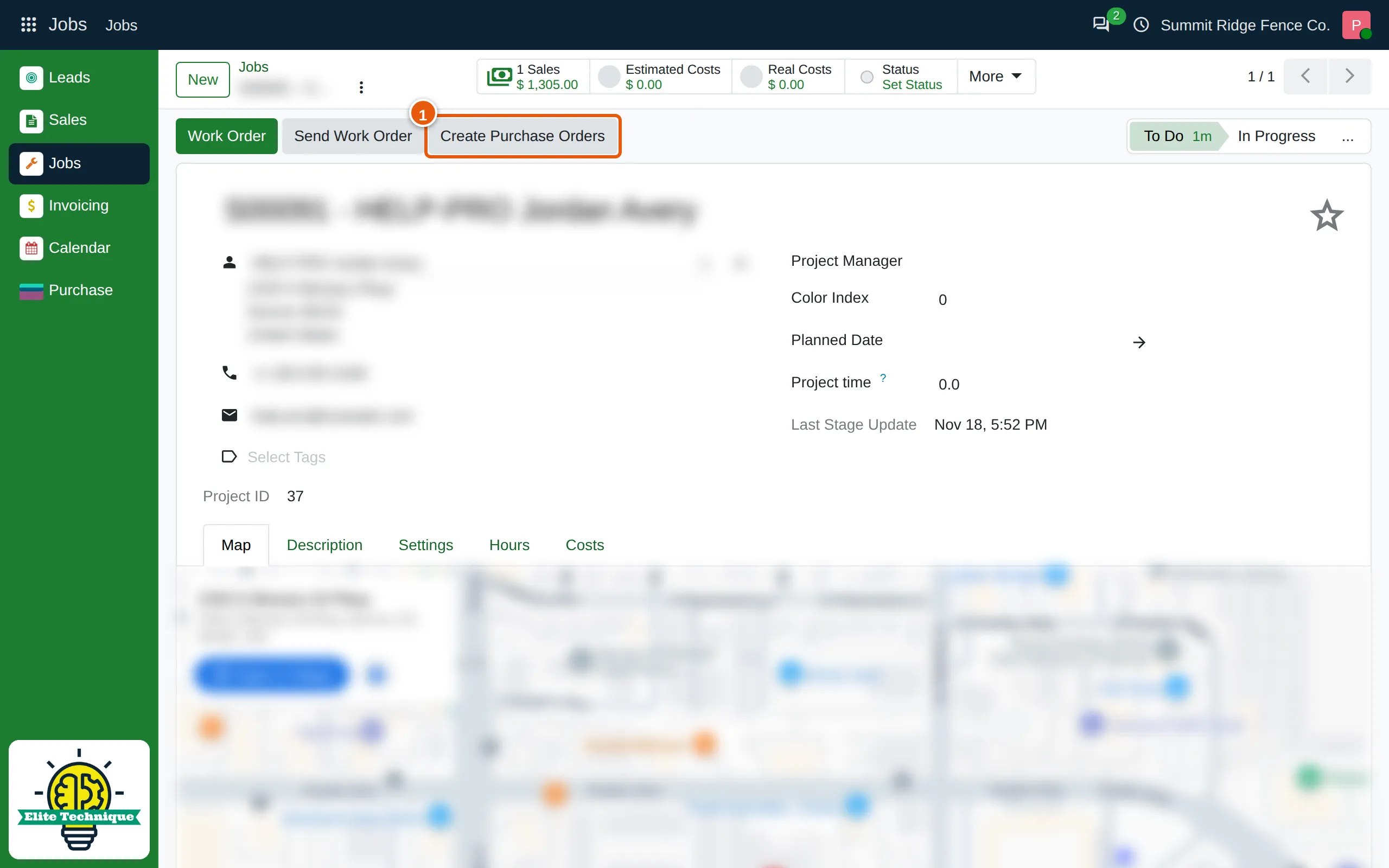
Open the job from Jobs and click Create Purchase Orders (1).
Elite Technique makes a draft purchase order for each vendor, with the materials from the job’s proposal, and tells you how many it made — here, 2 draft purchase orders created.
-
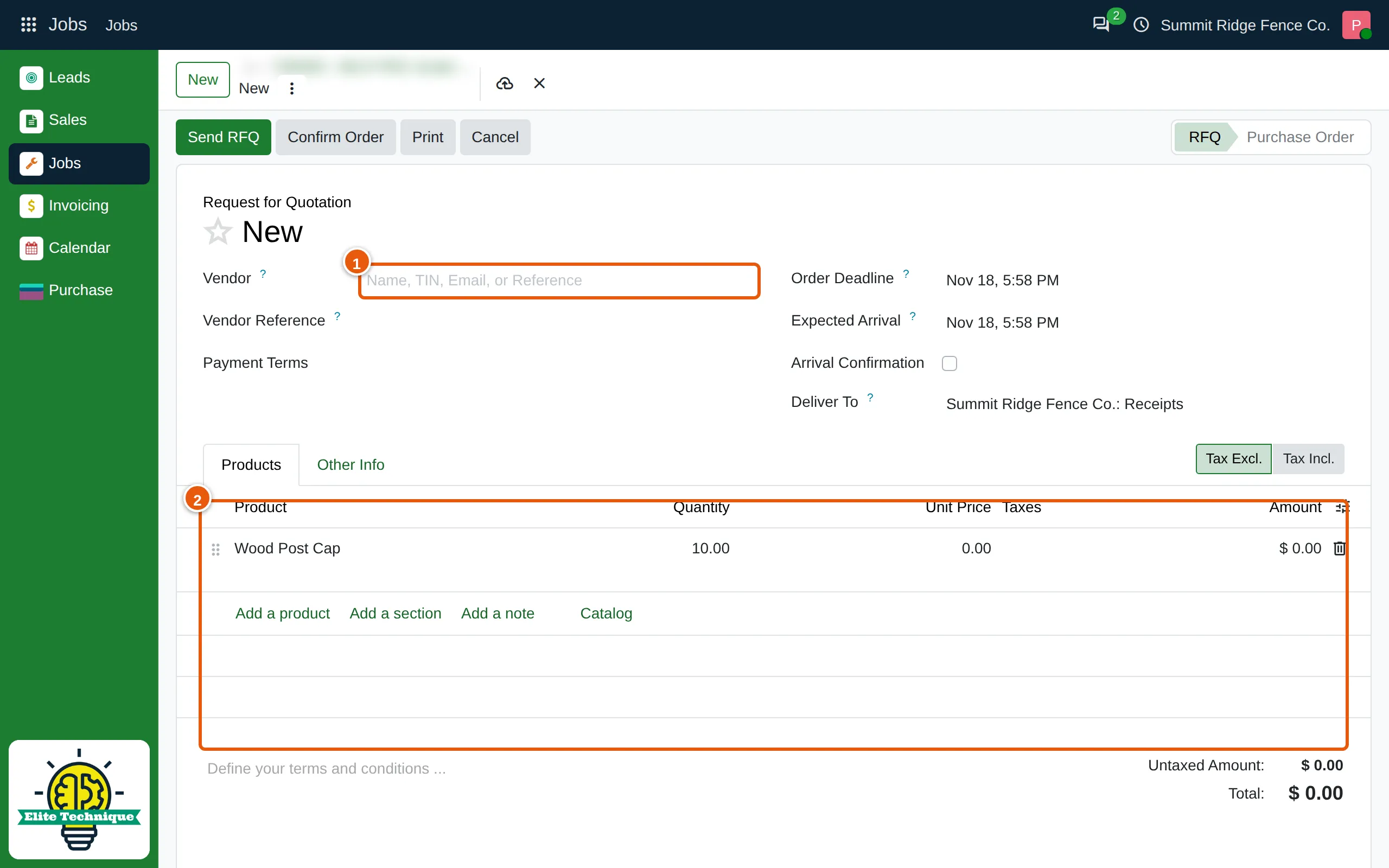
If any parts have no vendor, the message names them — These parts have no vendor — pick one below: Wood Post Cap — and a new purchase order opens holding just those parts, with Vendor (1) empty and the parts on its lines (2).
-
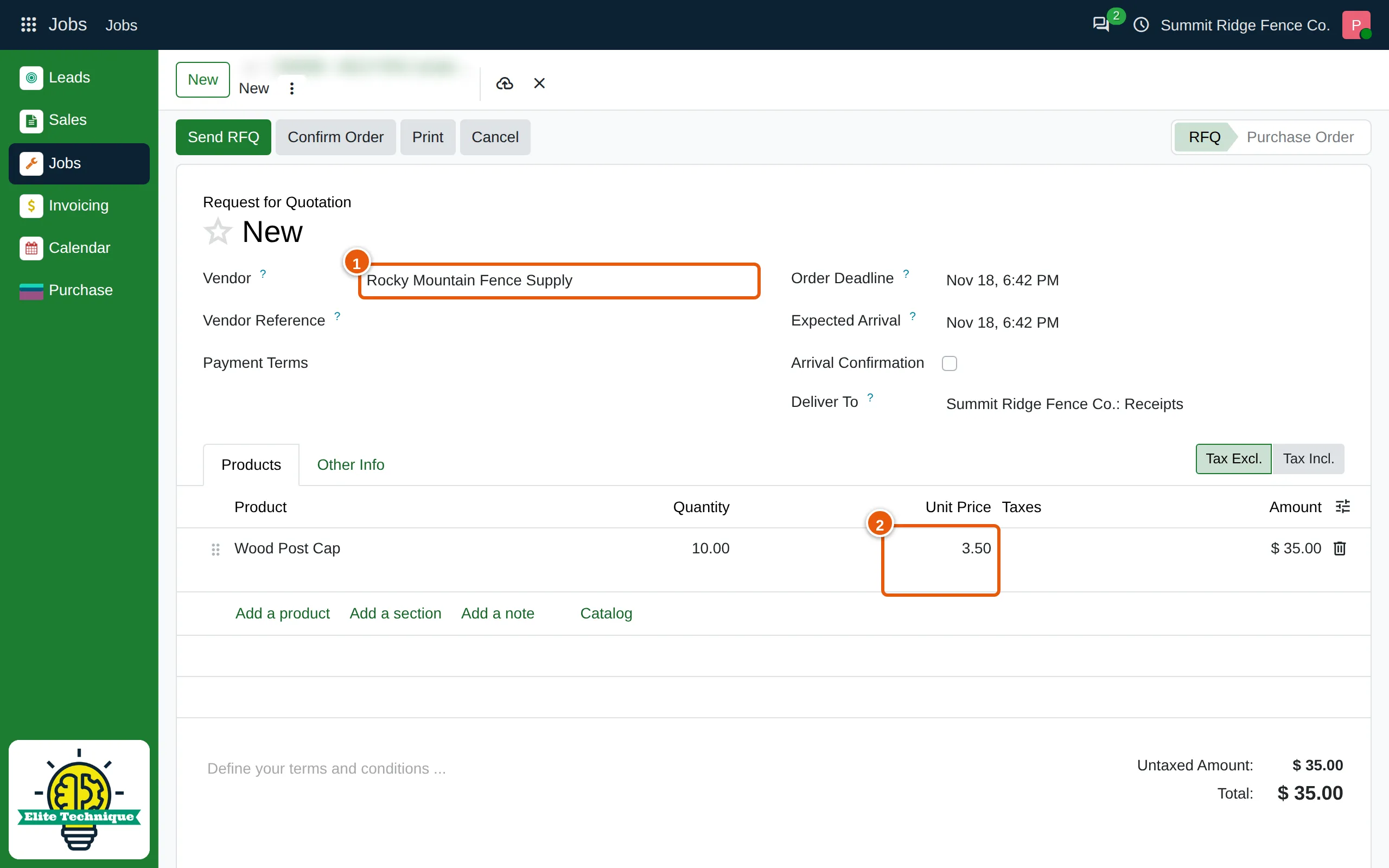
Pick a Vendor (1). A part with no vendor has no price yet, so type what the vendor charges in each line’s Unit Price (2). Click the cloud icon to save.
Check and confirm each order
Section titled “Check and confirm each order”-
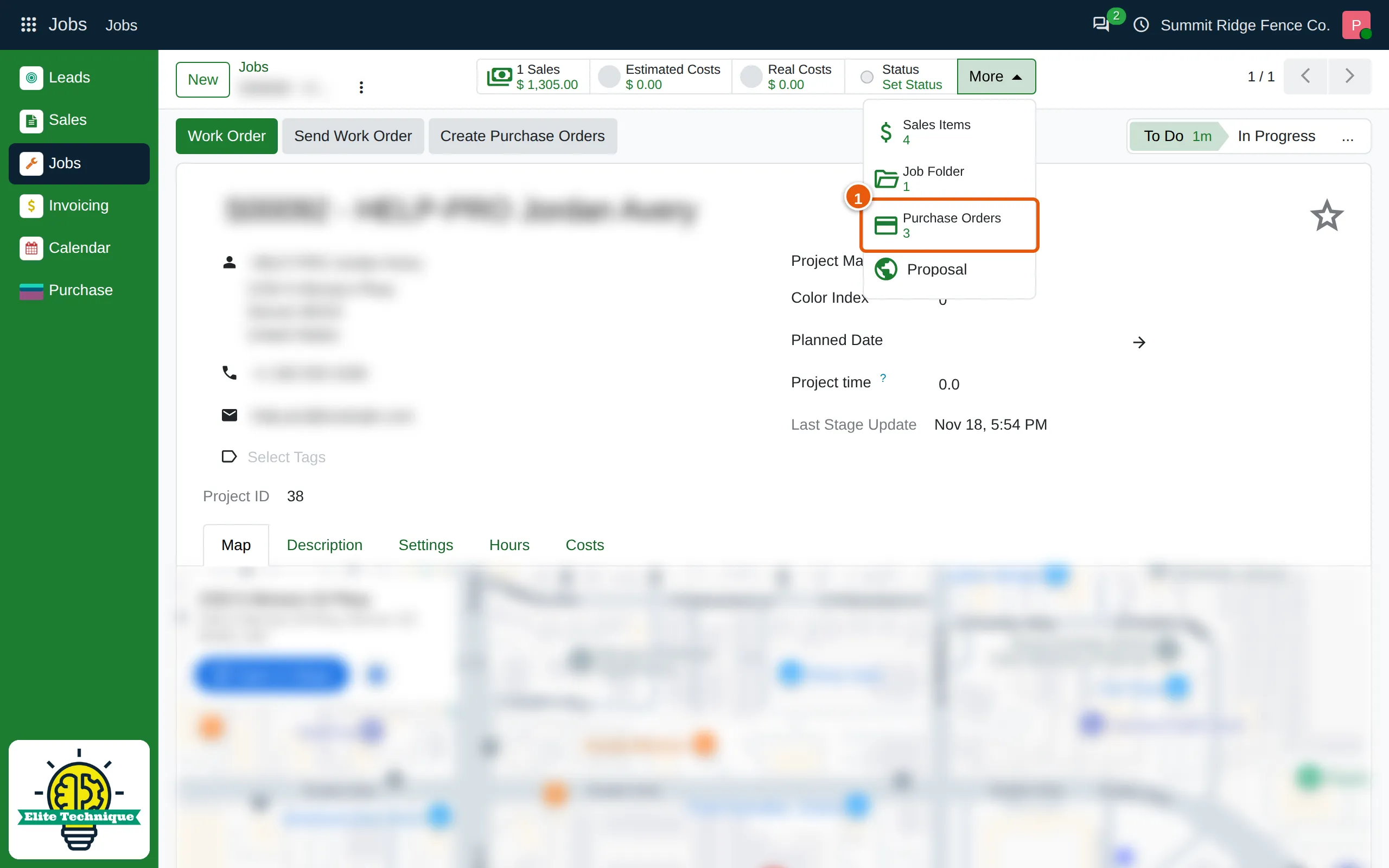
Back on the job, click More at the top, then Purchase Orders (1). The number shows how many the job has.
-
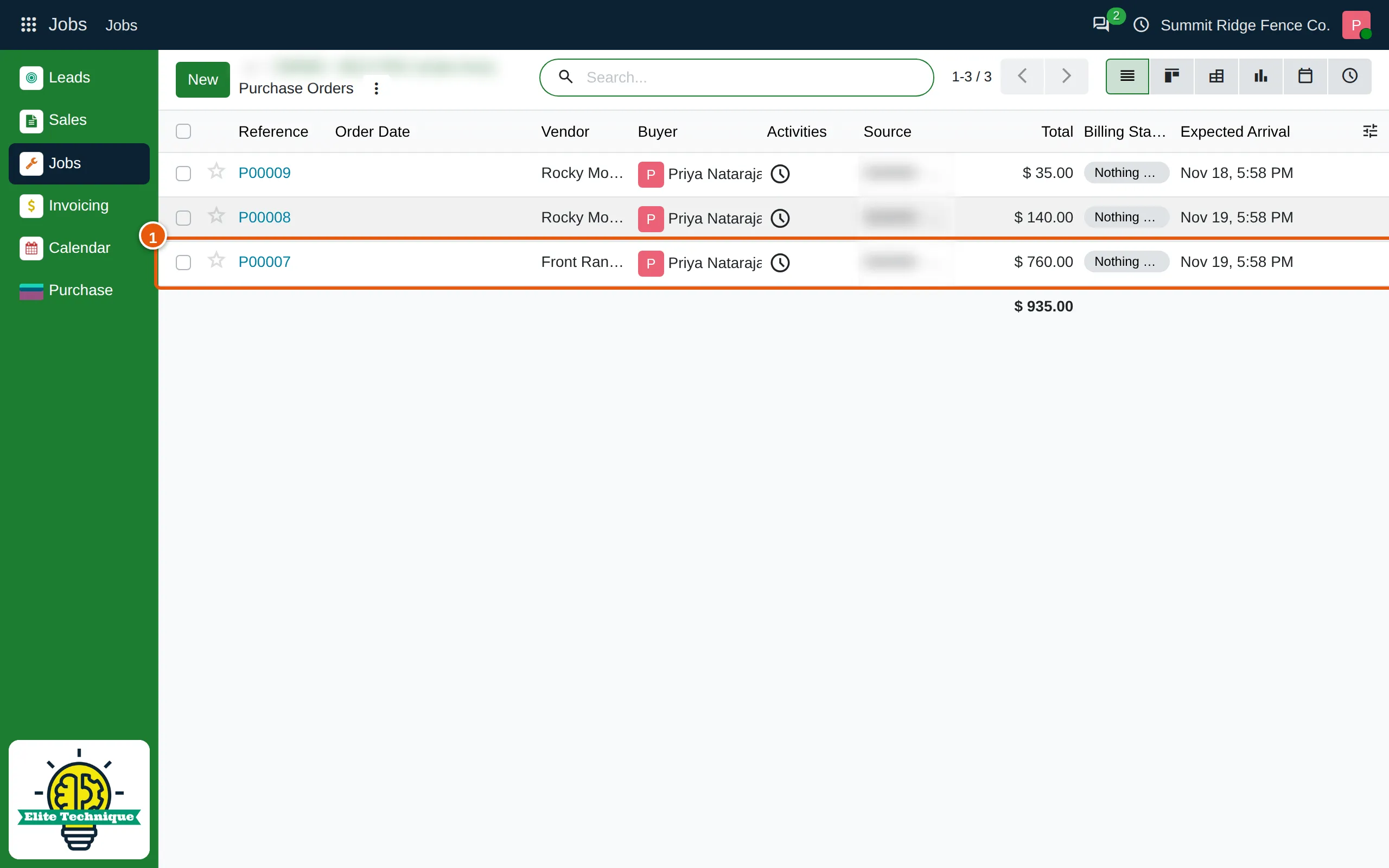
The list shows each of the job’s purchase orders with its vendor and total. Click one to open it (1).
-
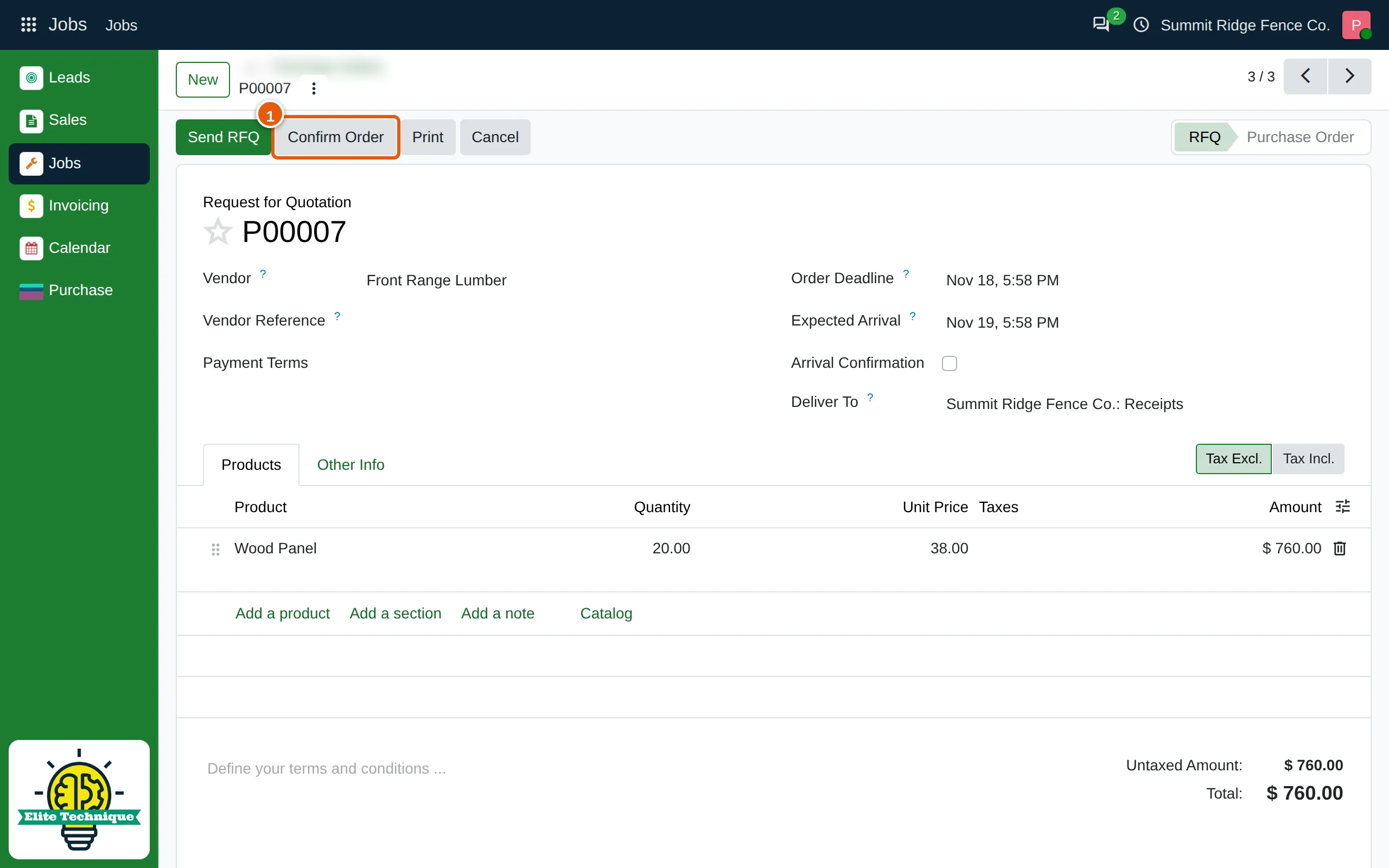
Check the lines and prices, then click Confirm Order (1).
-
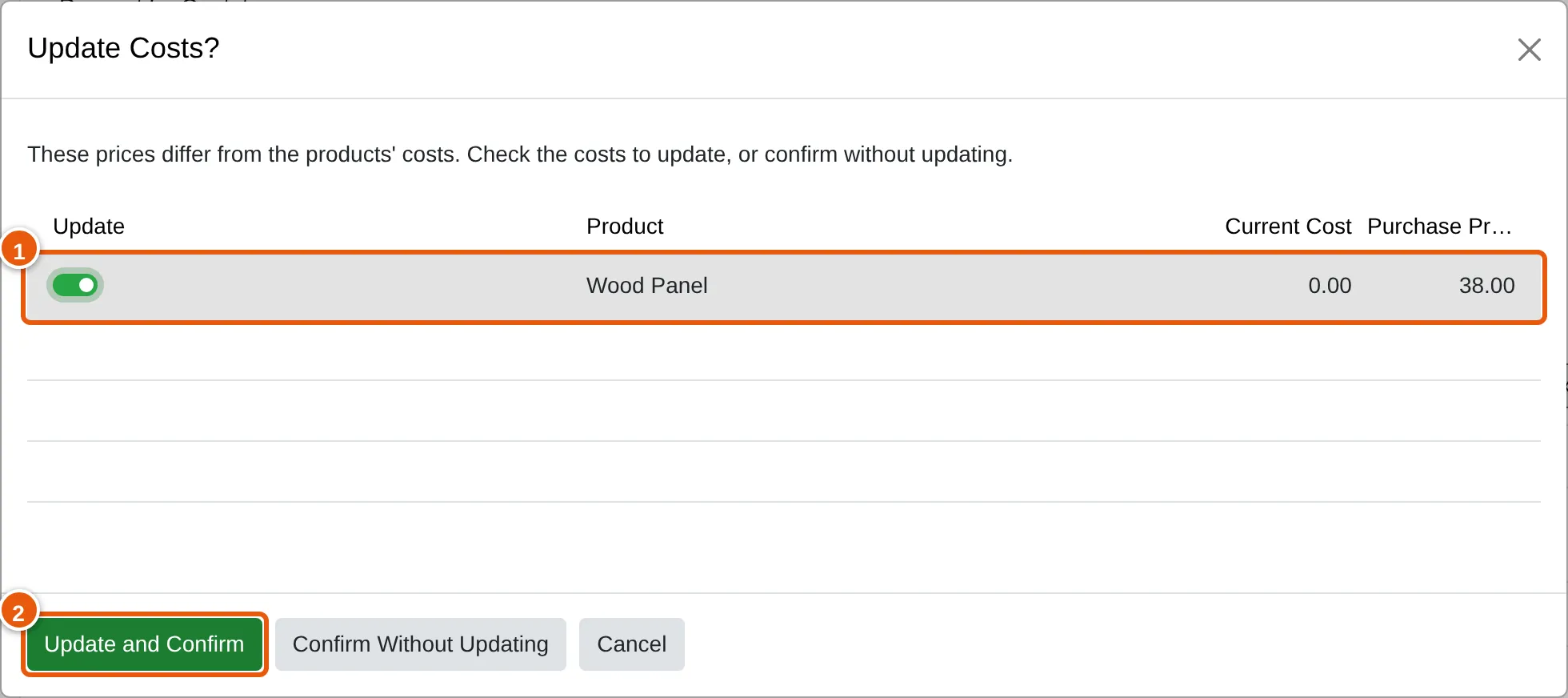
If a price on the order is not what the product costs in your catalog, Update Costs? opens, one row per product (1). With a product switched on, its cost changes to the price on this order; switch it off to leave that cost as it is. Click Update and Confirm (2), or Confirm Without Updating to leave every cost alone.
-
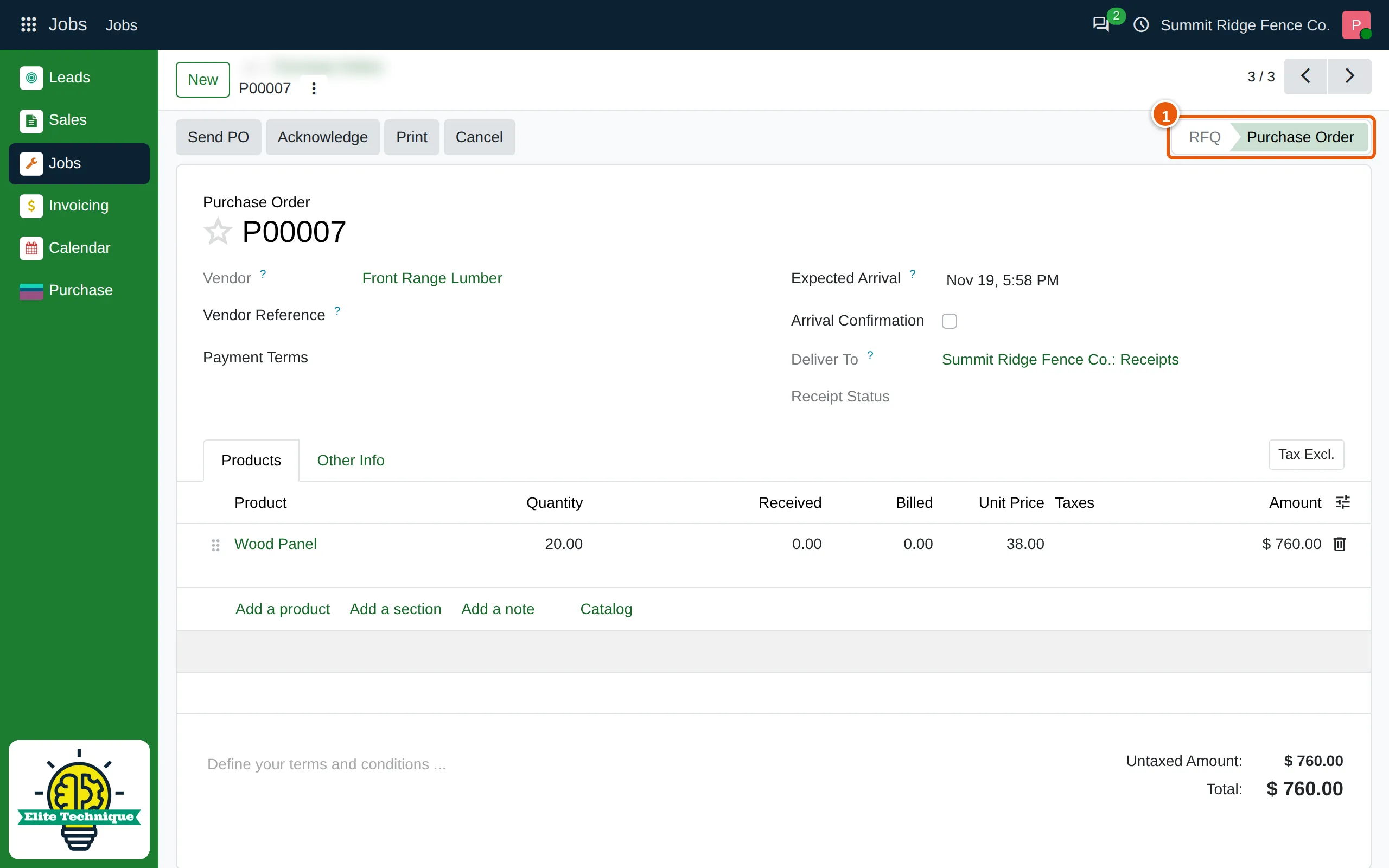
The order is confirmed: its status reads Purchase Order (1). Send PO and Print are at the top.