
Standard and upIncluded in the Standard, Pro and Elite packages.
Build an assembly
Make a product that is sold as one line but made up of other products — a corner post with its caps, a gate with its hardware.
An assembly is a product you sell as one line that is made up of other products: a gate with its posts, caps and hardware, or a corner post with its caps. You set up its parts once, and from then on the assembly knows what it is made of.
Who can do this: Office and Admin.
Before you start: the assembly itself needs to be in your catalog as a product — here, Wood Corner Post Set. To add one, see Add an item to your catalog.
-
In Sales, click Products (1) at the top, then Assemblies (2).
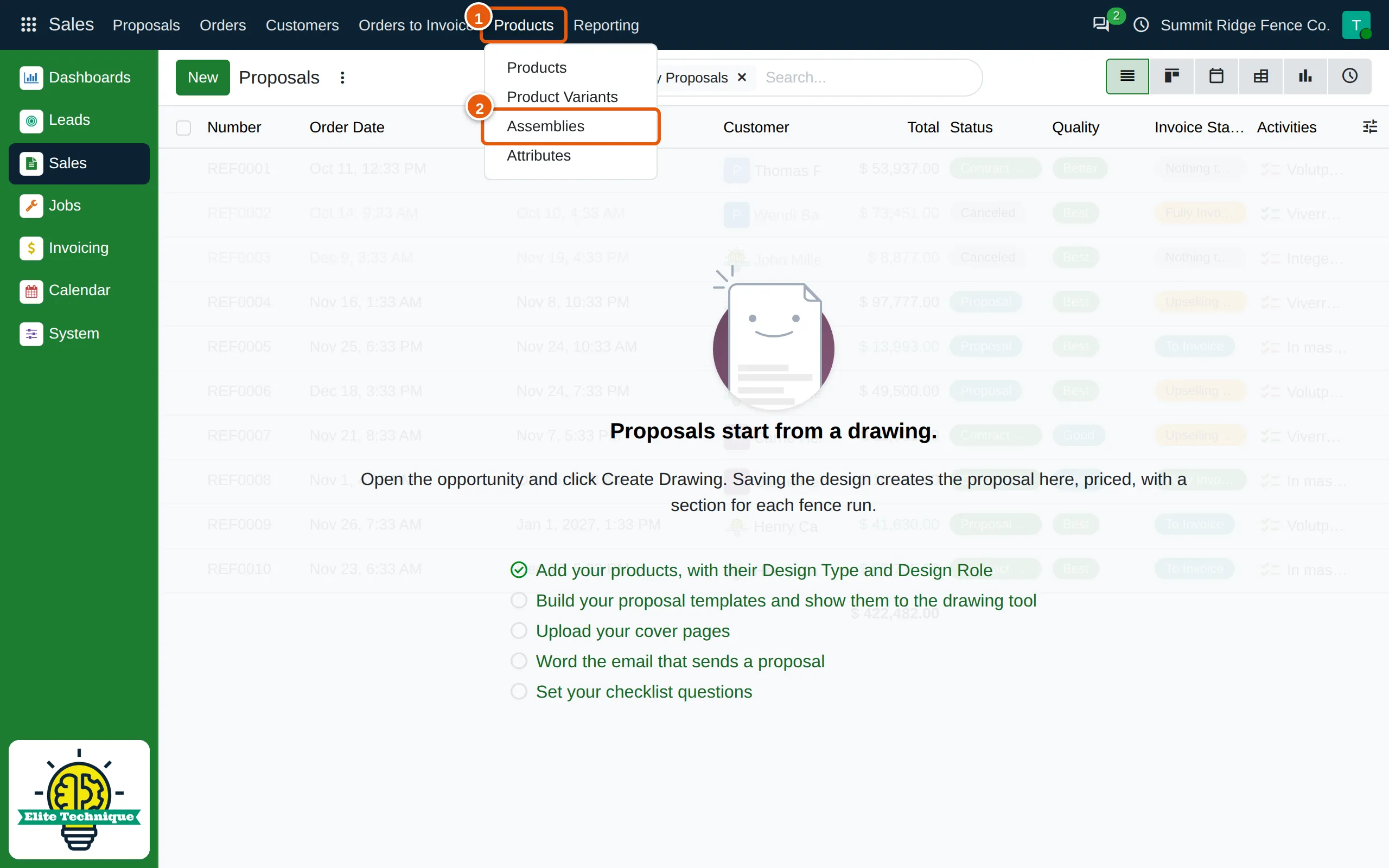
The list shows your assemblies. Until you make one, it reads Create an assembly — An assembly is a product sold as one line and made up of other products.
-
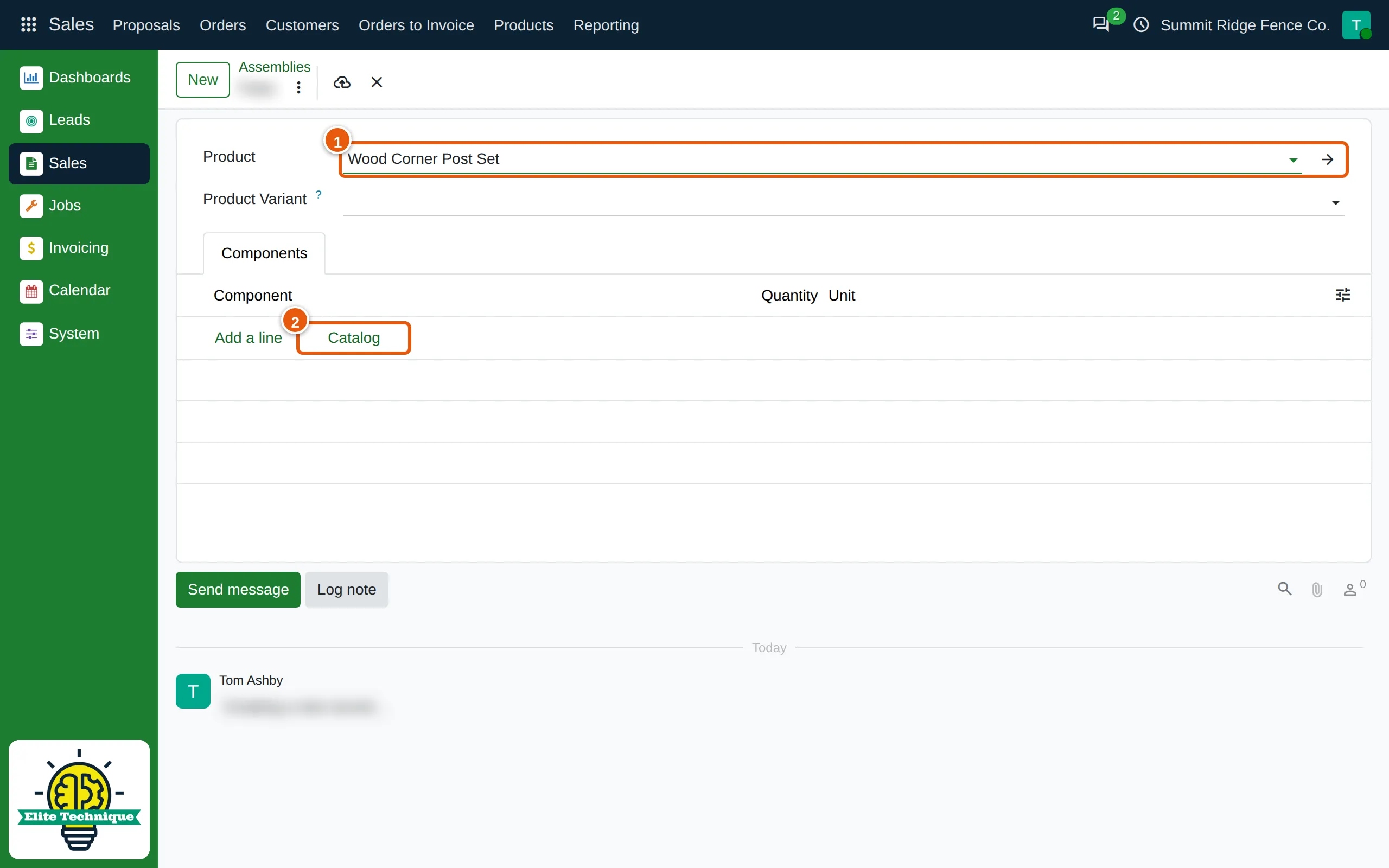
Click New. In Product (1), pick the product the assembly is for, then click Catalog (2) to pick its parts.
-
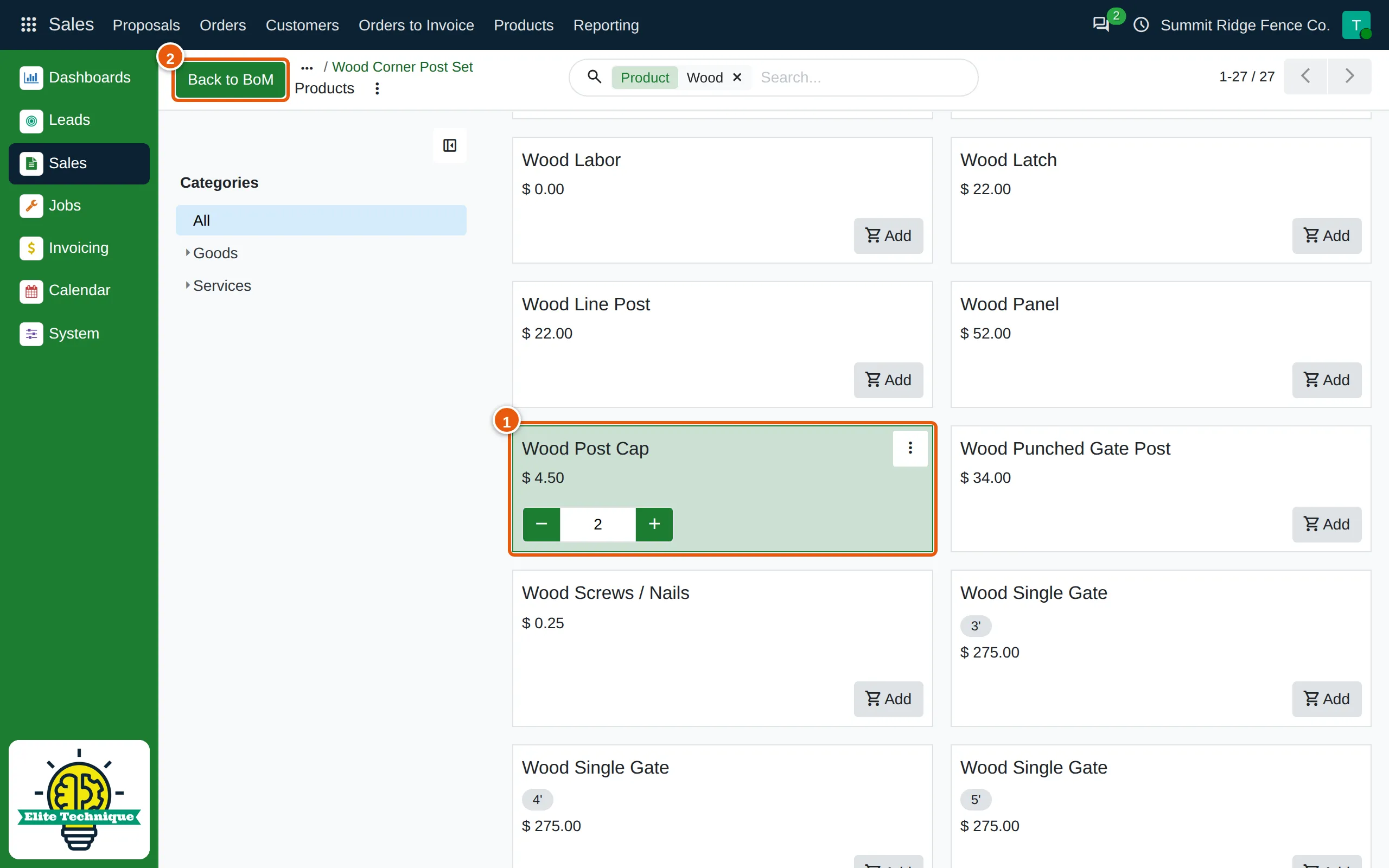
Your products are shown as cards. Click a card to add one of that product, and click it again to add another. Here, Wood Corner Post is clicked once and Wood Post Cap twice, so it shows 2 (1). Click Back to BoM (2) when you have every part.
-
Click the cloud icon at the top to save. The Components tab (1) lists each part and how many go into one assembly: Wood Corner Post 1.00 and Wood Post Cap 2.00. The button at the top (2) counts them: 2 Components, 0 Sub Assemblies.
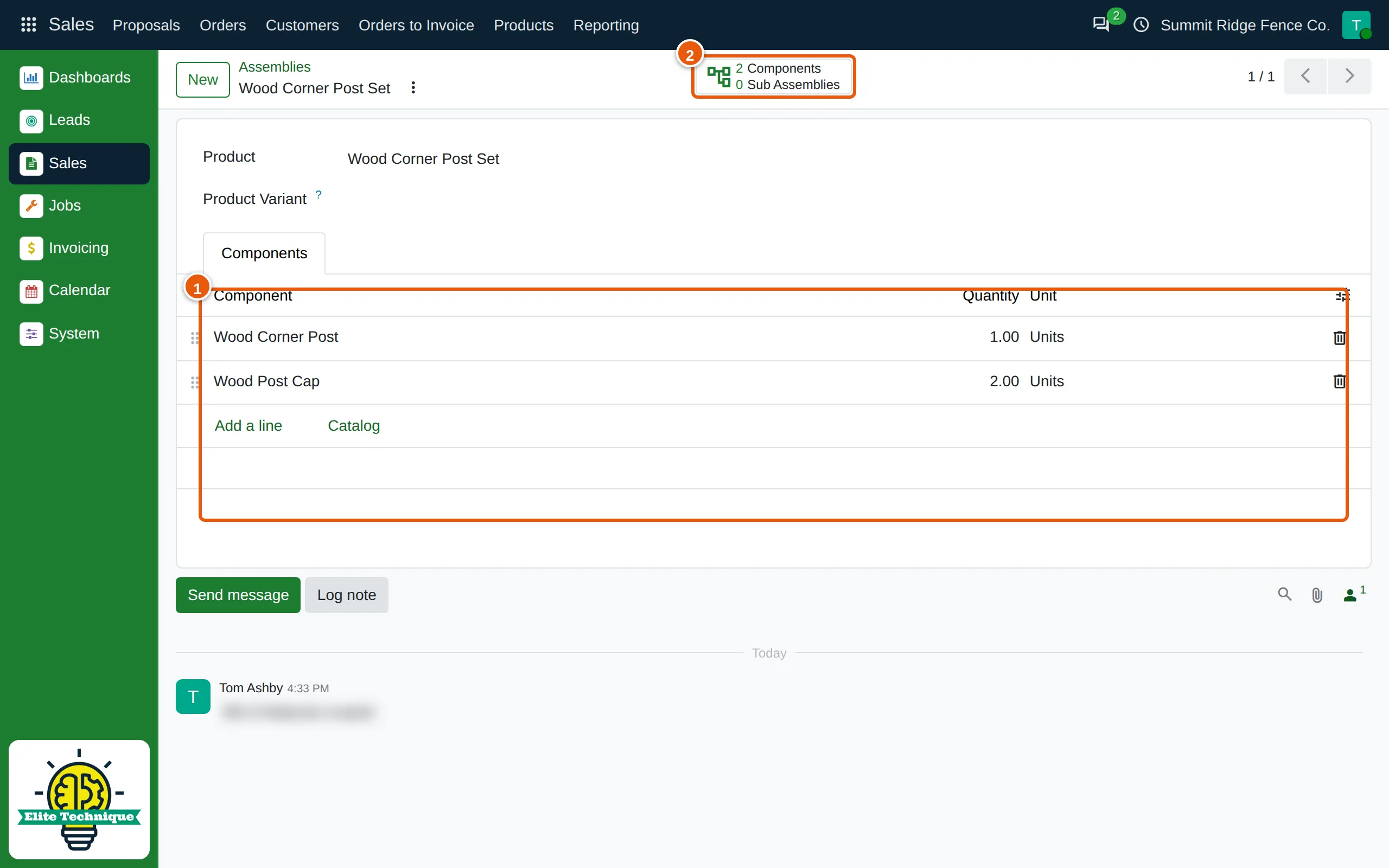
To see every part an assembly is made of, click the Components button: it lists each part, the assembly it belongs to and how many. To add more parts later, open the assembly, click Catalog on the Components tab, and save.