
Change a confirmed proposal
Change quantities, add items or take items off a contract order after your customer has accepted it, let your customer know, and invoice the difference.
Customers change their minds after they accept: two more panels, a corner post added, the post caps left off. You don’t need a new proposal for that. Change the contract order itself. Every change is logged on the order, and the job’s work order picks it up straight away.
Who can do this: Sales, Office and Admin. Creating the invoice for the difference is Office’s and Admin’s.
Open the contract order
Section titled “Open the contract order”-
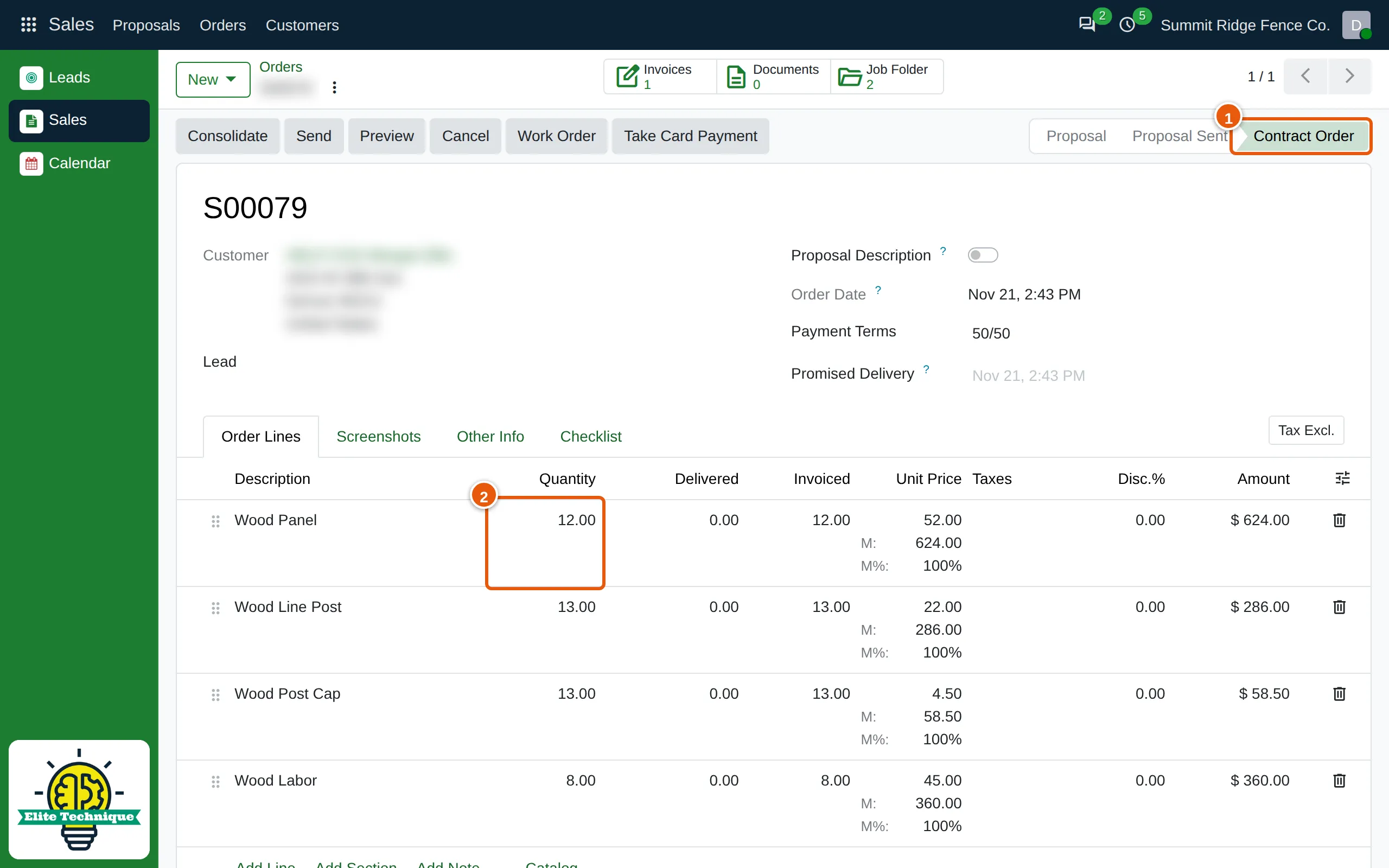
In Sales, click Orders in the top bar and open the order. Its status reads Contract Order (1). Its lines stay editable: click a line’s Quantity (2) to change it.
Change a quantity
Section titled “Change a quantity”-
Click the line’s Quantity, type the new quantity (1) and click the cloud icon (2) to save. Here the wood panels go from 12 to 14.
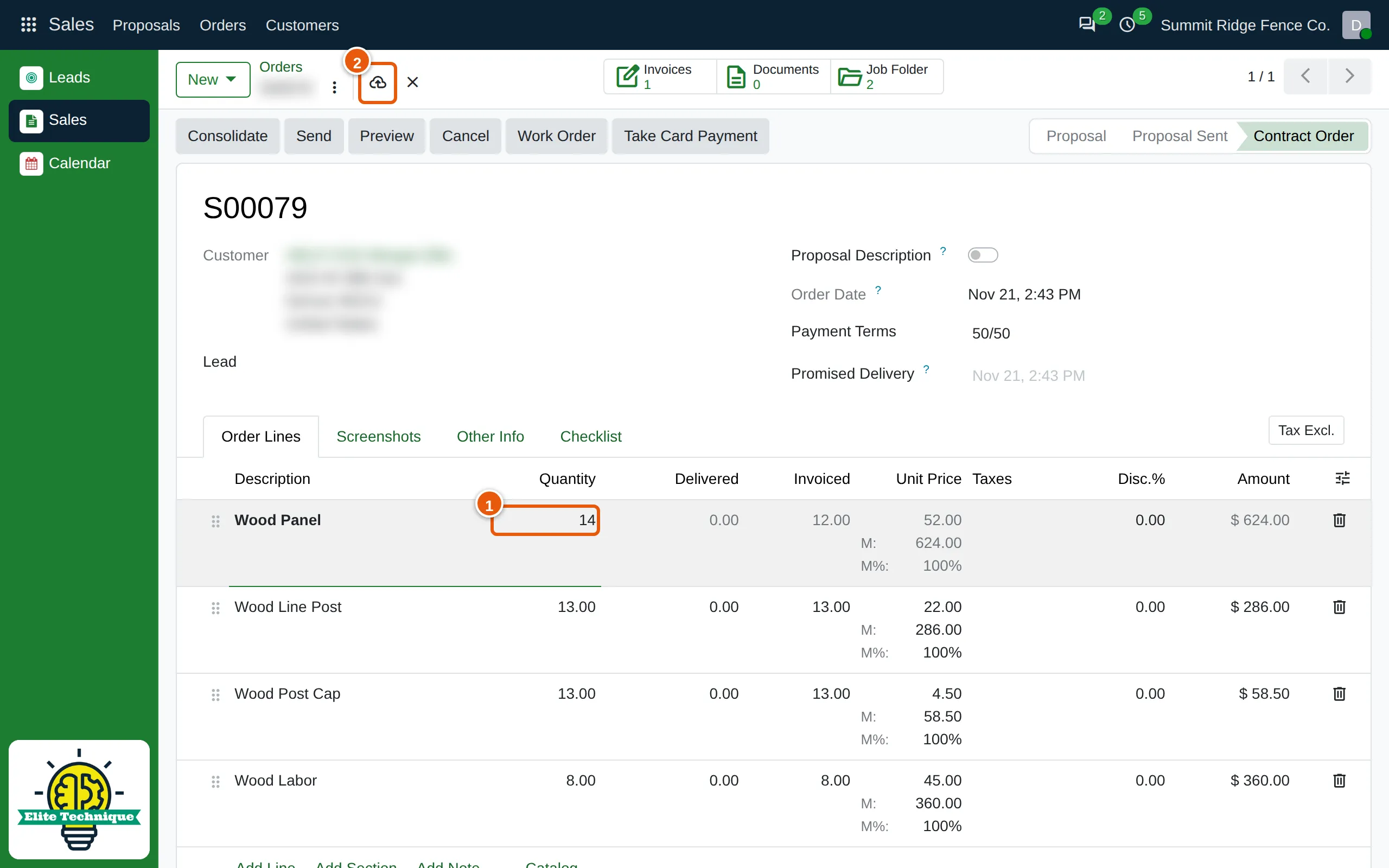
The line’s amount and the order’s total update when you save.
Add an item
Section titled “Add an item”-
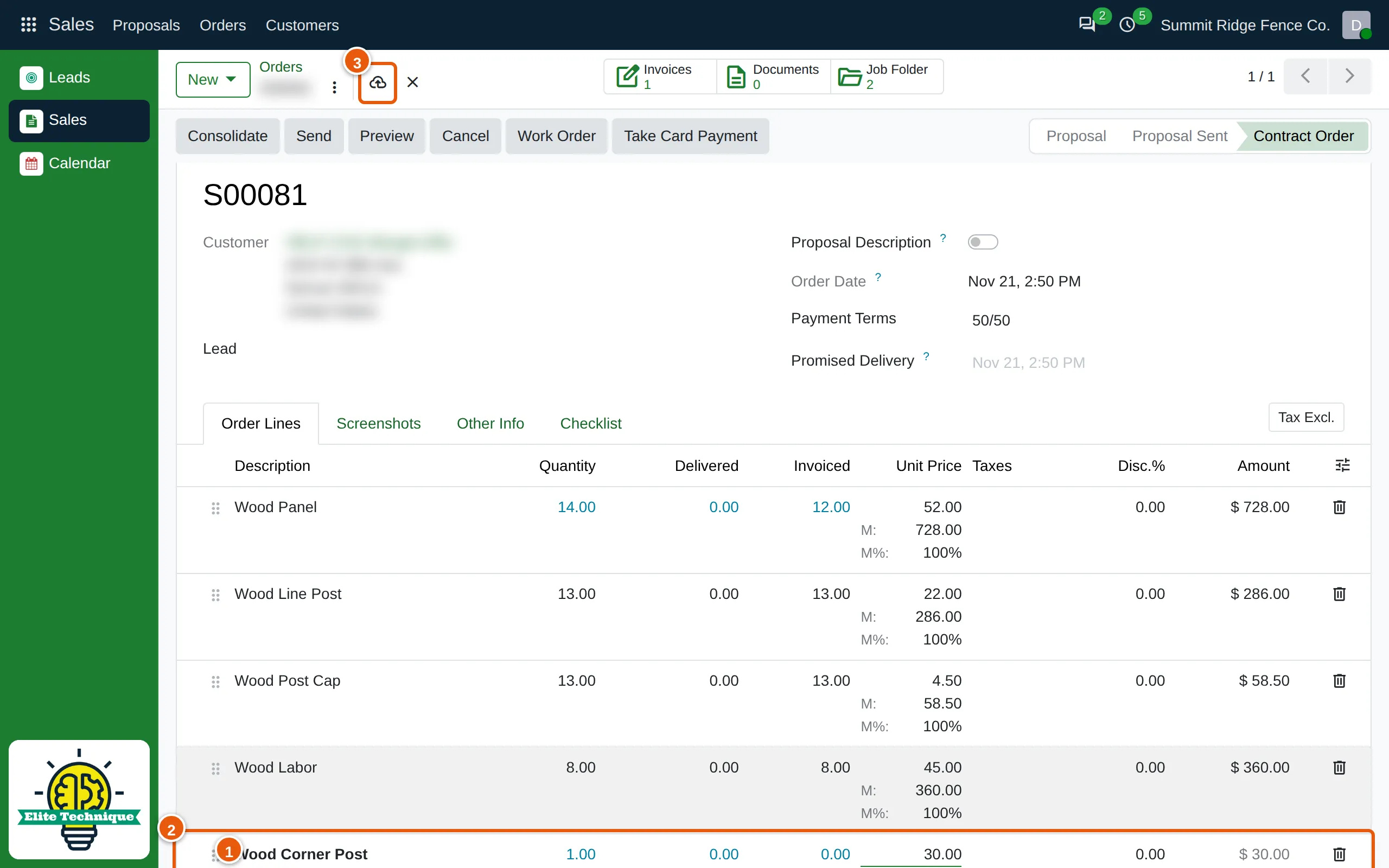
Click Add Line (1) below the lines, start typing the item’s name in the new line (2) and pick it from the list. Change its quantity if you need more than one, then click the cloud icon (3).
Take an item off
Section titled “Take an item off”-
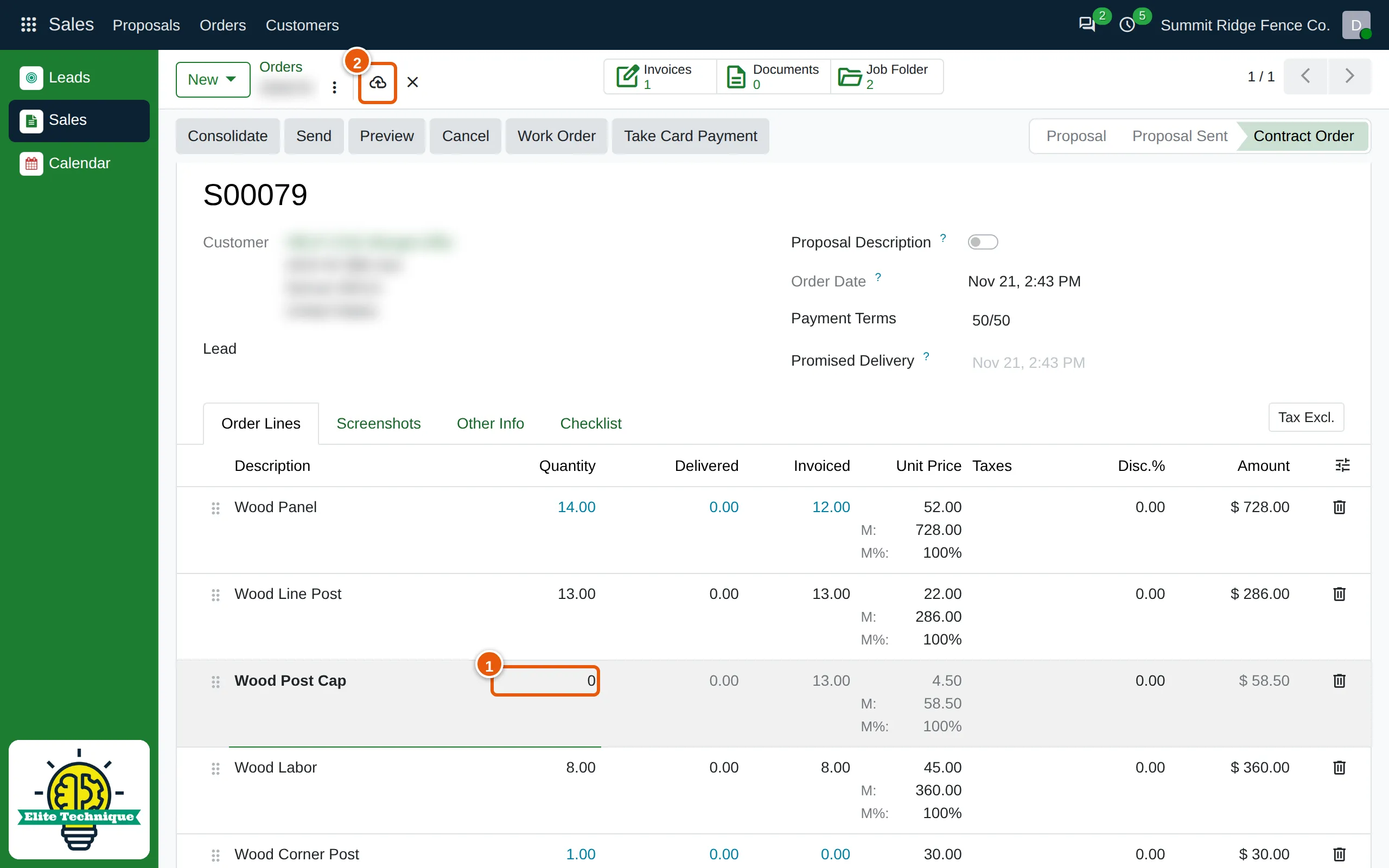
Click the line’s Quantity, type 0 (1) and click the cloud icon (2). The line stays on the order at $0.00, so you can always see it was there.
See what changed
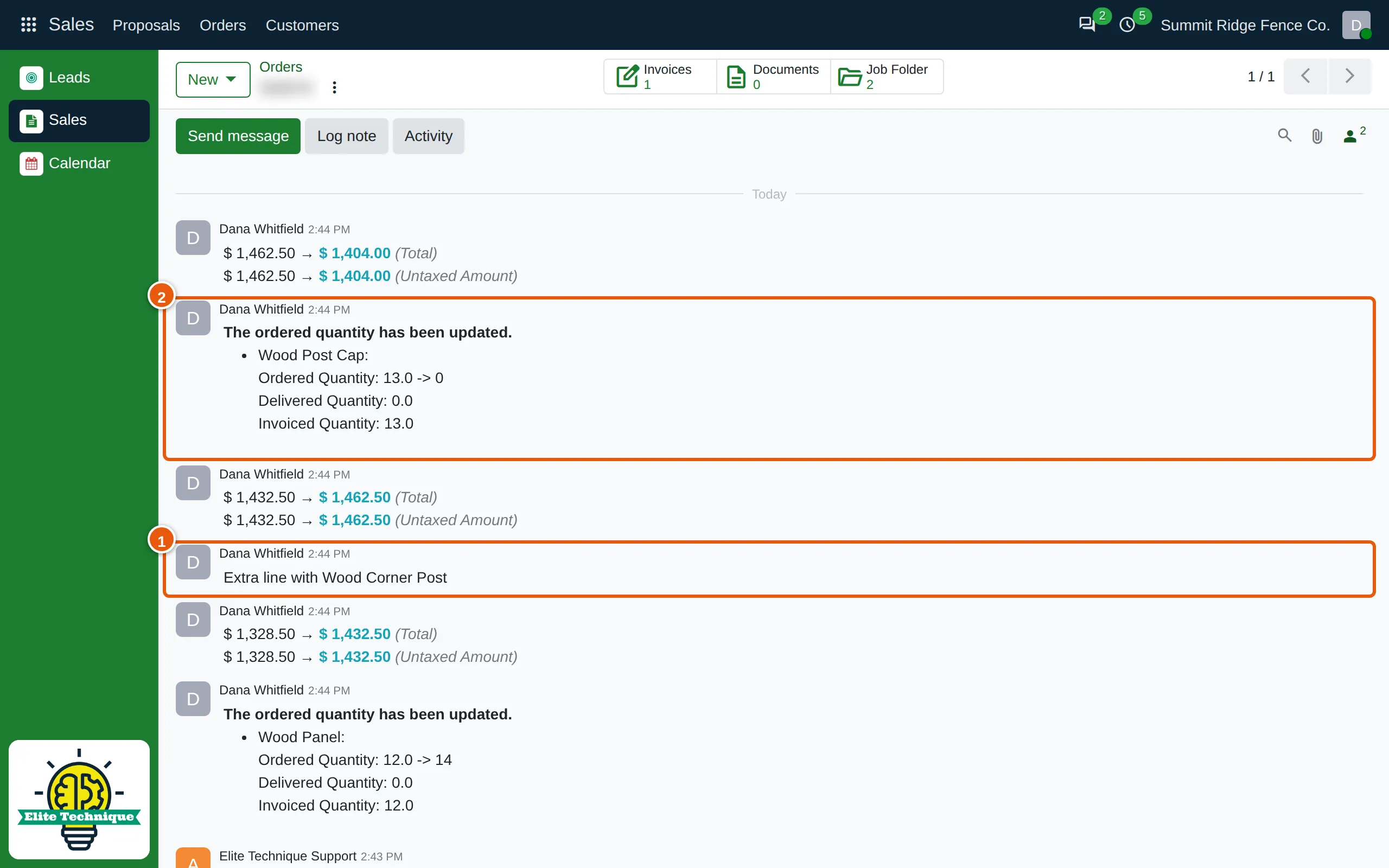
Section titled “See what changed”Every change you save is logged in the order’s history, below the order: each item added (1), each quantity changed with its old and new value (2), and the order’s total before and after.
Let your customer know
Section titled “Let your customer know”Your customer is not told about the change automatically, and they are not asked to sign again.
-
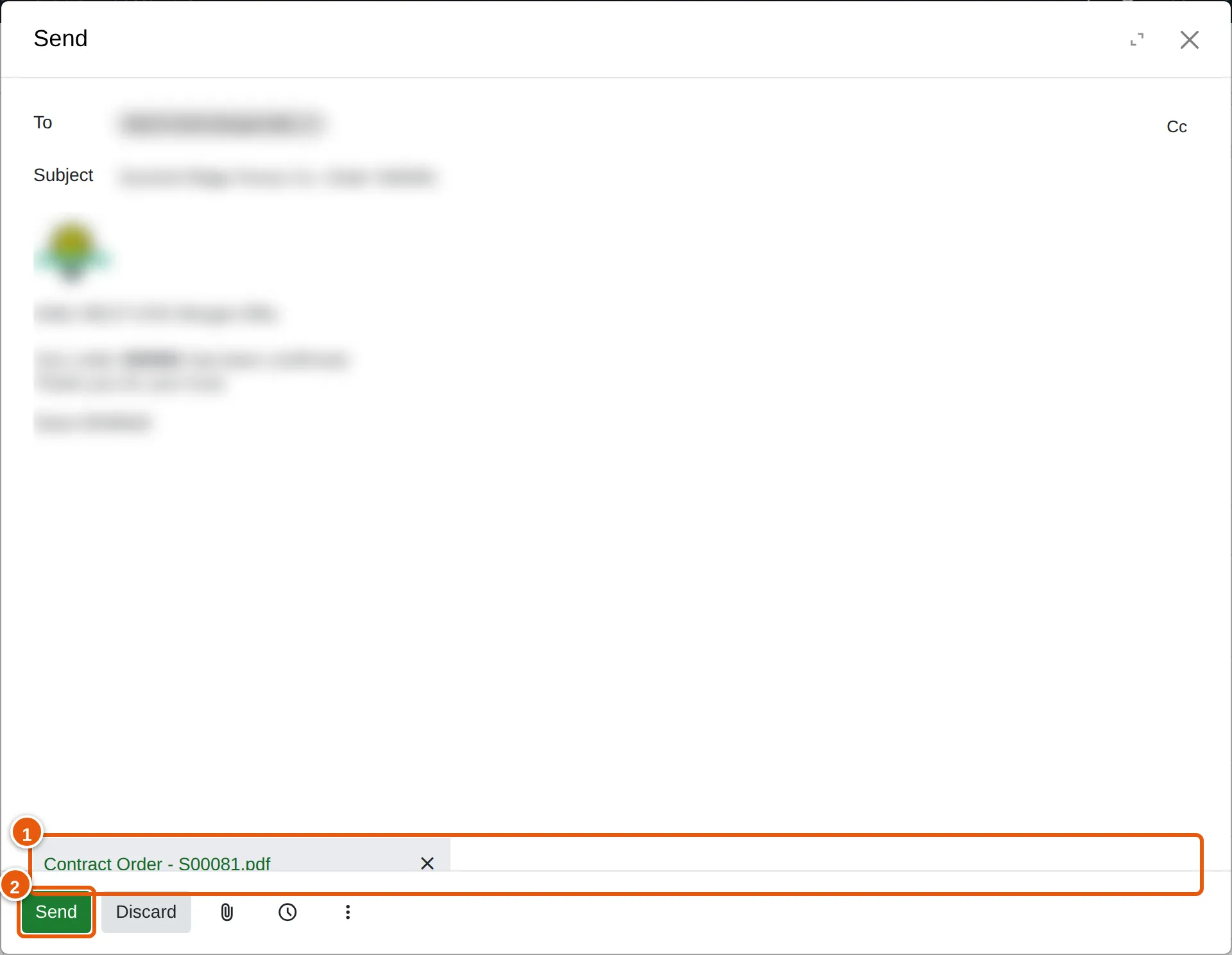
Click Send. The email carries the updated contract order as a PDF (1). Add a line to the message saying what changed, then click Send (2).
The customer’s own page for the order shows the new lines and total too.
Invoice the difference
Section titled “Invoice the difference”If you have already invoiced the order, the change is billed separately.
-
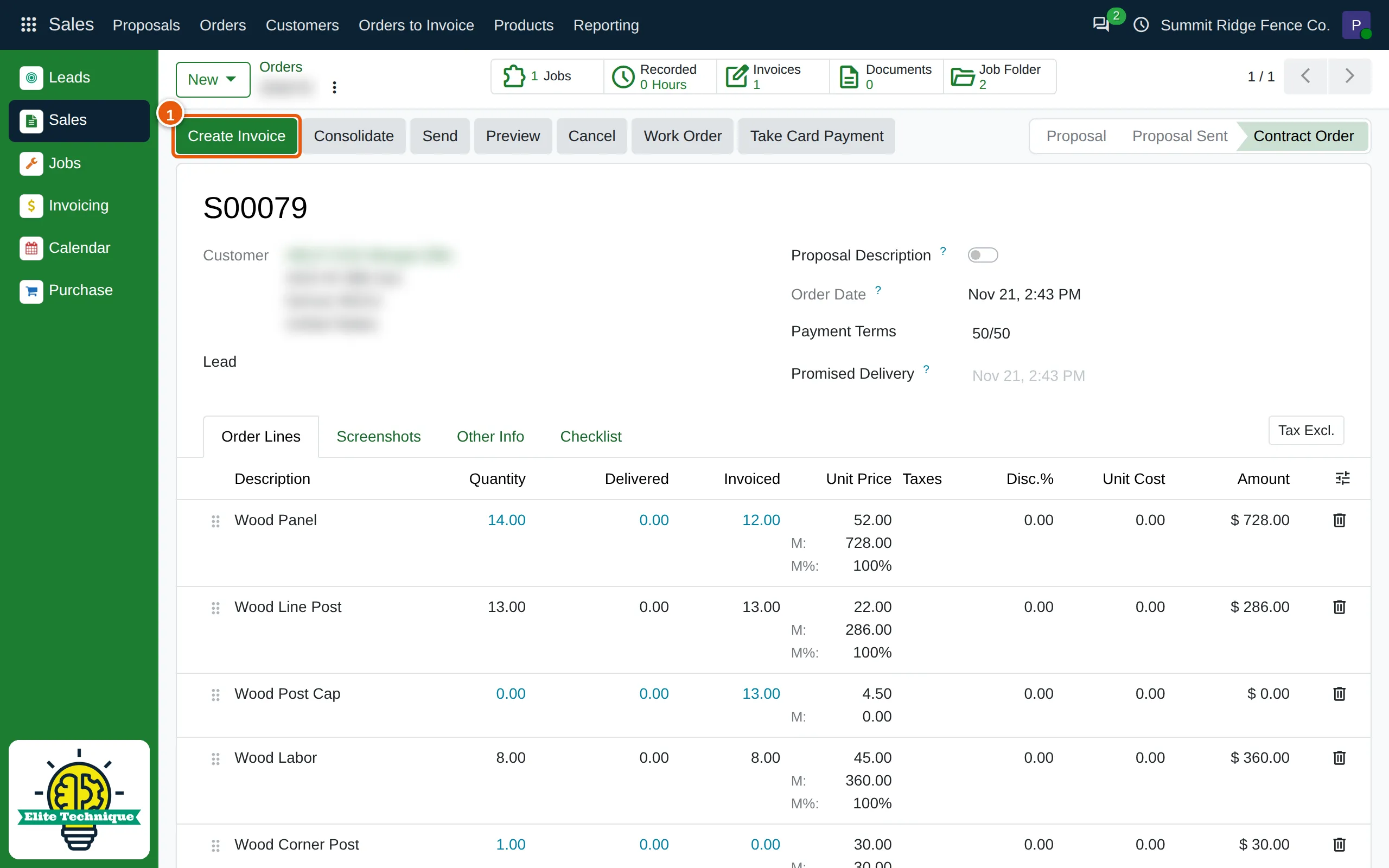
Open the contract order and click Create Invoice (1).
-
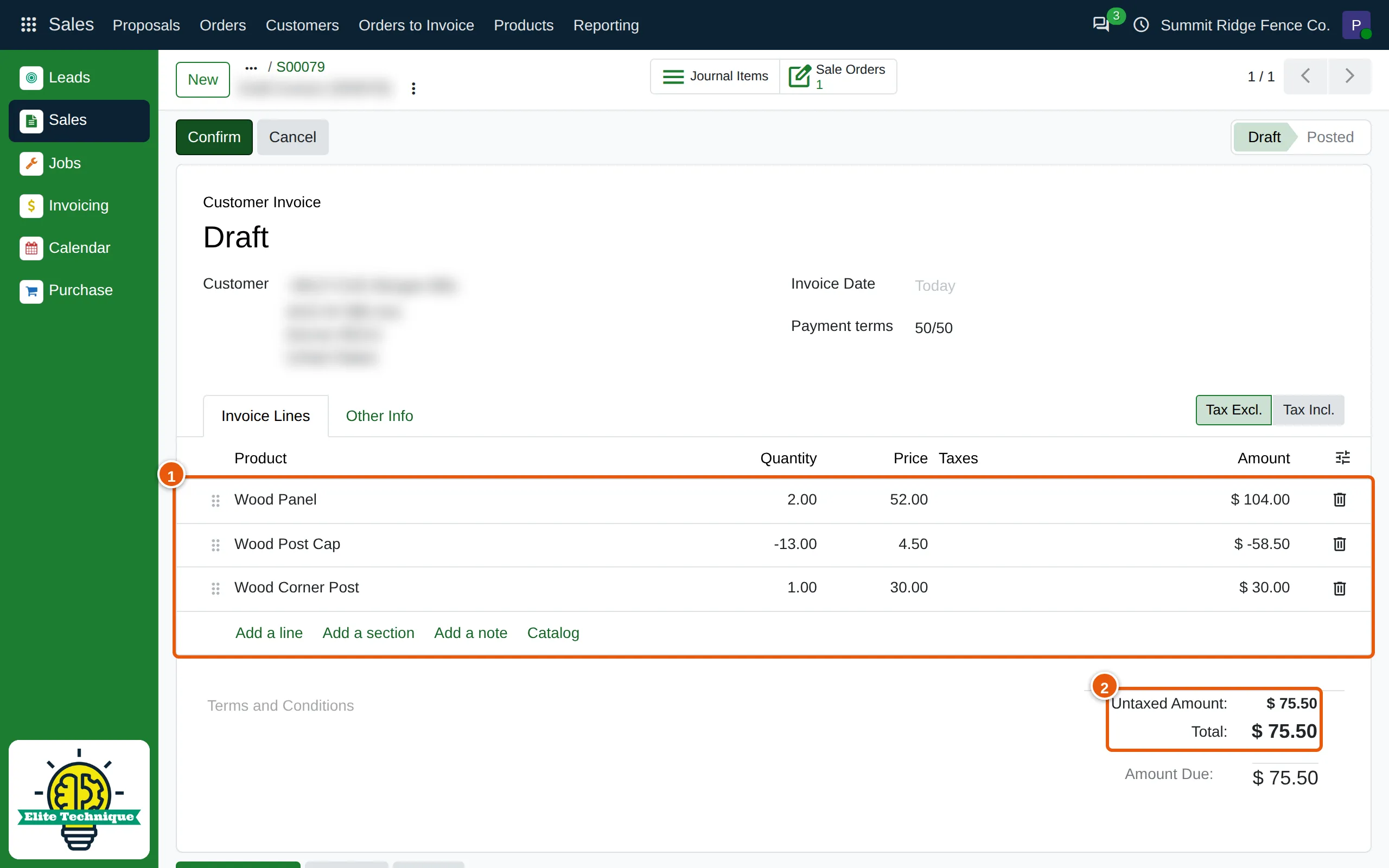
The draft invoice lists only what changed since the last invoice (1): here two more panels, one corner post, and the post caps taken off at a minus quantity. Its total is the difference (2). Check it, then click Confirm.
If you haven’t invoiced the order yet, there is nothing extra to do. Create Invoice bills the order as it is now. See Invoice a contract order.
What else changes
Section titled “What else changes”- The job’s work order lists the new quantities, so your installers work from the change.
- The BoM Slip in the job’s Job Folder keeps the quantities the order was confirmed with. Use the work order for what goes to the job.
- A proposal made from a drawing: change its lines on the contract order as above. Opening the drawing (View Drawing) and clicking Update Proposal is refused once the order is confirmed (“Once a sales order is confirmed, you can’t remove one of its lines”). Click Exit and change the lines instead.