Pro and upIncluded in the Pro and Elite packages.
Get the work order signed
When the installation is finished, have the customer sign the work order on site or from an emailed link. The signed copy is saved to the job.
The work order is what the crew installs: the materials and quantities, without prices. When the work is finished, the customer signs it to accept the job as complete — on your phone or tablet on site, or from a link you email them. The signed copy is saved to the job.
Who can do this: Office, Admin and Installer.
Have the customer sign on site
Section titled “Have the customer sign on site”-
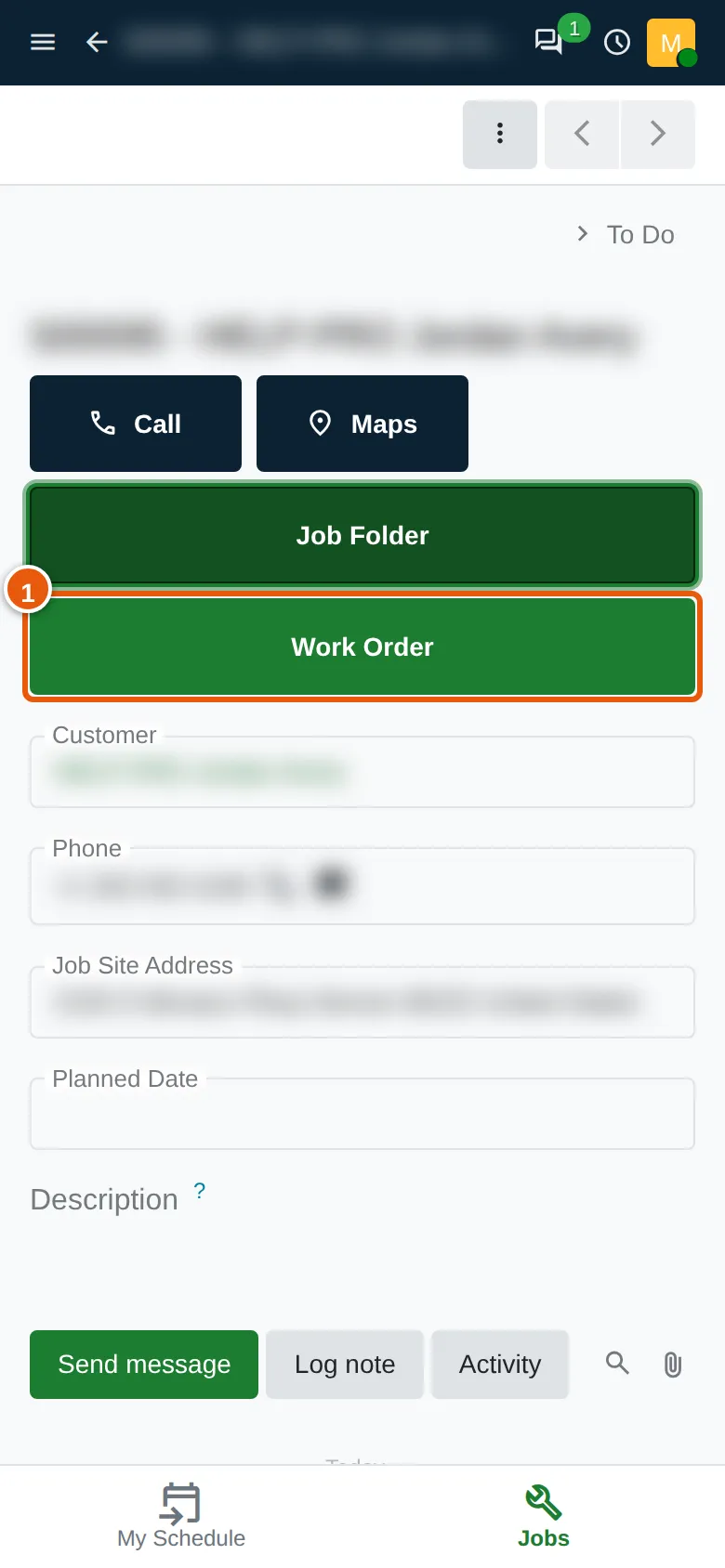
Open the job and click Work Order. In the phone app, tap Work Order on the job (1).
-
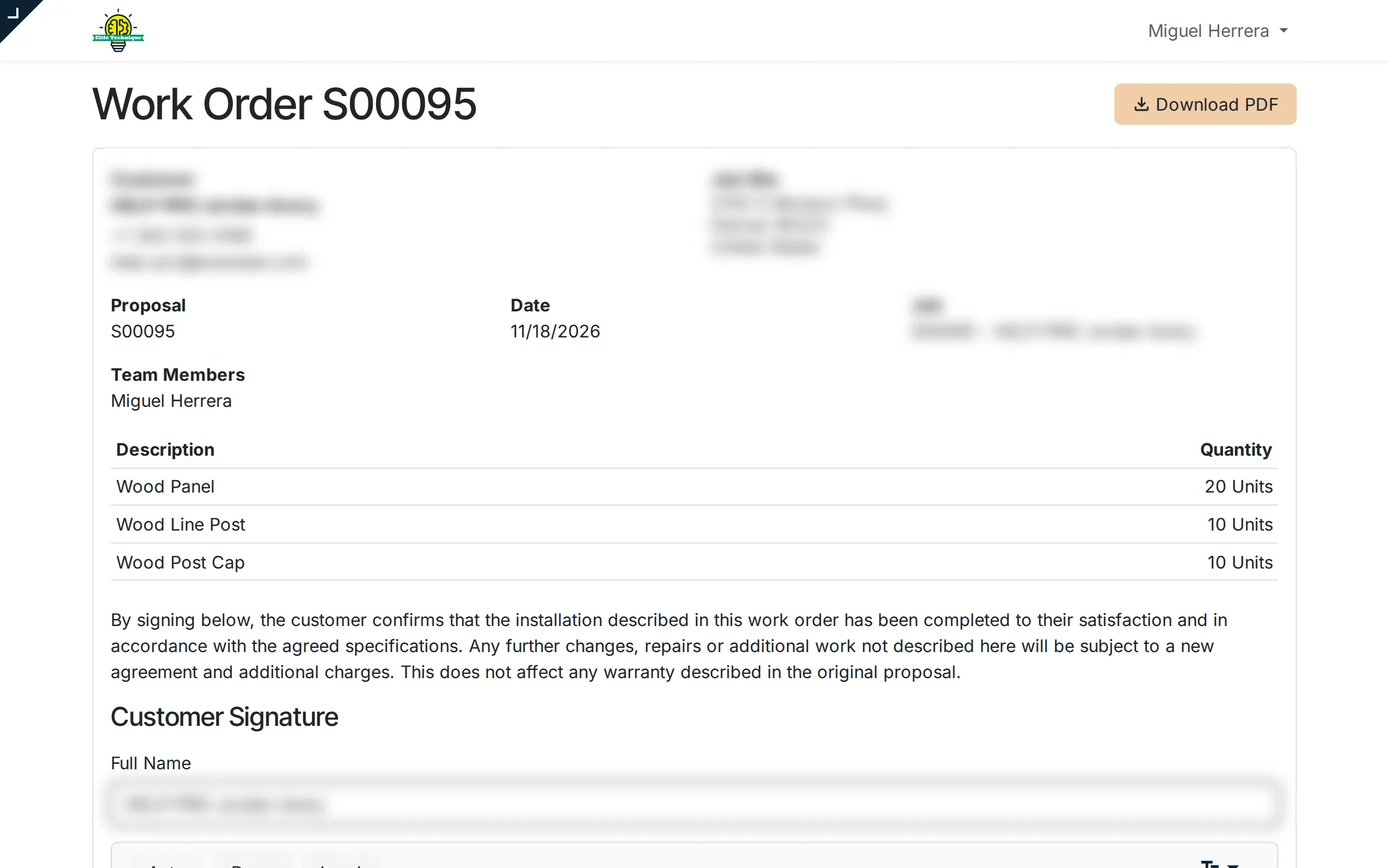
The work order opens: the customer and job site, the proposal and its date, the job’s team members, each material with its quantity, and the wording the customer agrees to.
-
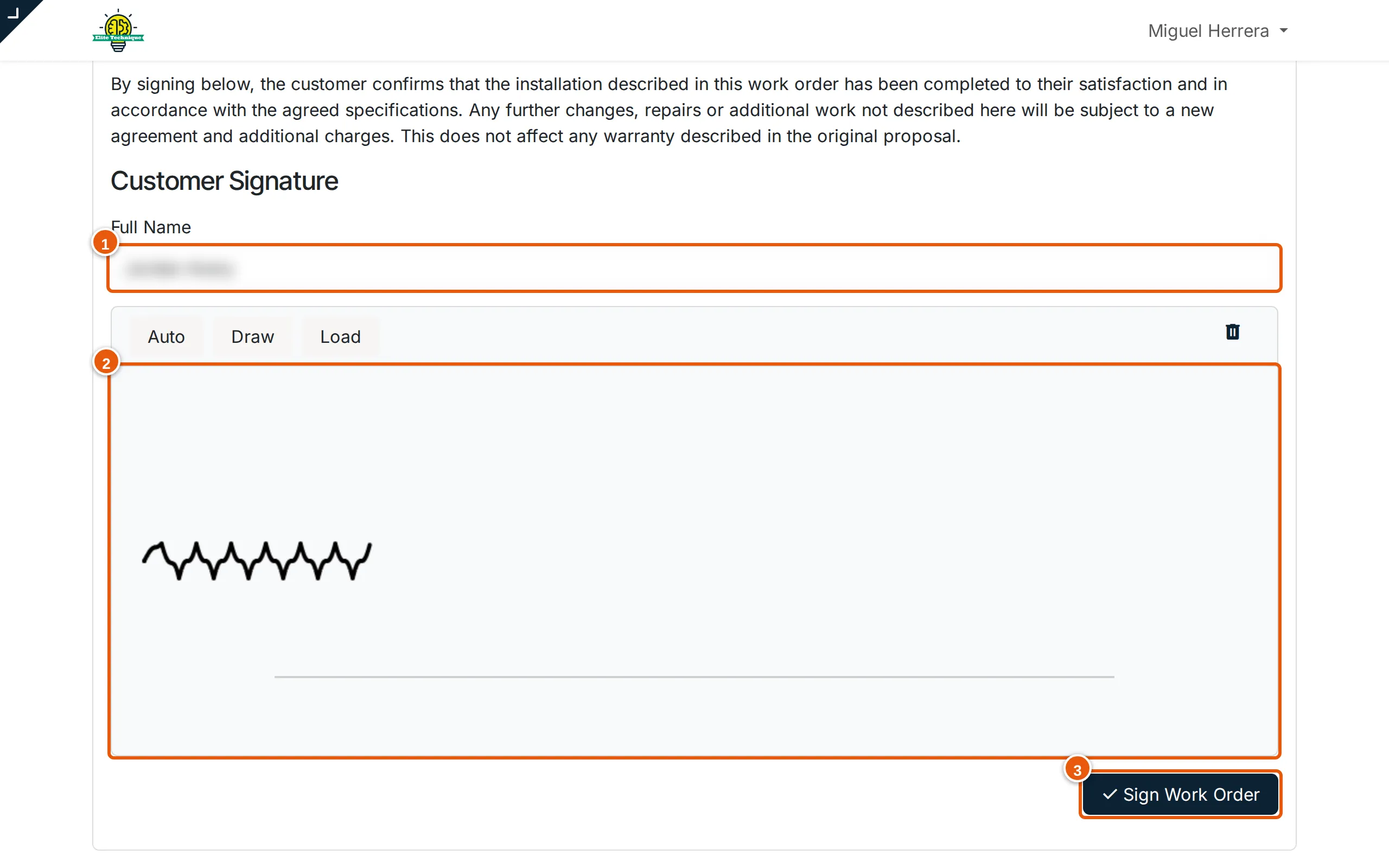
Hand the device to the customer. Their name is already in Full Name (1); they change it if someone else is signing. They draw their signature in the box (2) and tap Sign Work Order (3).
-
The page says Thank you. The signed work order has been sent to the job. The signed copy is saved in the job’s Job Folder, and the job’s notes say who signed it.
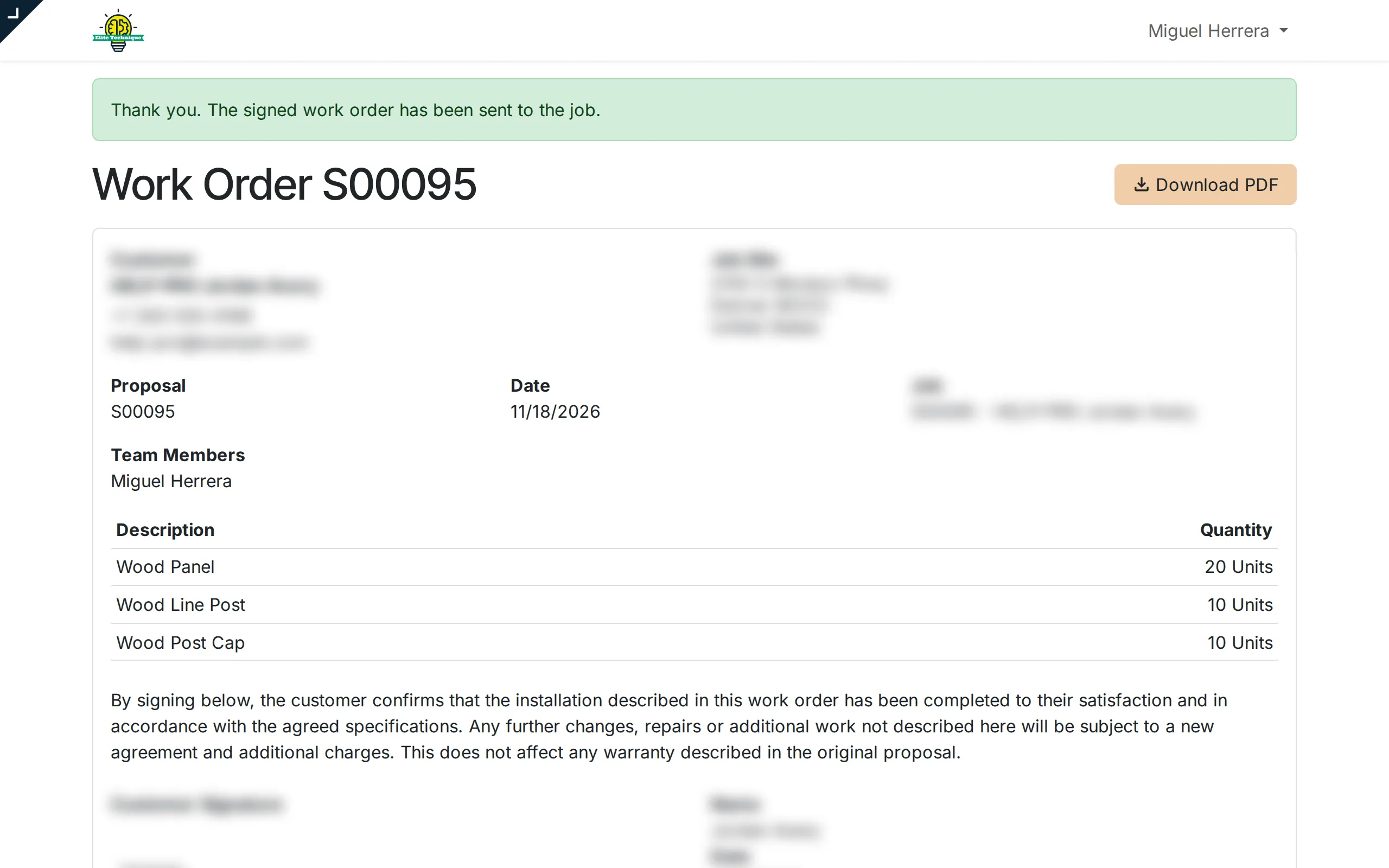
-
On the job, Work Order and Send Work Order are replaced by Signed Work Order (1).
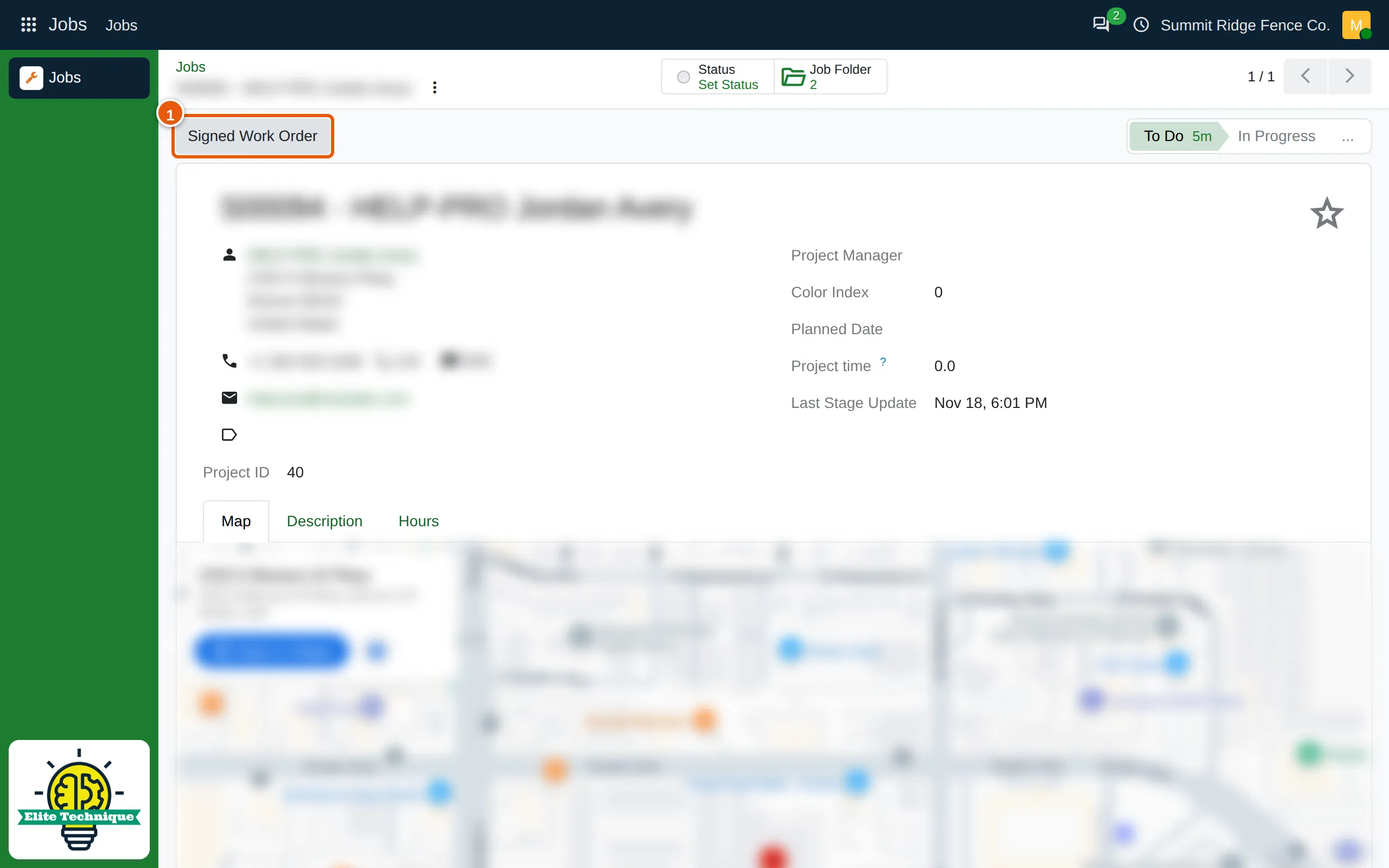
Email it to the customer
Section titled “Email it to the customer”When the customer is not there to sign, send them a link.
-
On the job, click Send Work Order (2).
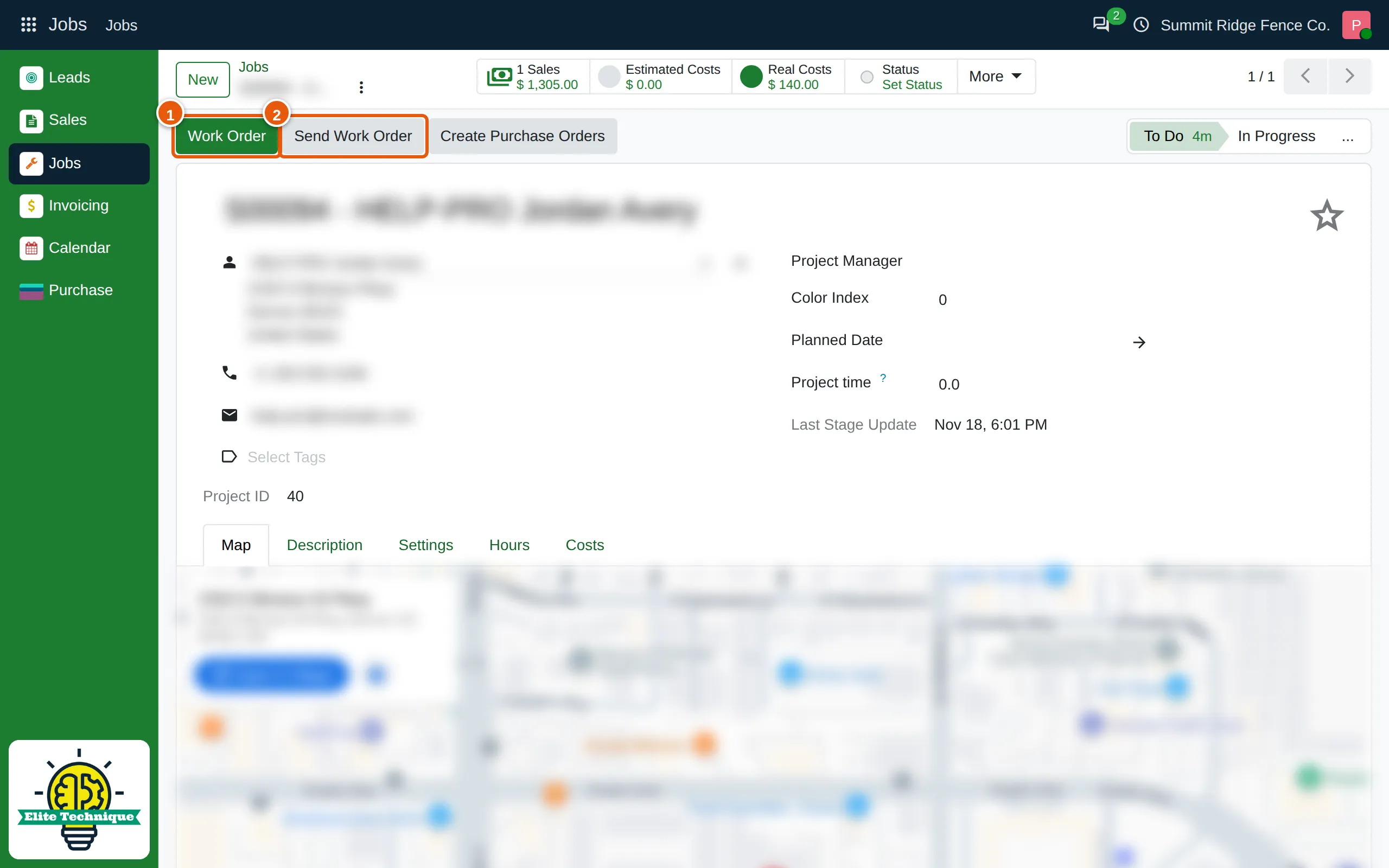
-
Click Ok (1) to email the customer a link to sign the work order.
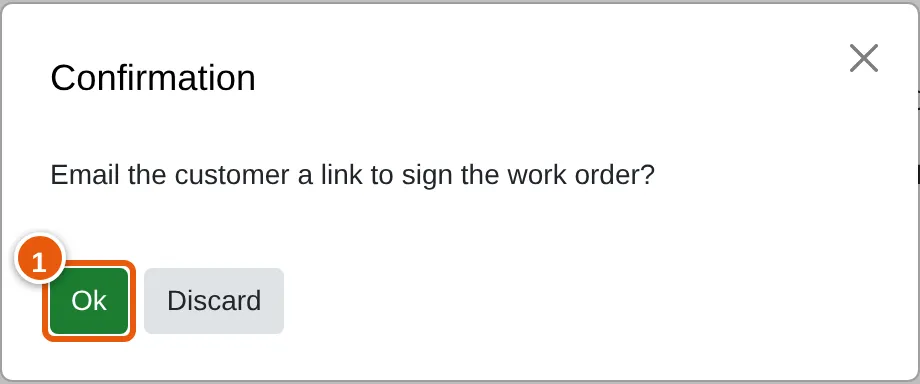
A message confirms The work order was emailed to the customer, and the job’s notes record who it was sent to.
Print it
Section titled “Print it”-
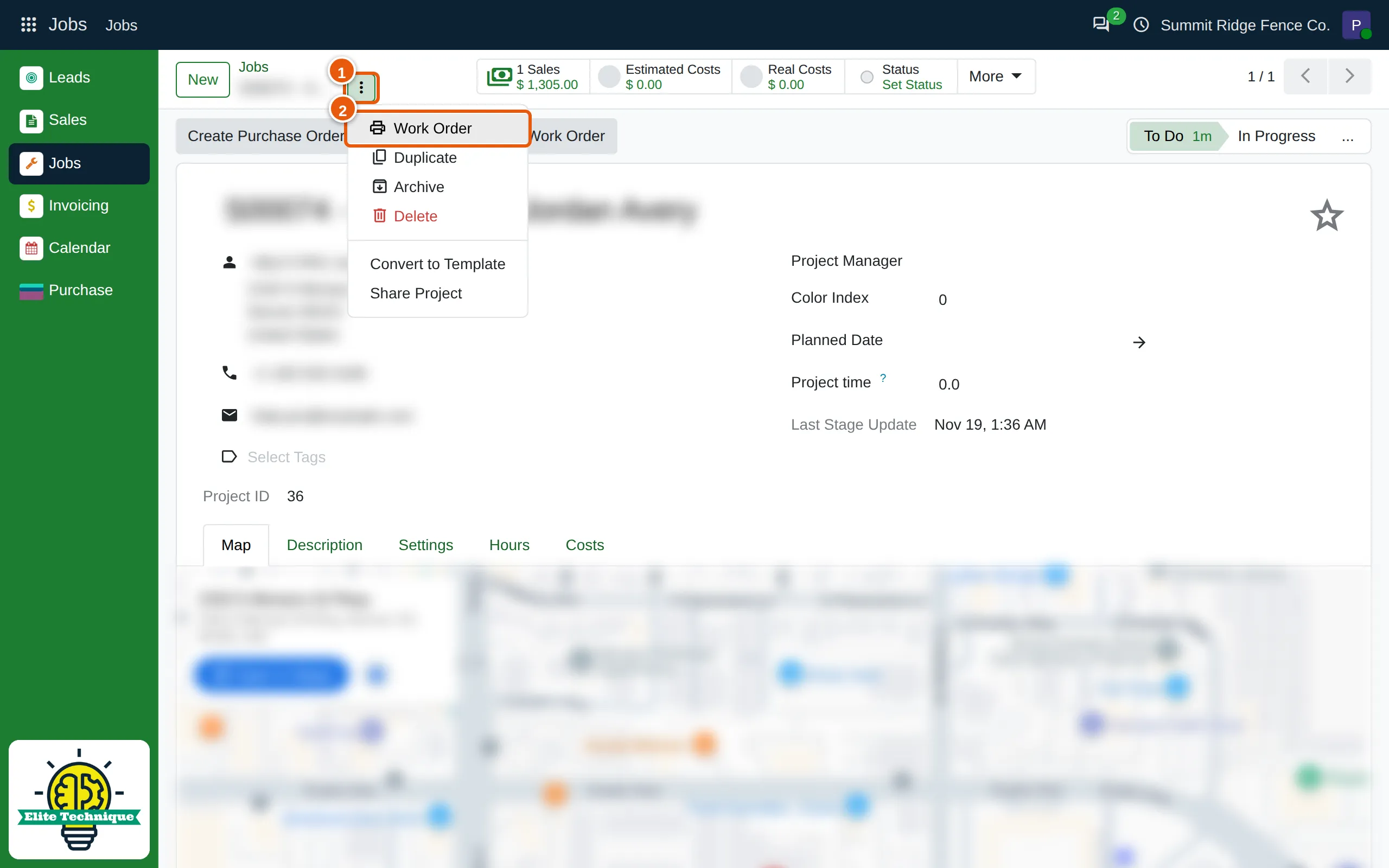
On the job, click the ⋮ next to its name (1), then Work Order (2). It downloads as a PDF.