
Add-onAvailable as an add-on on any package.
Use the Elite Technique Assistant
Ask questions about your business in plain words, get charts and spreadsheet reports, and save the questions you ask most as templates.
The Elite Technique Assistant is a chat built into Elite Technique. Ask it about your sales, invoices, what’s owed, your pipeline, your jobs or what’s scheduled, in your own words, and it answers from your company’s data — with a chart where one helps, and a button that opens the matching records.
Who can do this: anyone your company has given access to the Assistant. Adding a template the whole team can use: Admin.
What the Assistant can see
Section titled “What the Assistant can see”- Your company’s data, and only yours. It works inside your own Elite Technique and nowhere else.
- Only what you can see. It looks things up as you, so it never shows you a record your role can’t open.
- Read-only. It can look things up, but it can’t change, add or delete anything. The line under the question box says so: Read-only access to your data.
Ask a question
Section titled “Ask a question”-
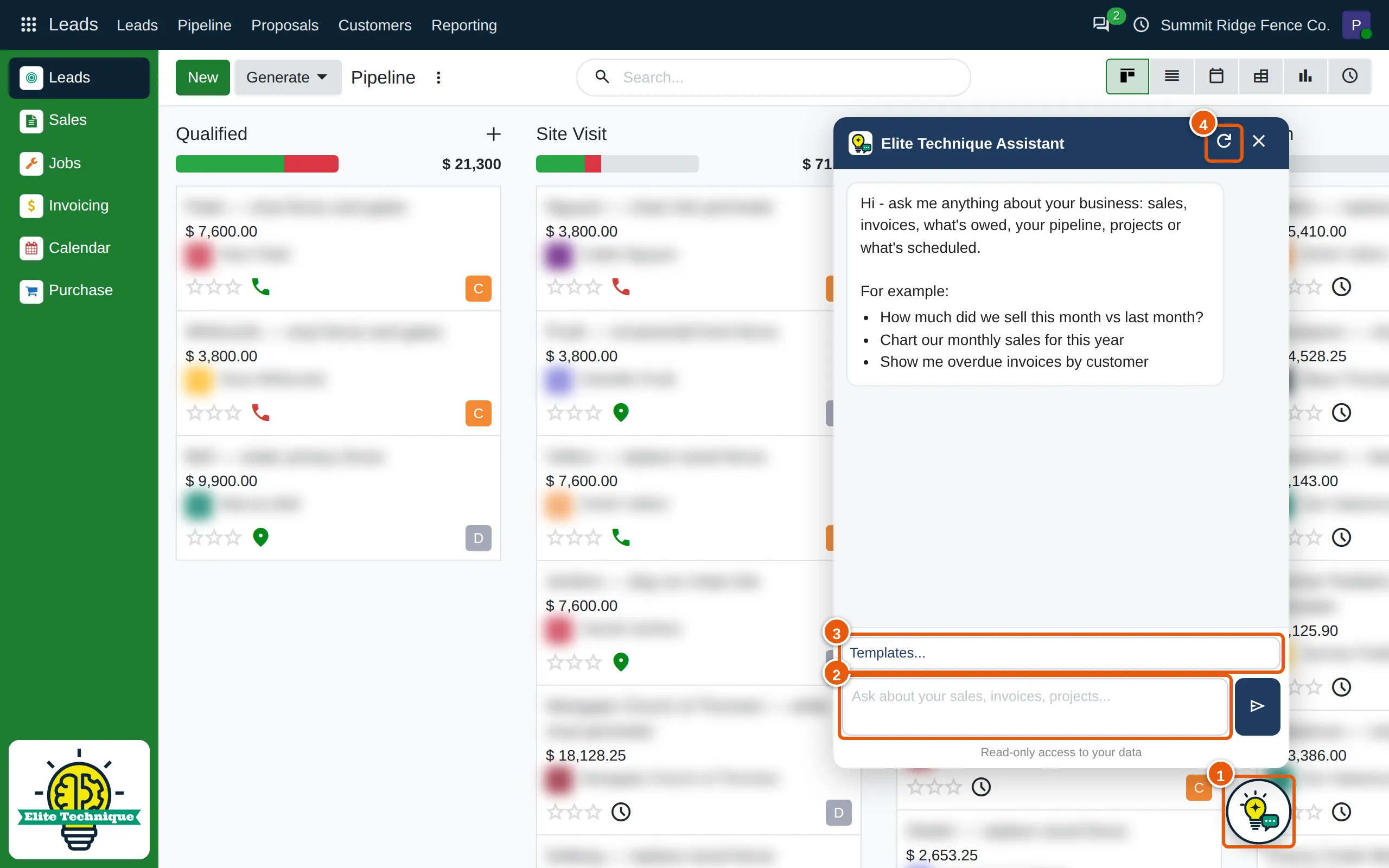
Click the Assistant’s button (1) at the bottom right of any screen. The Elite Technique Assistant opens with a few example questions.
-
Type your question in the box (2) — for example How much did we sell this month vs last month? — and press Enter, or click the send arrow beside the box. To start a new line without sending, press Shift+Enter.
-
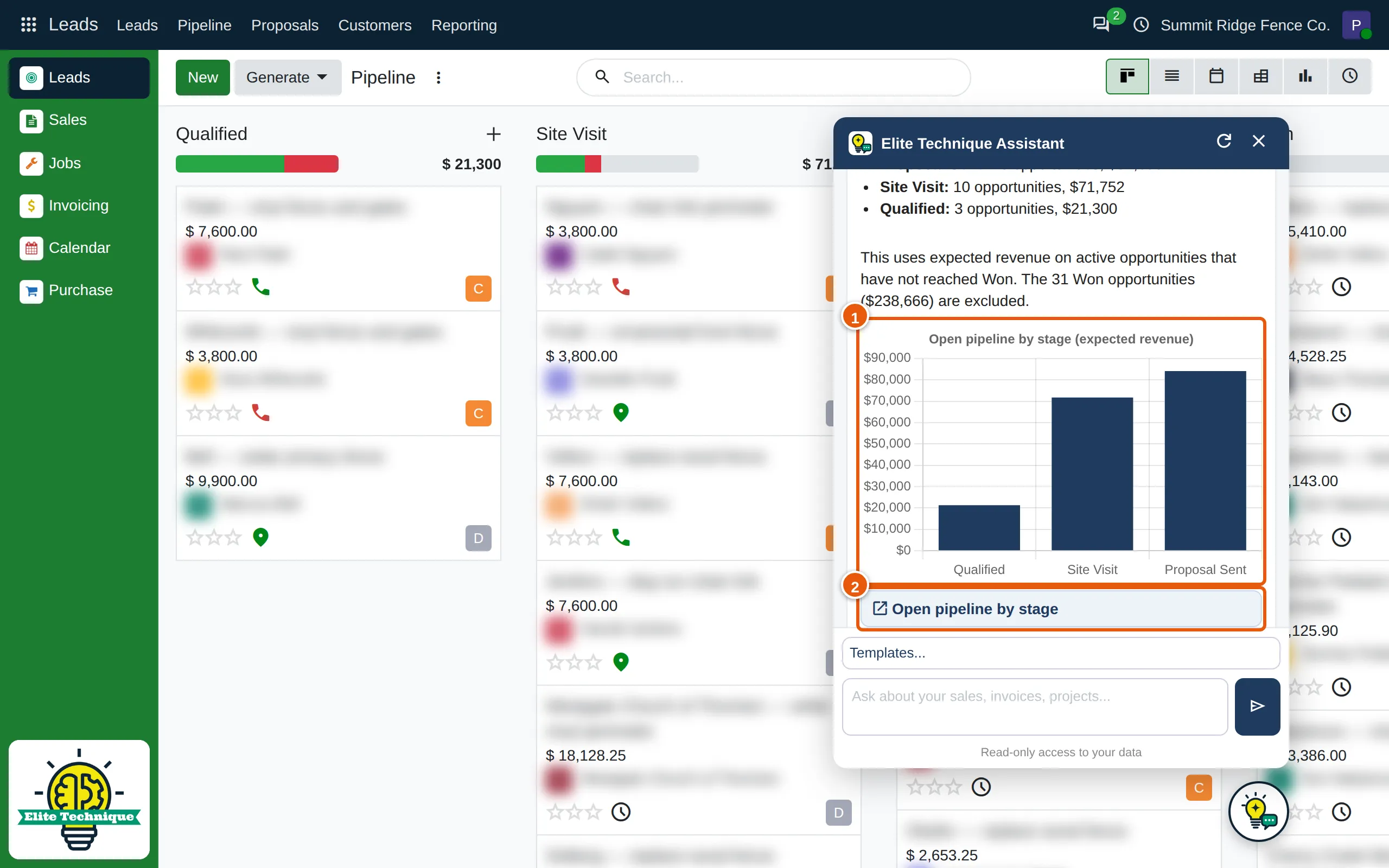
The Assistant shows Looking at your data… while it works, then answers, usually within a few seconds. Where it helps, the answer has a chart (1) and a button (2) that opens the records it is about.
-
Click the button to open those records. The chat closes and the screen opens, filtered to match the answer. Click the Assistant’s button again to carry on: your conversation is still there.
-
Ask a follow-up — now just for this month, show that as a chart — and the Assistant answers in the context of the conversation so far. To start over, click New conversation (4 in the first picture), the circular arrow at the top of the chat.
Your conversation stays while your browser tab is open, even if you move between screens. Closing the tab ends it.
Use a template
Section titled “Use a template”A template is a saved question. The Templates… drop-down (3 in the first picture), just above the question box, lists the templates you can use, grouped by area. The list changes as templates are added, and you see only the ones that fit your role and package. It holds three kinds:
- Built-in templates come from Elite Technique.
- Shared templates are added by your Admin for everyone who uses the Assistant.
- Your own templates show with (mine) after the name. Only you see them.
-
Open the Assistant, click Templates… and pick a template by its name.
-
The template’s question appears on your side of the chat (1), and the answer follows. A report template answers with a table (2), with the total at the foot.
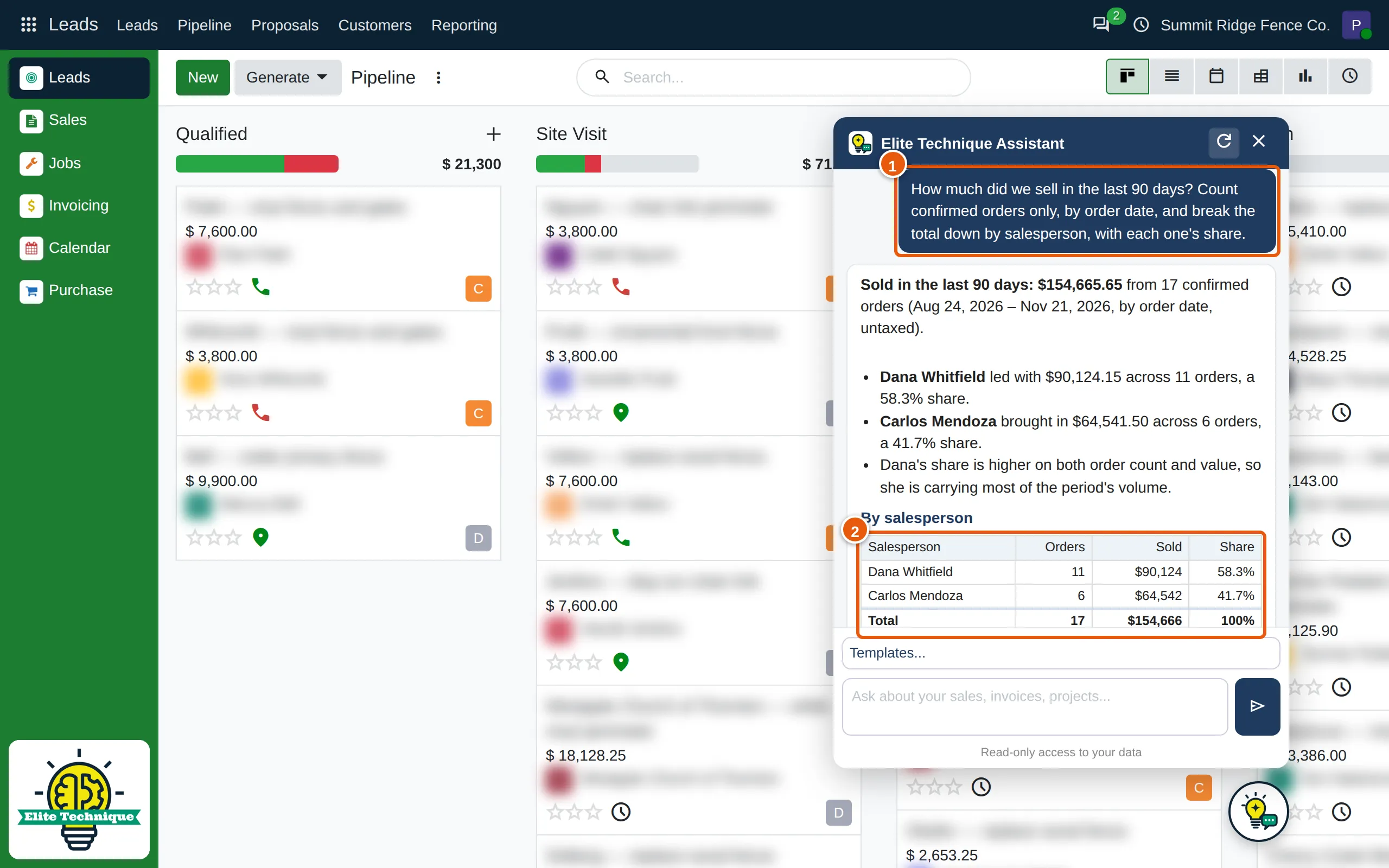
Each template’s question is written the way you would type it yourself: the period, what counts, how to break it down and what you want back. Use it as a model — type your own version in the question box, changing the period or the breakdown, and the Assistant answers that instead.
Report templates and the spreadsheet download
Section titled “Report templates and the spreadsheet download”Some templates run a report: the figures are worked out in Elite Technique, the same way every time, and the Assistant writes up what they show. A report answer has:
- Its tables, showing the first 10 rows and the total. Where there are more, a line below the table says how many more rows are in the download.
- Notes under the tables: the period it covers and what each figure means.
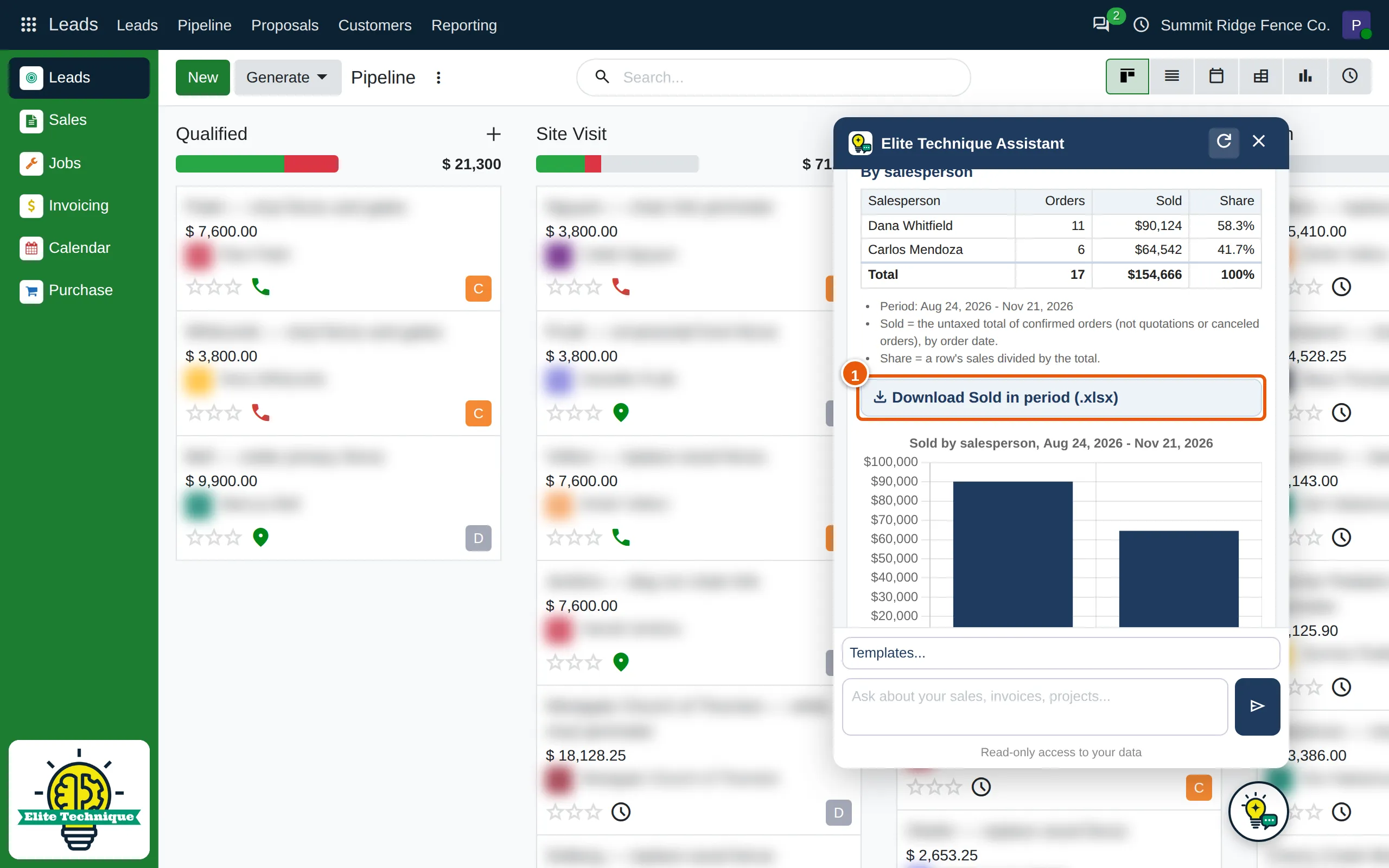
- Download … (.xlsx), a spreadsheet of the report, named after it.
- A chart, and below it a button that opens the records behind the report.
-
Scroll down the answer and click Download … (.xlsx) (1).
-
Your browser saves the spreadsheet, named after the report and, for a report over a period, its dates. It has one sheet for each table, with every row, and a Notes sheet with the period, the totals and what each figure means.
The Assistant uses the same reports when a question you type matches one, and you get the same table and download.
Save your own template
Section titled “Save your own template”-
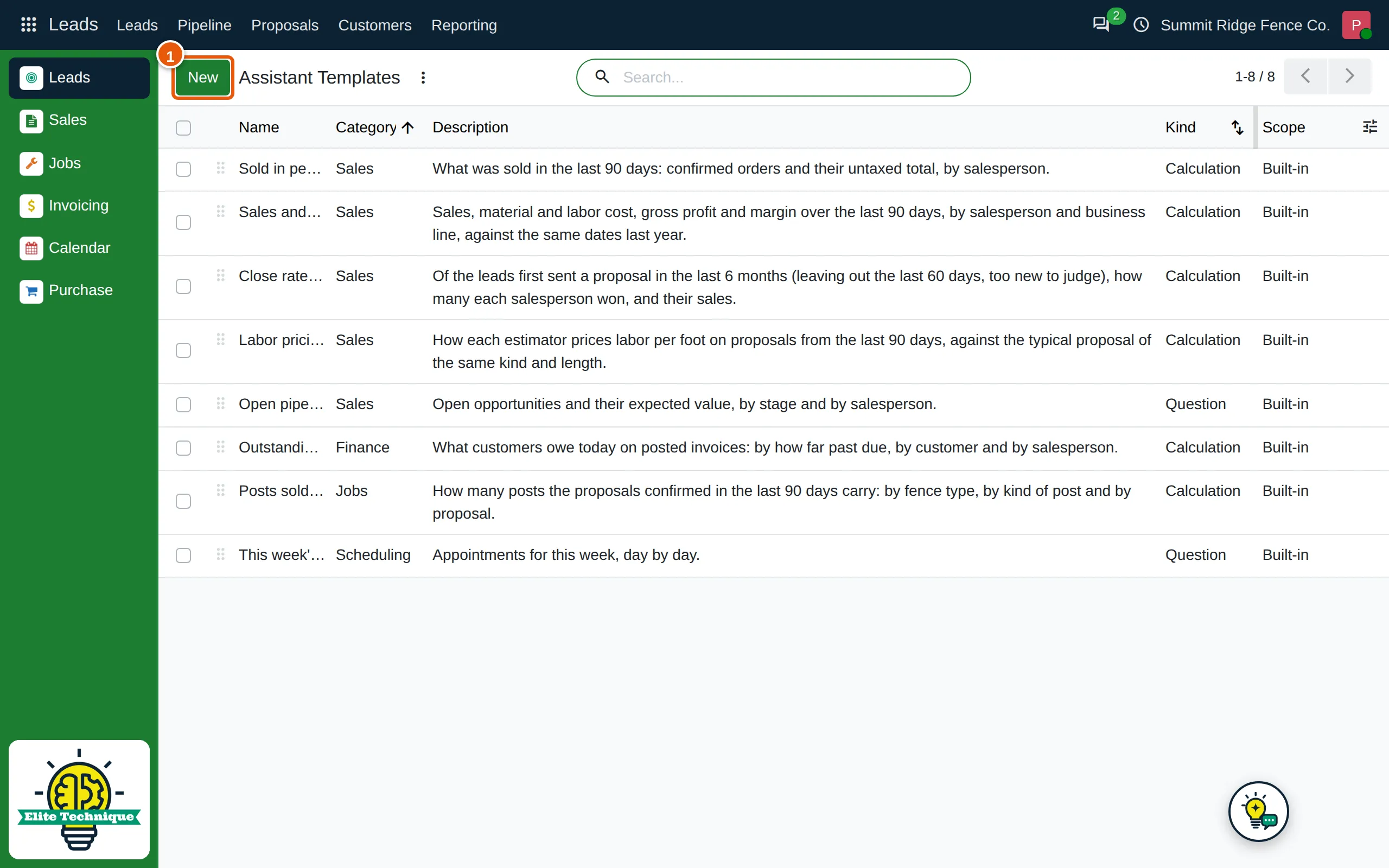
Open the Assistant, click Templates… and pick Manage templates…, the last entry. The chat closes and Assistant Templates opens: every template you can use, with its category, description, kind and scope.
-
Click New (1).
-
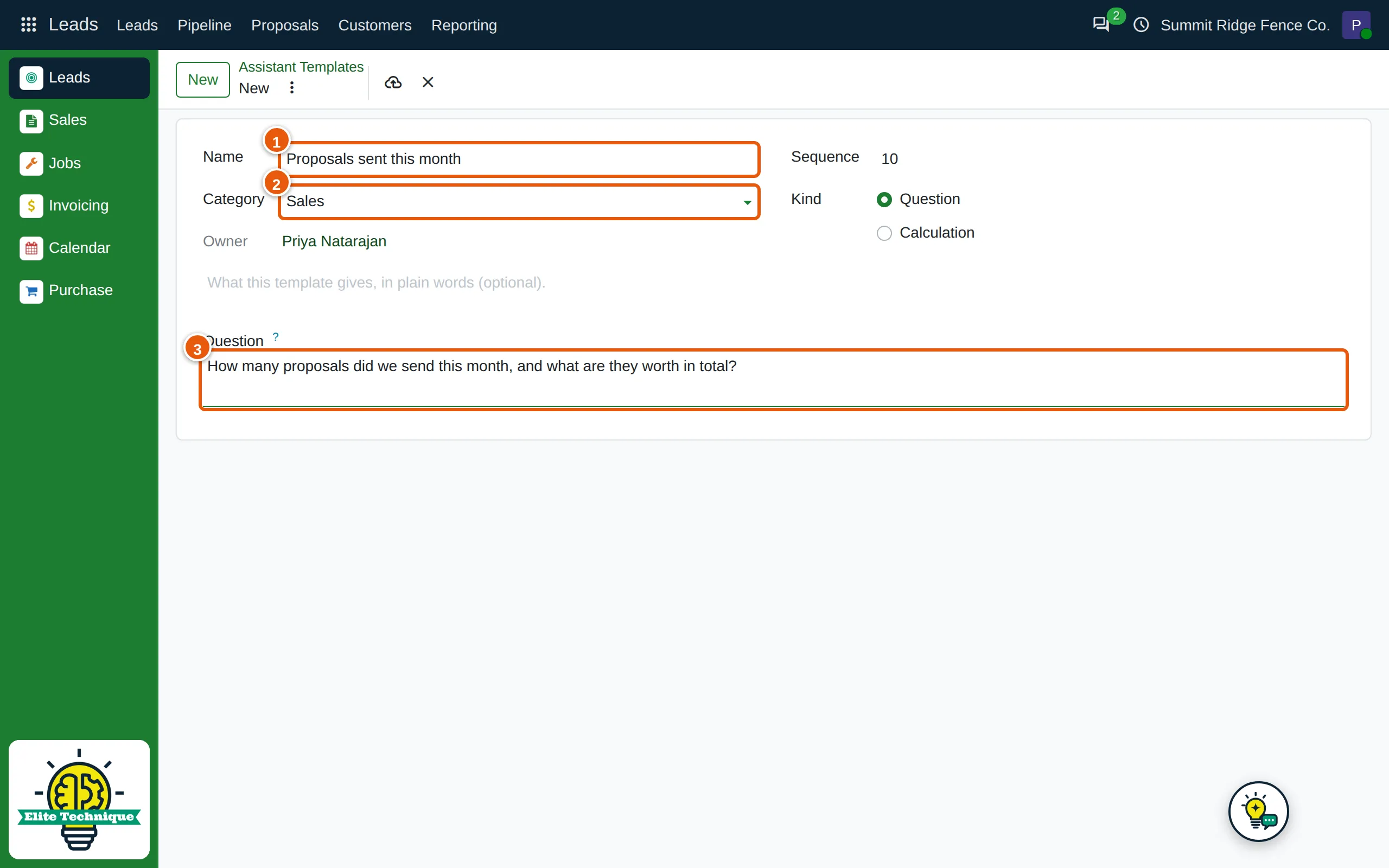
Give the template a Name (1) — what you’ll see in the drop-down — and pick its Category (2).
-
Under Question (3), type the question exactly as you would ask it in the chat: the period, what counts, how to break it down and what you want back. Picking the template puts this question in the chat as yours. You can add a short description of what it gives, in plain words, in the line above.
-
Click the save icon (the cloud) at the top. Open the Assistant again: your template is in the drop-down under its category, with (mine) after its name. Pick it and the Assistant asks the question for you.
To change one of your templates, open it from Manage templates…, edit it and save. To delete it, open it, click the actions menu (⋮) beside its name, then Delete, and confirm.
Add a template for your whole team
Section titled “Add a template for your whole team”Who can do this: Admin.
An Admin’s template form has a Scope: Shared templates show in everyone’s drop-down, Personal ones in yours only. An Admin can also make a template that runs a report with its own period.
-
Open the Assistant, click Templates…, pick Manage templates… and click New.
-
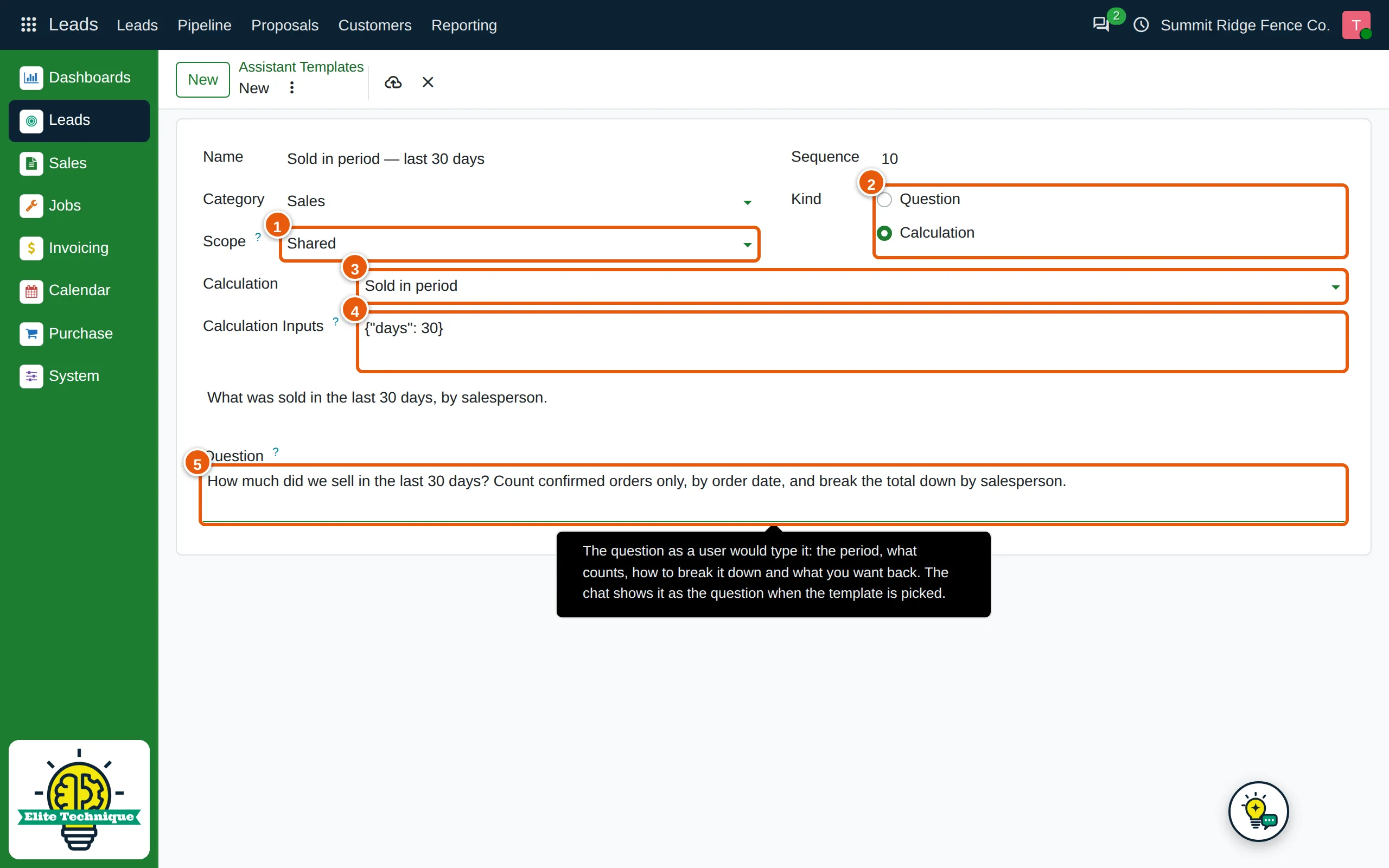
Give it a Name and a Category, and check that Scope (1) reads Shared.
-
For a question, leave Kind on Question and type it under Question, as in Save your own template above.
-
For a report, set Kind (2) to Calculation and pick the report under Calculation (3). A report template shows only to people whose role and package can see the figures it uses.
-
Calculation Inputs (4) sets the period. Leave it as
{}for the last 90 days, or give the number of days — for example{"days": 30}for the last 30 days. Type it exactly, with the curly brackets and quotation marks. -
Under Question (5), write the question the report answers, the way someone would type it — with the same period as the inputs. Picking the template puts it in the chat as their question.
-
Add a short description of what it gives, then click the save icon. It is in every Assistant user’s drop-down from the next time they open the Assistant.
Who can use the Assistant
Section titled “Who can use the Assistant”The Elite Technique Assistant is an add-on, available on every package, for up to four users in your company. Contact Elite Technique to add it, or to change who on your team has access.