
Change the emails Elite Technique sends
Reword the email your customers get with a proposal, preview it on a real proposal, and go back to the original wording.
Every email Elite Technique sends starts from an email template. Change a template’s wording once and every email sent from it after that uses your words. The one your customers see most is Elite: Send Proposal, the email that goes out with a proposal.
Who can do this: Admin.

Which templates you can change
Section titled “Which templates you can change”System › Company › Email Templates lists every template, each with a line saying when it is sent. The ones your customers receive include:
- Elite: Send Proposal: sent to the customer with the proposal PDF.
- Sales: Order Confirmation: sent to customers when their order is confirmed.
- Invoice: Sending: sent to customers with their invoice attached.
- Credit Note: Sending: sent to customers with a credit note attached.
- Payment: Payment Receipt: a payment receipt you send to a customer.
Settings: New User Invite is the email a new team member gets when you invite them.
Reword the proposal email
Section titled “Reword the proposal email”-
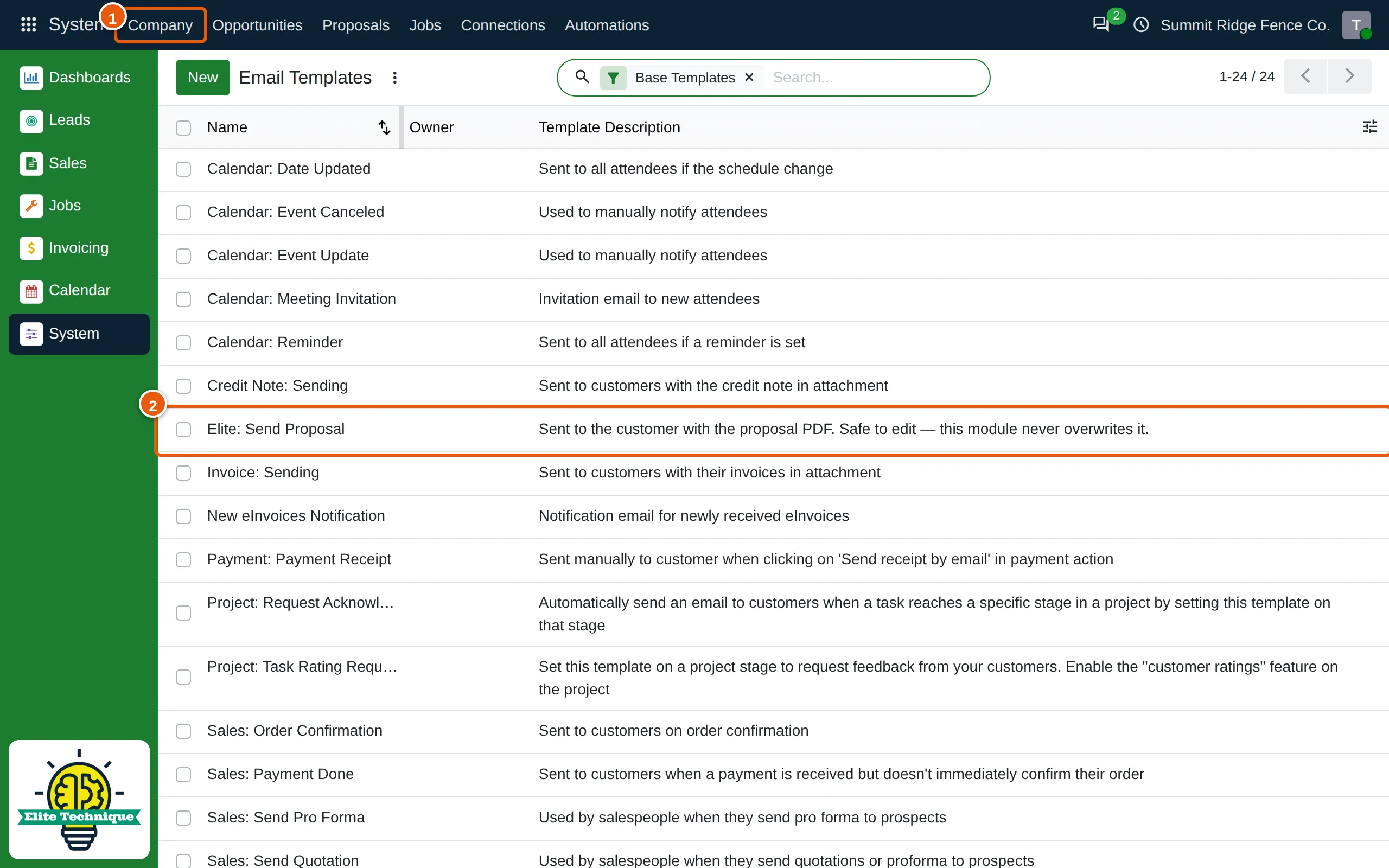
In System, open Company (1) › Email Templates and click Elite: Send Proposal (2).
-
The template shows its Subject (1) and Body (2), with Preview (3) and Reset Template (4) at the top.
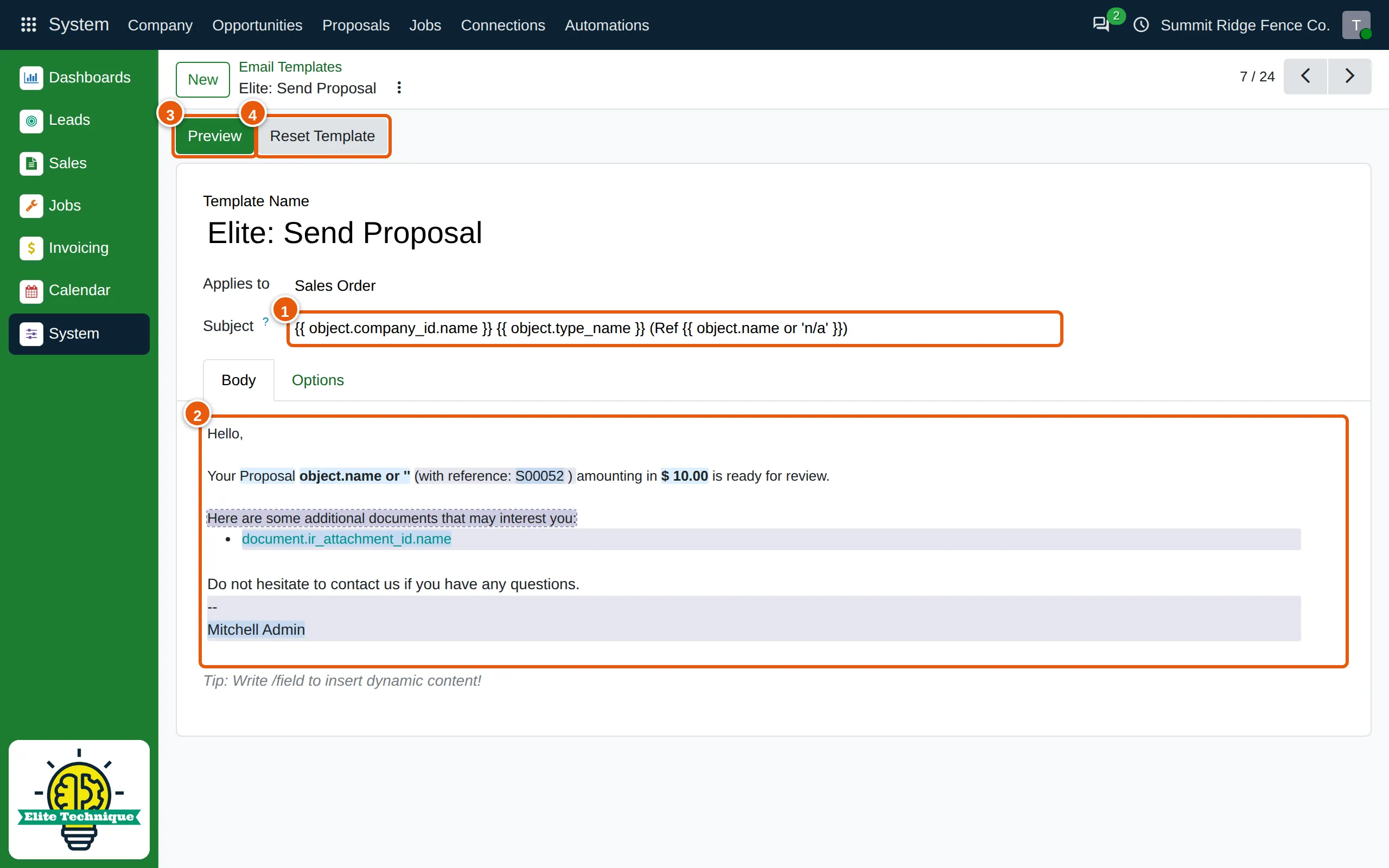
The shaded words in the body are filled in for each proposal: the proposal number, its total and the salesperson’s signature. The sample values you see here are placeholders. Leave the shaded words in place and change the text around them. The subject works the same way: keep what is inside
{{ }}and change the rest. -
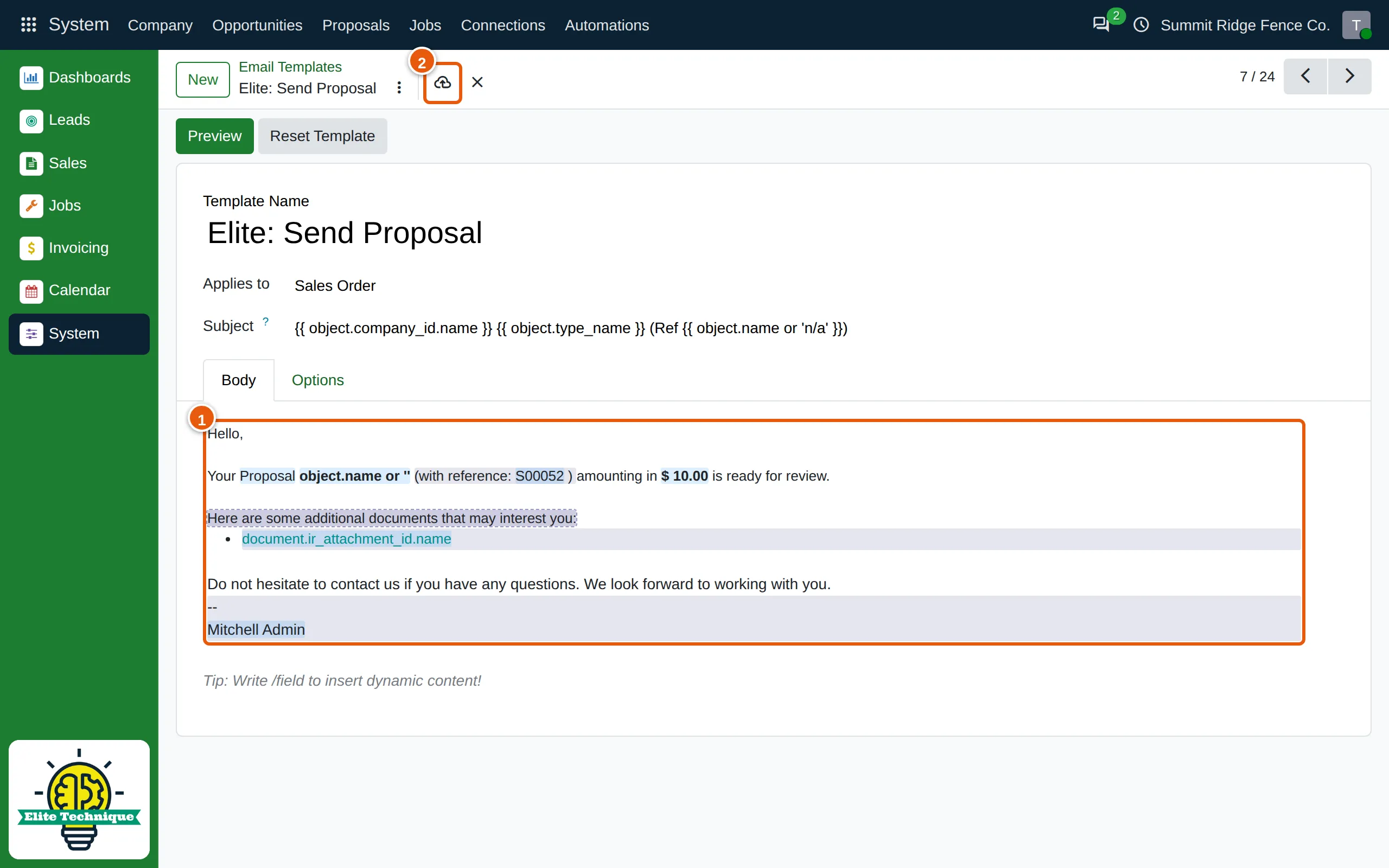
Click in the body and type your wording. Here we added a sentence (1) after Do not hesitate to contact us if you have any questions. Then click the cloud icon (2) at the top to save.
-
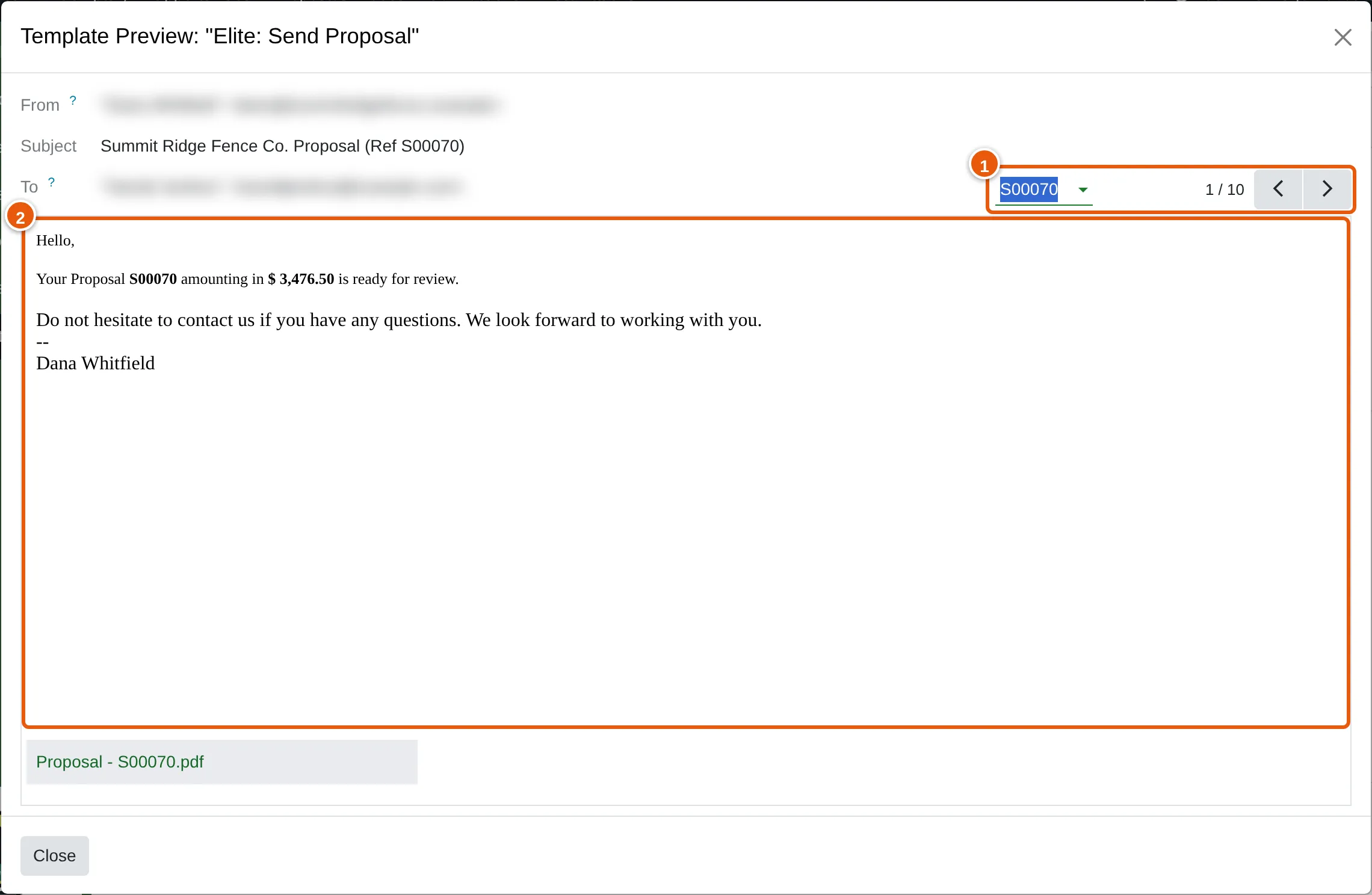
Click Preview. The window shows the email as it would go out for one of your proposals. Pick a different proposal from the list or use the arrows (1). Check your new wording in the email (2), then click Close.
Go back to the original wording
Section titled “Go back to the original wording”-
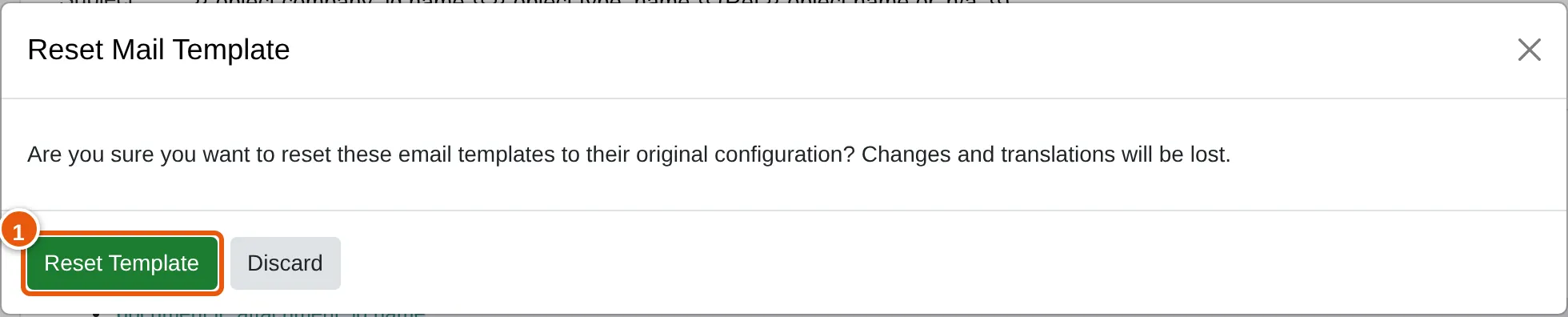
Open the template and click Reset Template.
-
Click Reset Template (1) to confirm. Any changes you made to the template are lost.
A message confirms the template has been restored to its original settings, and the body shows the original wording again.