
Standard and upIncluded in the Standard, Pro and Elite packages.
Add your own activity types
Add the kinds of follow-up your team schedules that the standard list does not cover, such as an HOA approval or a permit check.
When your team schedules a follow-up, they pick what kind it is: Call, Email, Site Visit and so on. Add your own kinds for the steps your company takes that the list does not cover — an HOA approval, a permit check, a material order. Each one can fill in its own summary and due date, so scheduling it takes one click.
Who can do this: Admin.
-
In System, click Company (1) at the top, then Activity Types (2).
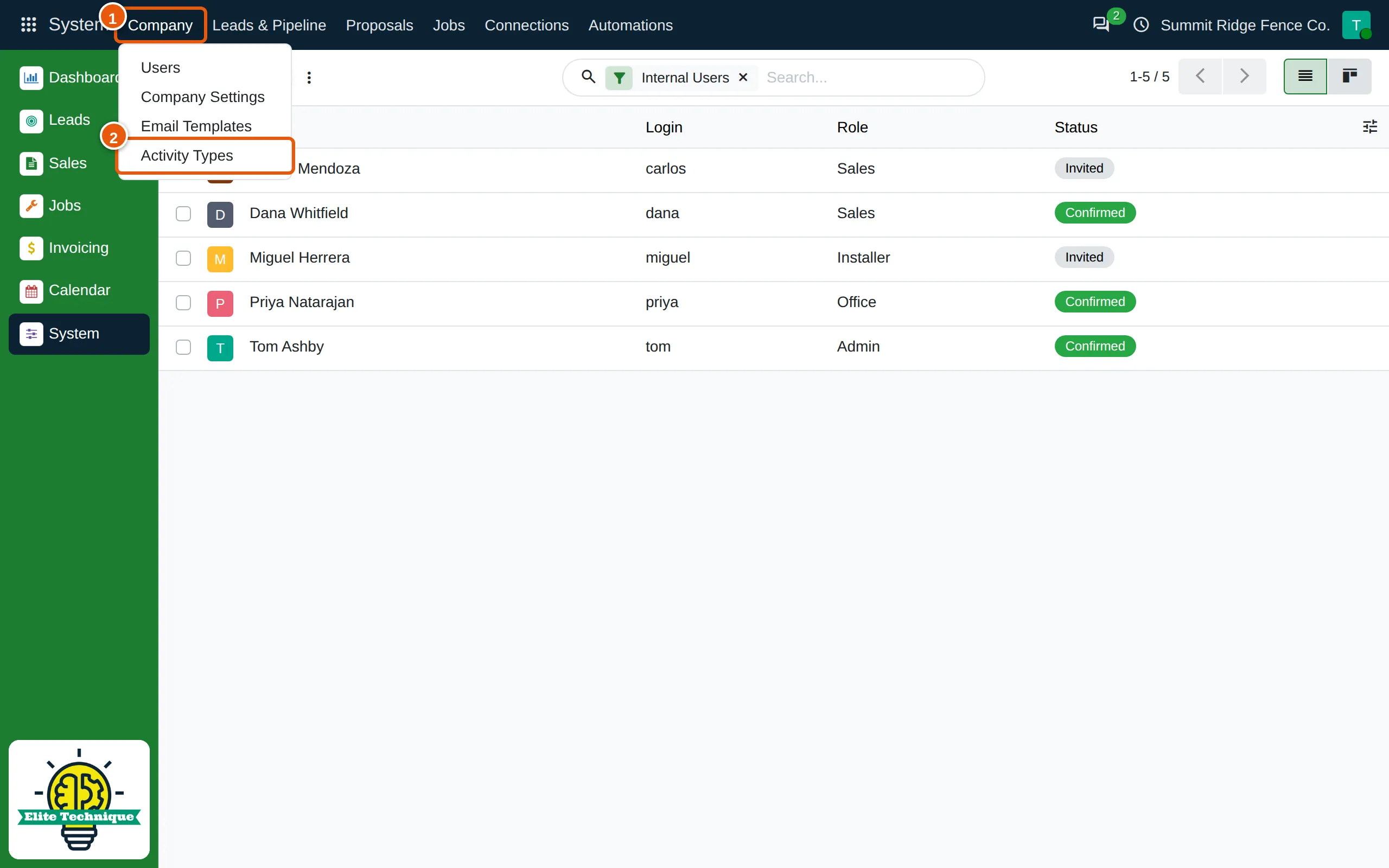
The list shows every activity type your team can pick from.
-
Click New. Type a Name (1) — here, HOA Approval. In Summary (2), type the line the follow-up starts with, such as Get the HOA to approve the fence. Under Schedule (3), set how many days after it is scheduled the follow-up falls due — here, 3 days.
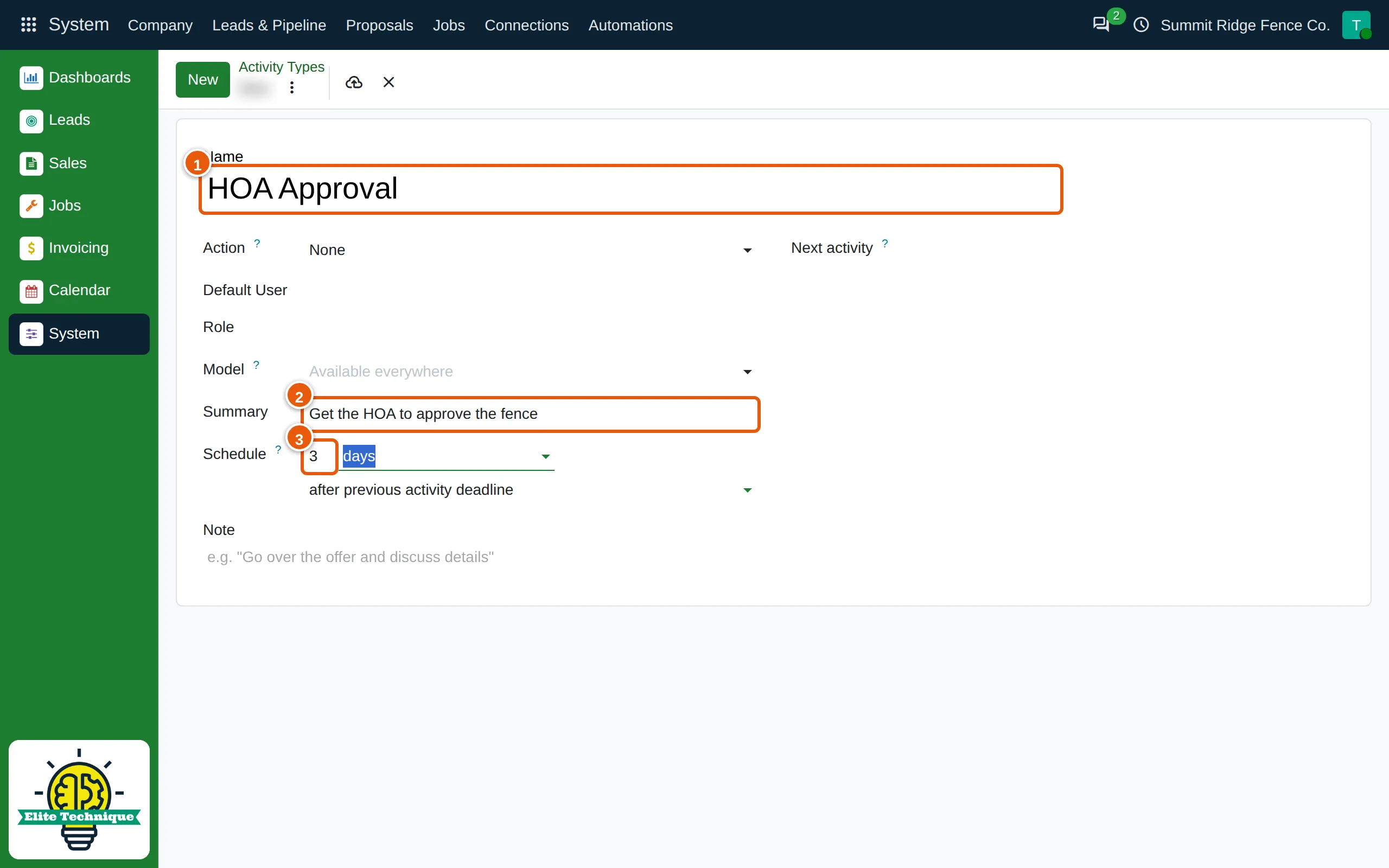
Leave Model at Available everywhere to offer it on every kind of record.
-
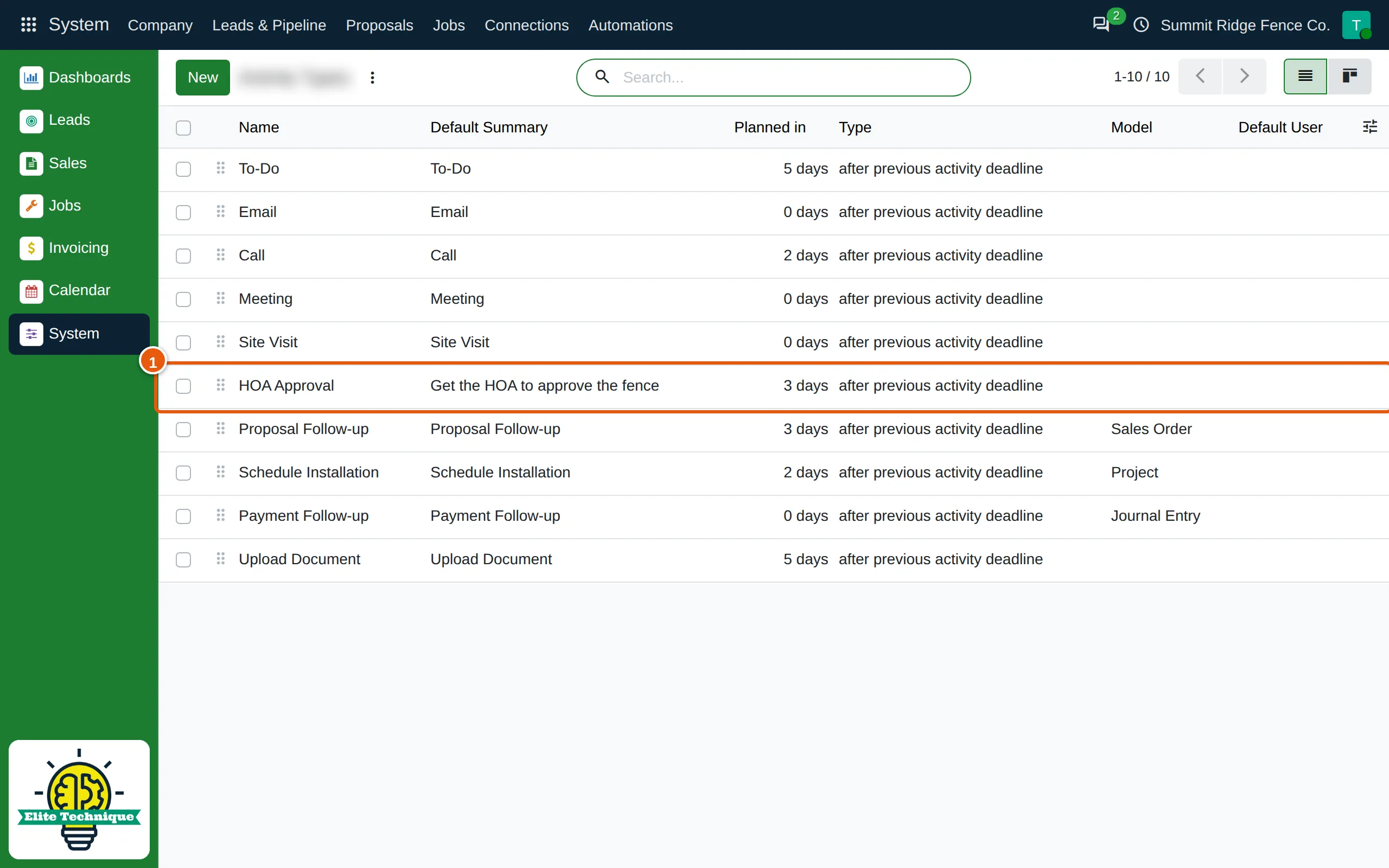
Click the cloud icon at the top to save. Click Activity Types at the top left: your new type is in the list (1).
How your team uses it
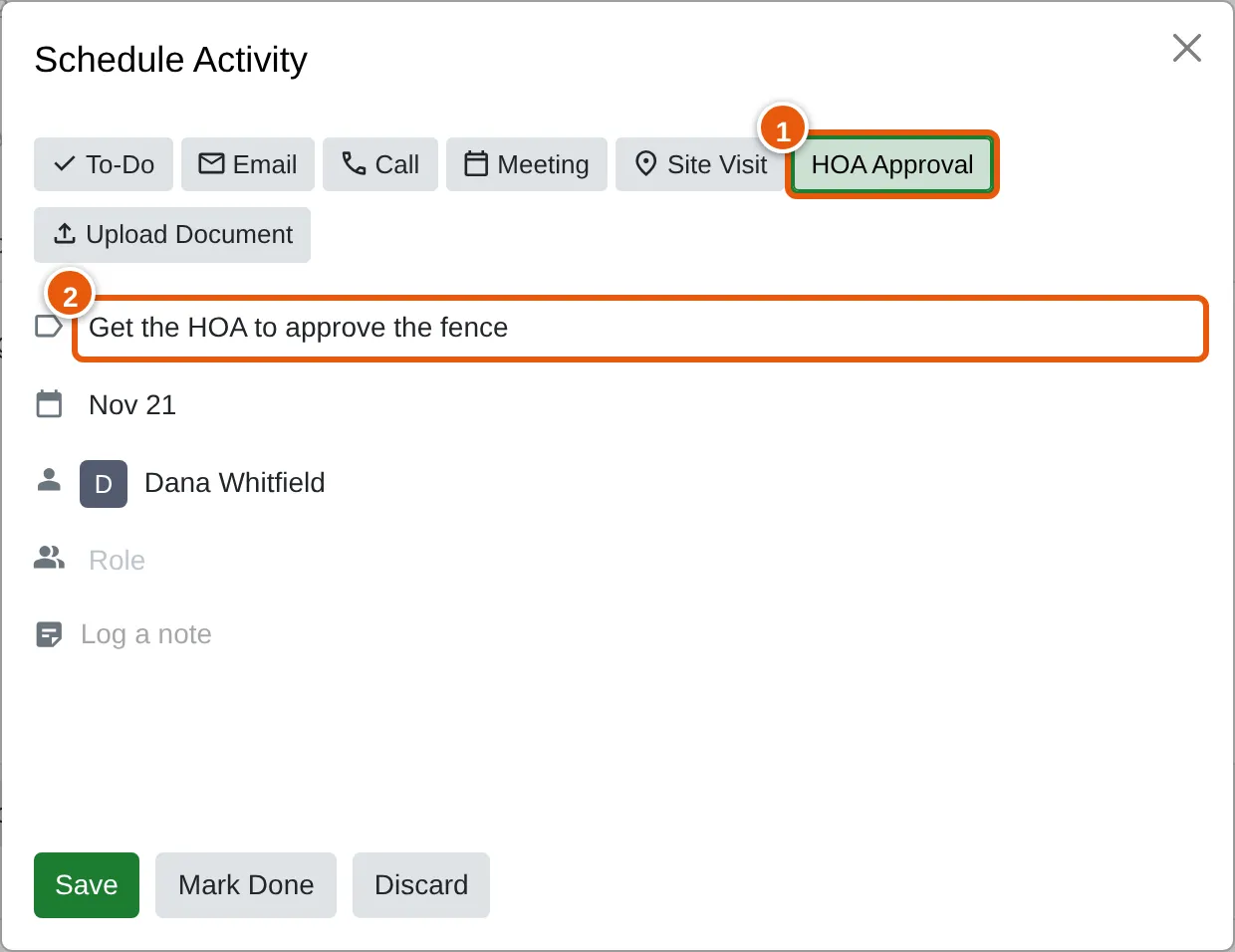
Section titled “How your team uses it”When someone schedules a follow-up — Activity under a lead or opportunity — the new type is one of the choices (1). Picking it fills in its summary (2) and its due date for them.
For how to schedule a follow-up, see Schedule a follow-up.