
Standard and upIncluded in the Standard, Pro and Elite packages.
Switch on a ready-made automation
Your Automations list comes with ready-made follow-ups, reminders and thank-you emails, all switched off. Switch on the ones you want, as they are or changed to suit you.
Your Automations list comes with a set of ready-made automations for the routine work most fence companies do: thank a new lead, book a site visit, chase a proposal, remind a customer about an unpaid invoice, ask for a review when a job is done. They all come switched off. Switch on the ones you want, as they are, or change them first.
Who can do this: Admin.
The ready-made automations
Section titled “The ready-made automations”-
In System, click Automations at the top. Each row is one automation (1): its name, and under What it does the whole automation as one sentence. The Active column (2) shows which are on — the ready-made ones all start off.
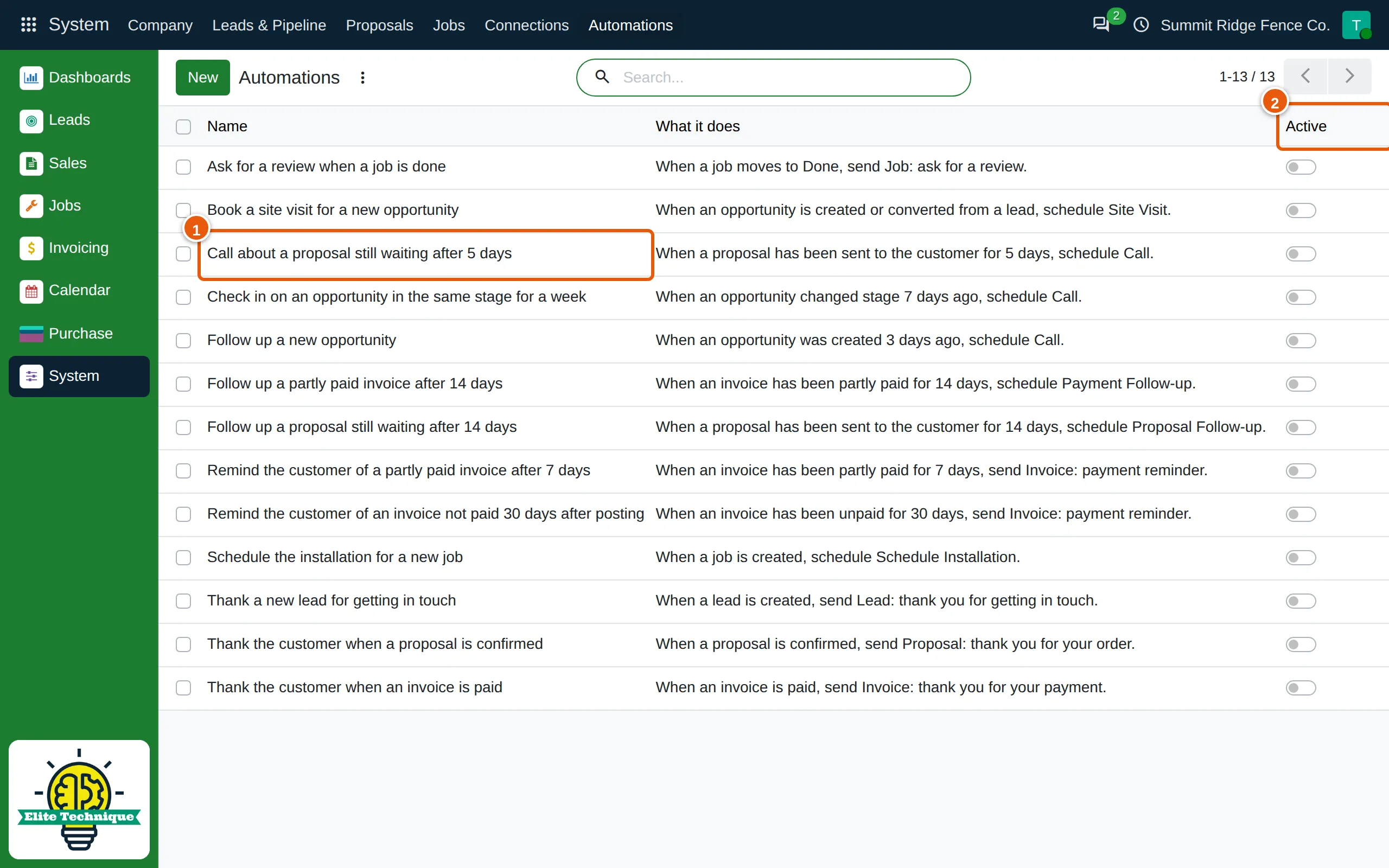
The list includes:
| Automation | What it does |
|---|---|
| Thank a new lead for getting in touch | When a lead is created, send Lead: thank you for getting in touch. |
| Book a site visit for a new opportunity | When an opportunity is created or converted from a lead, schedule a Site Visit. |
| Follow up a new opportunity | When an opportunity was created 3 days ago, schedule a Call. |
| Check in on an opportunity in the same stage for a week | When an opportunity changed stage 7 days ago, schedule a Call. |
| Call about a proposal still waiting after 5 days | When a proposal has been sent to the customer for 5 days, schedule a Call. |
| Follow up a proposal still waiting after 14 days | When a proposal has been sent to the customer for 14 days, schedule a Proposal Follow-up. |
| Thank the customer when a proposal is confirmed | When a proposal is confirmed, send Proposal: thank you for your order. |
| Schedule the installation for a new job | When a job is created, schedule the Schedule Installation activity. |
| Ask for a review when a job is done | When a job moves to Done, send Job: ask for a review. |
| Remind the customer of an invoice not paid 30 days after posting | When an invoice has been unpaid for 30 days, send Invoice: payment reminder. |
| Remind the customer of a partly paid invoice after 7 days | When an invoice has been partly paid for 7 days, send Invoice: payment reminder. |
| Follow up a partly paid invoice after 14 days | When an invoice has been partly paid for 14 days, schedule a Payment Follow-up. |
| Thank the customer when an invoice is paid | When an invoice is paid, send Invoice: thank you for your payment. |
Switch one on
Section titled “Switch one on”-
Click the automation to open it. Here, Call about a proposal still waiting after 5 days. When says what starts it: a proposal that has been at a status for a number of days (1), here Sent to the customer for 5 days (2). Then says what it does (3): schedule a Call for the record’s owner.
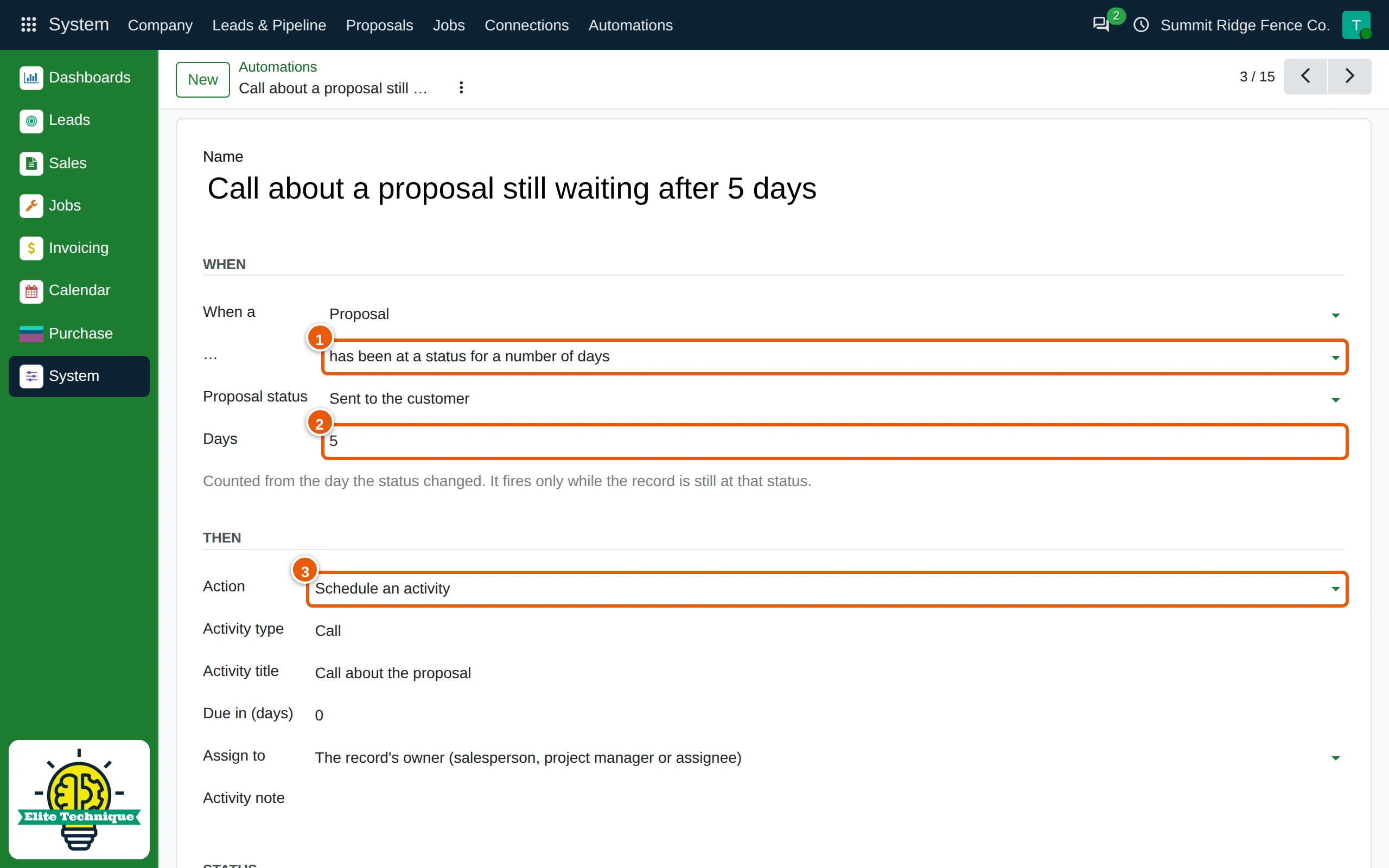
You can change any of it before you switch it on — the number of days, the activity, who it is for.
-
Under Status, click the Active switch (1), then click the cloud icon at the top to save. Last checked (2) shows the time you saved.
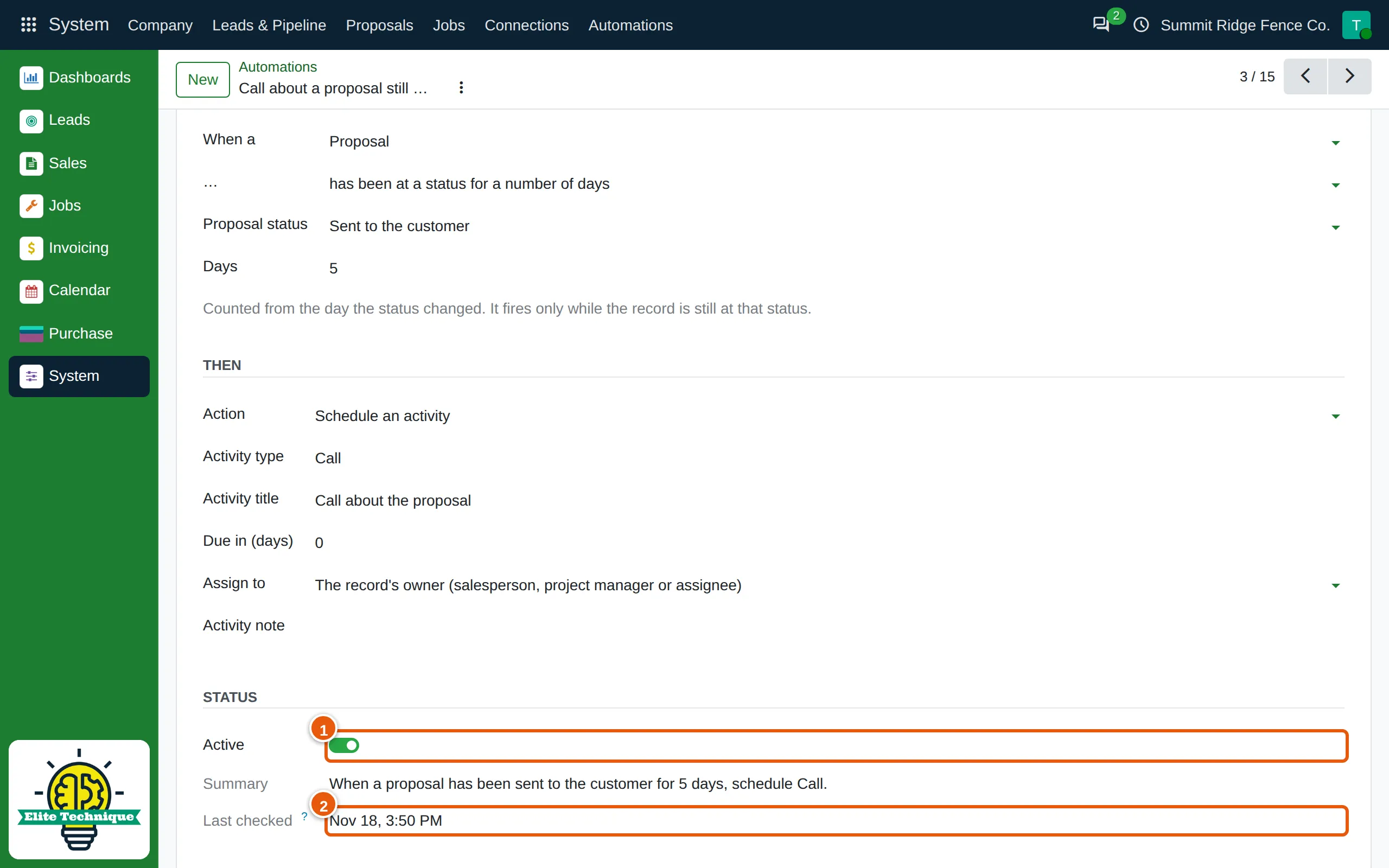
You can also switch an automation on or off straight from the list, with its switch in the Active column.
Make your own version
Section titled “Make your own version”To keep a ready-made automation and run a variation of it too — the same follow-up after 10 days as well as 14 — copy it.
-
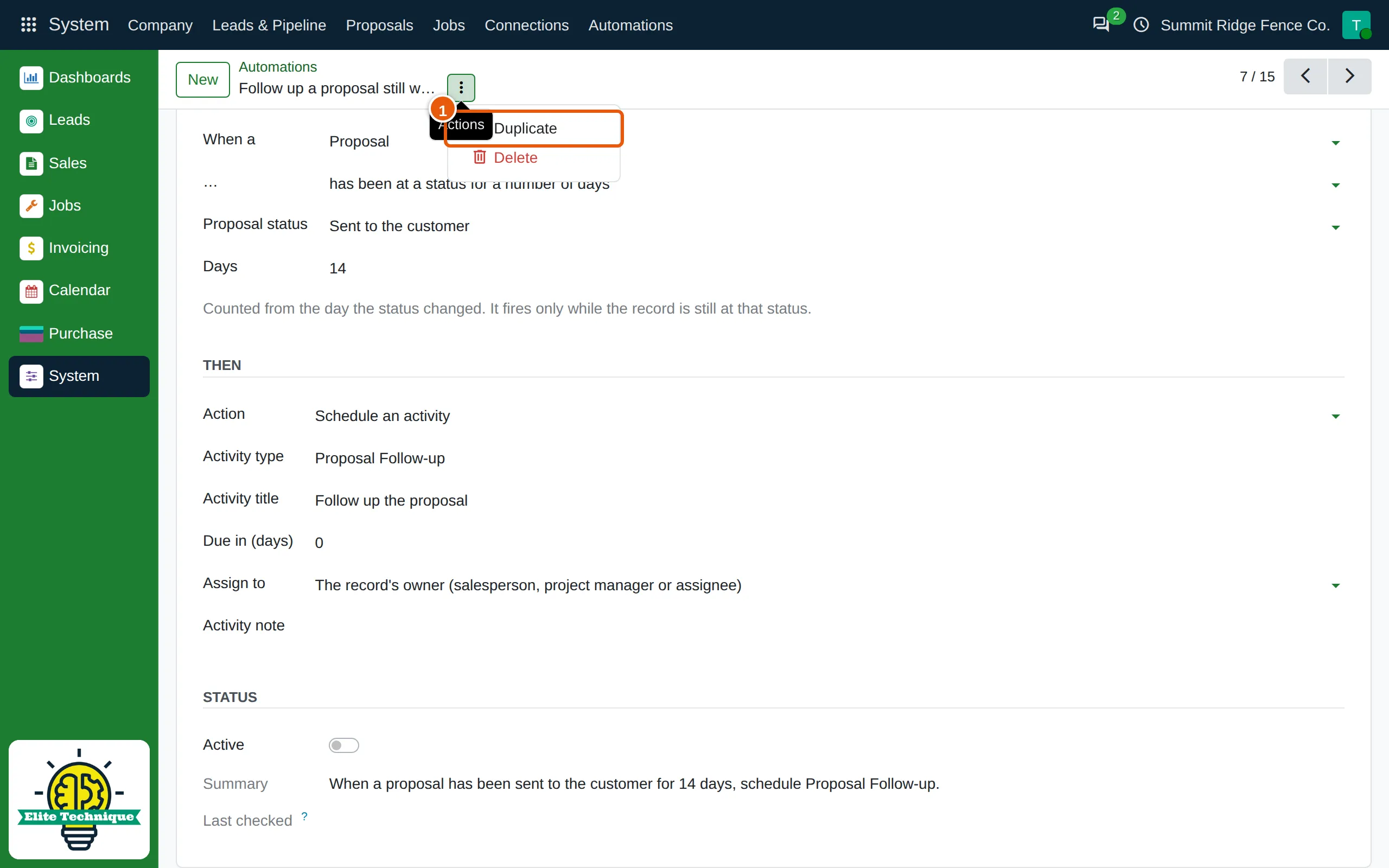
Open the automation, here Follow up a proposal still waiting after 14 days. Click the ⋮ menu beside its name at the top, then Duplicate (1).
-
The copy opens, named … (copy) and switched off. Give it a Name (1) of its own, change Days (2) — here to 10 — switch Active on (3), and click the cloud icon to save.
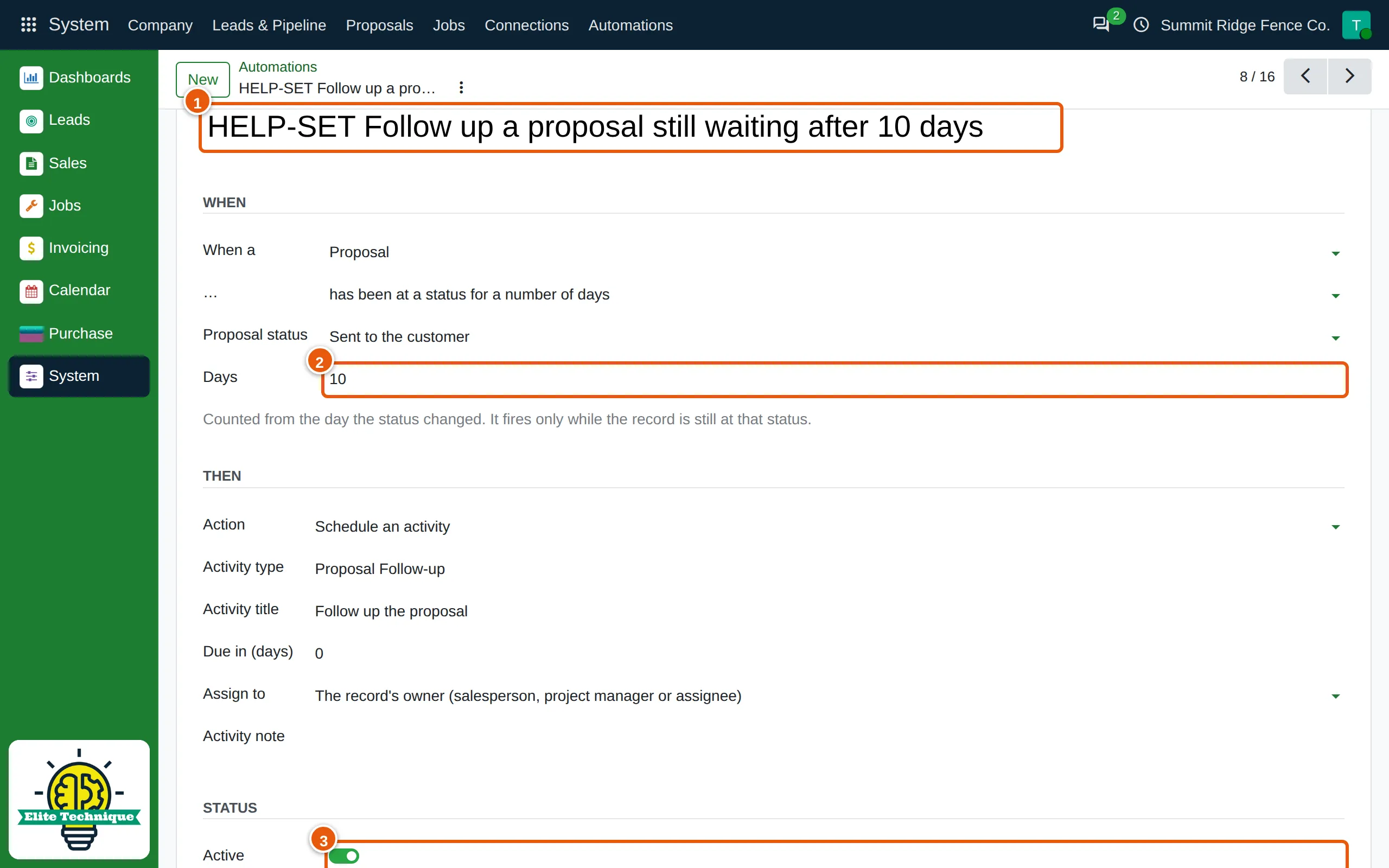
Its sentence reads When a proposal has been sent to the customer for 10 days, schedule Proposal Follow-up., and both automations are in the list.
To reword an email an automation sends, see Change the emails Elite Technique sends. To build an automation from scratch, see Create your own automation.