
Schedule a follow-up
Put the next call, email or visit on a lead or opportunity with a due date, see what is due, and mark it done.
A follow-up — Elite Technique calls it an activity — is the next thing you need to do on a lead or opportunity: call the customer back, send an email, book a site visit. Schedule one before you close the record and it reminds you when it is due.
Who can do this: Sales, Office and Admin.

Schedule it
Section titled “Schedule it”-
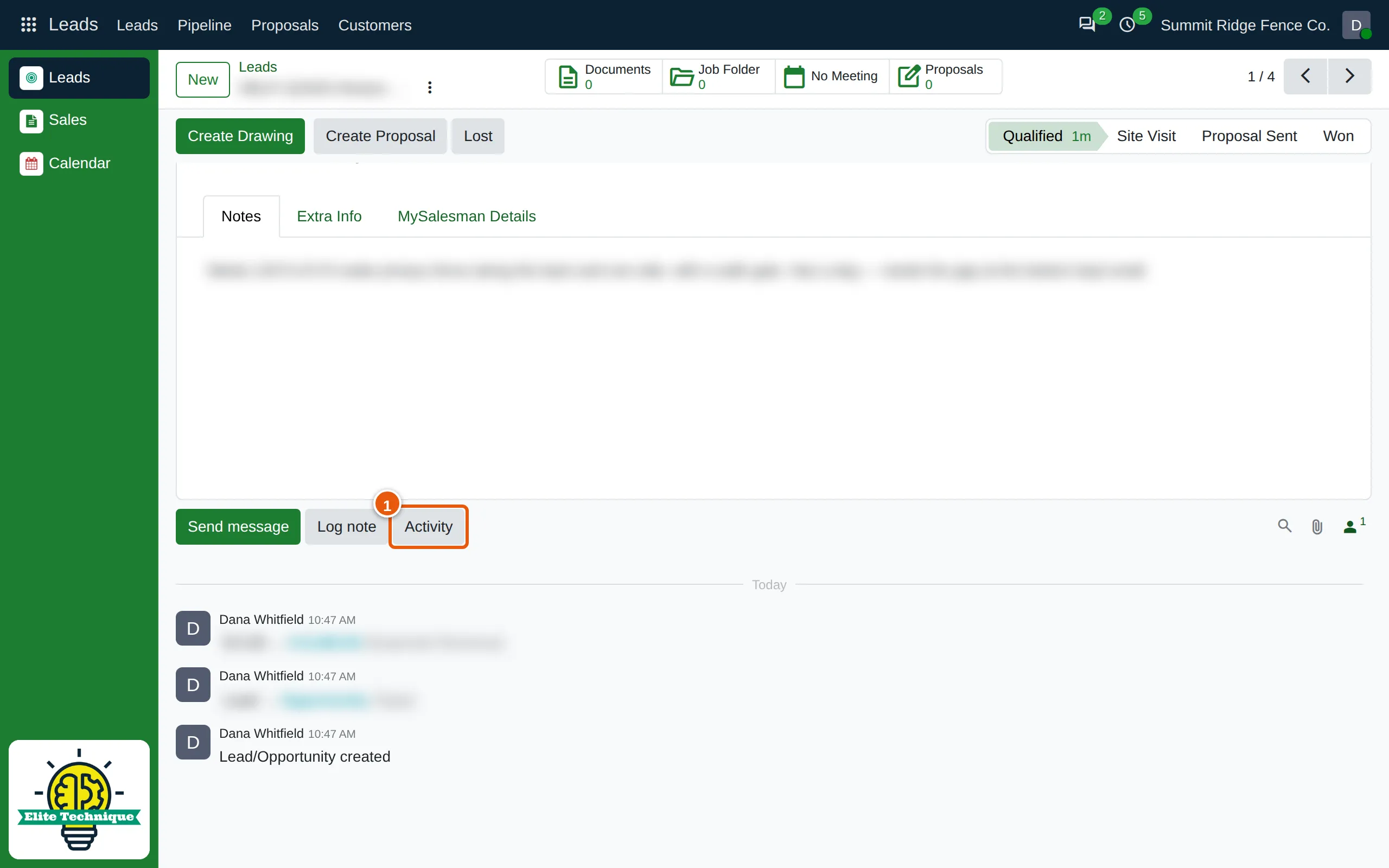
Open the lead or opportunity. Under it, click Activity (1).
-
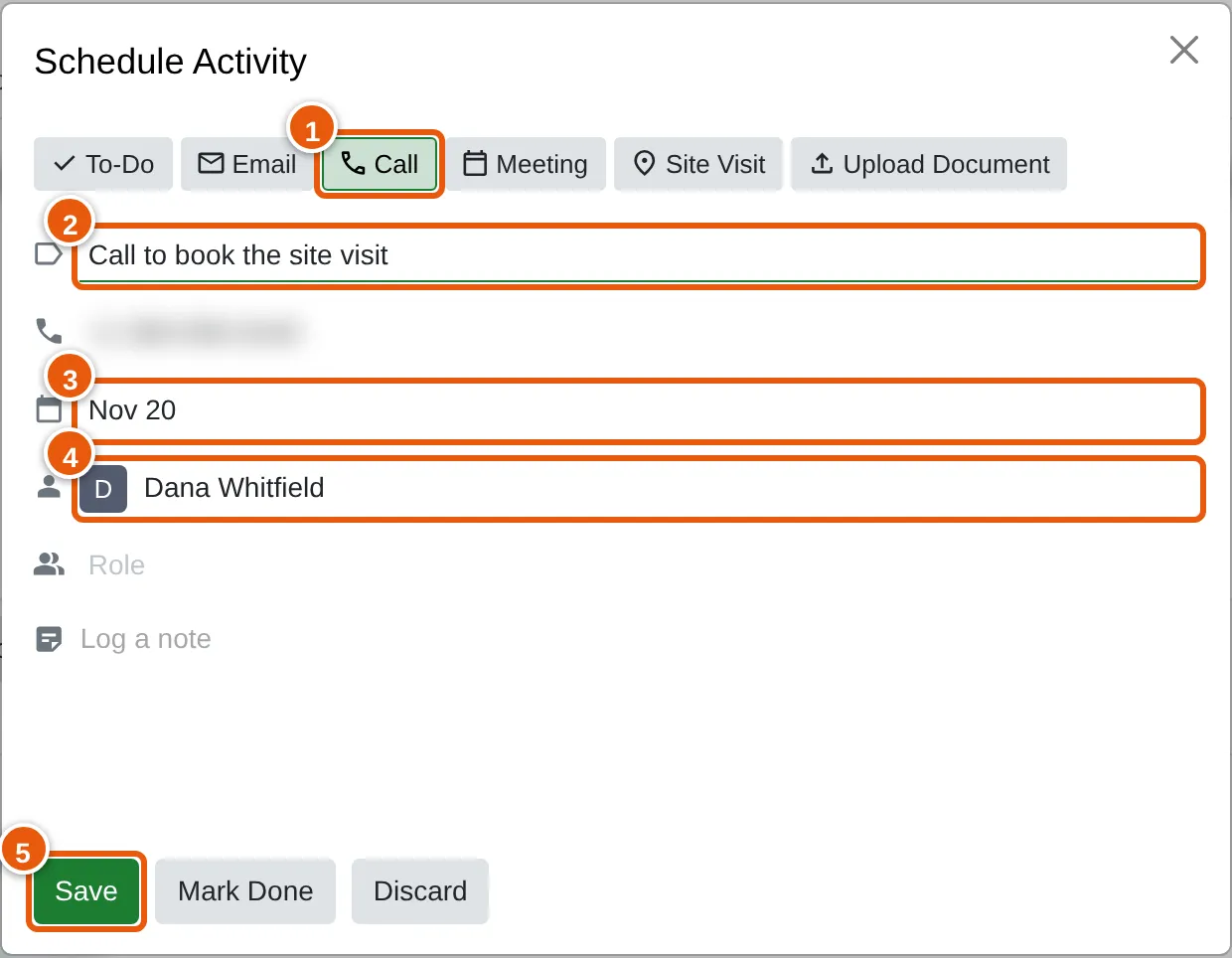
In the Schedule Activity window, pick the kind of follow-up (1): To-Do, Email, Call, Meeting, Site Visit or Upload Document.
-
Type a short summary (2), for example Call to book the site visit. For a call, the customer’s phone number shows under it.
-
Check the due date (3) — it is filled in for you, two days ahead for a call — and who it is assigned to (4). It is assigned to you unless you change it.
-
Click Save (5).
Book a meeting or site visit
Section titled “Book a meeting or site visit”A Meeting or Site Visit is booked straight into the calendar, for the record’s salesperson.
-
Open the lead or opportunity, click Activity, and pick Meeting or Site Visit. The window shows Pick a date and time instead of a due date.
-
Click Schedule Meeting. The calendar opens.
-
Click the time the meeting starts, check it, and click Save.
The meeting goes on the salesperson’s calendar: they are its organizer, and you, the salesperson and the customer are invited. On an opportunity, the meeting button at the top of the record — No Meeting until one is booked — does the same. To keep a meeting on your own calendar instead, open it and, on the Options tab, change Organizer to yourself.
See what is due
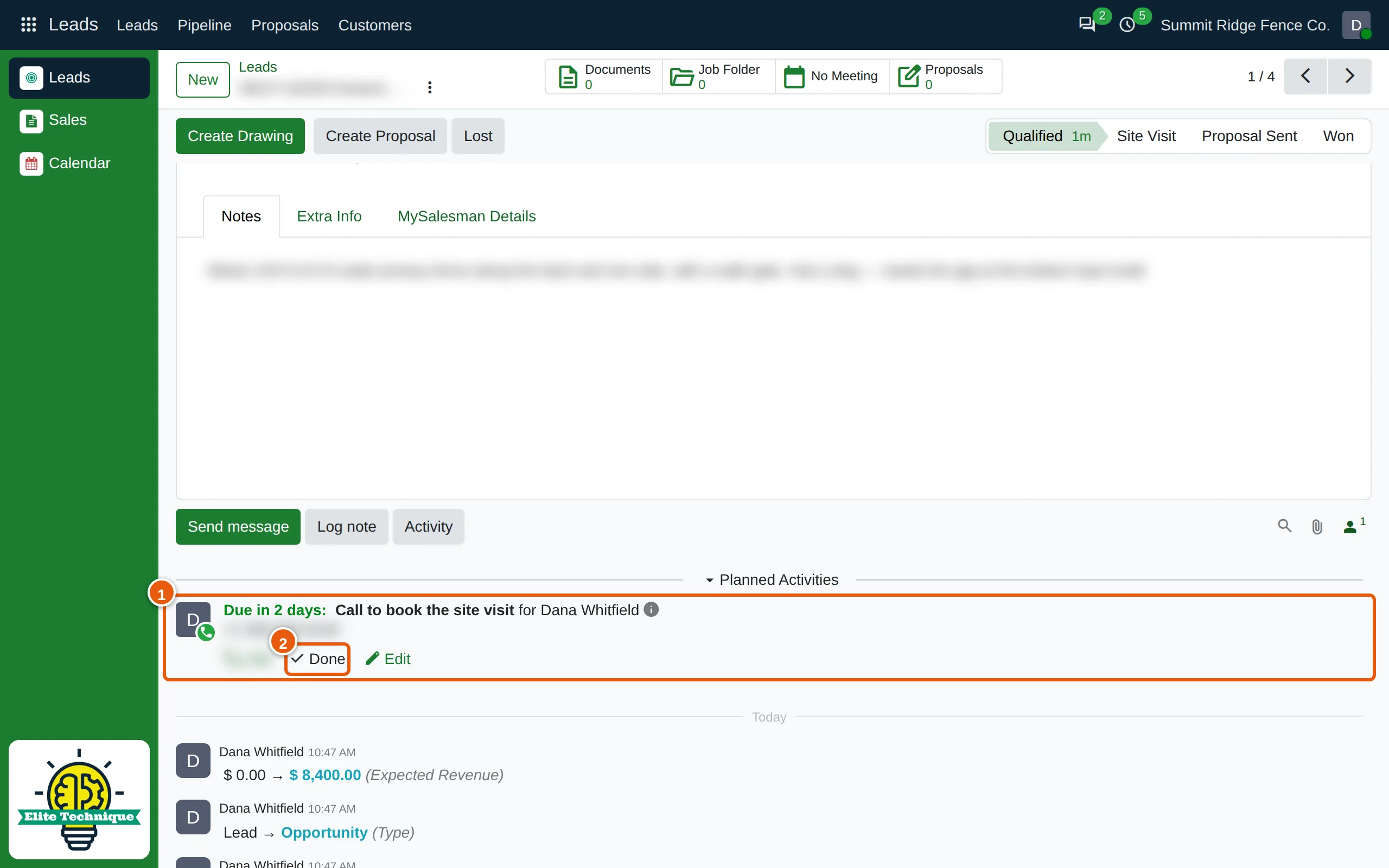
Section titled “See what is due”The follow-up shows under Planned Activities (1) on the record, with when it is due and who it is for.
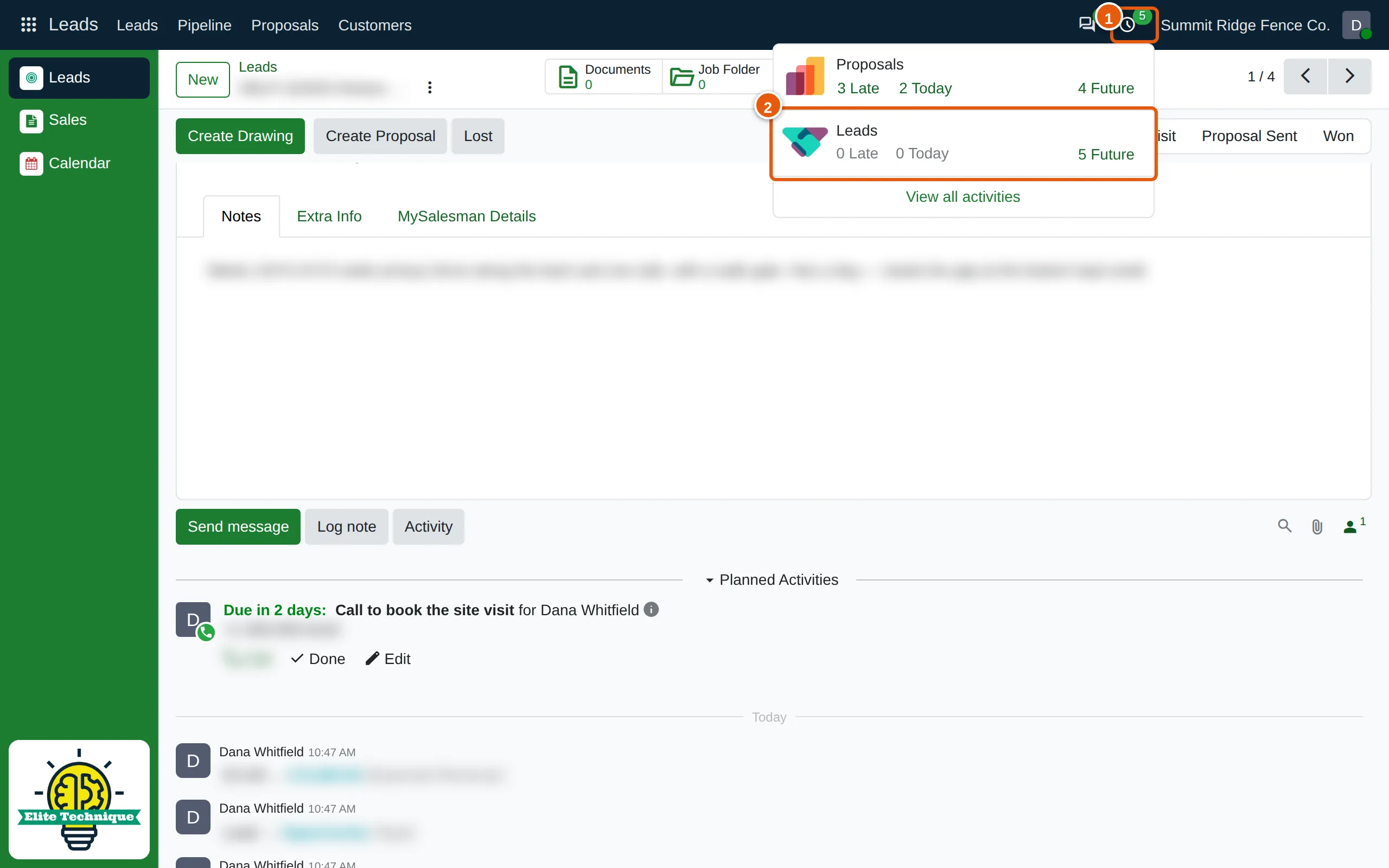
Across all your records, click the clock icon (1) in the top bar. It lists your follow-ups by kind of record — Leads (2) for leads and opportunities, Proposals for proposals not yet confirmed, Orders for confirmed orders — each counted as Late, Today and Future.
Mark it done
Section titled “Mark it done”-
Under Planned Activities, click Done on the follow-up.
-
Type what happened (1), for example Booked the site visit for Thursday morning, then click Done (2).
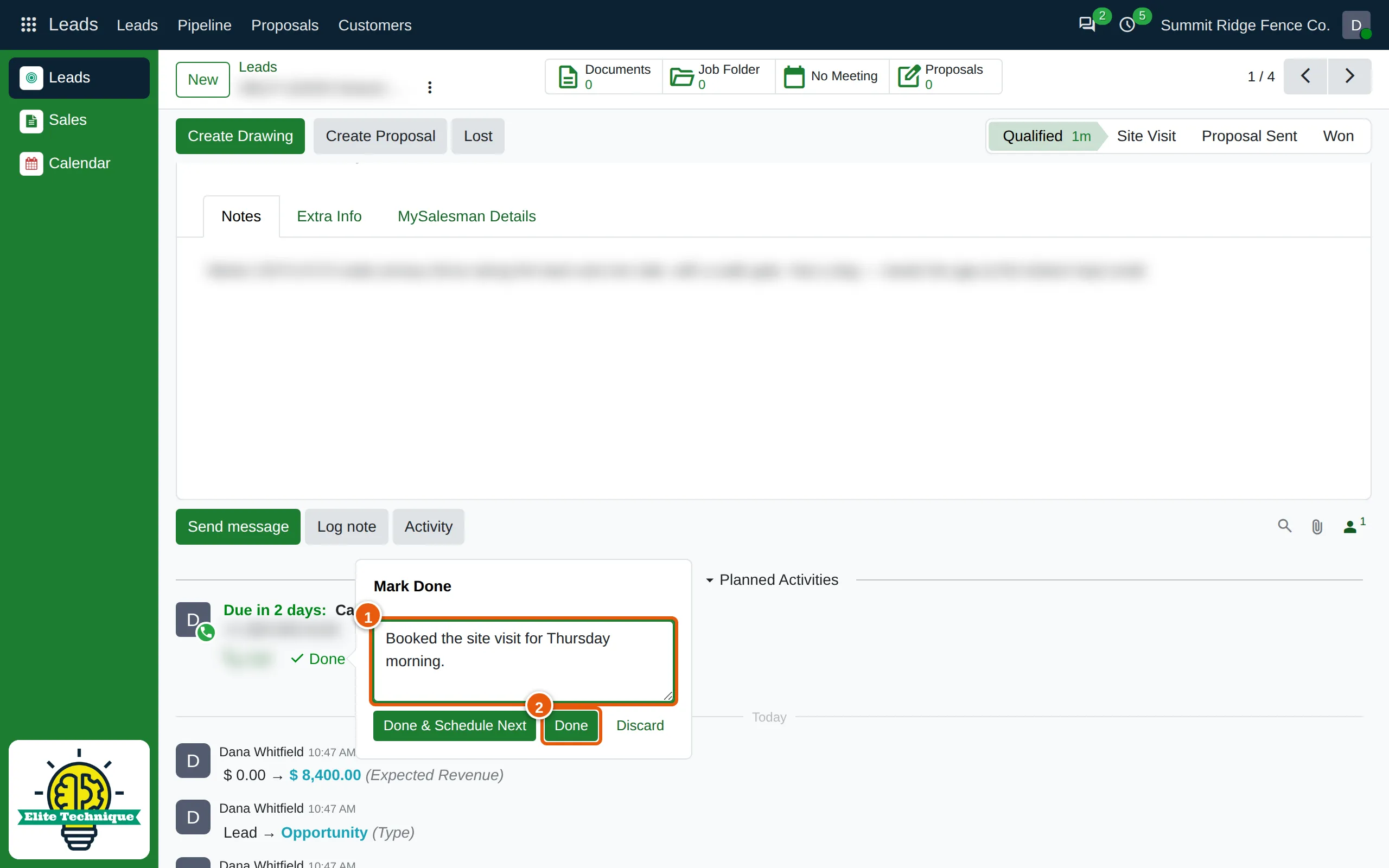
The follow-up leaves Planned Activities and is logged in the record’s history with your note.