Move a job along and mark it complete
Move a job from To Do to In Progress to Done as the work happens, then mark it complete to take it off your Jobs board.
A job moves through three stages on the Jobs board: To Do, In Progress and Done. When it is finished and there is nothing more to do on it, you mark it Complete, and it leaves the board.
Who can do this: Office and Admin.
Move the job through its stages
Section titled “Move the job through its stages”-
Open the job from Jobs. Its stage shows at the top right.
-
When the crew starts work, click In Progress (1).

-
When the work is done, click … at the end of the stage bar, then Done (1).
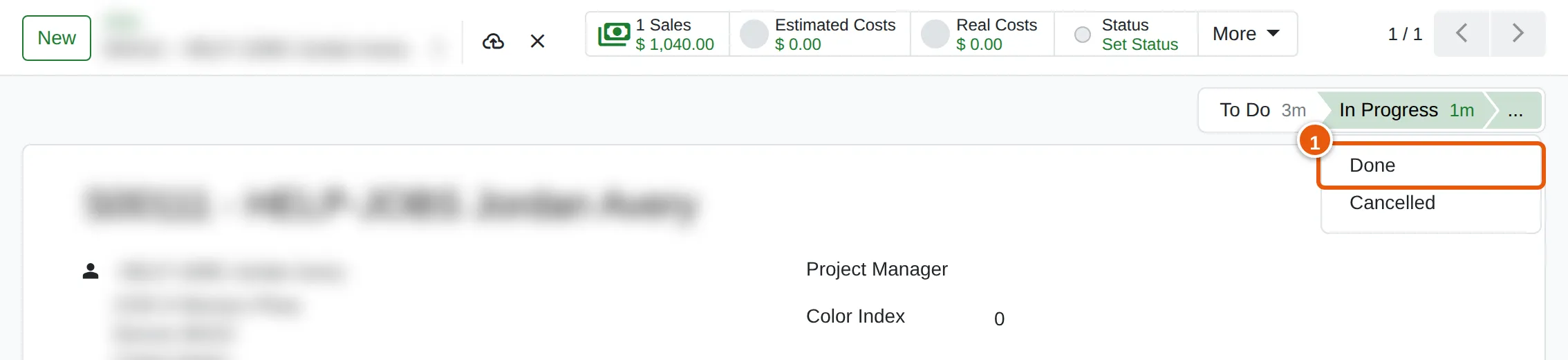
The job moves at once. There is nothing to confirm.
Mark the job complete
Section titled “Mark the job complete”-
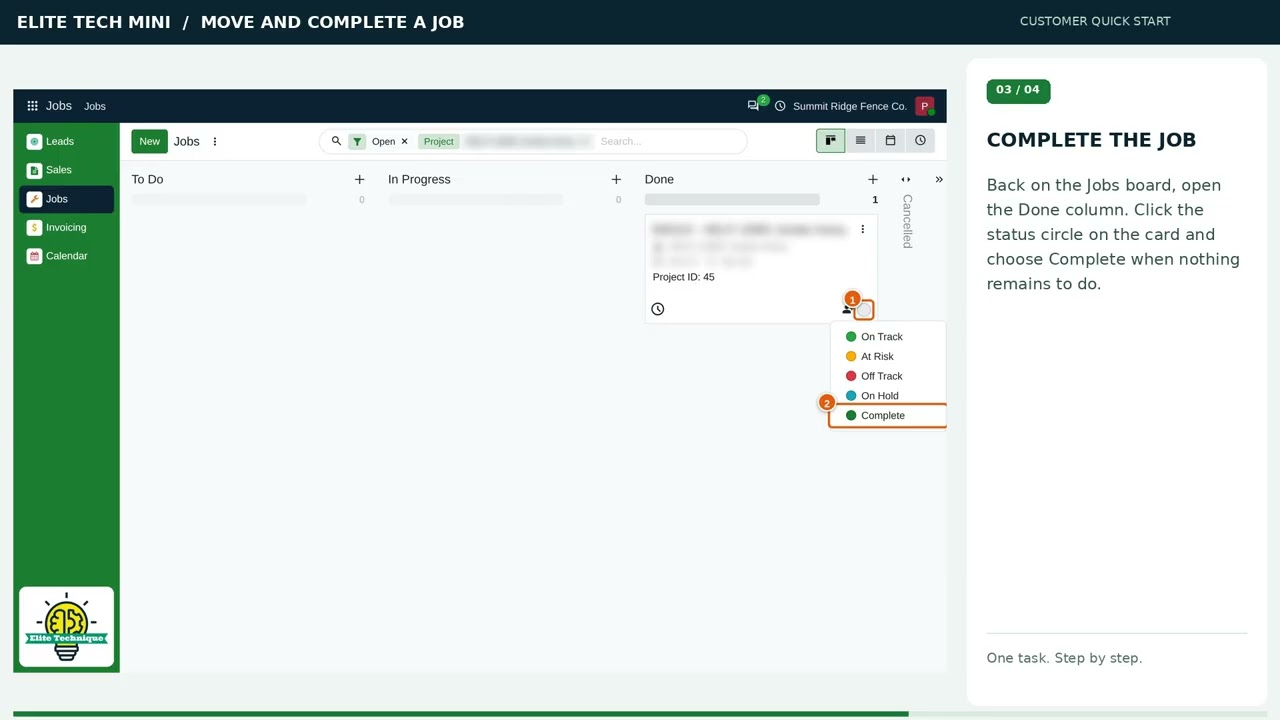
Click Jobs in the top bar. If you searched for the job, the search is still there; if not, type the customer’s name in the search box and press Enter. Click the Done column to open it, then click the status circle (1) at the bottom right of the job’s card, and Complete (2).
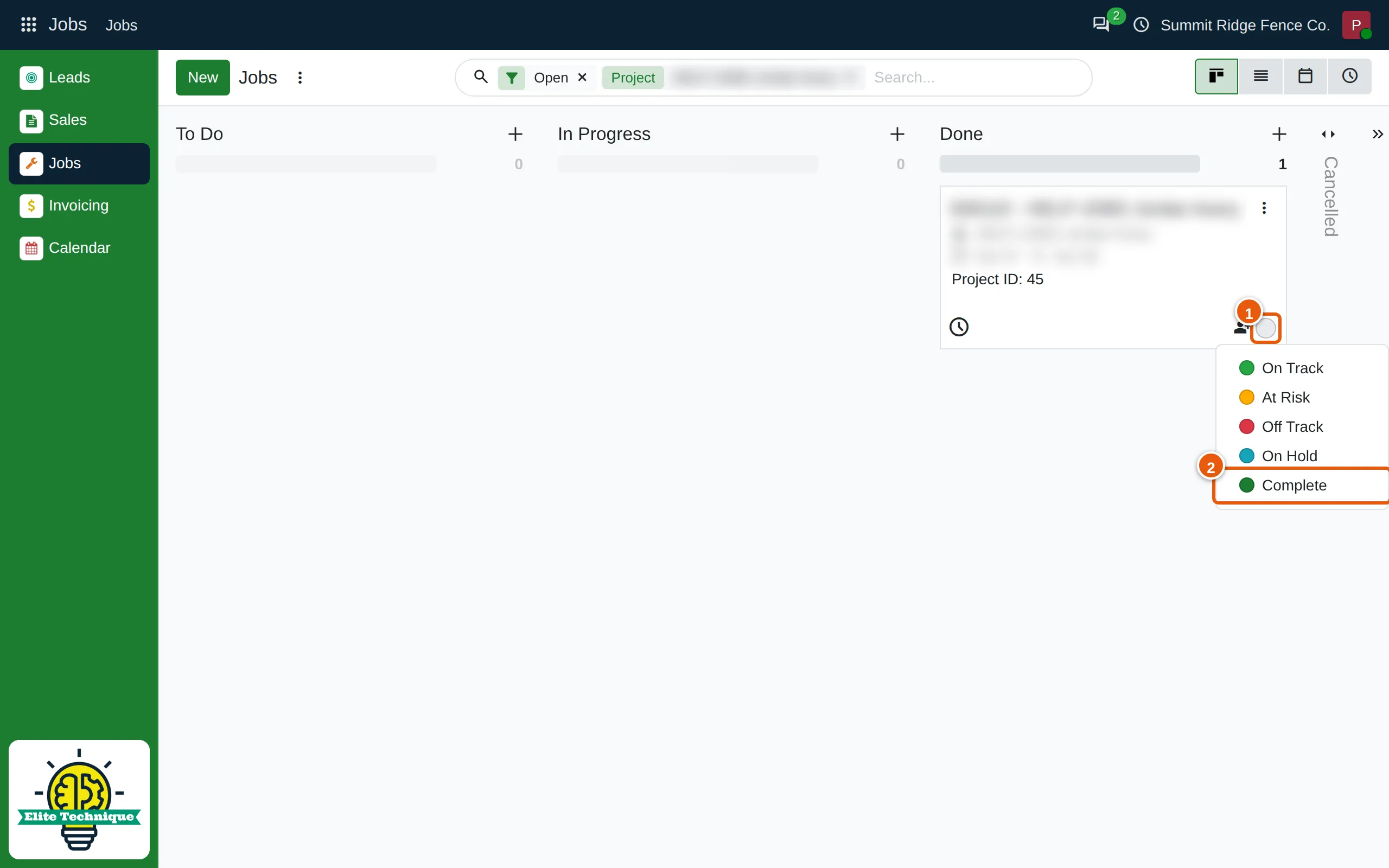
The status applies straight away, with no window to confirm. The circle also offers On Track, At Risk, Off Track and On Hold, to flag how a job is going while it is still open.
-
The next time you open Jobs, the job is no longer on the board: the board shows only open jobs.
Find a completed job
Section titled “Find a completed job”-
In Jobs, click the × (1) on the Open filter in the search box.

-
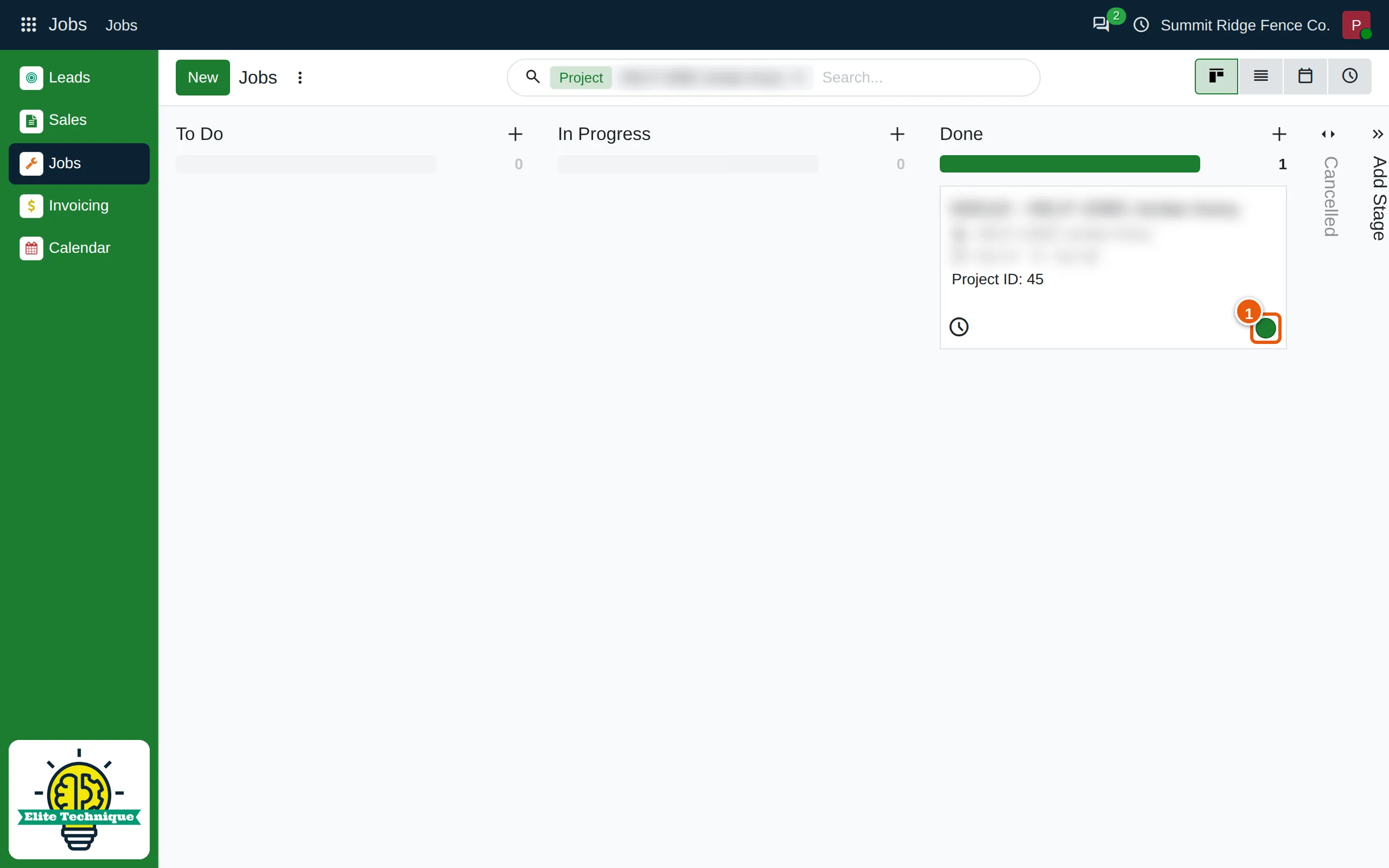
Click the Done column to open it. The completed job is there, with a green status circle (1).