Copy a drawing for a second option
Start a new proposal from an existing drawing, change the copy, and keep the original as it is.
When your customer wants to compare two layouts — a shorter fence, or one side left out — copy the drawing instead of drawing it again. The copy becomes a new proposal; the original does not change.
Who can do this: Sales, Office and Admin.

Copy the drawing
Section titled “Copy the drawing”-
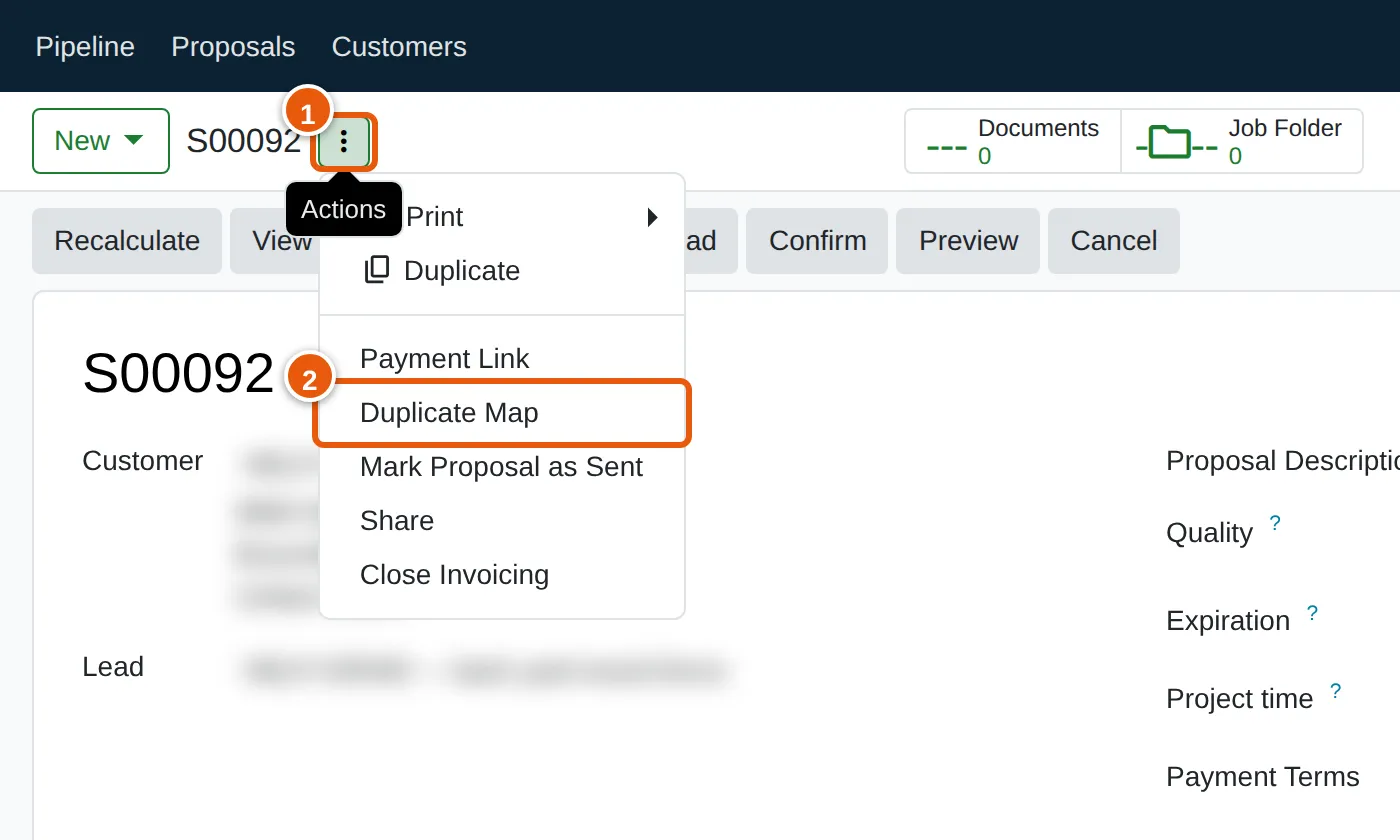
Open the proposal you want to copy. Click the Actions menu (1) — the three dots next to the proposal’s number — and click Duplicate Map (2).
-
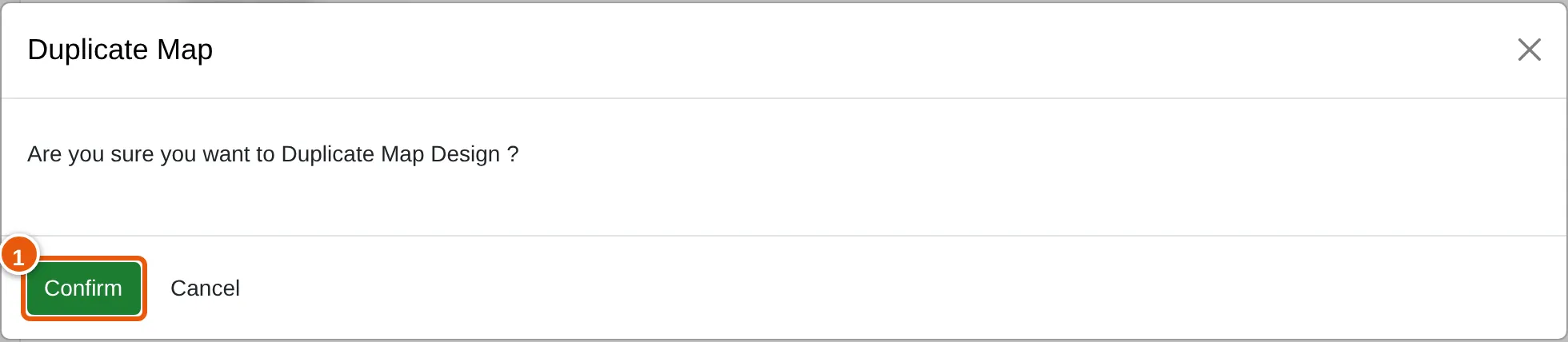
A window asks Are you sure you want to Duplicate Map Design? Click Confirm (1).
A copy of the drawing opens, with all its fence and gates. Click − at the top left of the map until you can see the whole yard.
Change the copy
Section titled “Change the copy”Make the copy into the second option. For example, to take a stretch of fence out:
-
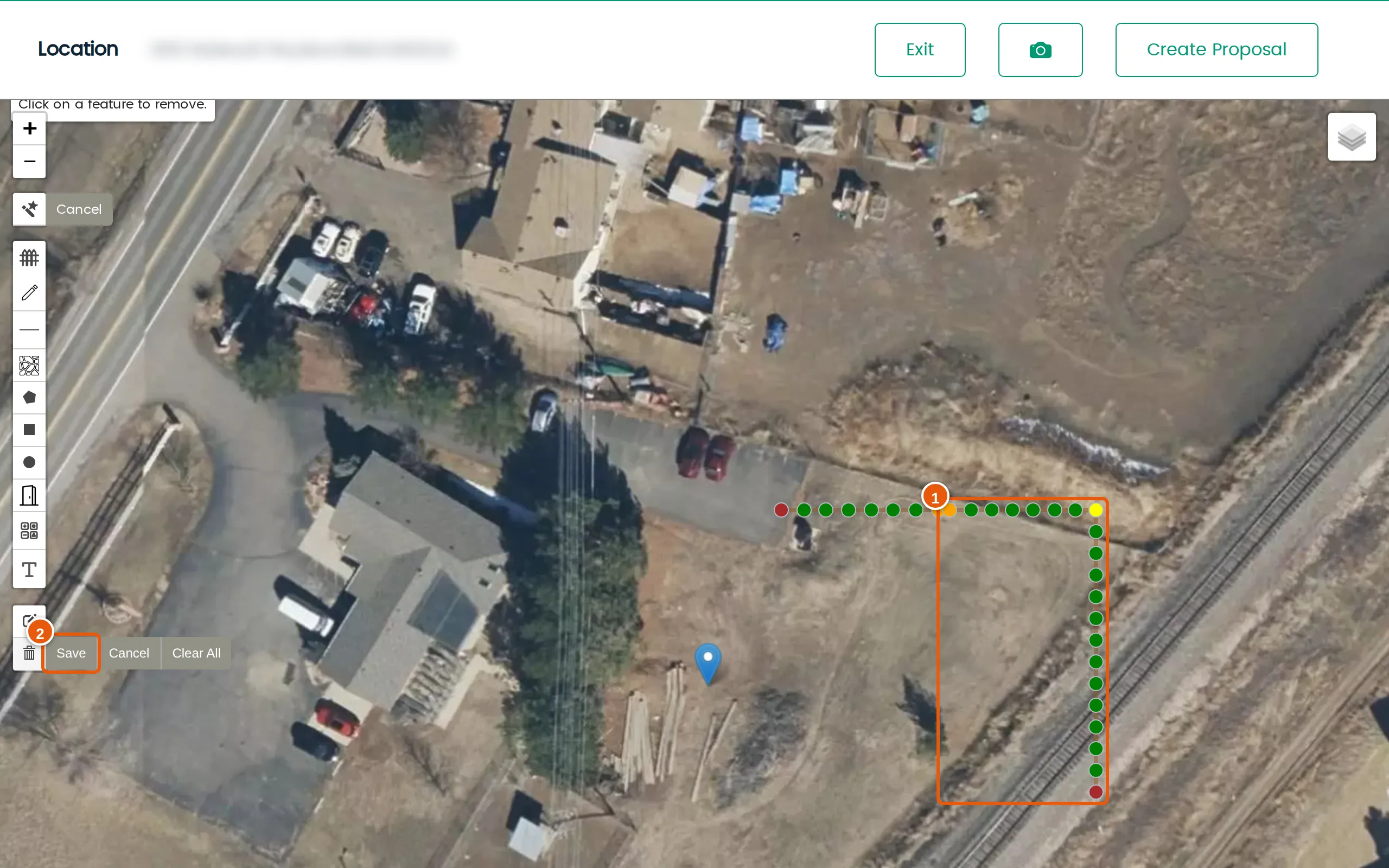
Click the trash can at the bottom of the toolbar on the left. The map shows Click on a feature to remove.
-
Click the stretch of fence to remove (1). It disappears from the map.
-
Click Save (2) next to the trash can.
Create the new proposal
Section titled “Create the new proposal”-
Click Create Proposal at the top right.
-
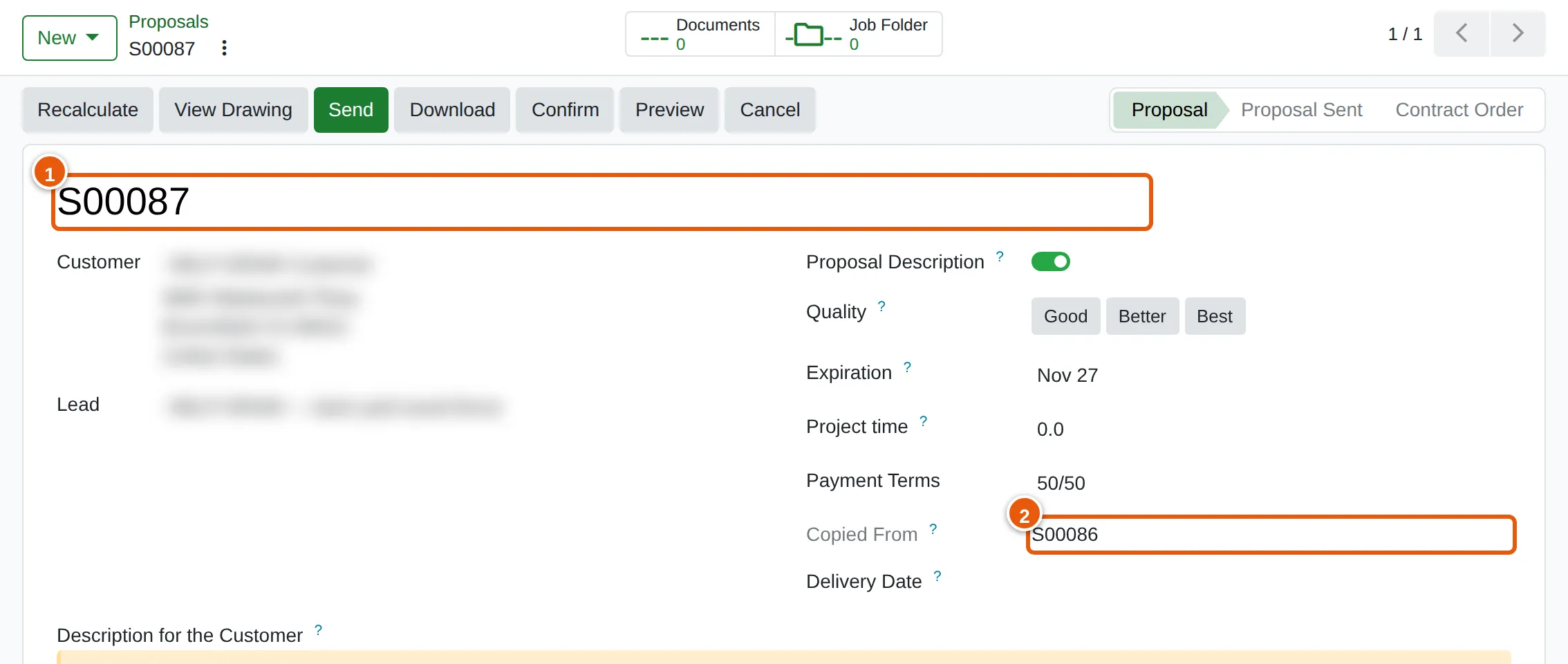
The new proposal opens with its own number (1), and its lines filled in from the changed drawing. Copied From (2) shows the number of the proposal you copied.