
Send an invoice
Email a confirmed invoice to your customer, and copy a payment link they can pay from.
Once an invoice is confirmed, send it to your customer by email with the PDF attached. You can also copy a payment link to send any other way, such as in a text message.
Who can do this: Office and Admin.

Email the invoice
Section titled “Email the invoice”-
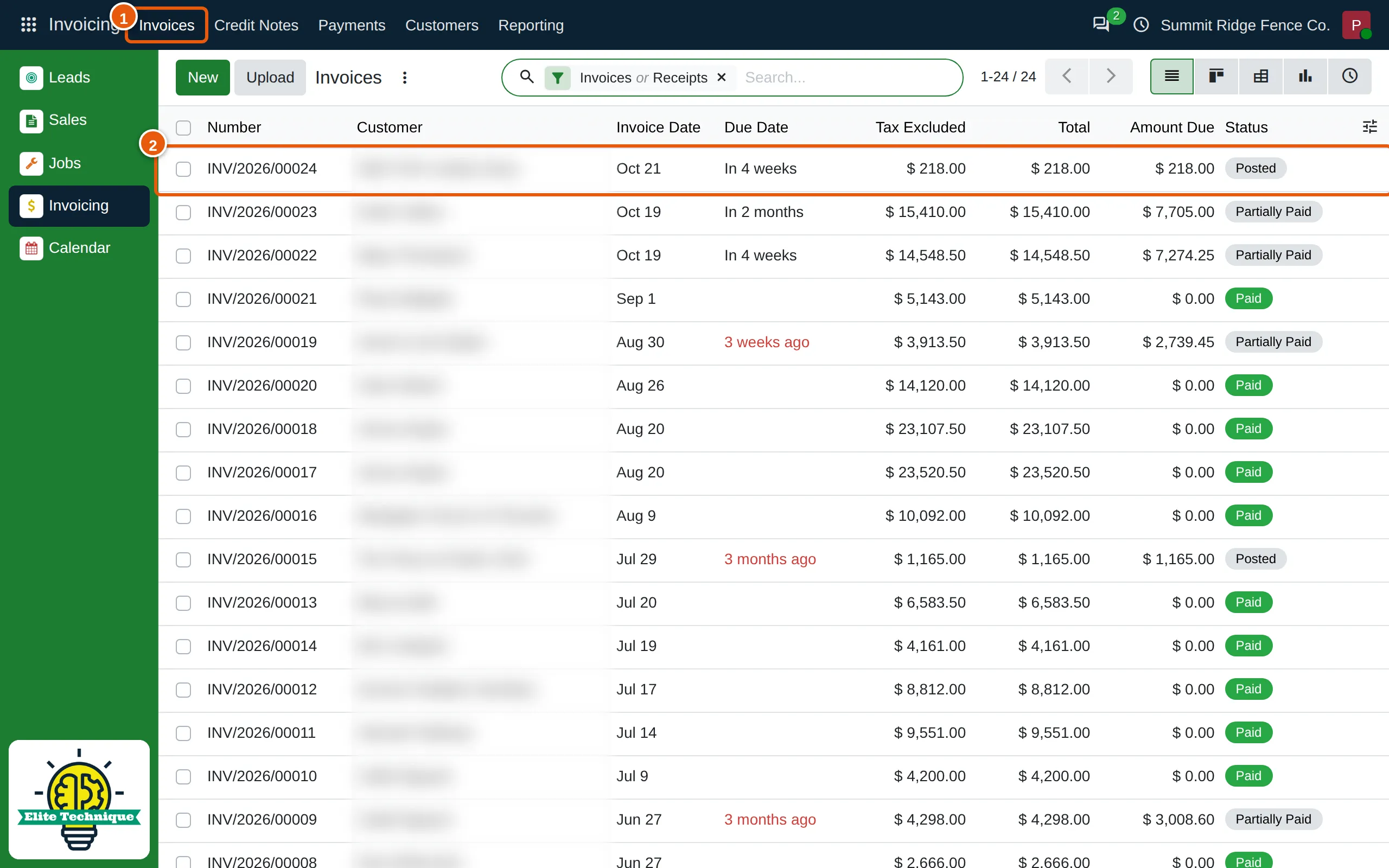
In Invoicing, click Invoices (1) in the top bar, then click the invoice (2).
-
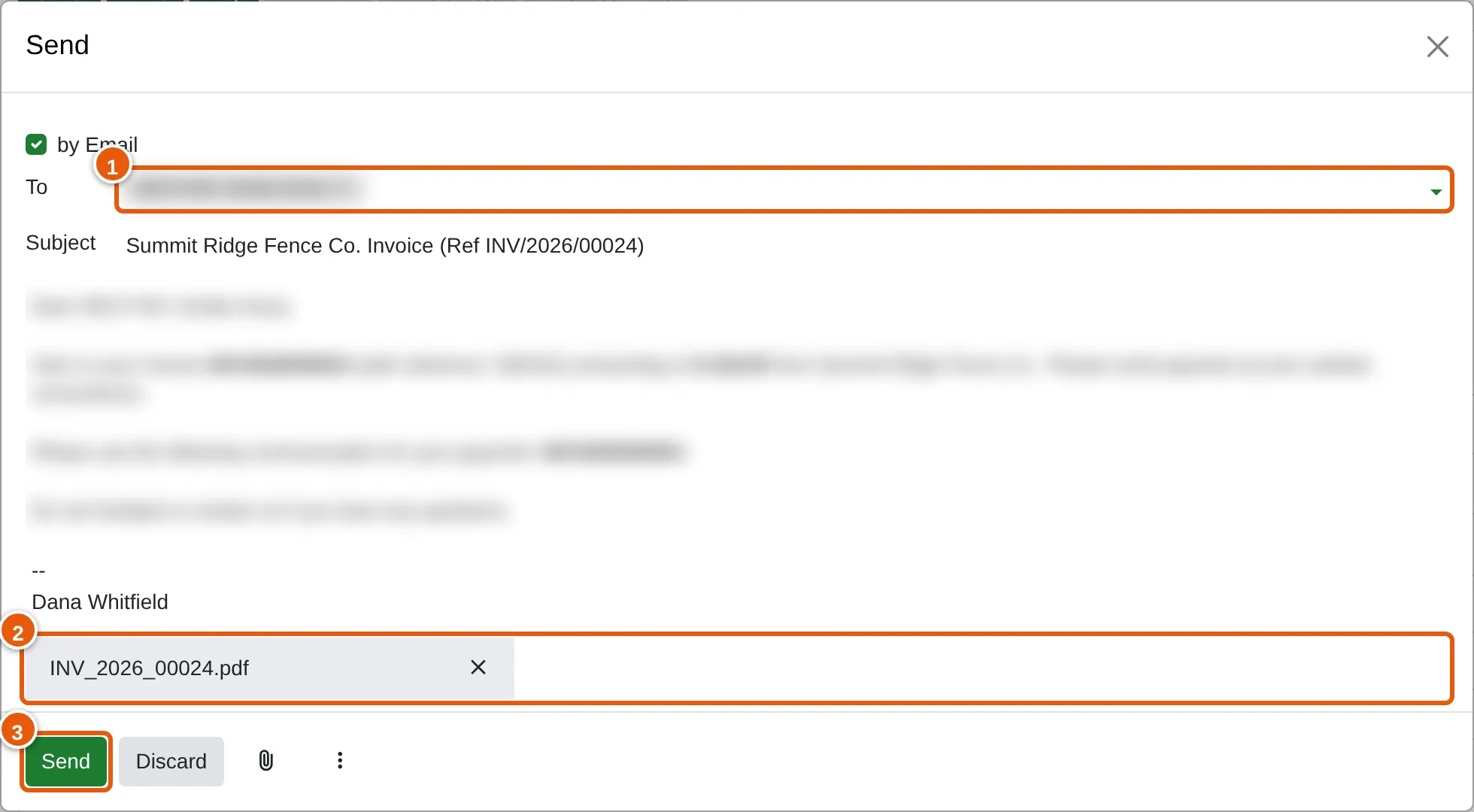
Click Send. Check who it goes to (1) and the email text. The invoice PDF is attached (2).
-
Click Send (3). The email is added to the invoice’s history, below the invoice.
Copy a payment link
Section titled “Copy a payment link”-
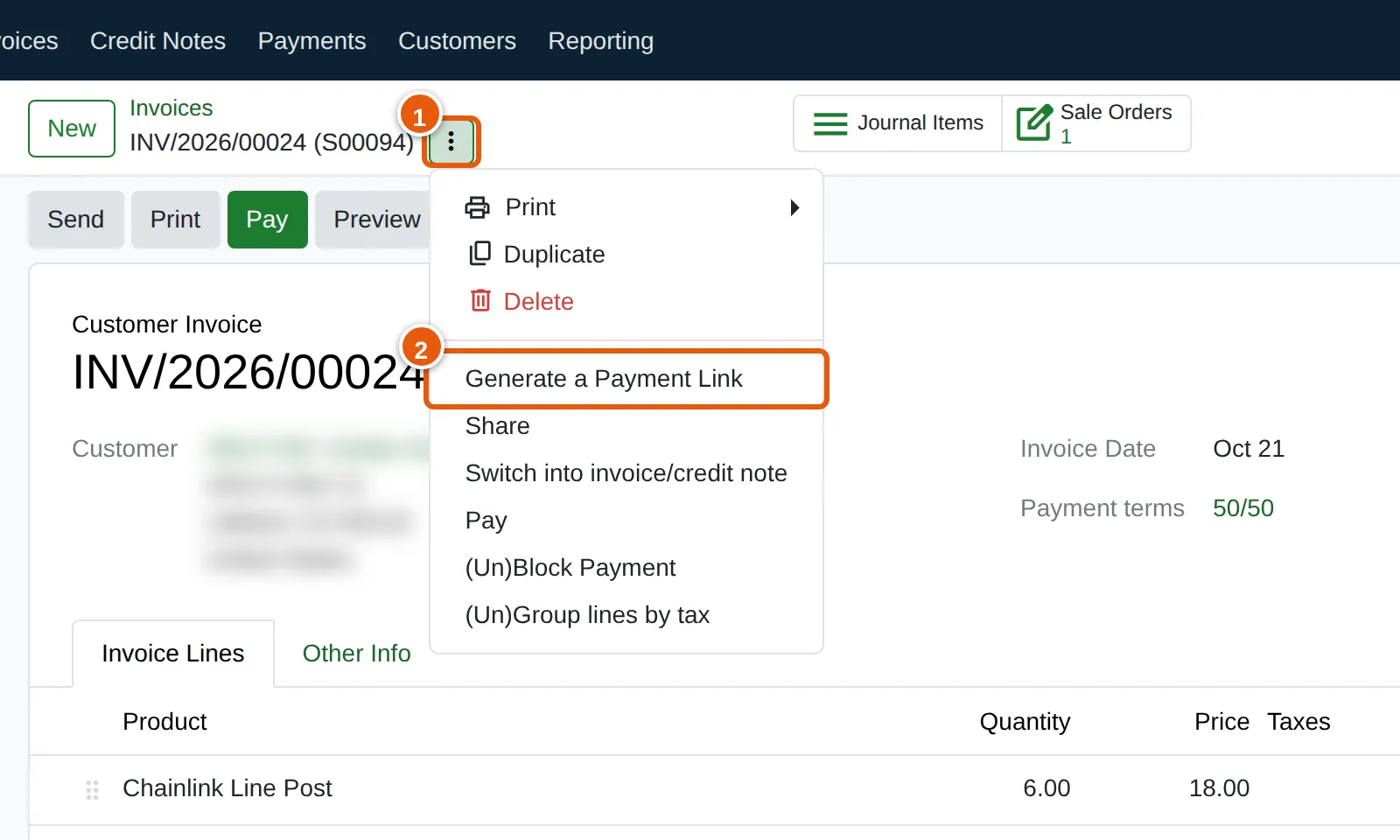
On the invoice, click the Actions menu (1), the three dots next to the invoice number, then click Generate a Payment Link (2).
-
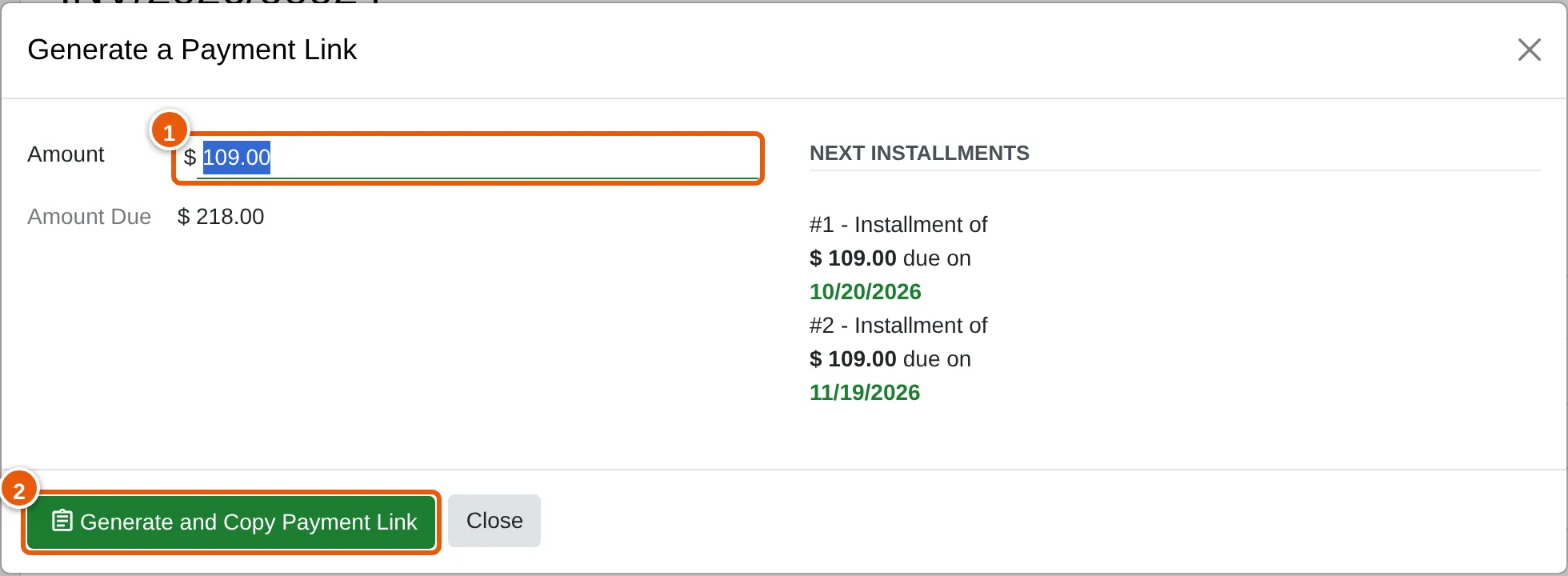
Check the Amount (1). It is filled in with the next installment due; the window also shows the full amount due and the installments still to come.
-
Click Generate and Copy Payment Link (2), then paste the link into your message to the customer. Click Close when you are done.
When your customer pays, record anything they paid outside the link yourself — see Record a payment.