
Move an opportunity through your pipeline
See where every opportunity stands, move it from stage to stage, and mark it won or lost.
Your pipeline shows every open opportunity by stage: New, Qualified, Proposition and Won. Keep each one in the right stage, so you can see at a glance what is waiting on you and what is close to signing.
Who can do this: Sales, Office and Admin. Sales see their own opportunities; Office and Admin
see everyone’s.
See your pipeline
Section titled “See your pipeline”-
Click Leads in the top bar. The green boxes at the top count your open opportunities in each stage.

-
Click a box, such as New (1), to see only the opportunities in that stage. Click Leads in the breadcrumb to come back.
-
Click Pipeline (2) to see them all, one column per stage. You can also click Pipeline in the top bar.
Each column shows the total expected revenue of the opportunities in it.
Move an opportunity to the next stage
Section titled “Move an opportunity to the next stage”Either way below moves it:
-
On the pipeline, drag the opportunity’s card (1) onto the next column (2).

-
Or open the opportunity and click the stage you want on the stage bar (1) at the top right.

Mark it won
Section titled “Mark it won”-
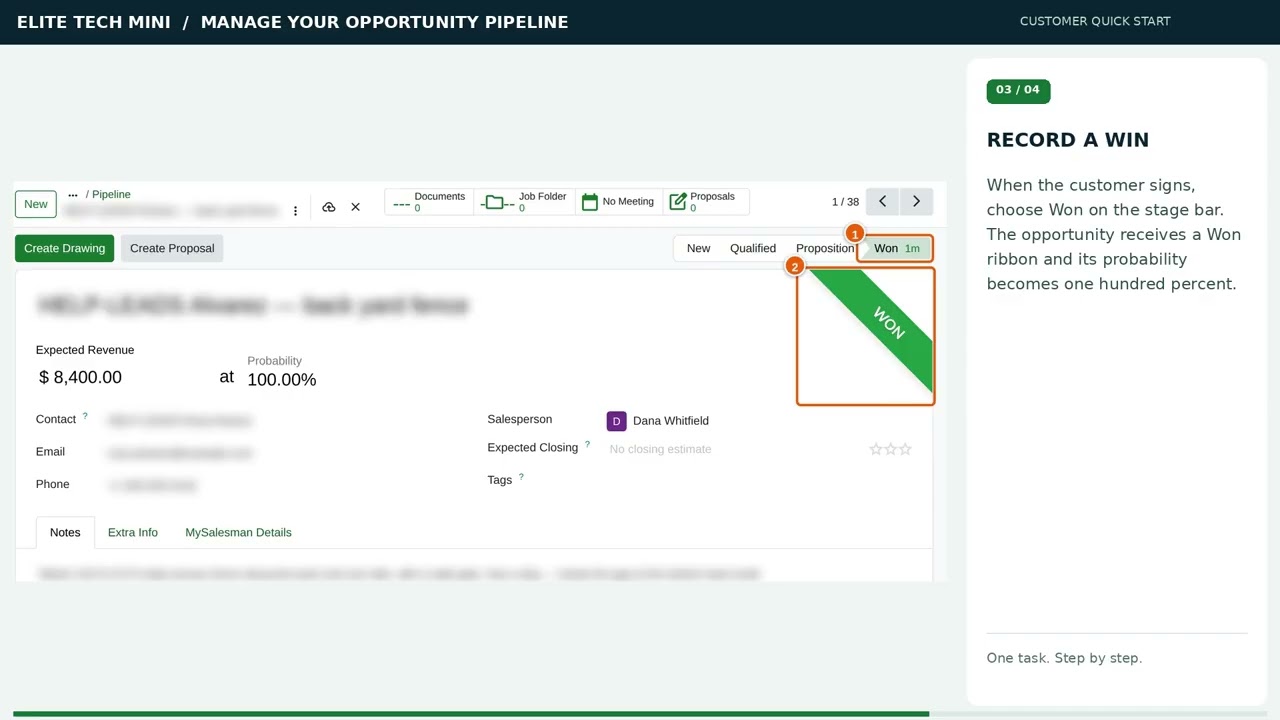
When your customer signs, open the opportunity and click Won (1) on the stage bar.

A green WON ribbon (2) appears, and the probability goes to 100%.
Mark it lost
Section titled “Mark it lost”-
Open the opportunity and click Lost in its header.
-
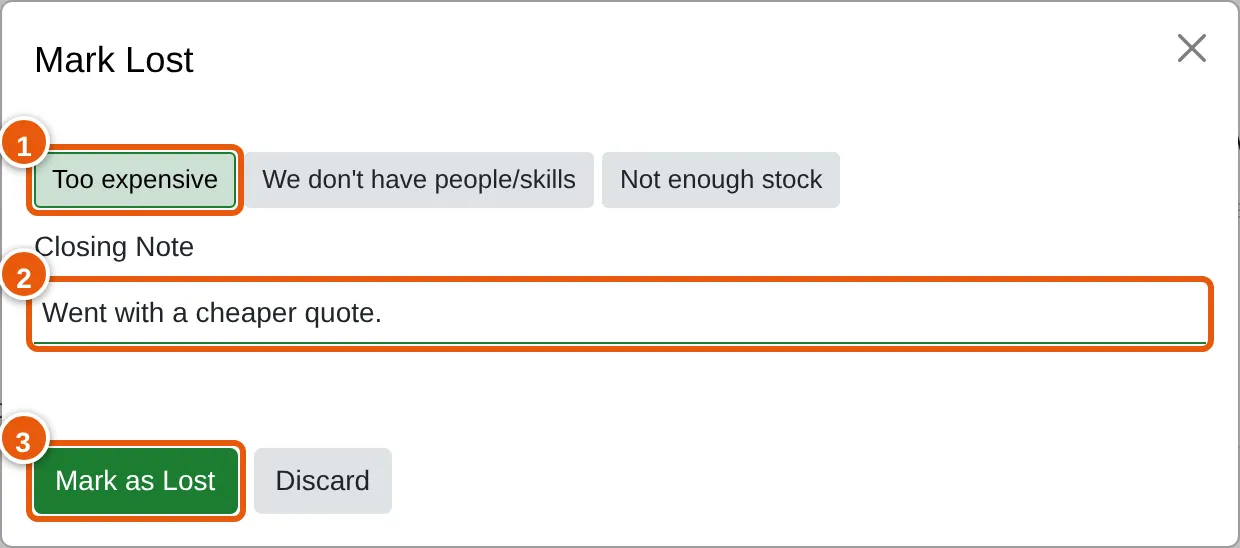
Pick the reason (1) — Too expensive, We don’t have people/skills or Not enough stock.
-
Add a Closing Note (2) if it helps, for example Went with a cheaper quote, then click Mark as Lost (3).
A LOST ribbon appears on the opportunity, and its header shows Restore in place of Lost.