Pro and upIncluded in the Pro and Elite packages.
Count stock and record waste
See what you have on hand, correct it after a physical count, and take damaged materials out of stock.
On Hand shows how much of each product you have. When a count of the yard does not match, correct it with Physical Count. When materials are damaged or wasted, take them out with Scrap.
Who can do this: Office and Admin.
See what you have
Section titled “See what you have”-
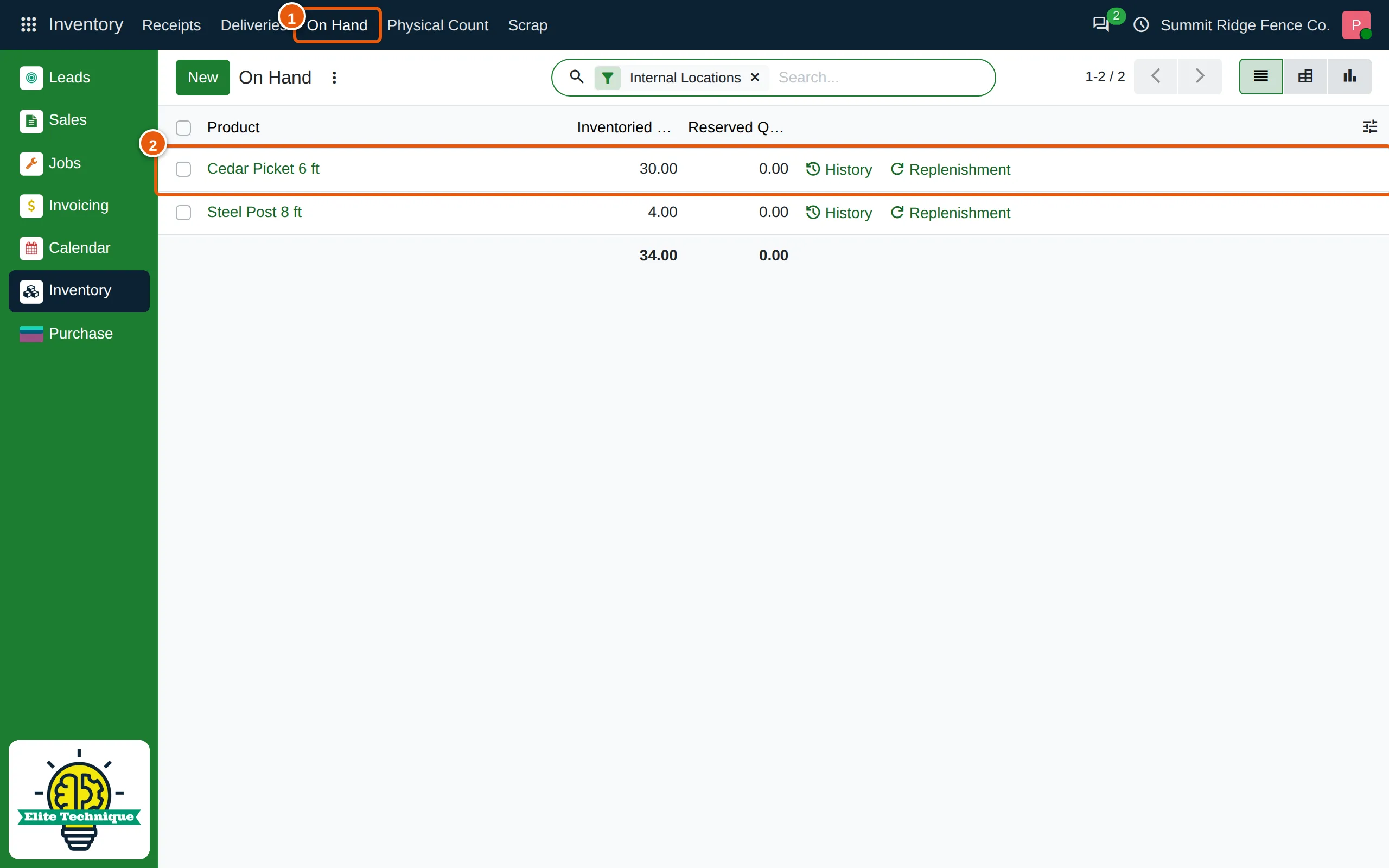
In Inventory, click On Hand (1) at the top. Each product shows the quantity in stock (2).
Correct the quantity after a count
Section titled “Correct the quantity after a count”-
Click Physical Count at the top. Click the product’s Counted cell, type what you counted (1), and click Save at the top. Difference shows how far it is from what is on hand. Click Apply (2) on the product’s row.
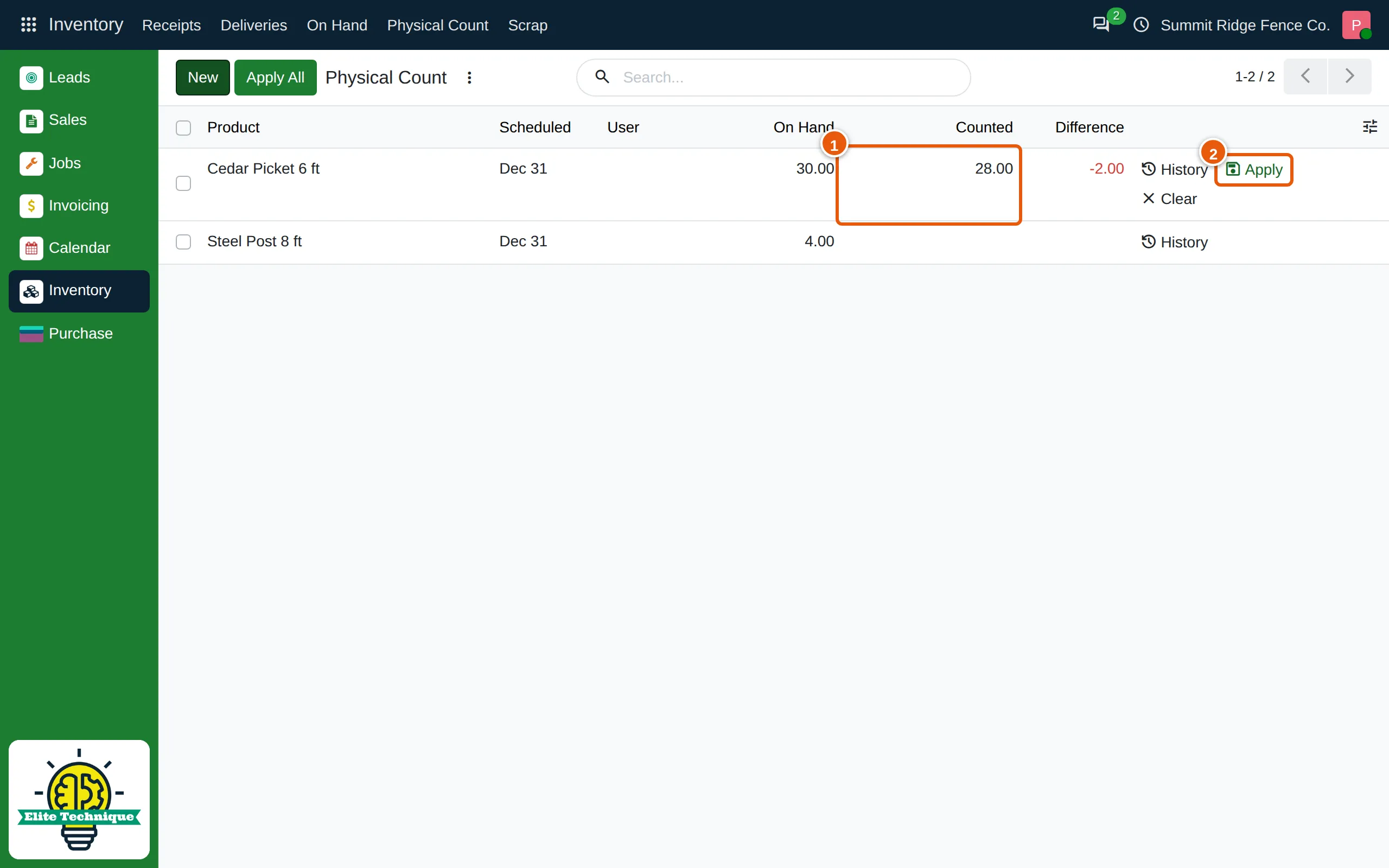
The quantity on hand becomes what you counted.
Record waste
Section titled “Record waste”-
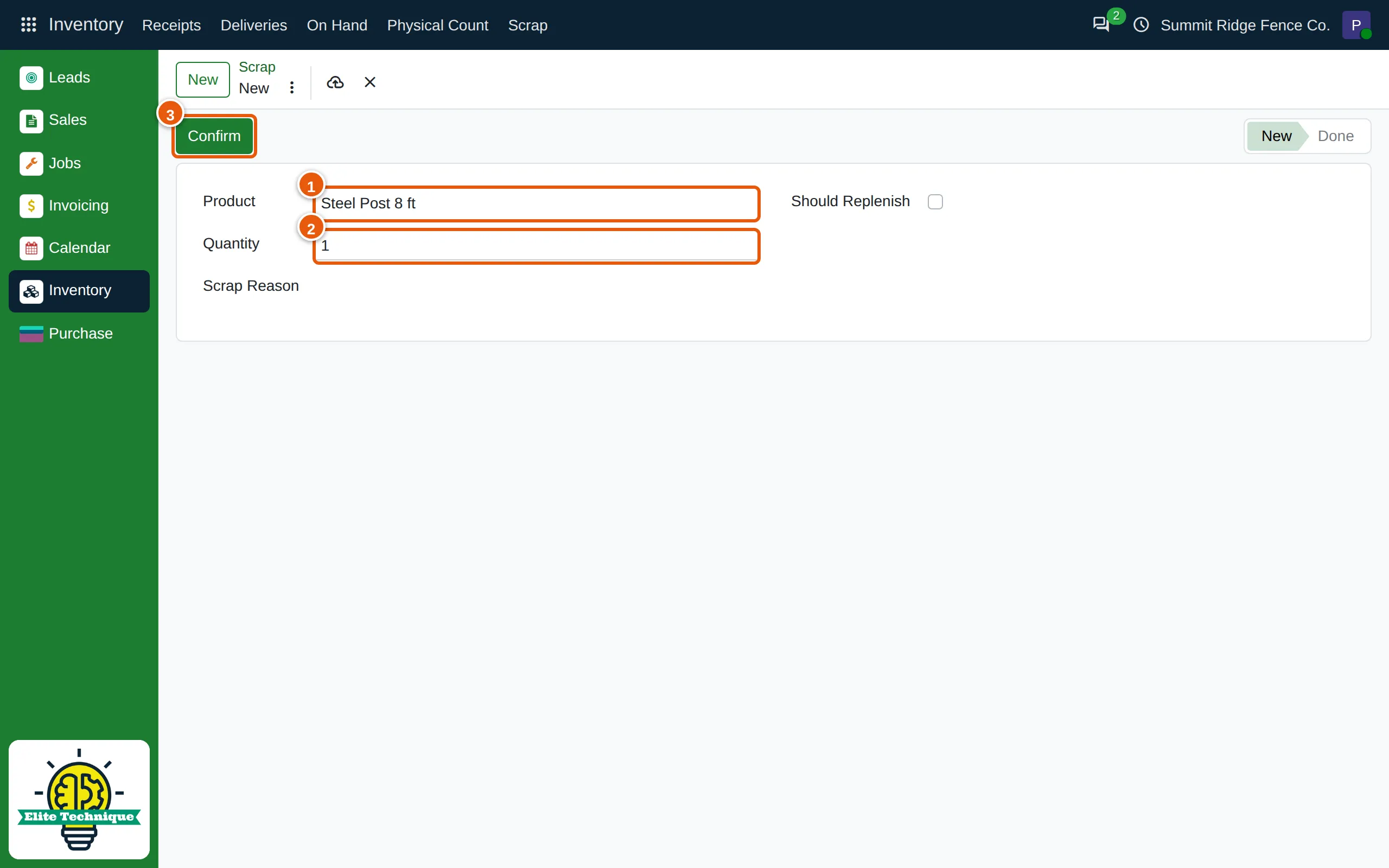
Click Scrap at the top, then New. Pick the Product (1), type the Quantity (2) and click Confirm (3).
-
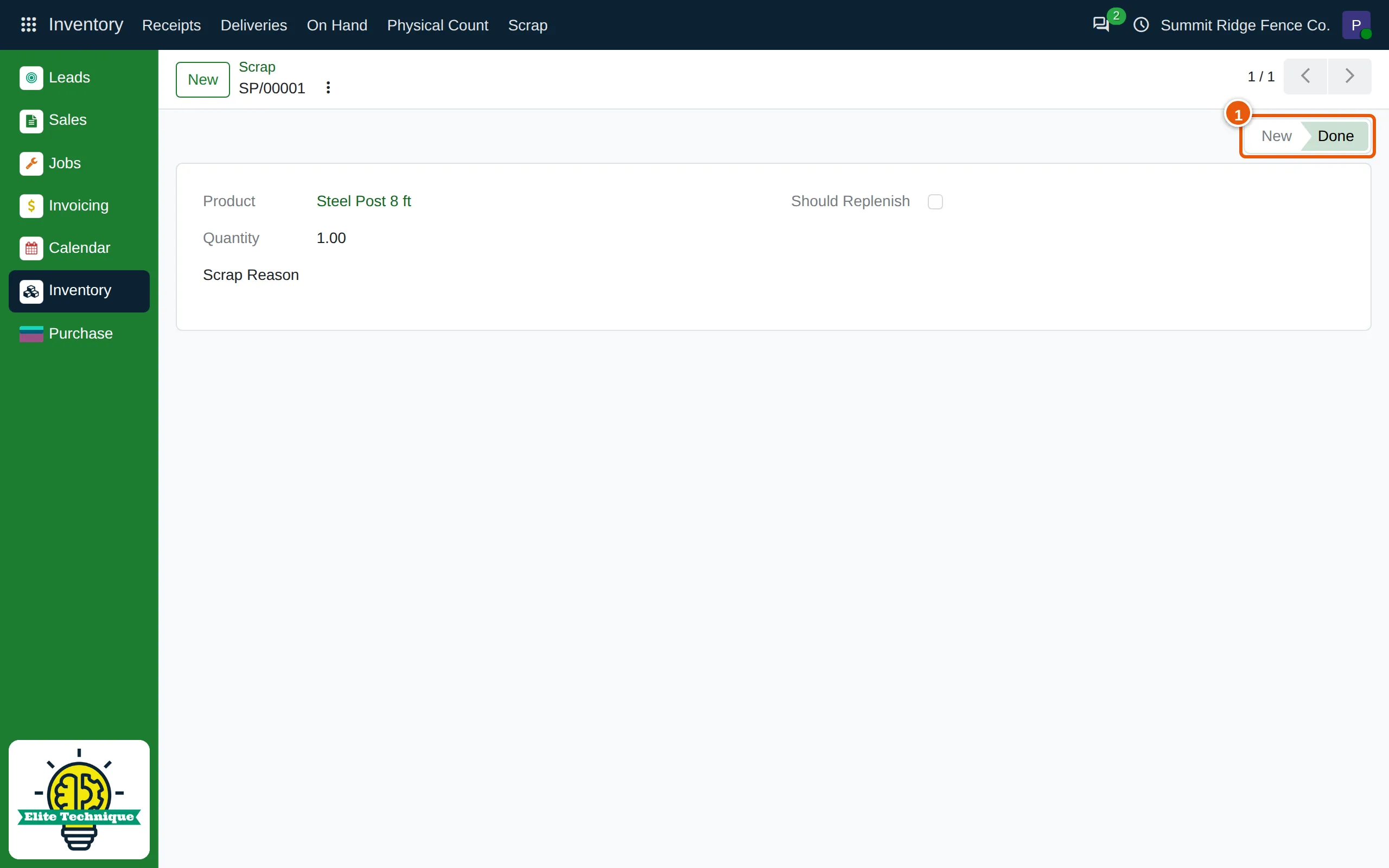
The scrap is Done (1), and that quantity has left your stock.