EliteIncluded in the Elite package.
Separate pipelines for each team
Give each sales team its own pipeline and job stages, and switch between them on the Pipeline and Jobs boards.
When different parts of your business sell and build in different ways — residential and commercial work, for example — give each its own team. Each team has its own pipeline stages and its own job stages, and the Pipeline and Jobs boards switch between the teams.
Who can do this: Admin sets up the teams and their stages. Everyone uses the boards.
Make a team
Section titled “Make a team”-
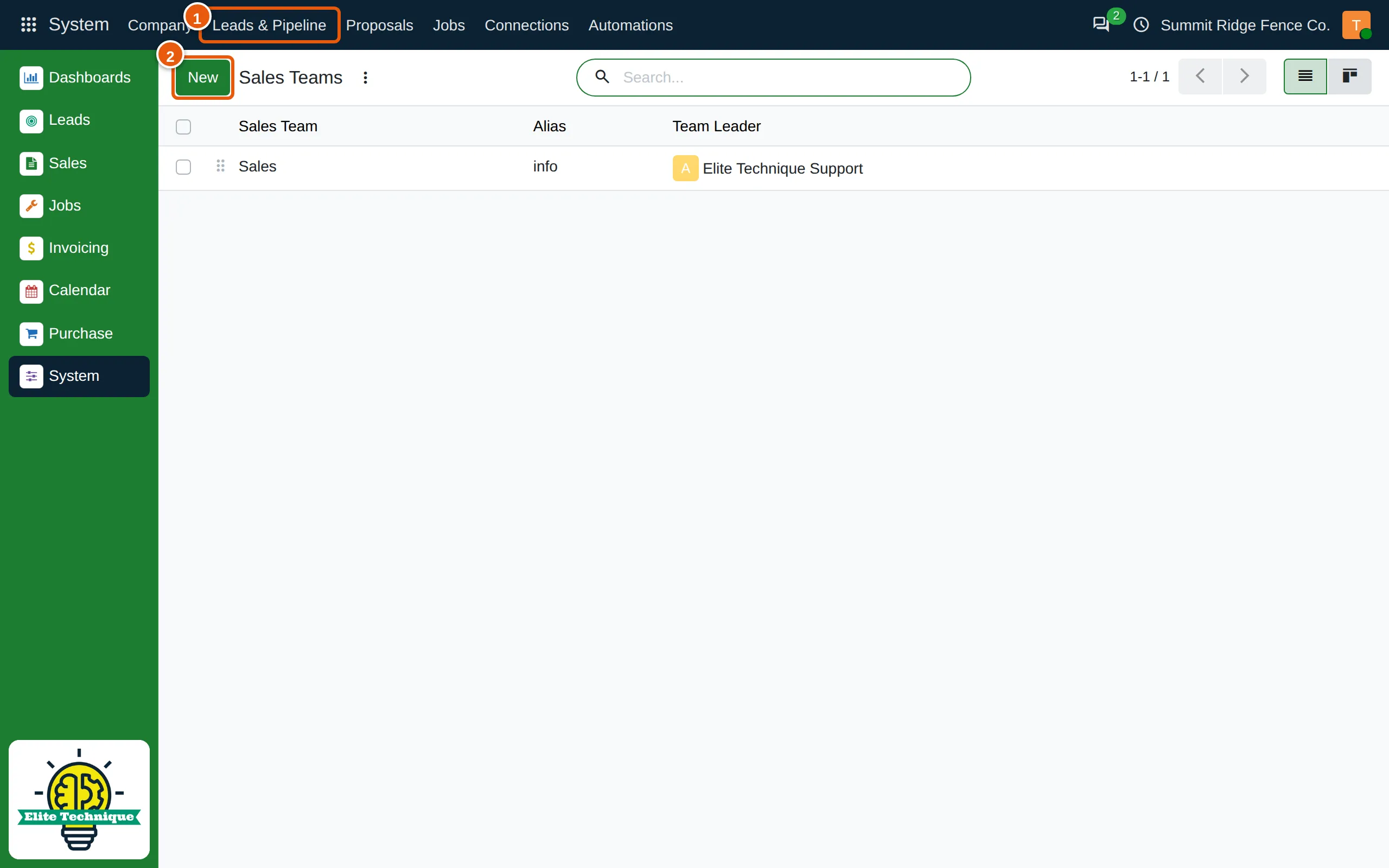
In System, open Leads & Pipeline (1) › Teams and click New (2).
-
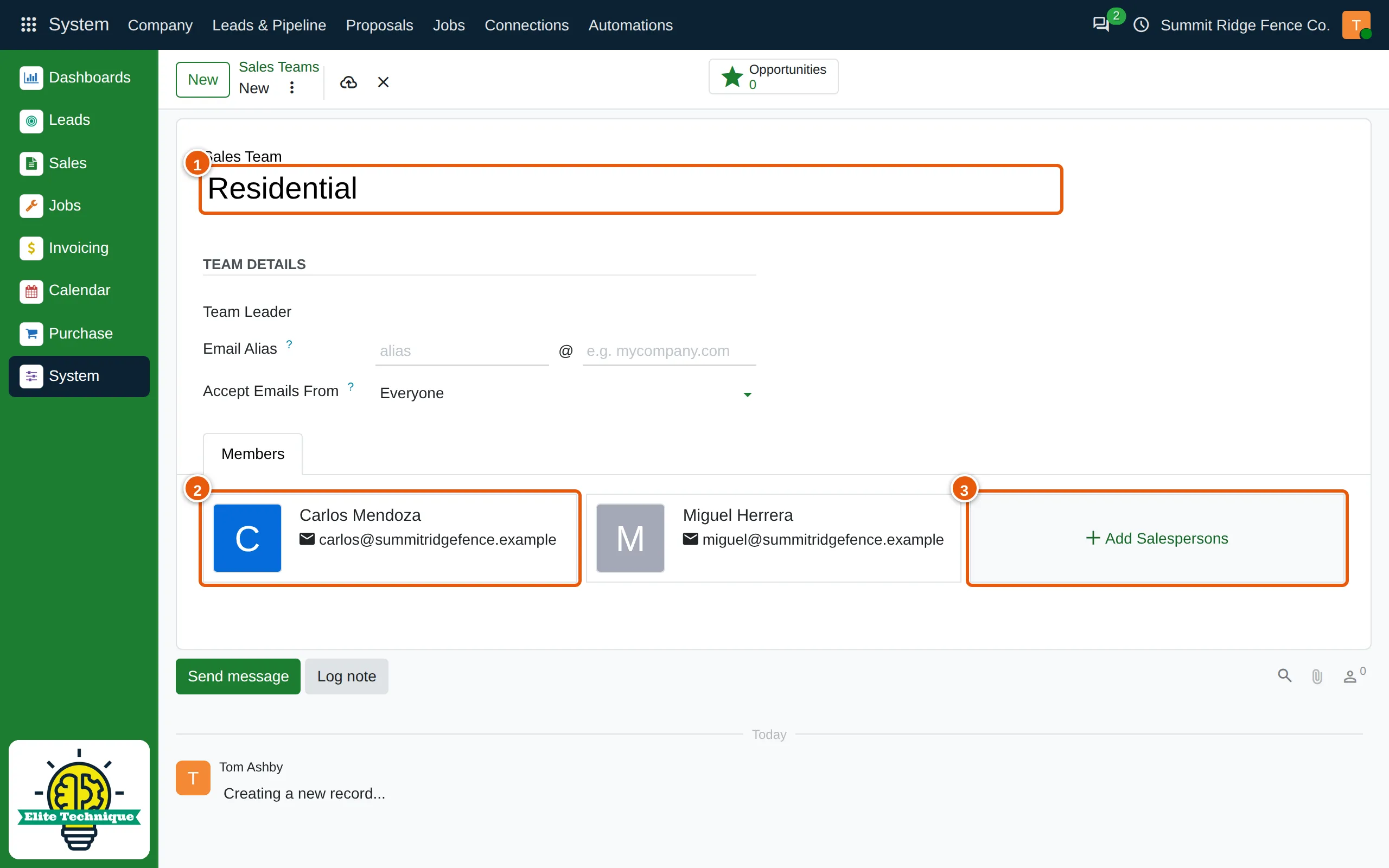
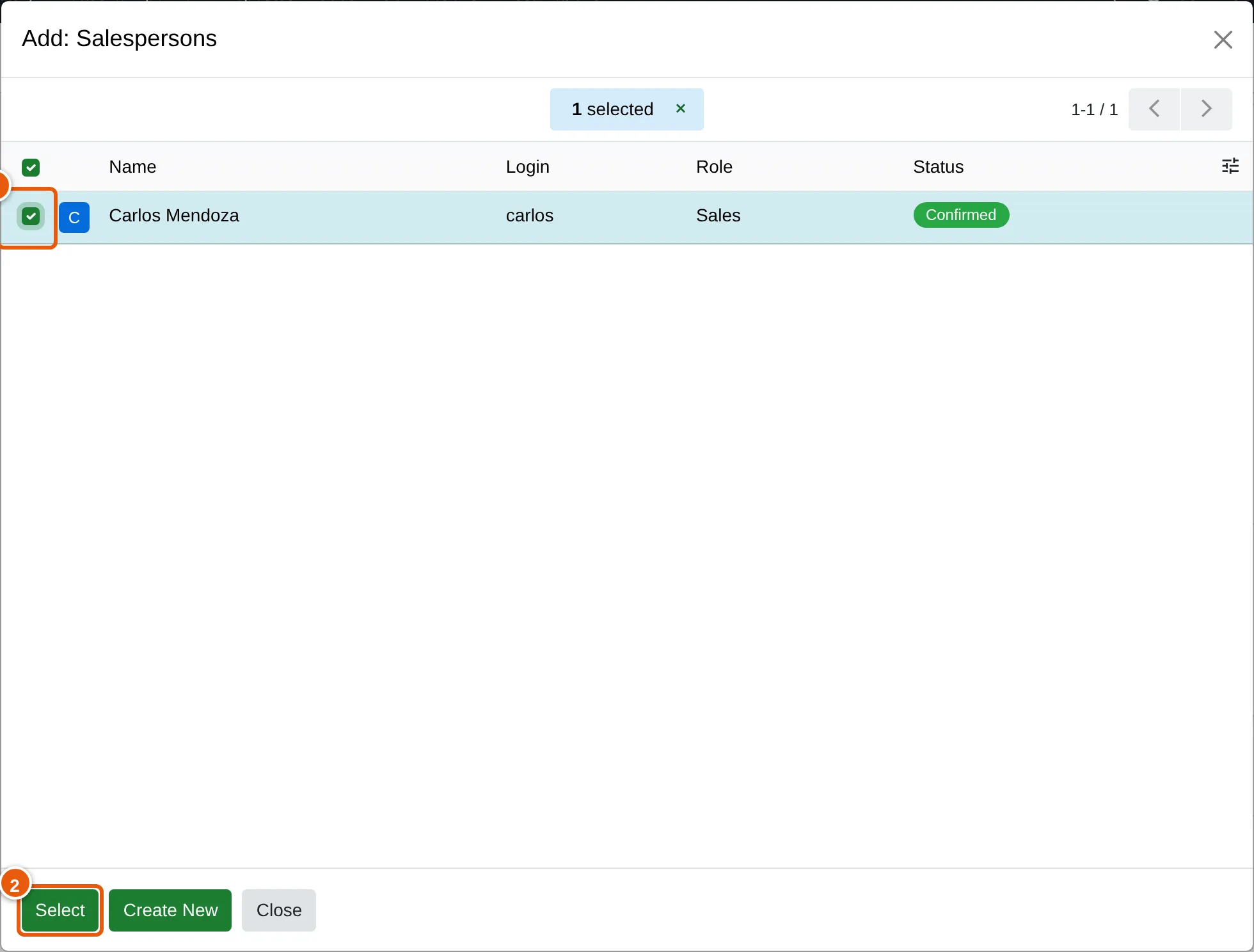
Type the team’s name (1). Under Members, click Add Salespersons (3), search for a person, check the box beside them and click Select. Add everyone who works in this team: salespeople and installers alike. Each one shows as a card (2).
-
Click the cloud icon at the top to save. Make your other teams the same way.
Give each team its stages
Section titled “Give each team its stages”-
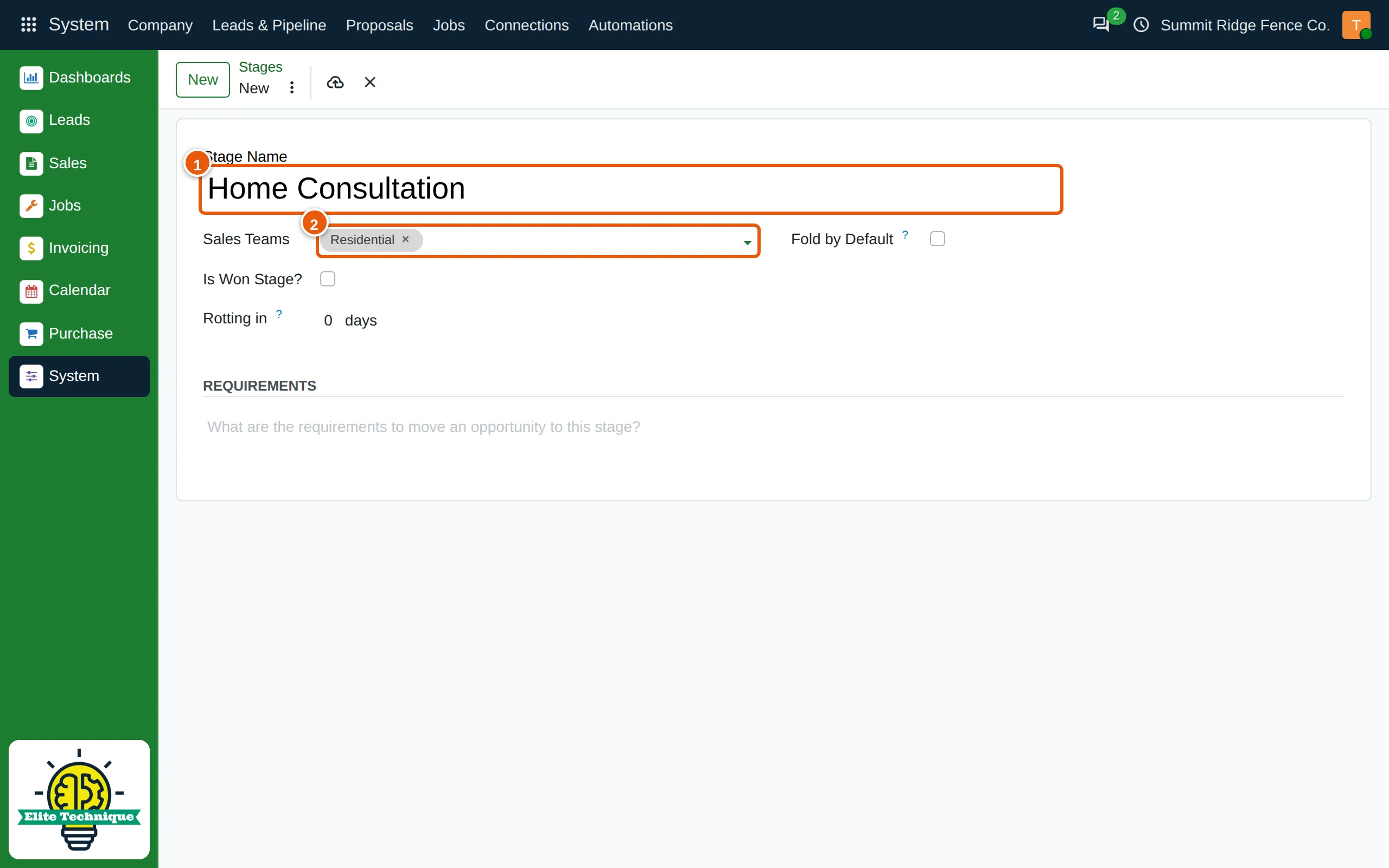
In System, open Leads & Pipeline › Pipeline Stages and click New. Type the Stage Name (1) and pick the team in Sales Teams (2). Click the cloud icon to save.
-
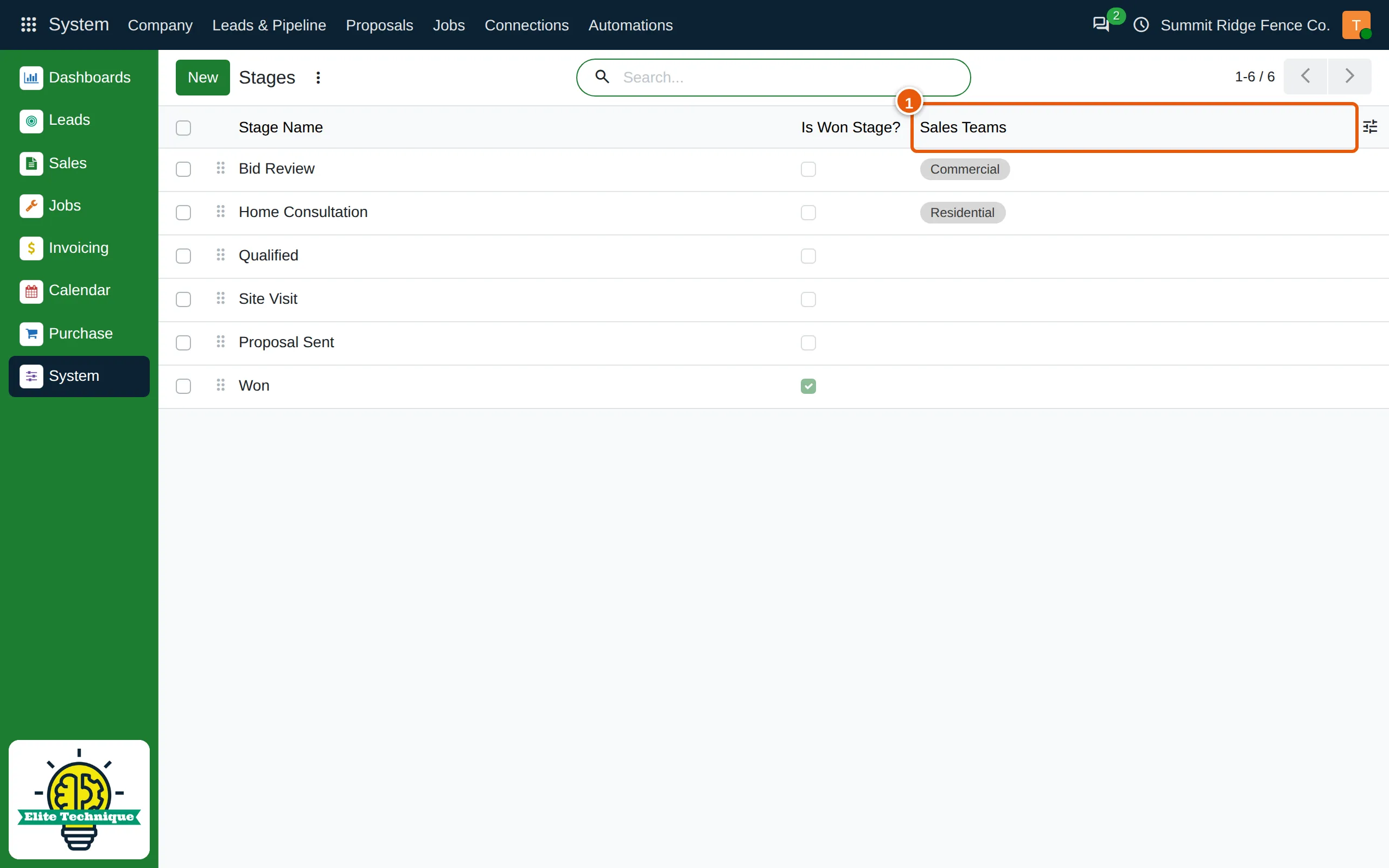
The Sales Teams column (1) shows which team each stage belongs to. A stage with no team shows in every team’s pipeline.
-
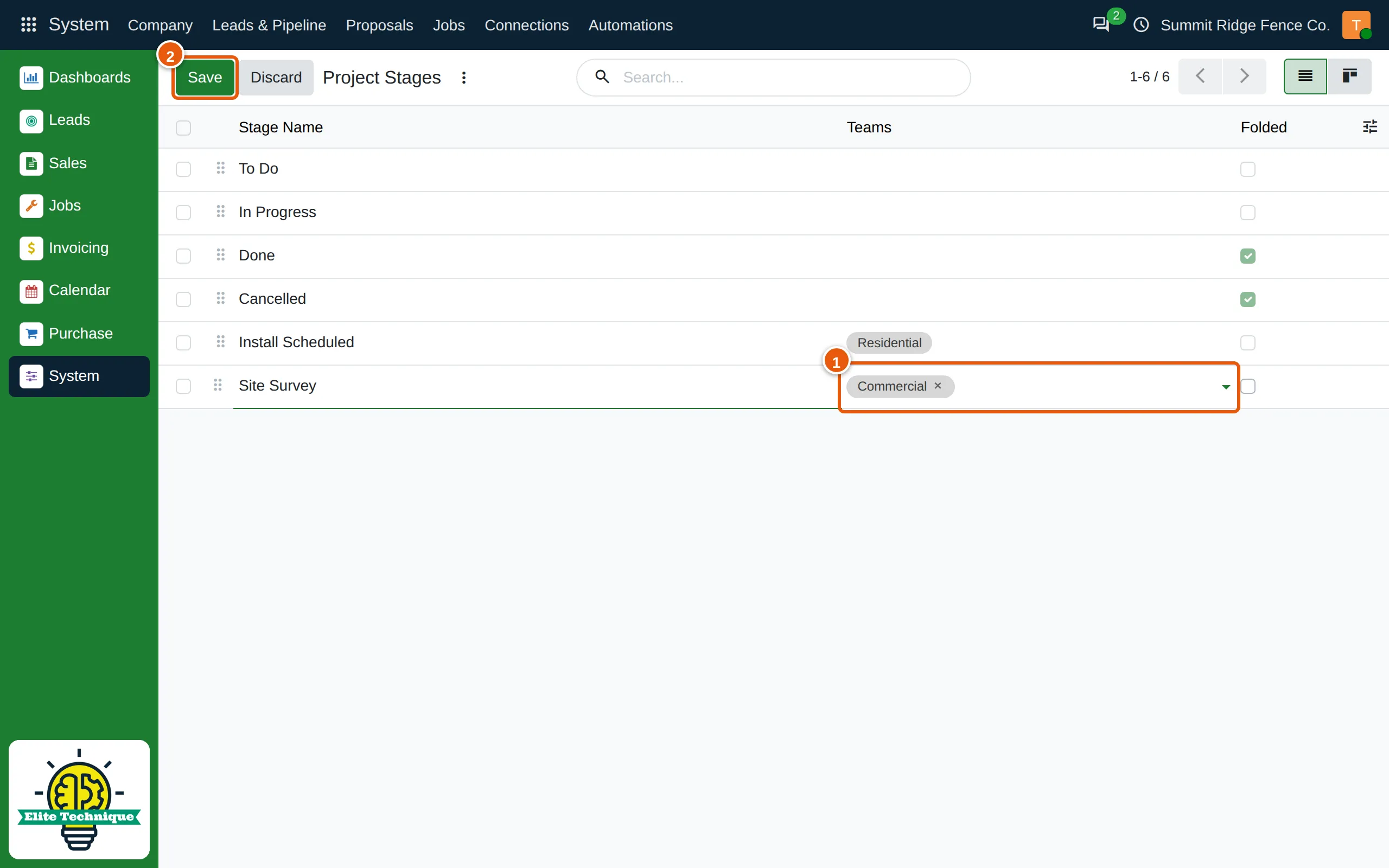
In System, open Jobs › Job Stages and click New. Type the stage’s name, pick the team in Teams (1) and click Save (2). As with pipeline stages, a job stage with no team shows for every team.
Switch between teams
Section titled “Switch between teams”-
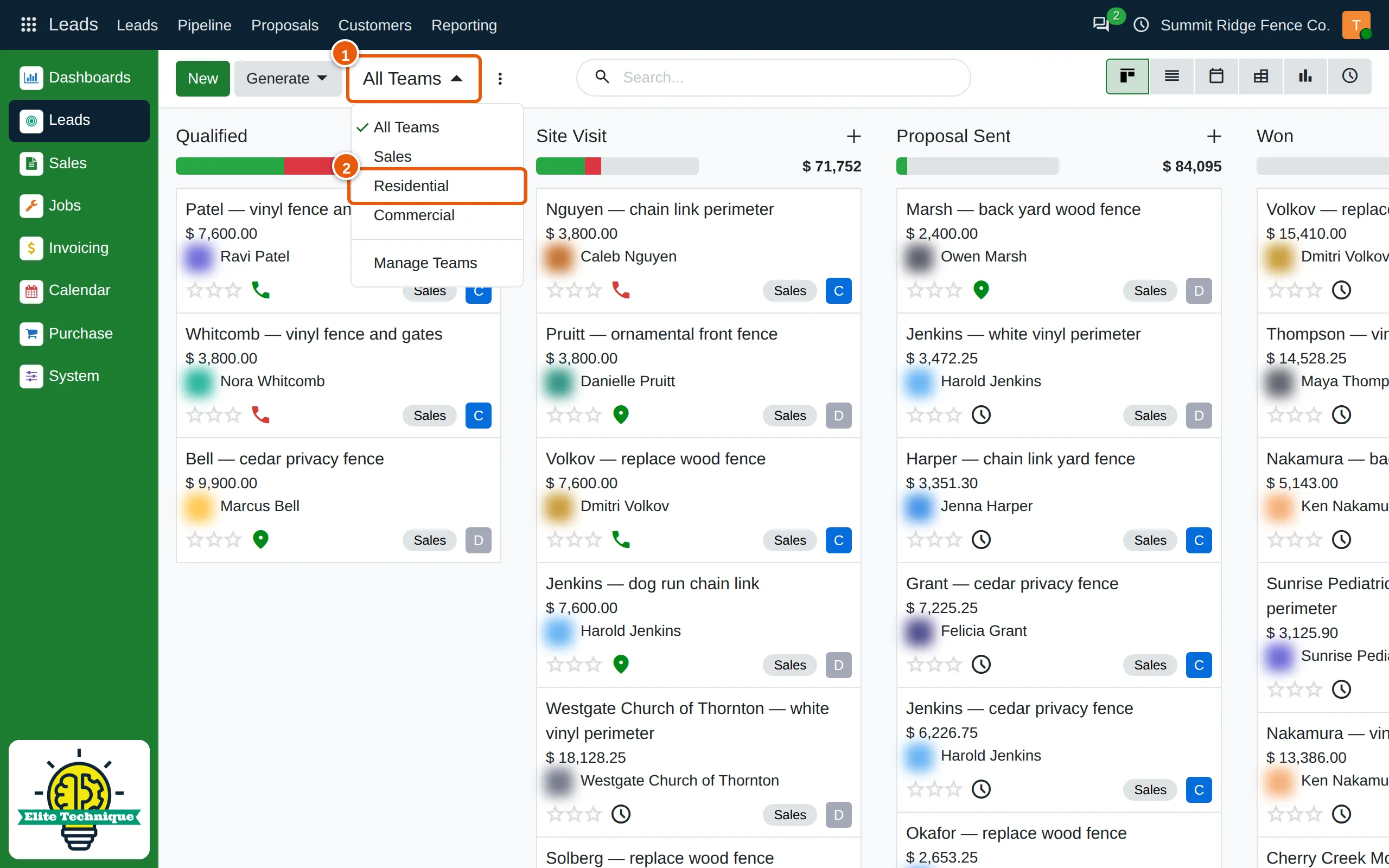
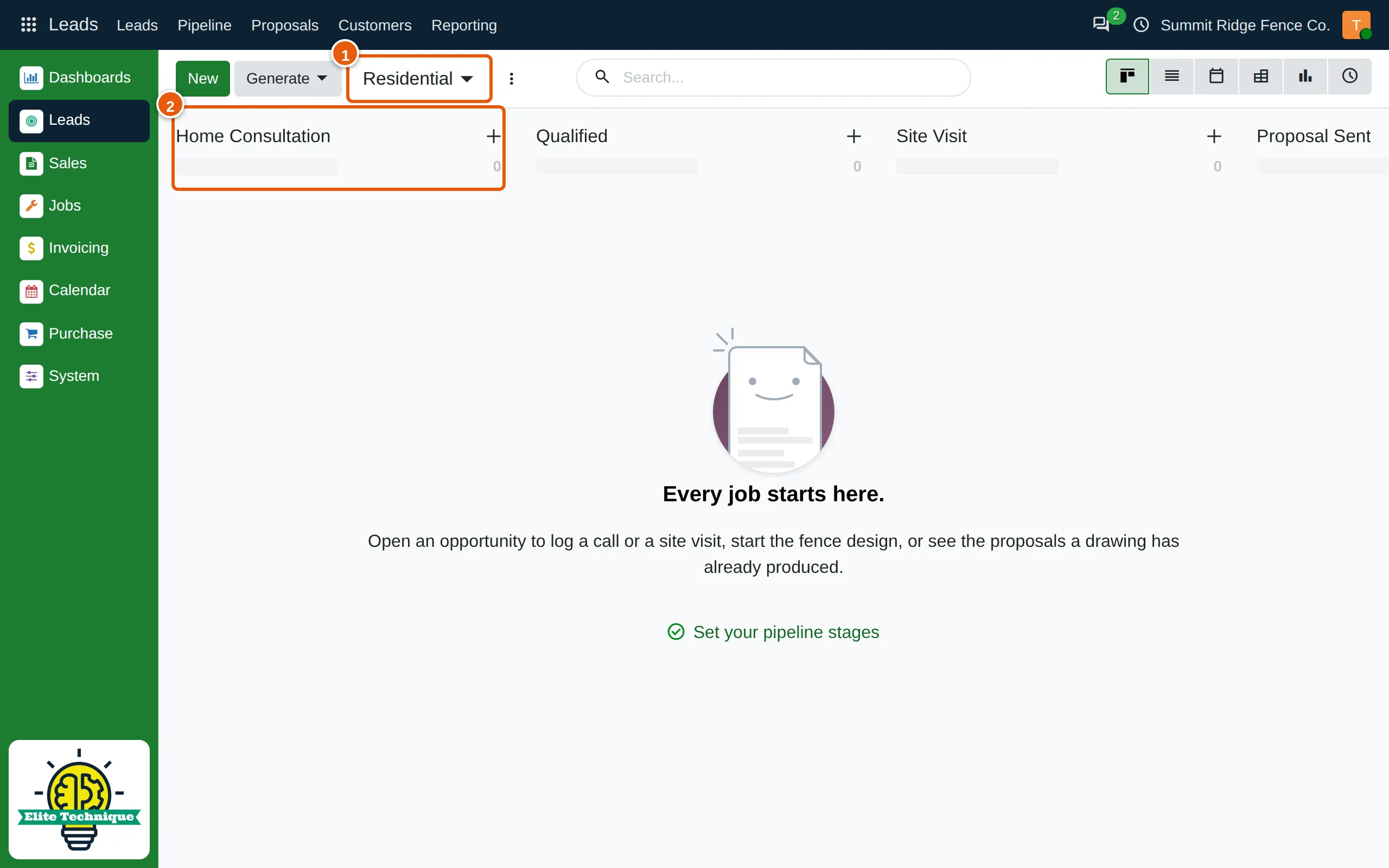
On Leads › Pipeline, click the team name at the top left (1) — All Teams to start — and pick a team (2).
-
The board shows that team’s opportunities and its stages (2), with the stages every team shares.
-
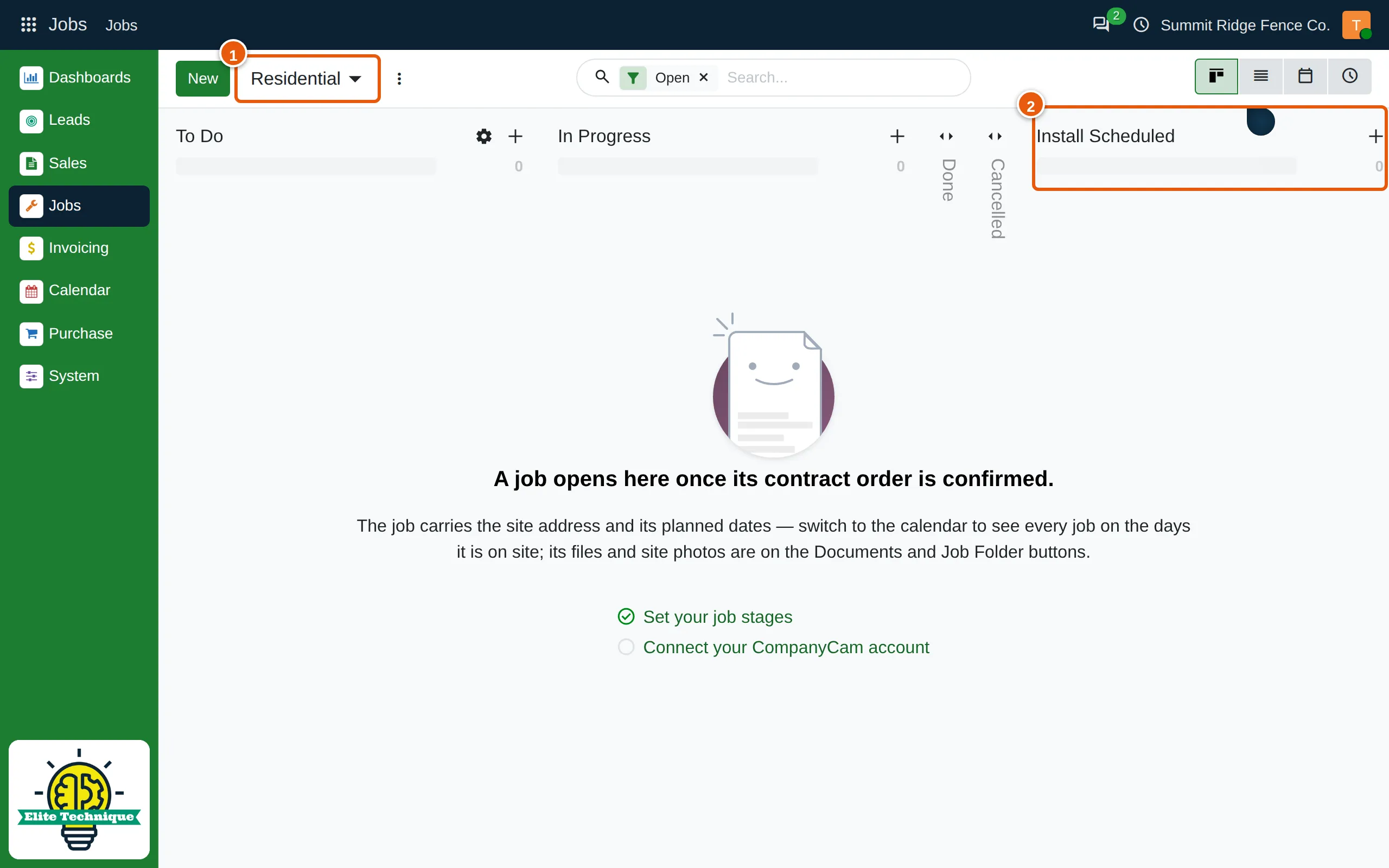
The Jobs board has the same list (1). The team you picked on the Pipeline board is already picked here, and the board shows that team’s job stages (2).
Who sees which team
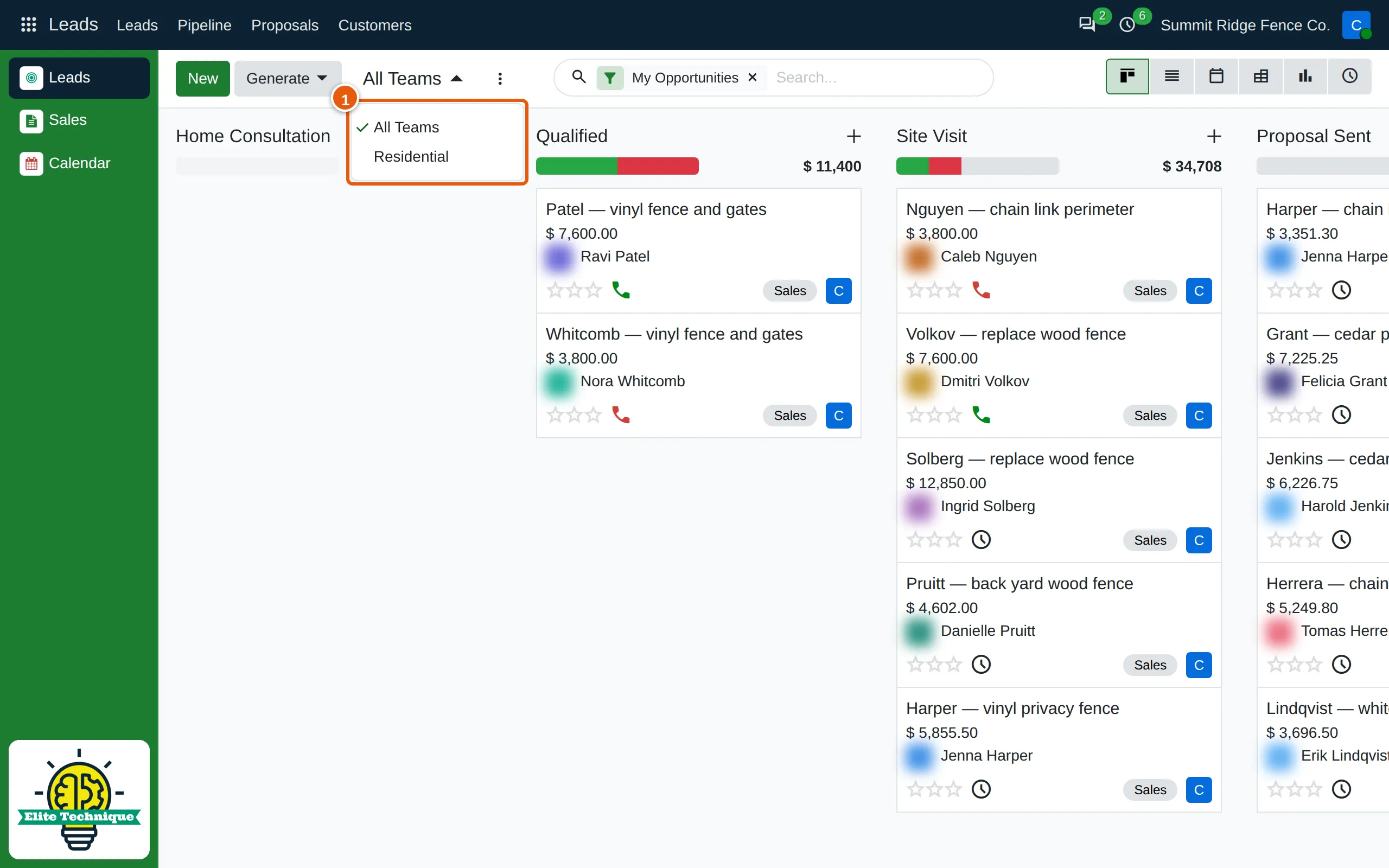
Section titled “Who sees which team”- Admin and Office can pick any team, or All Teams.
- Sales and Installers see only the teams they are members of (1).
The team list changes only what the board shows.
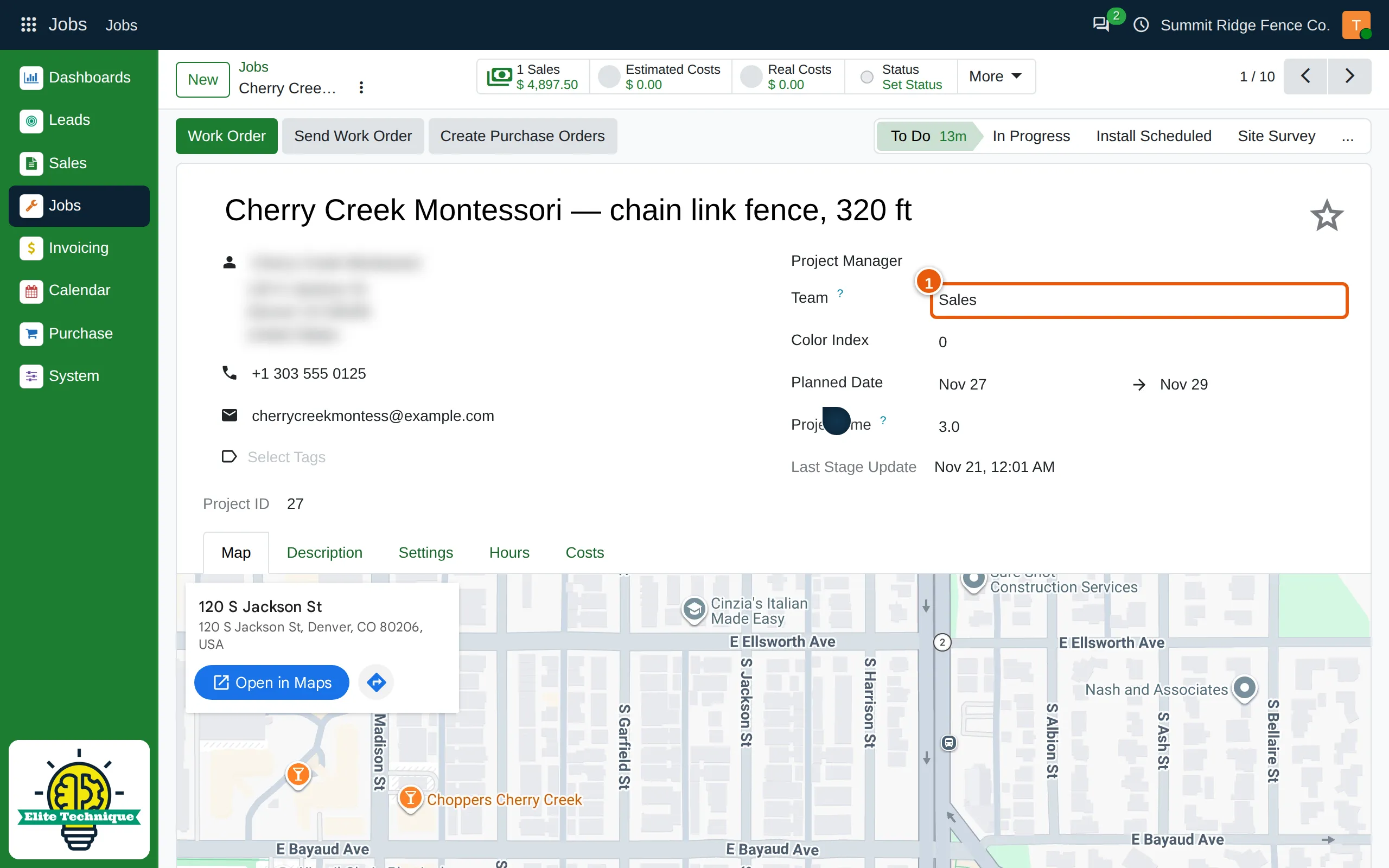
A job’s team
Section titled “A job’s team”A job takes its team from its proposal. The job shows its Team (1) beside Project Manager, for Admin and Office. To move a job to another team’s board, change its Team and save.