
Standard and upIncluded in the Standard, Pro and Elite packages.
Send leads in from another tool
Create a private address that Zapier, Make, an AI assistant or any other tool can send new leads to, so they arrive on your Leads page.
The Lead Connector gives you a private address that other tools can send new leads to: Zapier, Make, an AI assistant, or a form on another site. Each lead they send arrives on your Leads page, the same as one from your own website form.
Who can do this: Admin.
Create your address
Section titled “Create your address”-
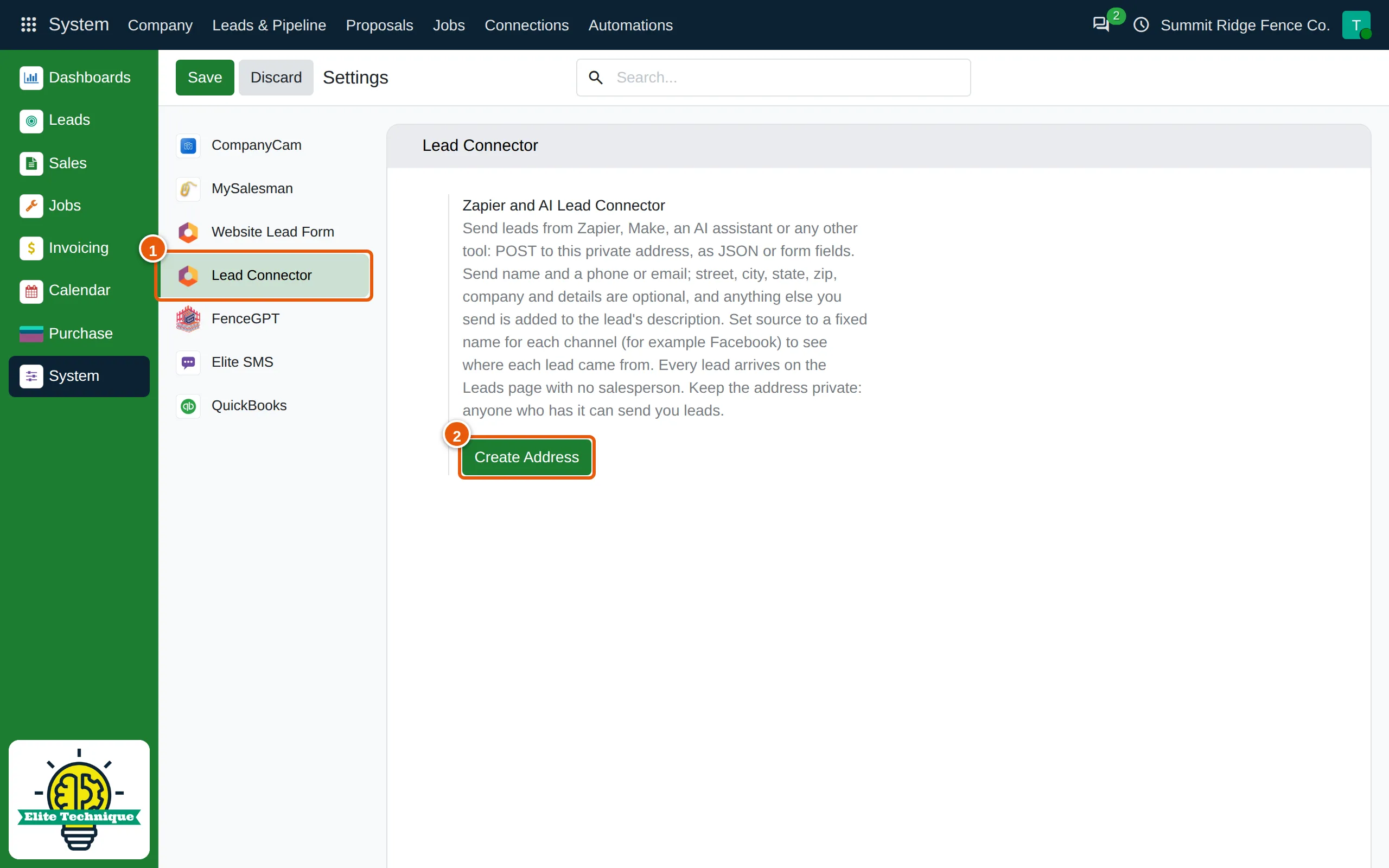
In System, click Connections at the top, then Lead Connector (1) in the list on the left. You have no address until you create one. Click Create Address (2).
-
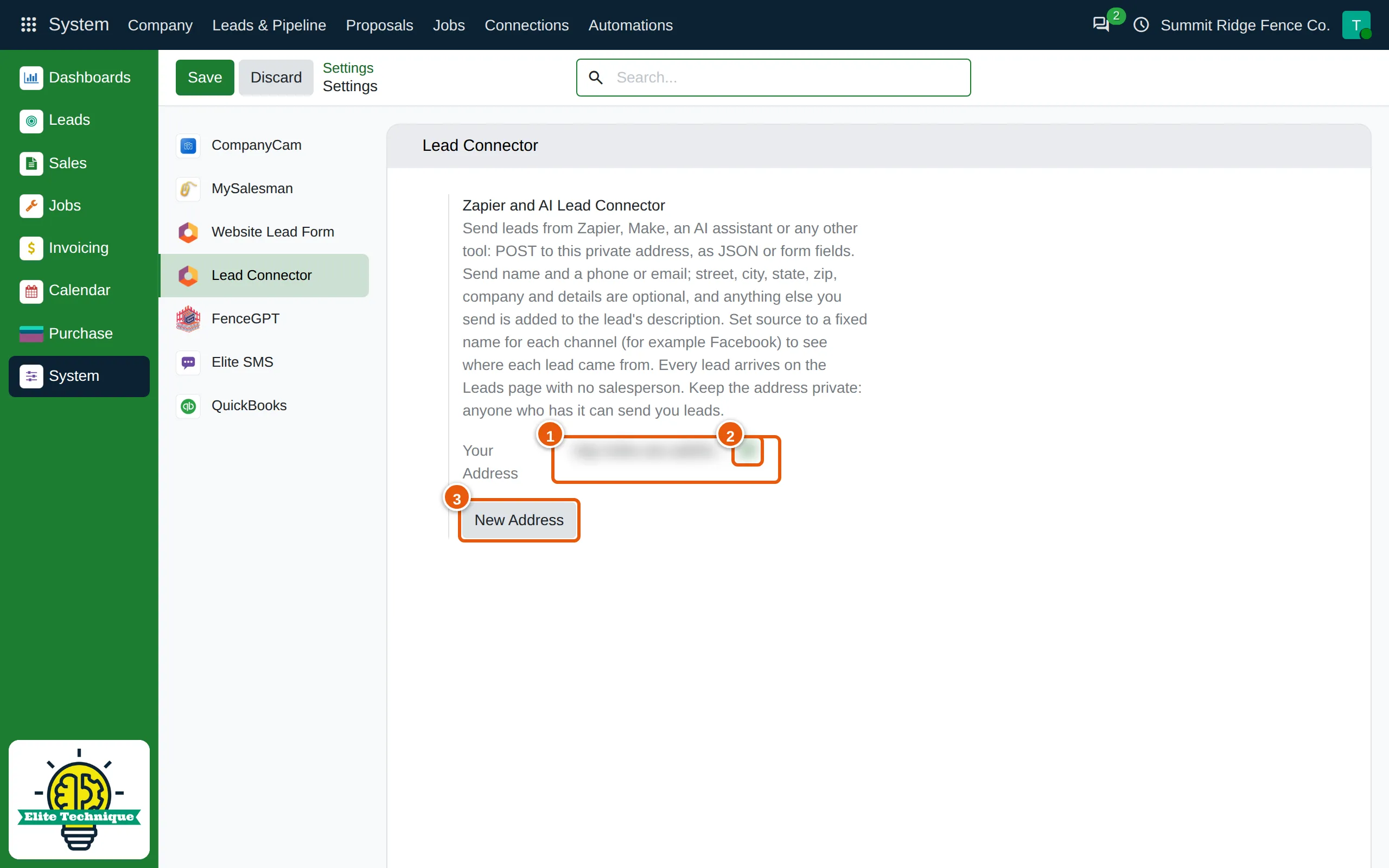
Your Address (1) now shows your private address. Click its copy button (2) to copy it.
-
In the other tool, set up a step that sends a web request (a POST) to the address you copied. In Zapier, for example, that is the Webhooks by Zapier action with POST.
What to send
Section titled “What to send”The tool sends each lead’s details as JSON or as form fields, named like this:
- name — the person’s name. Required.
- phone or email — at least one of the two is required.
- street, city, state, zip, company — optional.
- details — what the person wants, for the lead’s notes. Optional.
- source — a fixed name for the channel, such as Facebook, so you can see where each lead came from. Optional; without it, the lead’s source is Lead Connector.
Anything else the tool sends is added to the lead’s notes as name: value. For example, a budget of 4000 arrives in the notes as budget: 4000.
The tool gets an answer for each lead it sends. A lead that arrived answers {"status": "ok"} with
the new lead’s number. A lead with no phone and no email is refused with Missing: phone or email.,
and nothing is created.
Where the leads arrive
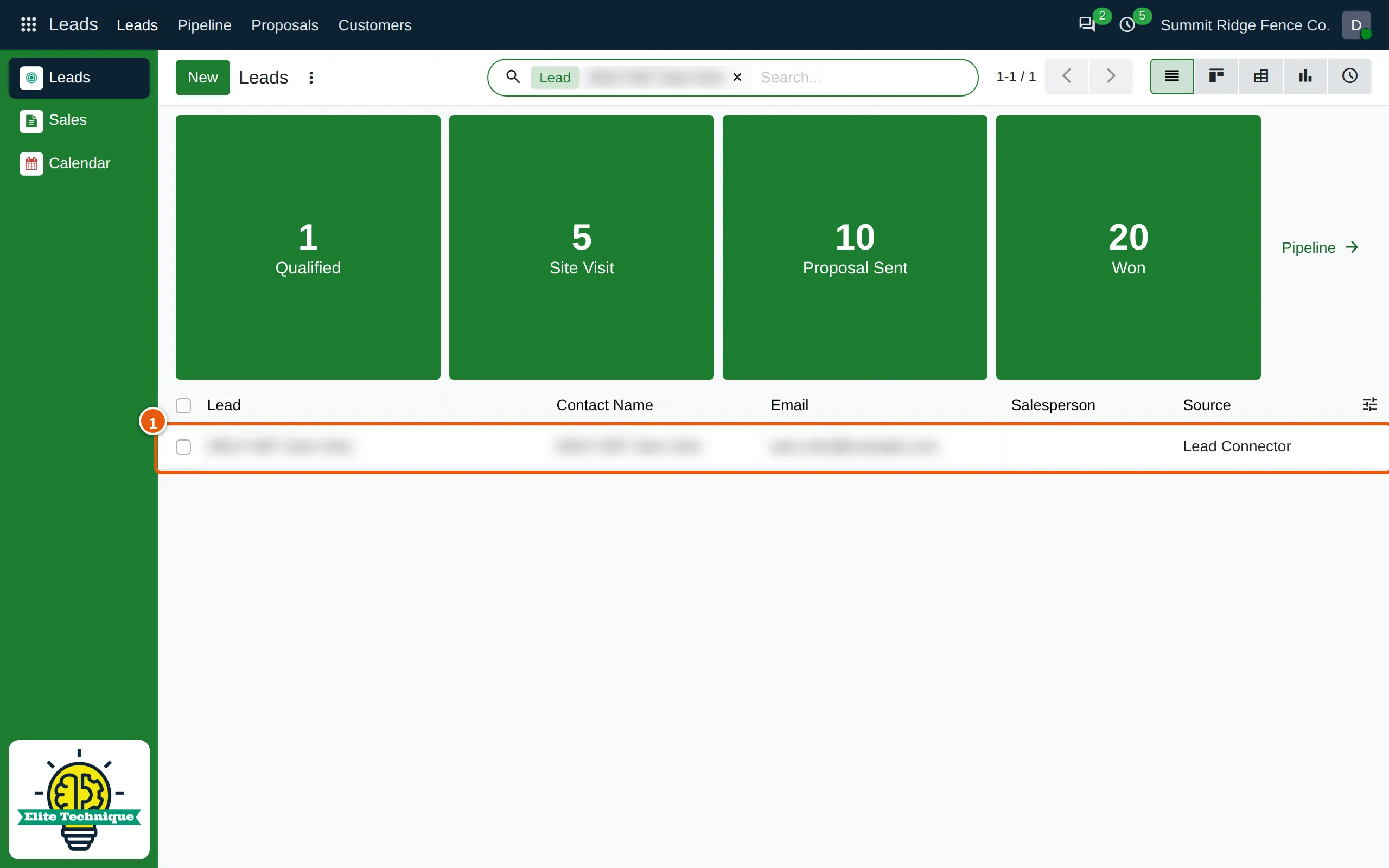
Section titled “Where the leads arrive”Each lead arrives on the Leads page as a new lead (1), with no salesperson, so everyone in Sales can see it and pick it up. Its Source column shows the source the tool named, or Lead Connector.
Replace the address
Section titled “Replace the address”-
In System › Connections › Lead Connector, click New Address.
-
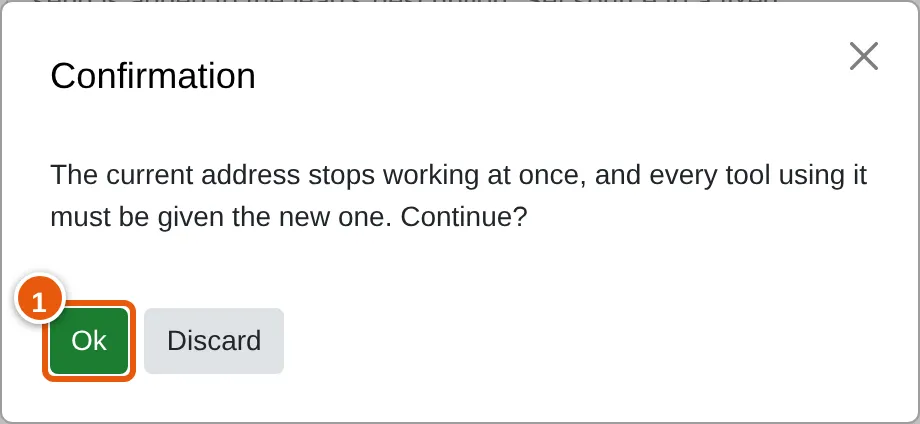
The screen asks: The current address stops working at once, and every tool using it must be given the new one. Continue? Click Ok (1).
-
Copy the new address and give it to every tool that sends you leads. The old address now refuses anything sent to it.