Pro and upIncluded in the Pro and Elite packages.
Receive and deliver materials
Check in the materials a vendor delivers against your purchase order, then send a job's materials out to it.
With inventory on, every confirmed purchase order makes a receipt, and every confirmed job with materials makes a delivery. Validate the receipt when the materials arrive, and the delivery when they leave for the job. Your stock goes up and down with each one.
Who can do this: Office and Admin.
Before you start: inventory must be on — see Turn on inventory.
Receive materials
Section titled “Receive materials”-
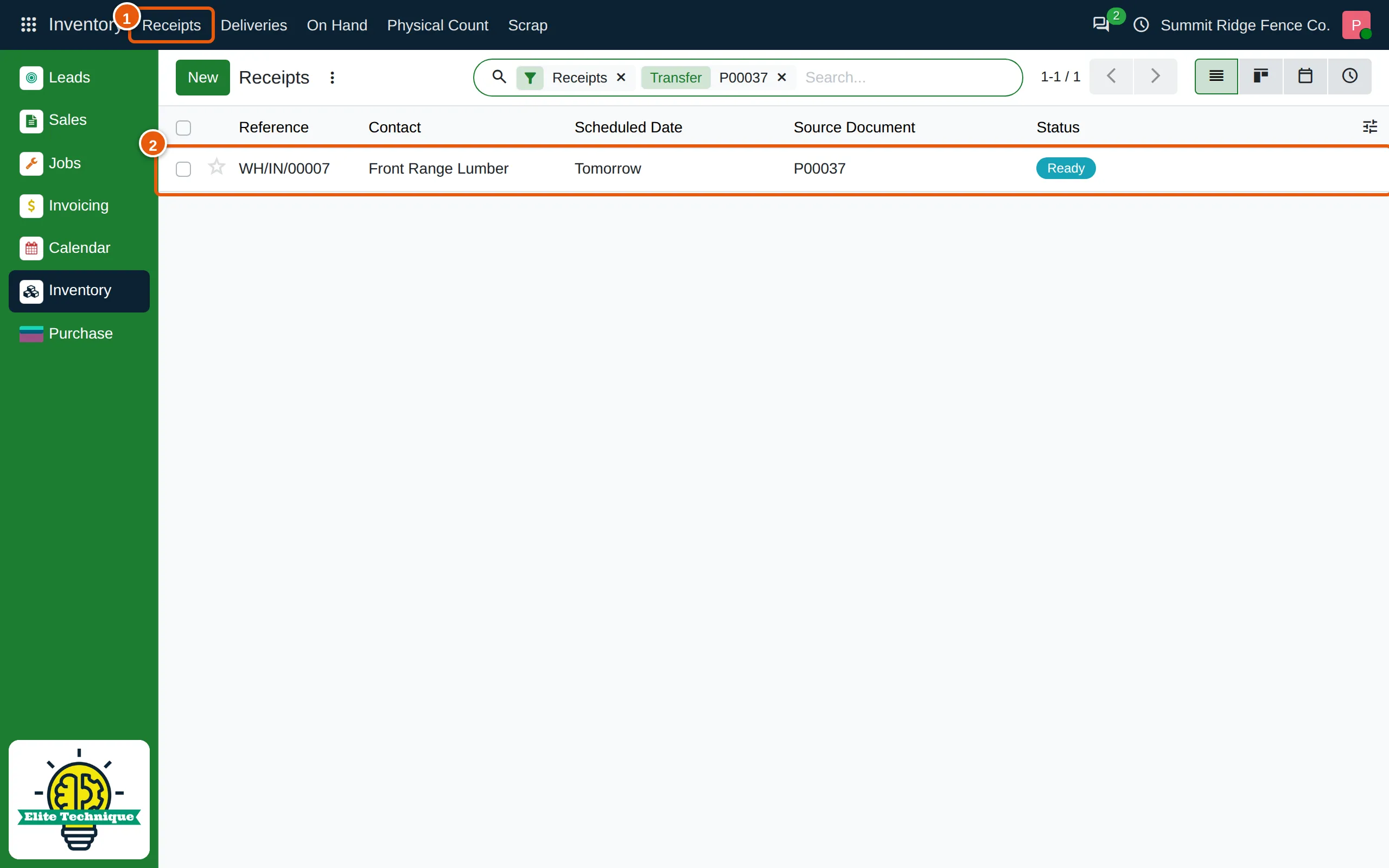
In Inventory, click Receipts (1) at the top. Each receipt shows its vendor, when it is due, the purchase order it came from under Source Document, and its status. Type the purchase order’s number in the search box to find it, then click the receipt (2).
-
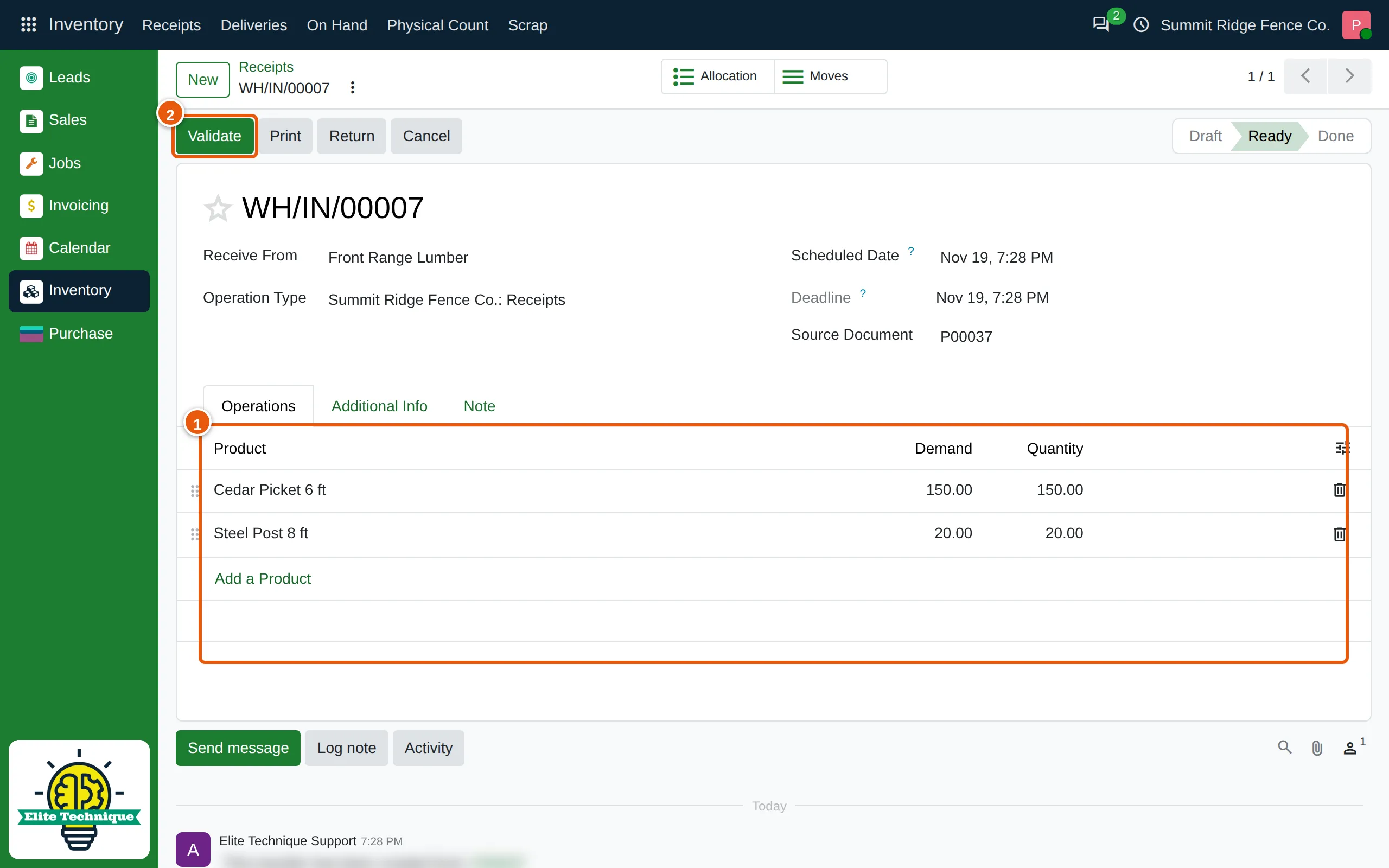
The receipt lists what was ordered under Demand and what you are receiving under Quantity (1). Check it against what arrived, then click Validate (2).
-
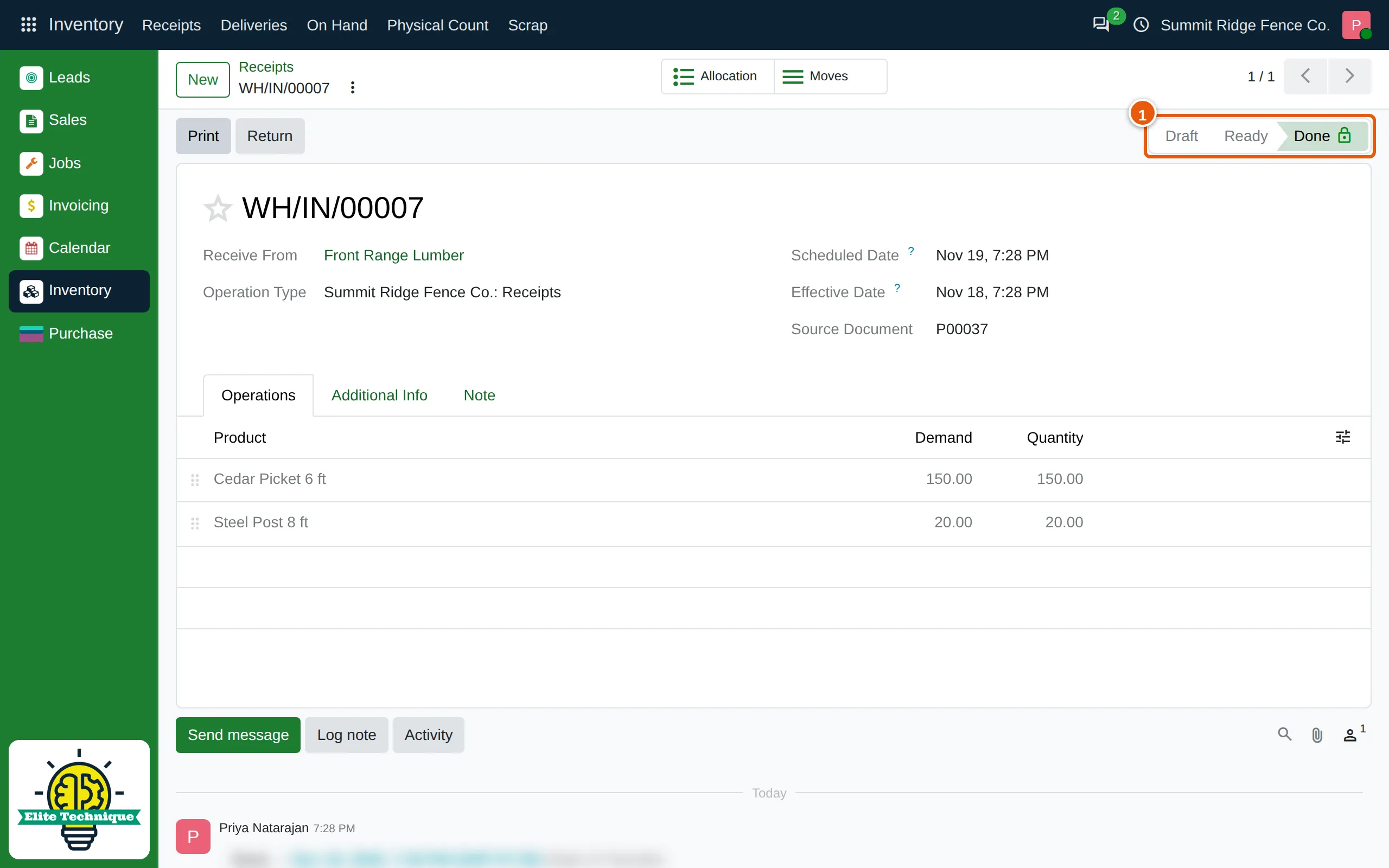
The receipt is Done (1), and the materials are in stock.
Deliver materials to a job
Section titled “Deliver materials to a job”-
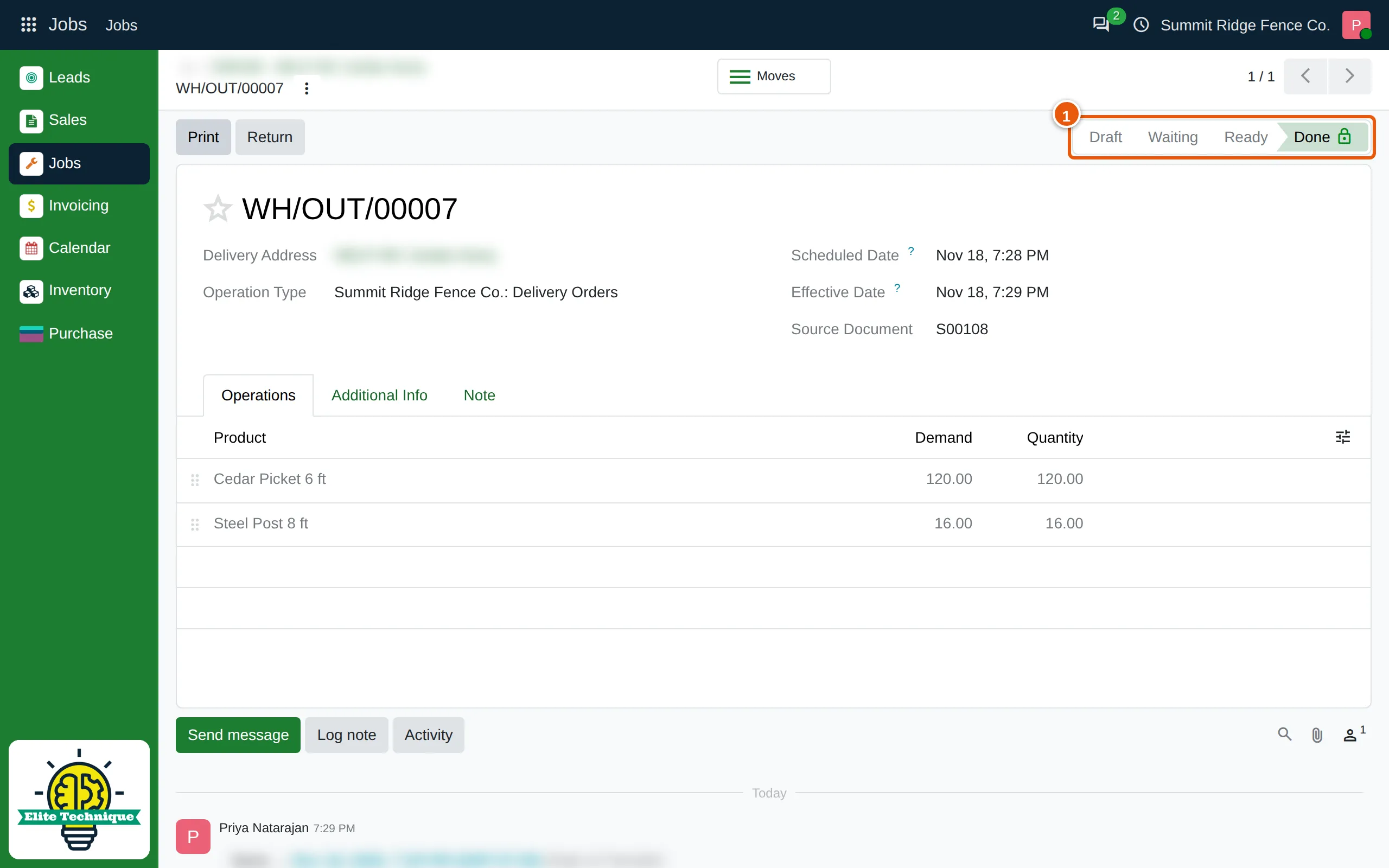
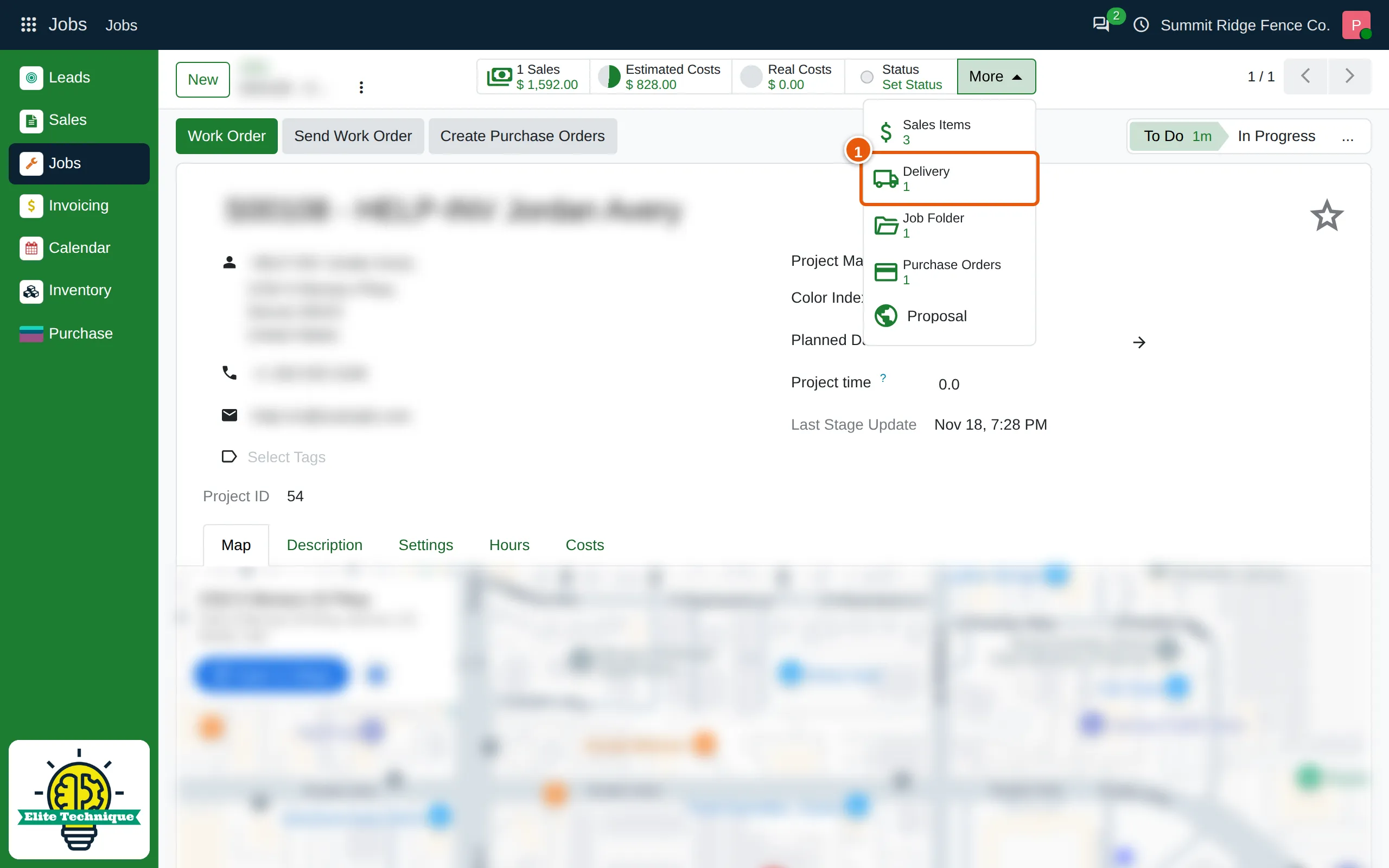
Open the job from Jobs, click More at the top, then Delivery (1).
-
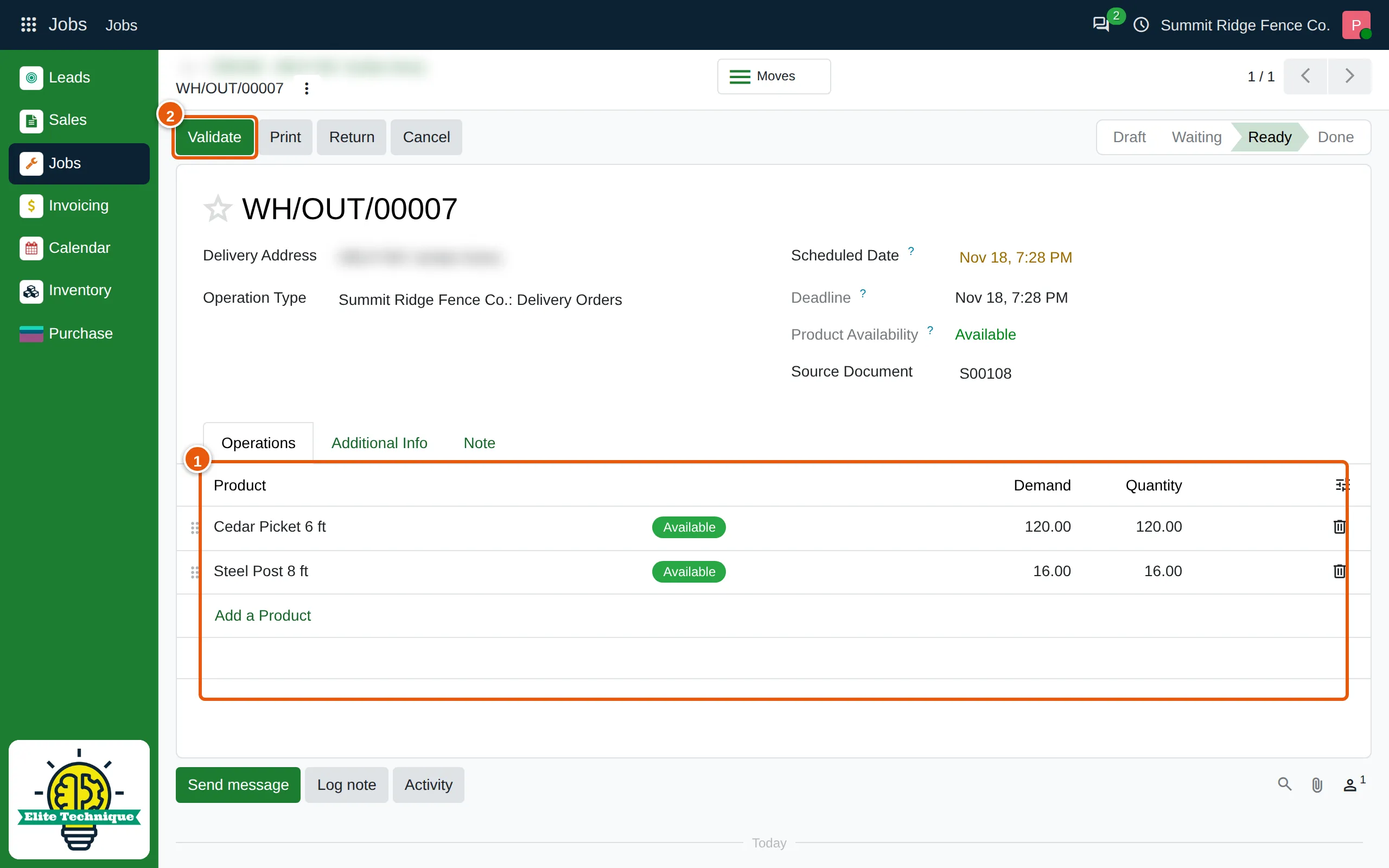
The delivery lists the job’s materials. Once they are in stock, each one reads Available and the delivery is Ready. Check the quantities (1), then click Validate (2).
-
The delivery is Done (1), and the materials have left your stock.