
EliteIncluded in the Elite package.
Track sales commission
Put each salesperson on a commission plan, see what each sale earns, change a rate when you need to, and read the Commission Report the way your company pays commission.
Elite Technique works out each salesperson’s commission from what you bill your customers. You set the rates once, in commission plans. Every proposal line then takes its rate from its salesperson’s plan, and the Commission Report adds it all up by salesperson for any period. Read it the way your company pays: when you invoice, as your customers pay, or once the whole job is paid.
Who can do this: Admin sets up plans and changes rates. Office sees every salesperson’s commission but can’t change it. Each salesperson sees only their own. Installers don’t see commission at all.
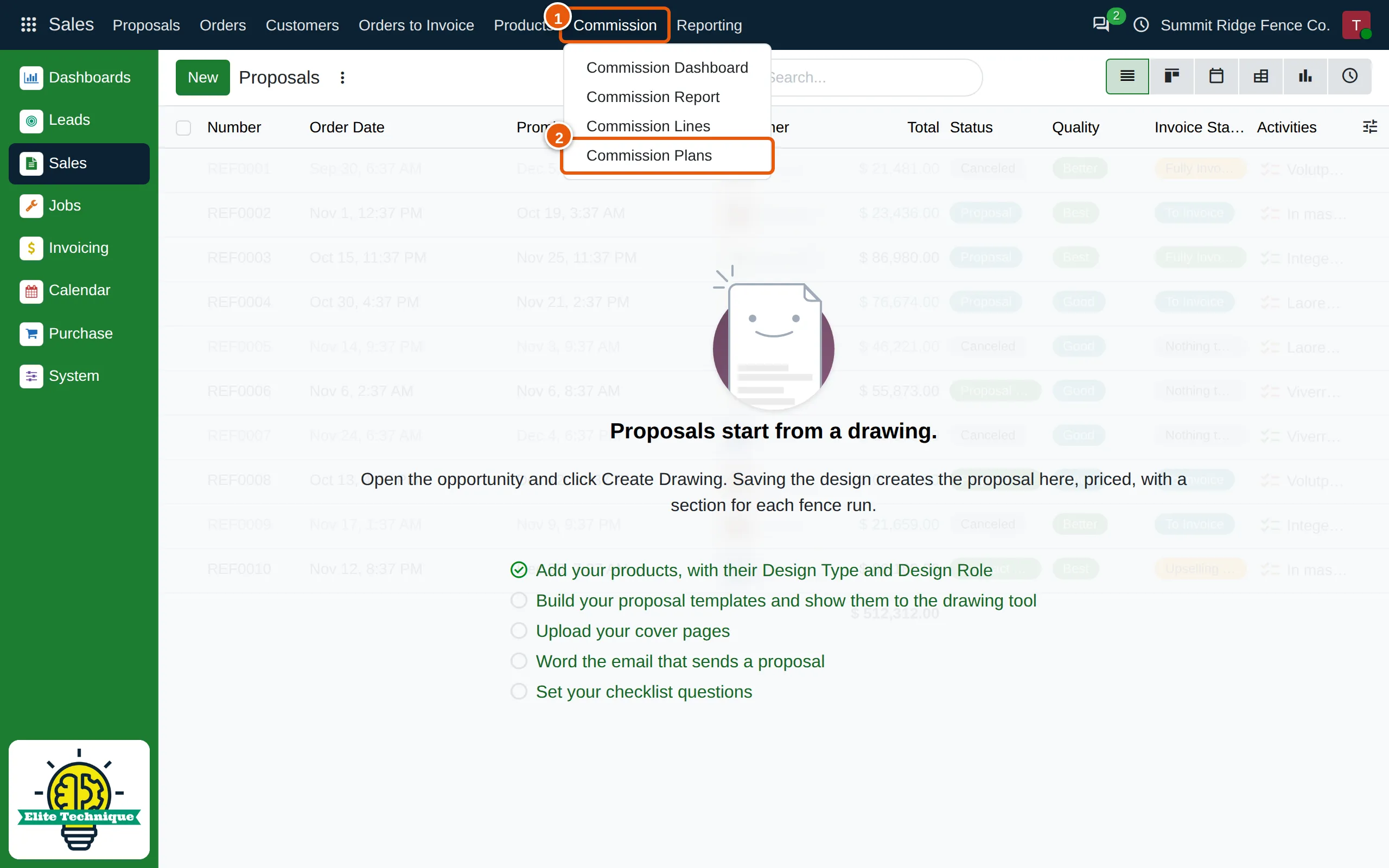
Everything is under Sales › Commission (1). The Admin’s menu has Commission Dashboard, Commission Report, Commission Lines and Commission Plans (2).
Set up commission plans
Section titled “Set up commission plans”A plan is either one rate for everything a salesperson sells, or a rate for each product category. Put each salesperson on one plan.
-
Click Sales › Commission › Commission Plans, then New.
-
For a rate per product category: type a Name, choose A rate per product category (1), then click Add a line for each category and type its Rate (%) (2). Here, Goods earn 10% and Services / Labor 5%. Pick the salespeople on this plan under Salespeople (3). Click the cloud icon to save.
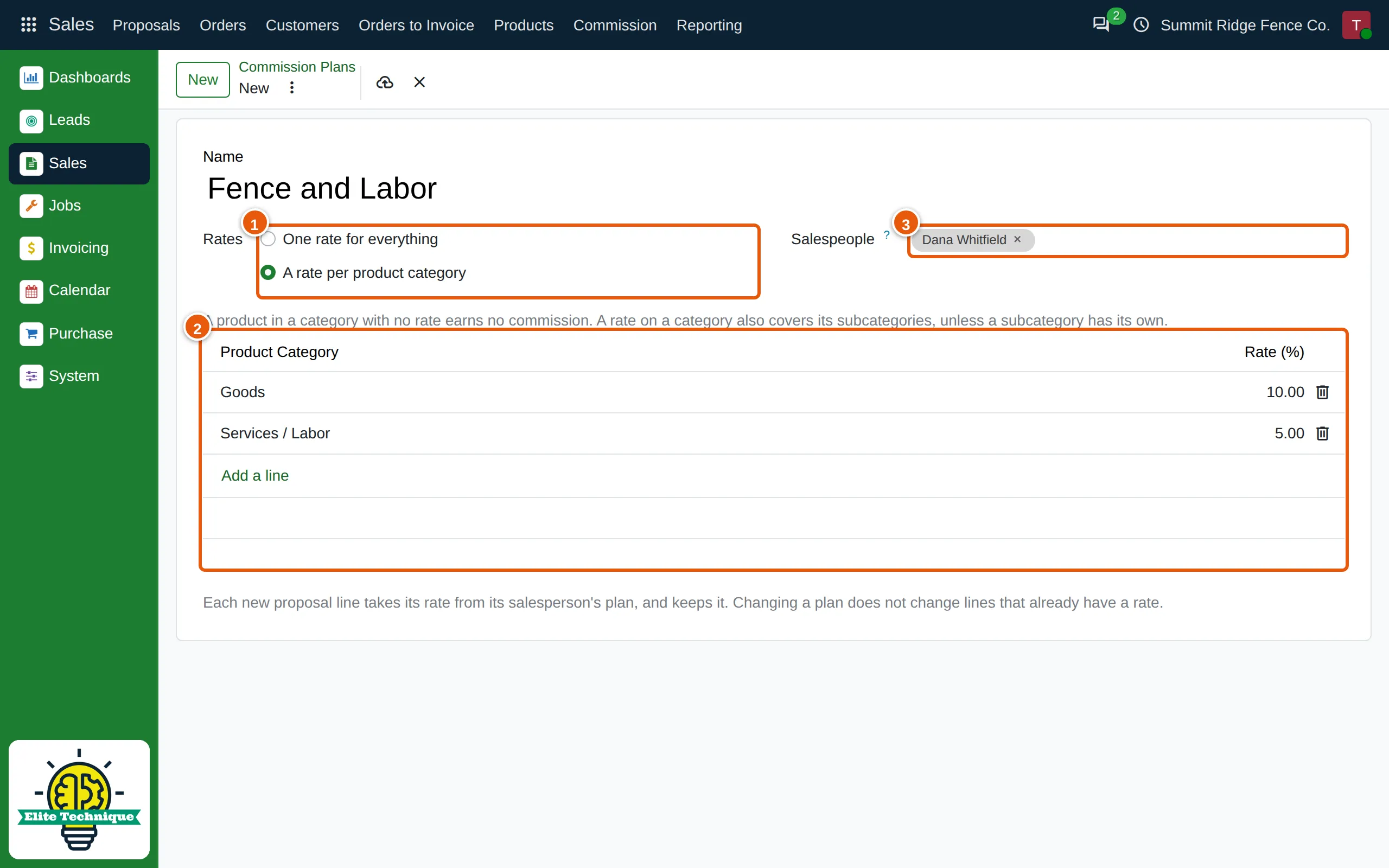
A rate on a category also covers its subcategories, unless a subcategory has a rate of its own: the 10% on Goods covers Goods / Vinyl too.
-
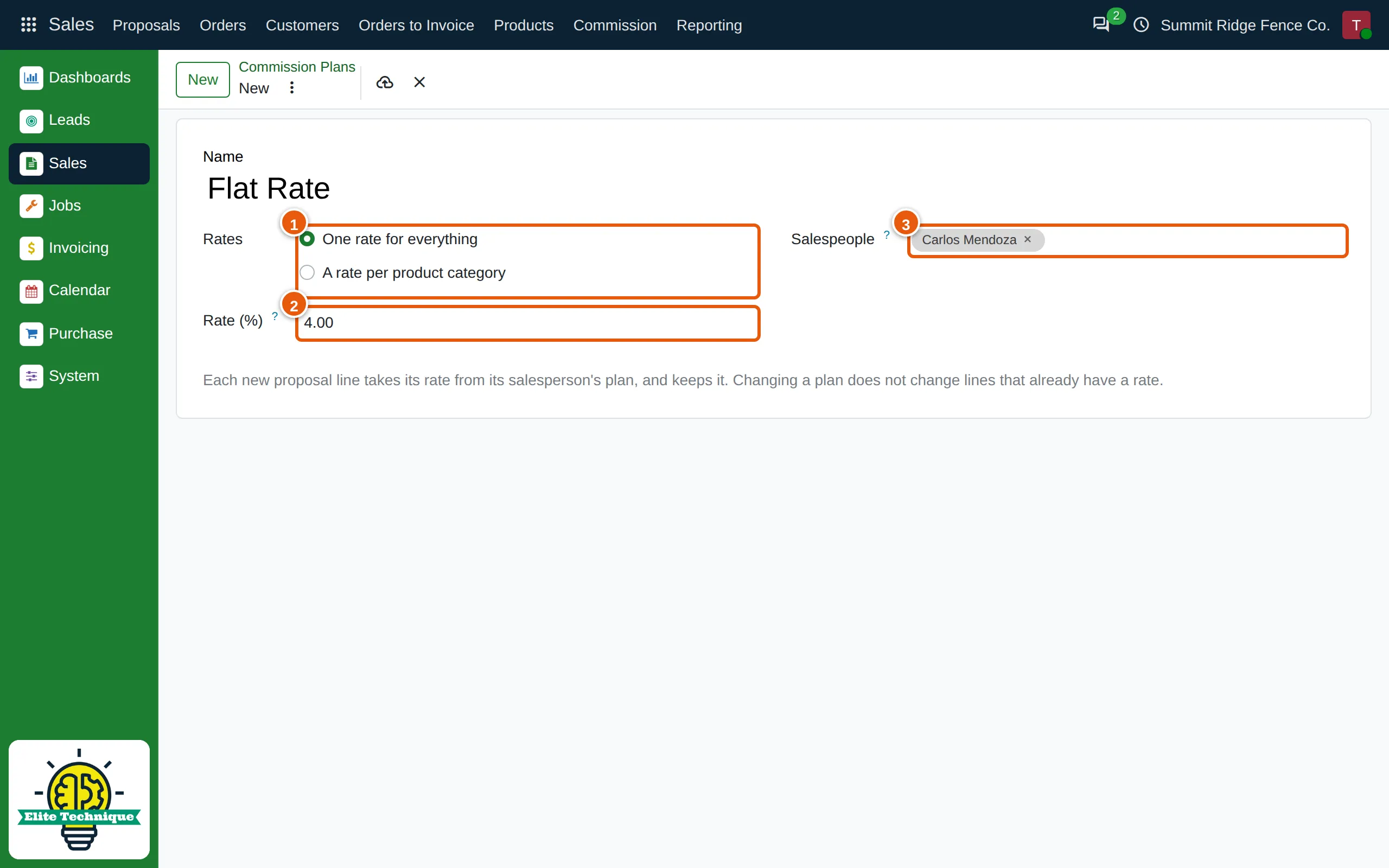
For one rate for everything: type a Name, leave One rate for everything chosen (1), type the Rate (%) (2) and pick the Salespeople (3). Click the cloud icon to save.
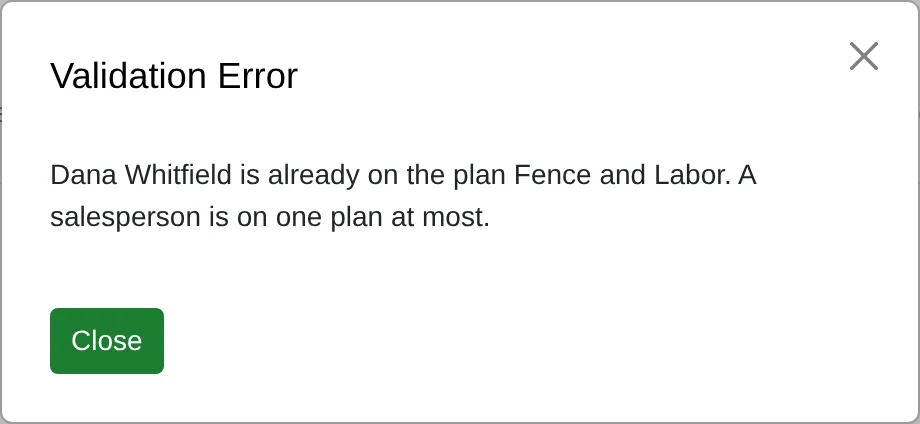
A salesperson is on one plan at most. Adding someone who is already on another plan is refused when you save: “Dana Whitfield is already on the plan Fence and Labor. A salesperson is on one plan at most.” Click Close, then take them off the other plan first.
What earns commission
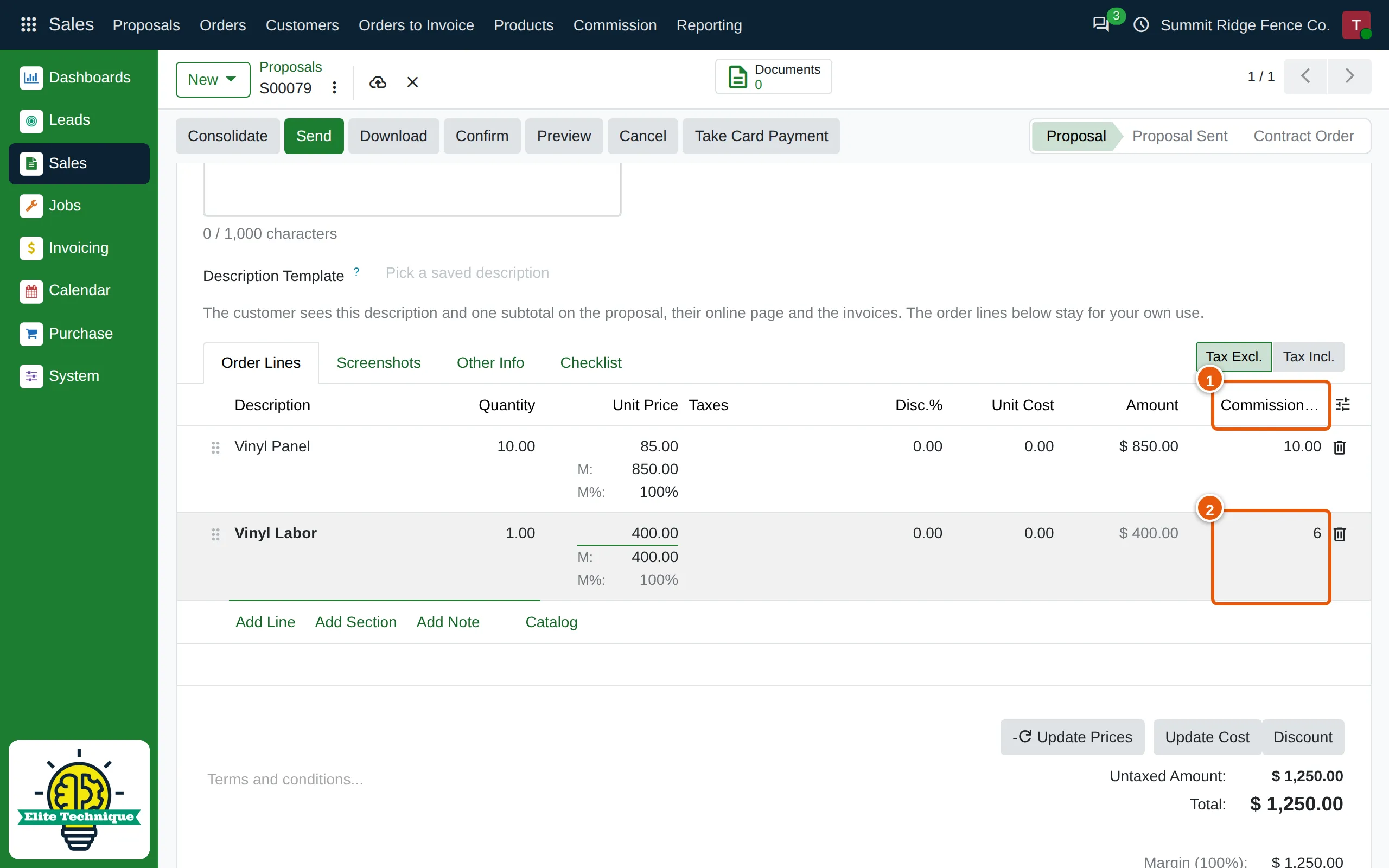
Section titled “What earns commission”Each new proposal line takes its rate from the salesperson’s plan, and keeps it. On a proposal, the Admin sees the rate in the Commission % column (1). Dana’s proposal below has 10 vinyl panels at 10% (Goods) and the labor at 5% (Services / Labor).
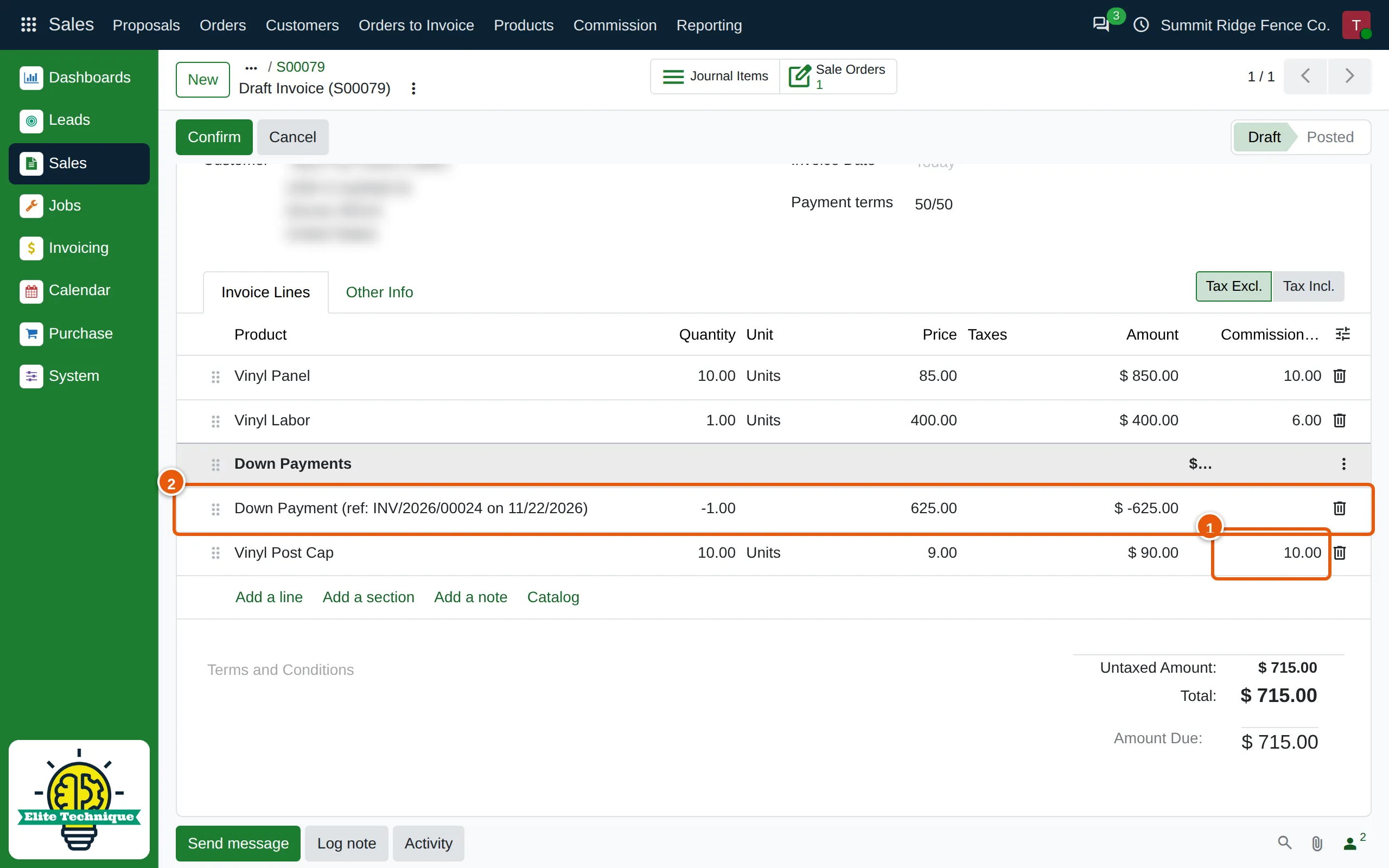
Commission is earned on what you bill, so it is recorded on invoices:
- The lines of the final invoice carry the rates from the proposal (1). A charge you add only on the invoice earns commission too, at the salesperson’s plan rate. Here 10 post caps added on the invoice take Dana’s 10%.
- Deposits earn no commission, and taking the deposit off the final invoice takes none back (2).
- Payment fees earn no commission.
- A credit note takes its invoice’s commission back, at the invoice’s own rates.
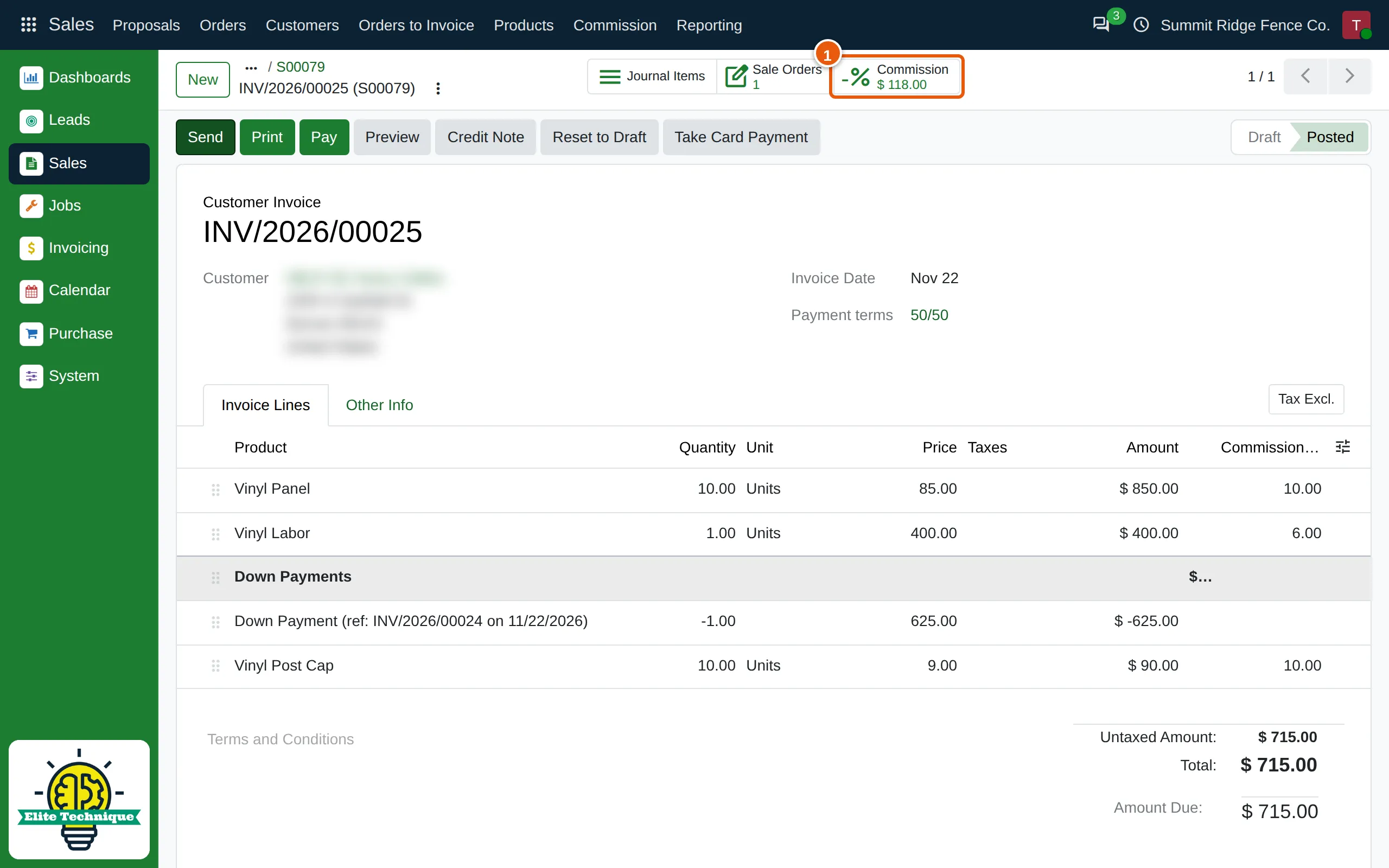
A posted invoice shows its commission on the Commission button (1).
Change a rate
Section titled “Change a rate”Only the Admin changes a rate, for one line at a time:
- On a proposal: click the line’s Commission %, type the new rate and save. In the picture above, the labor line goes from 5 to 6 (2). An invoice made from the line afterwards starts from the new rate.
- On a draft invoice: click the line’s Commission % and type over it before you confirm.
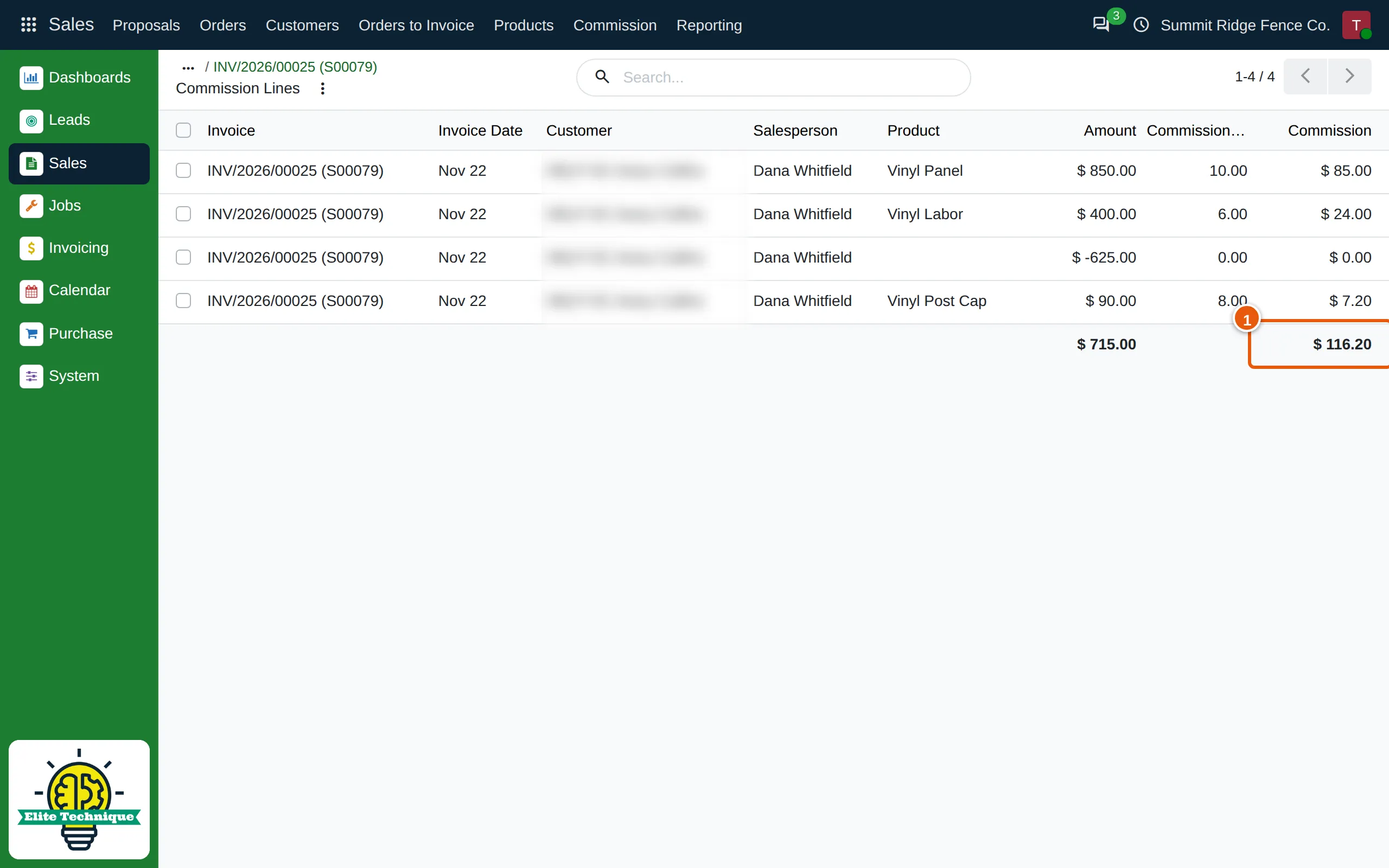
- On a posted invoice: click its Commission button. Click the line’s Commission %, type the new rate (1) and click Save (2).
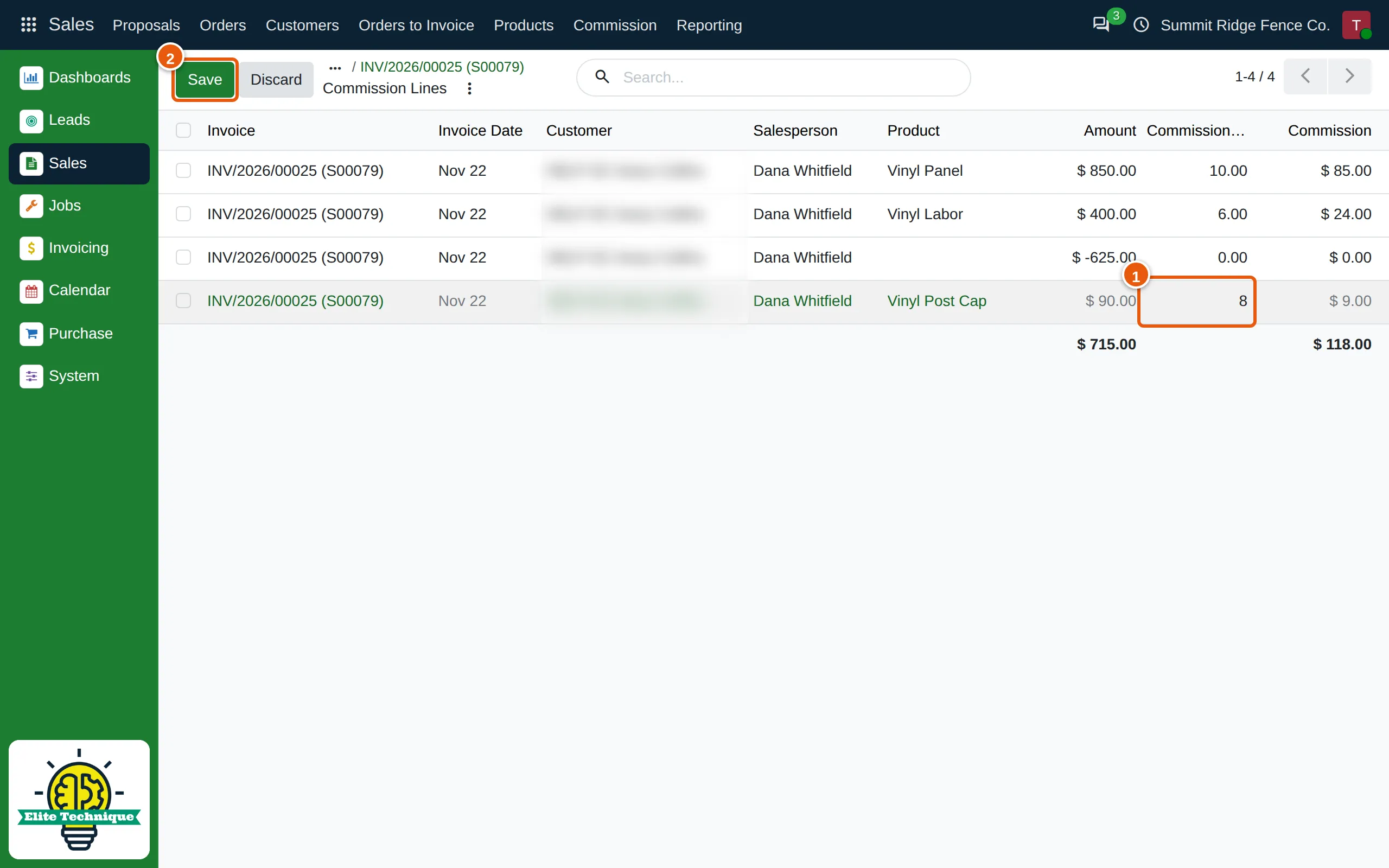
The total updates when you save: here the post caps earn $7.20 instead of $9.00, and the invoice’s commission goes from $118.00 to $116.20.
Read the Commission Report
Section titled “Read the Commission Report”Click Sales › Commission › Commission Report. It opens on This Month, with one row per salesperson and the same commission counted four ways:
- Sold (Expected) (1): what the salesperson’s confirmed proposals will earn, on the day each was confirmed. It is there so you can see what is coming. Nothing is earned until it is invoiced.
- Invoiced (2): the commission on each posted invoice, on the invoice date. Use this if you pay commission when you bill.
- Paid (3): each customer payment’s share of its invoice’s commission, on the payment date. Use this if you pay commission as your customers pay.
- Job Fully Paid (4): a job’s whole commission, on the day the last invoice of the job is paid, once nothing is left to invoice. Use this if you pay commission when the customer has paid for the whole job.
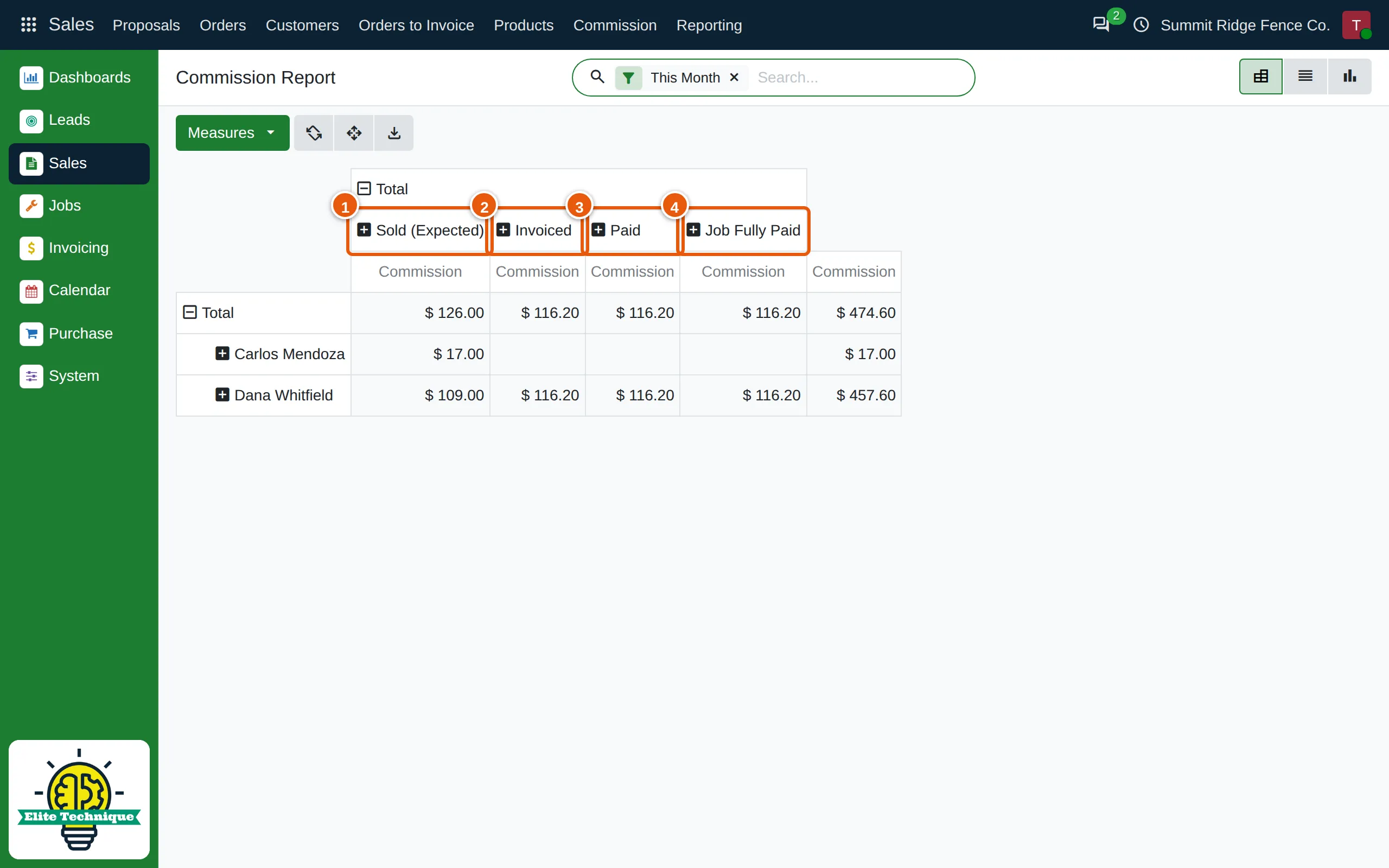
Here, Carlos has $17.00 sold and nothing invoiced yet. Dana sold $109.00 on her proposal. Her invoice added the post caps, so Invoiced reads $116.20, and the job is fully paid, so Paid and Job Fully Paid read $116.20 too. The last column adds the four ways together; it is not a figure to pay from.
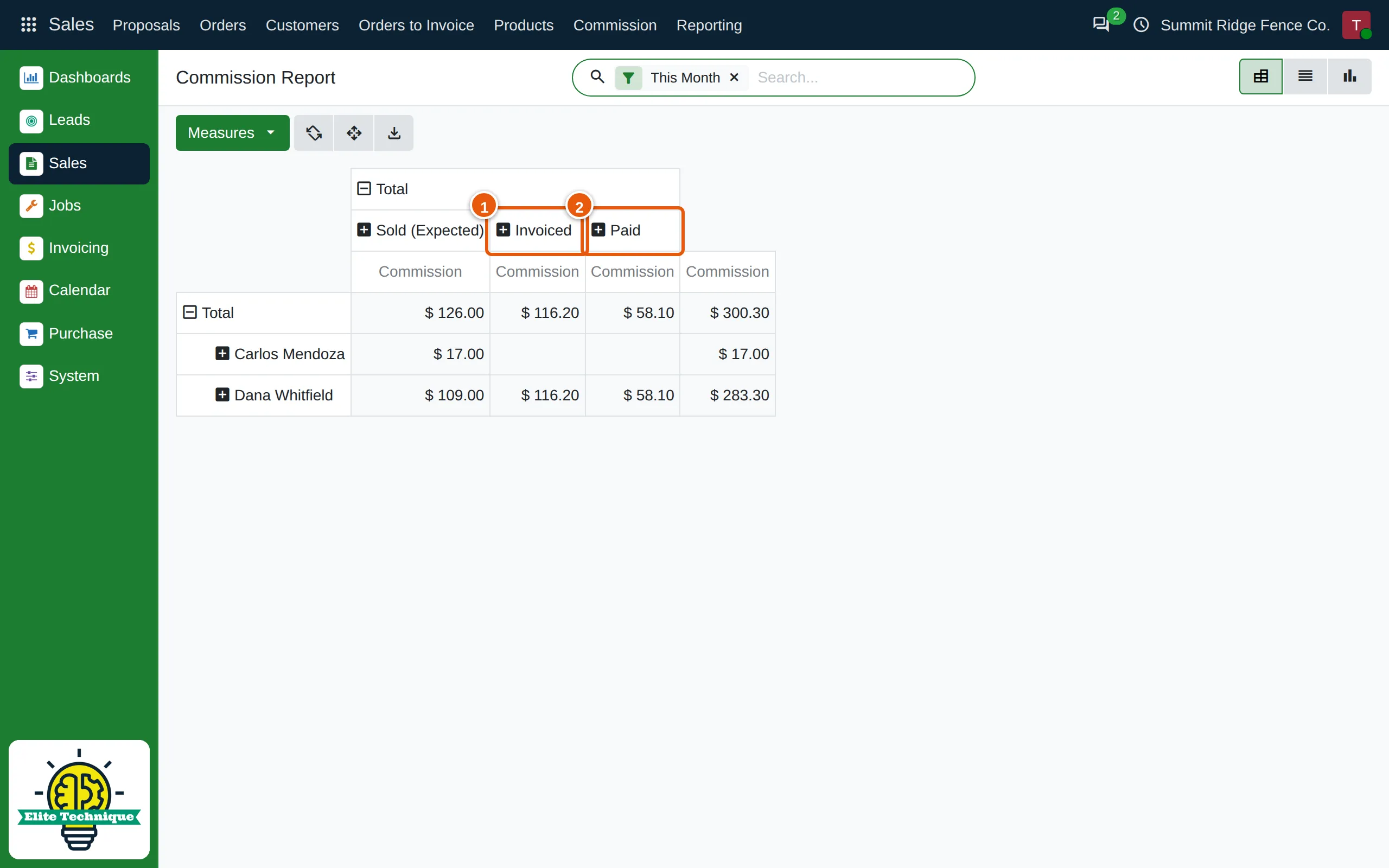
While a job is only partly paid, Paid shows the share paid so far and Job Fully Paid has nothing. Below, the customer has paid half the final invoice: Invoiced (1) reads $116.20 and Paid (2) $58.10.
Pick the period and the way you pay
Section titled “Pick the period and the way you pay”-
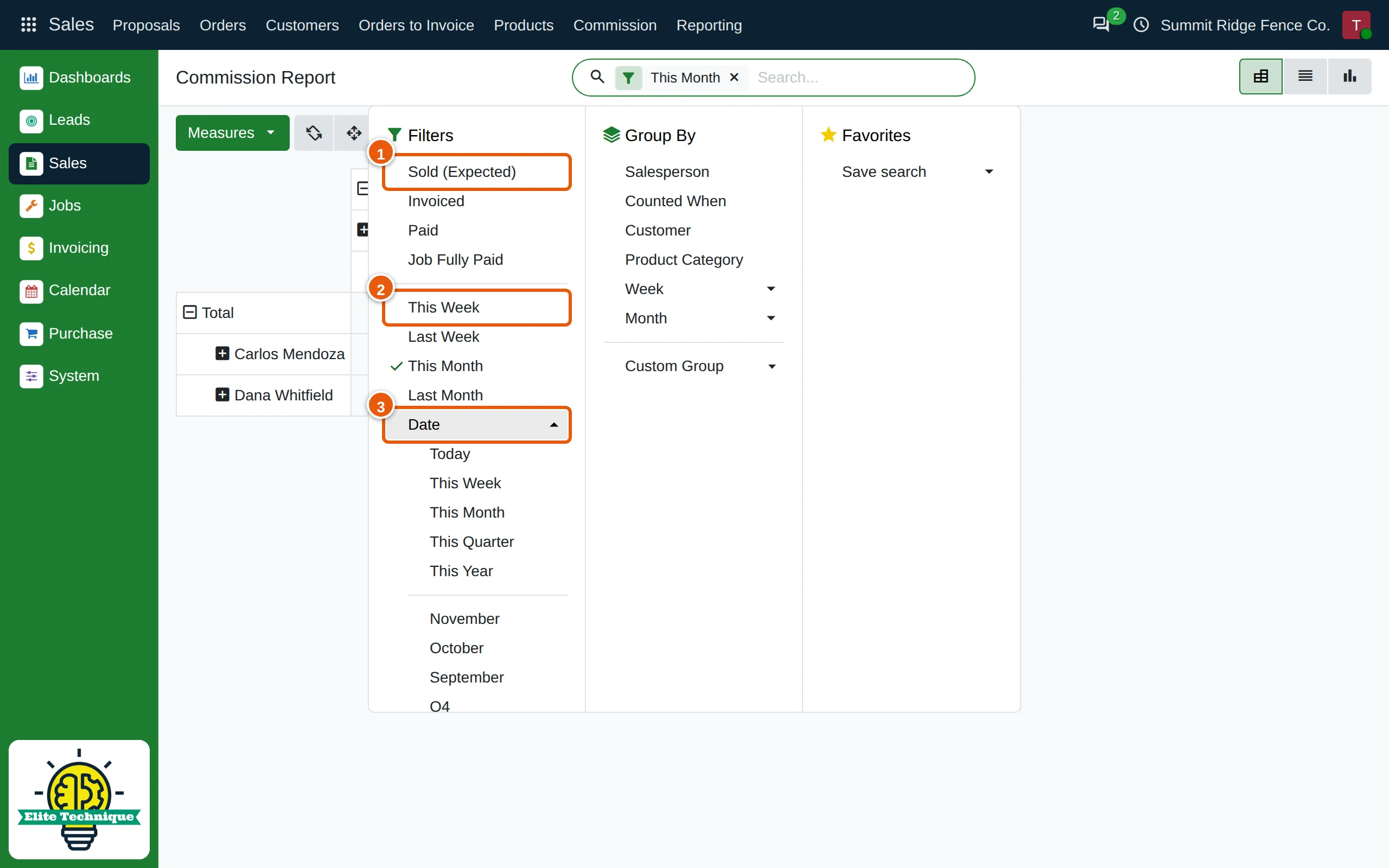
Click the arrow at the end of the search box. Under Filters, pick one way of counting (1) to show only that column, then a period (2): This Week, Last Week, This Month or Last Month. For any other month, quarter or year, click Date (3) and pick it.
-
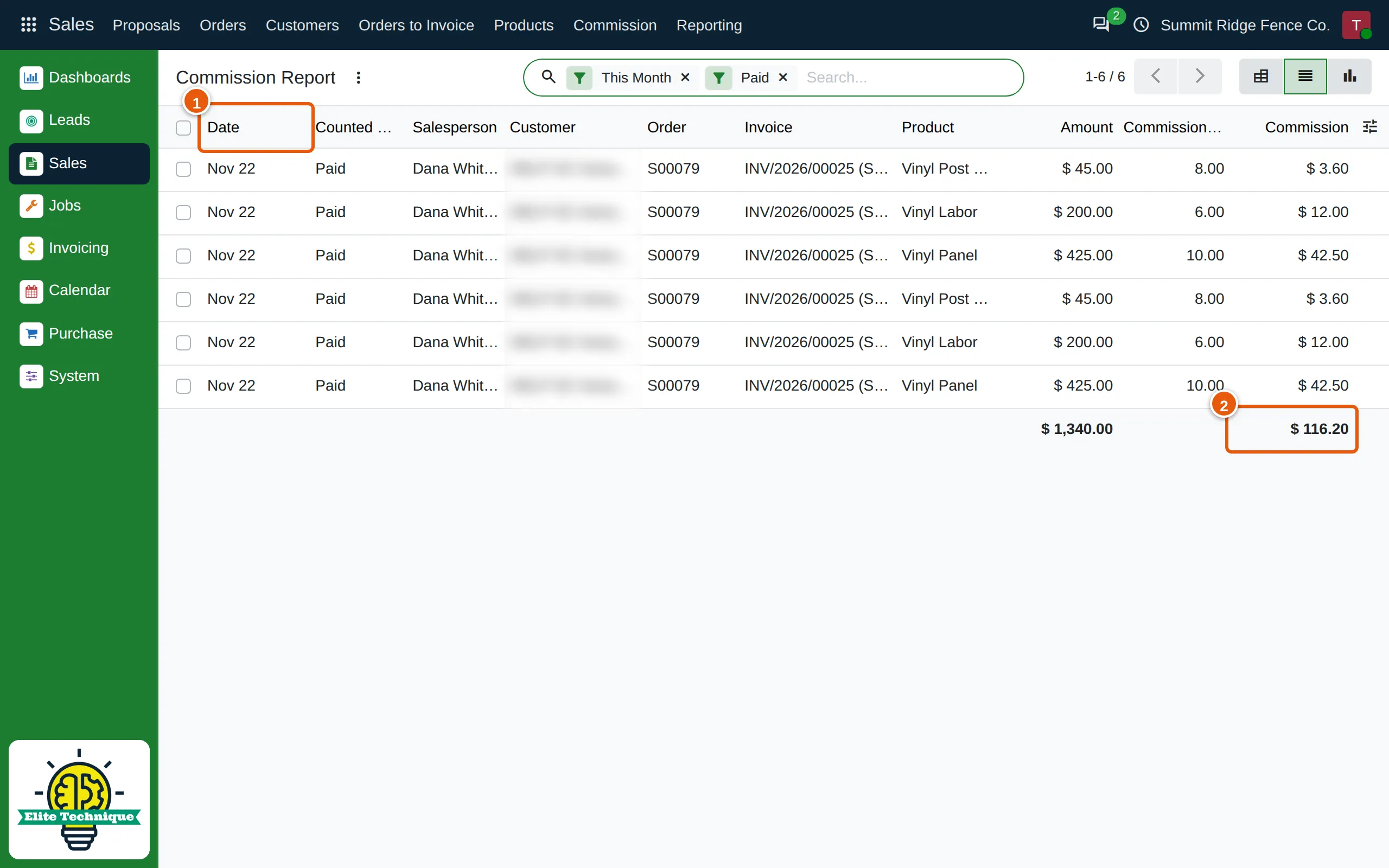
To see what makes up a figure, click the list icon at the top right. Each row is one line of an invoice, with its Date (1), salesperson, customer, order, invoice, product, amount and rate. With Paid picked, each payment has its own rows, on its own date. The total (2) is what to pay for the period.
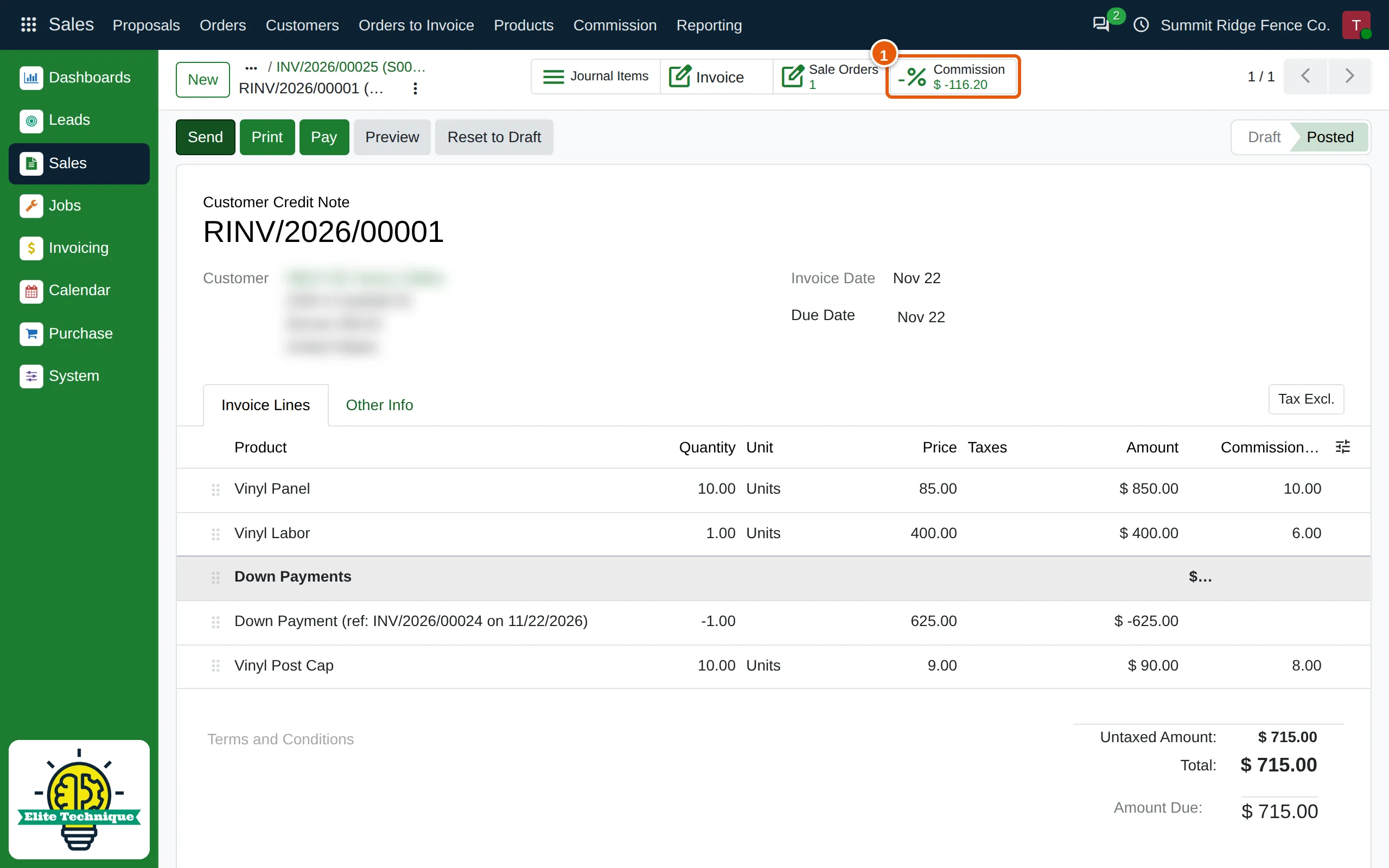
A credit note takes the commission back. Its Commission button reads the invoice’s commission as a minus (1), and the report’s Invoiced figure goes down by the same amount: crediting Dana’s whole invoice brings her Invoiced to $0.00. Payments already made still count under Paid, and the job leaves Job Fully Paid while the credit note is open.
The Commission dashboard
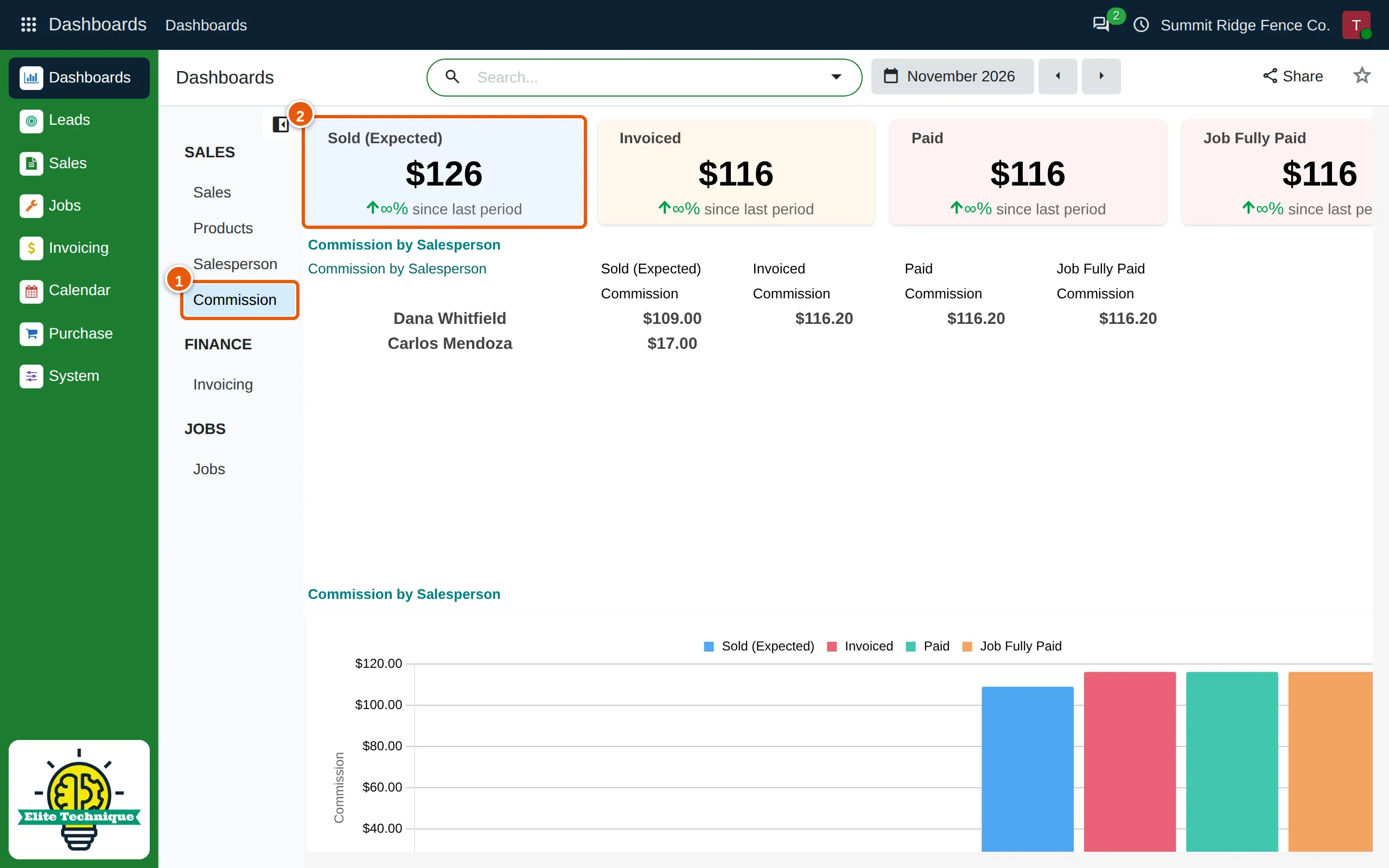
Section titled “The Commission dashboard”The dashboard shows the same figures at a glance: one card for each way of counting, a table by salesperson, and a bar chart.
- Admin: open the Dashboards app and click Commission (1). The cards (2) show this month’s totals; change the month at the top.
- Office: click Sales › Commission › Commission Dashboard.
What a salesperson sees
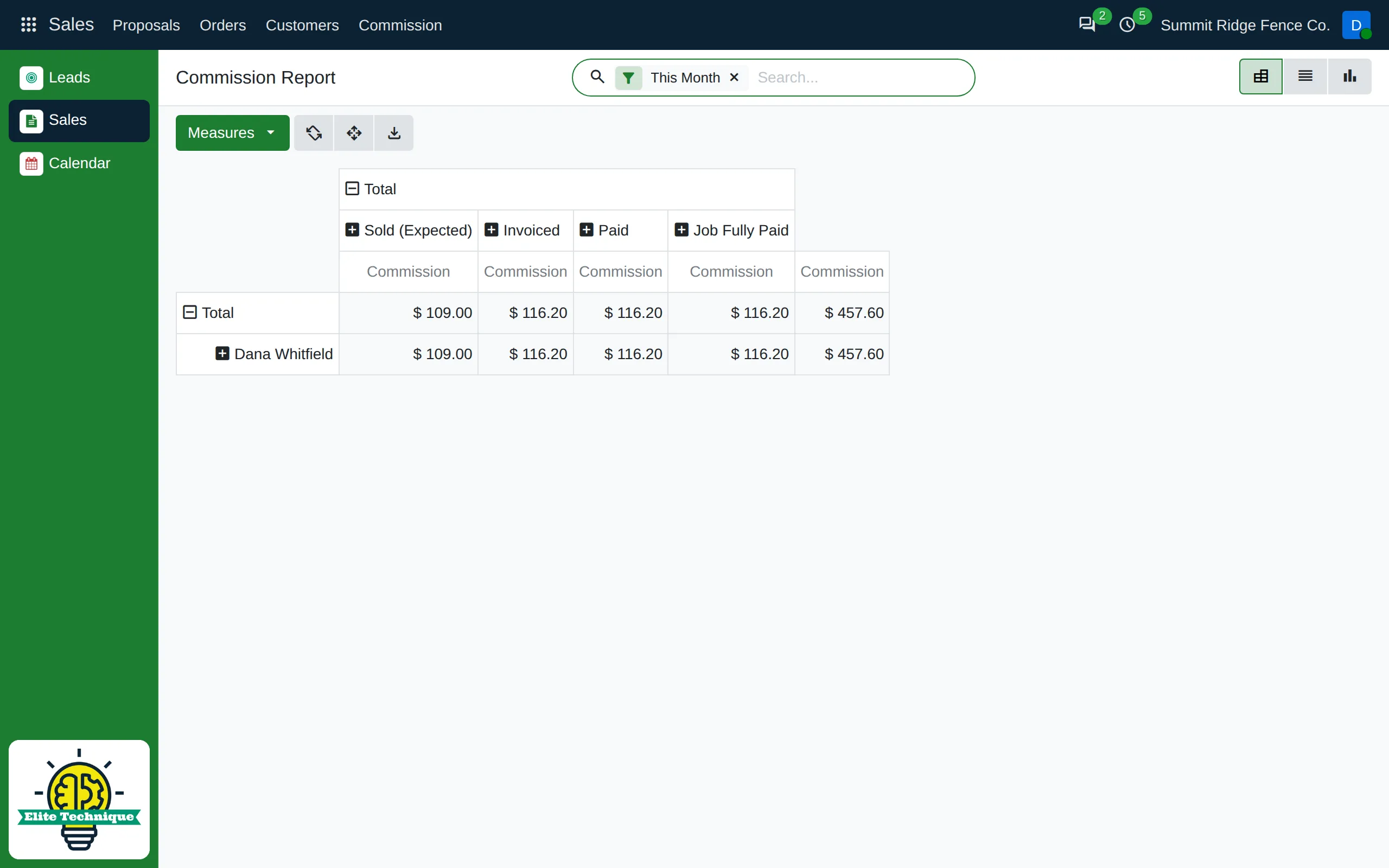
Section titled “What a salesperson sees”A salesperson’s Sales › Commission menu has only Commission Report, and it shows their own commission and no one else’s. They don’t see the Commission % column on proposals, and they can’t open the plans.
Office sees the plans, the commission lines and everyone’s report and dashboard, but can’t create a plan or change a rate. Installers have no Commission menu.